
Quick start guide
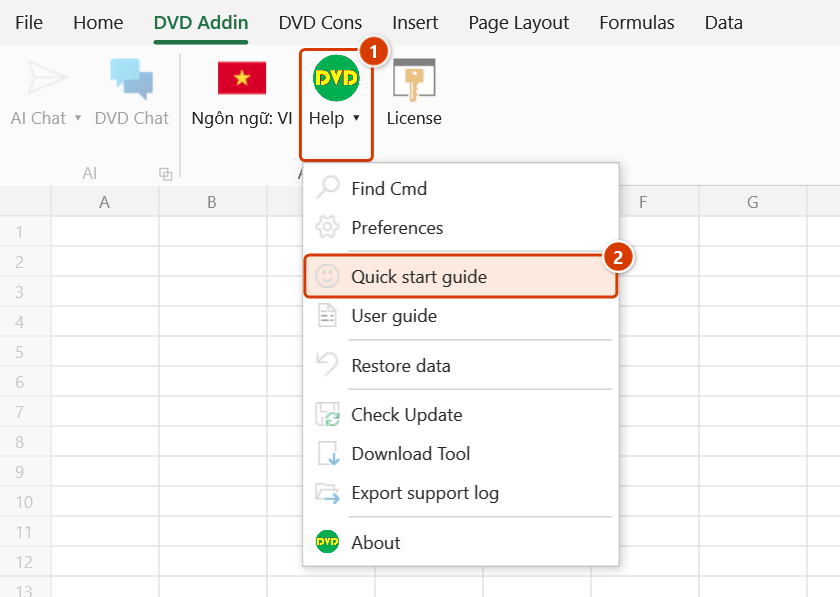
Location on ribbon: Tab DVD Addin → Group About → Menu Help
Command ID: btnOnboarding
What it does
Re-opens the welcome screen: the add-in's two tabs (DVD Addin for office work, DVD Cons for the site) and what each is for, the AI assistant, teamwork, quick tips (Ctrl+Shift+Q, Ctrl+Z after a command) and licensing. Three buttons right under the title: Find command, Enter AI key (opens Preferences ▸ AI directly) and User guide. It is the overview map that tells a new user what the add-in contains and where to look, instead of hunting through every ribbon button. Long-time users open it again from time to time to discover groups they have never touched.
How to use
- Go to tab DVD Addin → group About → Help menu → Quick start guide.
- The overview window opens, listing the main feature groups with a short description of each.
- Skim it to see which tab serves your work — DVD Cons for schedules, acceptance and payments; DVD Addin for text, printing and PDF.
- Click Get started to close the window, then open the matching ribbon group to get started.
- If the window is already open, running the command again brings it to the front rather than opening a second copy.
Video tutorial
Narrated in Vietnamese, with Vietnamese subtitles. Tìm lệnh nhanh và menu Trợ giúp · 4 min 12 s · 10 cases · Download the video
Commands in this video: Find Cmd · About · Export support log · Quick start guide · User guide · Find Cmd (Help menu)
Chapters (13)
- Giới thiệu
- 1 · Hai tab DVD Addin, DVD Cons
- 2 · Mở Tìm lệnh nhanh
- 3 · Lệnh dùng gần đây
- 4 · Gõ không dấu, gõ theo việc
- 5 · Enter, F1, Esc
- 6 · Menu Trợ giúp
- 7 · Sách PDF, file thực hành
- 8 · Hướng dẫn nhanh
- 9 · Xem phiên bản, bản quyền
- 10 · Gửi nhật ký khi gặp lỗi
- Mẹo
- Kết thúc
Illustrated walkthrough
Step 1. On the ribbon, open the DVD Addin tab → About group → open Help → choose Quick start guide.
Step 2. The 🎉 Welcome to DVD Addin! window opens (it does not lock the workbook). The panels 📝 DVD Addin tab — everyday office work, 🏗 DVD Cons tab — the site, 🤖 AI Assistant, 💬 Teamwork and 💡 Tips show where each group of commands lives.
Step 3. The three buttons under the title take you further: 🔎 Find command (Ctrl+Shift+Q) to type a command name, 🔑 Enter AI key opens Preferences ▸ AI Assistant directly, 📖 User guide opens the online documentation.
Step 4. Click Get started to close it. Tick Don't show again first if you do not want it to appear automatically when Excel starts — Quick start guide can still reopen it at any time.
Example
A site engineer has just had DVDAddin installed and his first jobs are a weekly programme and an inspection record. He opens the Quick start guide and sees that the DVD Cons tab — the site block lists Gantt drawing, a 3-week lookahead, and acceptance plans and records. He goes straight to the DVD Cons tab instead of spending the morning clicking through buttons.
Notes
- The window is non-modal, so you can leave it open and keep working in the worksheet.
- Running the command while the window is open just re-activates it; no second window is created.
- It is an overview only; per-command detail lives in the online documentation.
- The content follows the current interface language — switch the language and reopen it to see the other version.
- The window is purely informational and does not enable or configure any feature.
Related
- About — version, license and support contact details.
- Preferences — set command defaults once you know your way around.
- Find Cmd — type a few letters to find and run any command, shortcut Ctrl+Shift+Q.
- Lang: EN — change the language the overview window is shown in.