
About
Location on ribbon: Tab DVD Addin → Group About → Menu Help
Command ID: btnAbout
What it does
Opens the DVD Addin information window: the product name and the version currently running, a short summary of what the toolkit does, the license status (type and expiry date) and every support contact. This is where you get the details you need when reporting a problem or when you want to confirm how long the license on this machine is still valid.
How to use
- Go to tab DVD Addin → group About → click About.
- The window opens modally; the header shows DVD Addin with the version number and two summary lines about the feature set.
- The License block shows the license type in use and its expiry date.
- The contact block (heading About the author) lists the author, phone +84 988 909 382, the website
https://dvdaddin.dvdpm.net/, the YouTube channel@DVD-18, thedangdvd/DVDAddinGitHub repository and the Zalo support group. Click a link to open it in your browser. - Click Close to return to the worksheet.
Video tutorial
Narrated in Vietnamese, with Vietnamese subtitles. Tìm lệnh nhanh và menu Trợ giúp · 4 min 12 s · 10 cases · Download the video
Commands in this video: Find Cmd · About · Export support log · Quick start guide · User guide · Find Cmd (Help menu)
Chapters (13)
- Giới thiệu
- 1 · Hai tab DVD Addin, DVD Cons
- 2 · Mở Tìm lệnh nhanh
- 3 · Lệnh dùng gần đây
- 4 · Gõ không dấu, gõ theo việc
- 5 · Enter, F1, Esc
- 6 · Menu Trợ giúp
- 7 · Sách PDF, file thực hành
- 8 · Hướng dẫn nhanh
- 9 · Xem phiên bản, bản quyền
- 10 · Gửi nhật ký khi gặp lỗi
- Mẹo
- Kết thúc
Illustrated walkthrough
Step 1. On the ribbon, open the DVD Addin tab → About group → open Help → choose About.
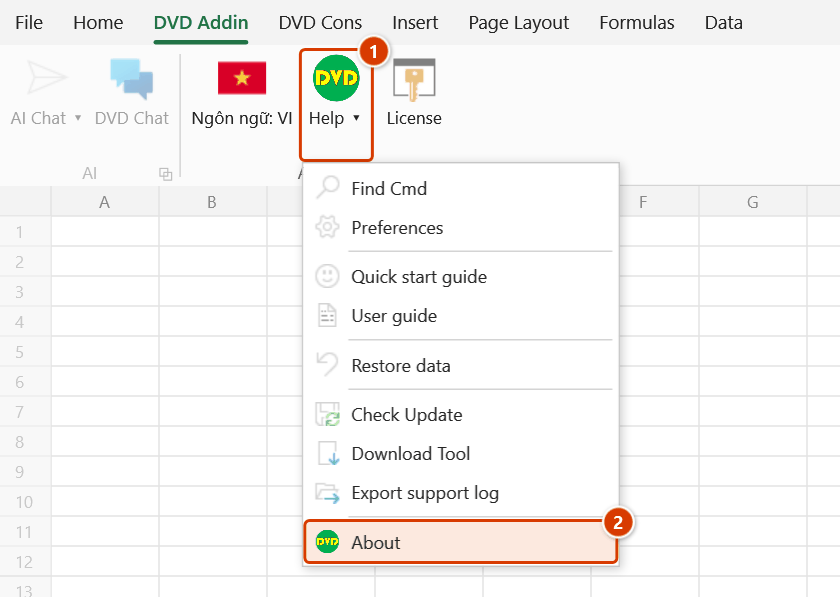
Step 2. The About window opens: DVD Addin with the running version number and two lines describing the features. Note this version number when you report a problem.
Step 3. The License panel shows the licence type and expiry date (from the data stored on this machine). The contact panel lists the website, YouTube channel, GitHub repository and Zalo support group — click a link to open it in your browser. Click Close to return to the workbook.
Example
On site, an engineer reports that the Gantt chart command is drawing incorrectly. Before posting in the Zalo support group he opens About, screenshots the window showing the version number and license type, and attaches it to his description. With the exact version in hand, support immediately sees the machine is on an old build and the fix is simply to run Check Update.
Notes
- The window is modal — close it before you can carry on working in Excel.
- It only displays information; to buy, renew or activate a license use the License button right next to it in the About group — its label also tells you how many trial days are left or that renewal is due.
- The expiry date reflects the license data cached on this machine, in local time; if you just renewed and it looks stale, sign in again from License, then reopen this window.
- Clicking a link opens your default Windows browser and needs an Internet connection.
- Always quote the version shown here when you file a bug report — it is the first thing support asks for.
Related
- License — check the expiry, buy, renew / upgrade to Pro, sign in and move machines.
- Check Update — see whether a version newer than the one shown here exists.
- Quick start guide — replay the overview of the main feature groups.