
License
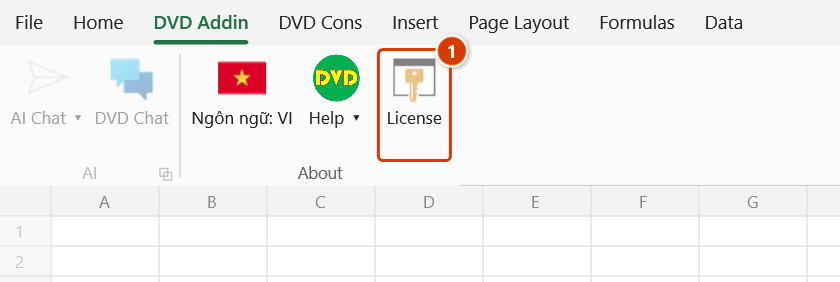
Location on ribbon: Tab DVD Addin → Group About (the large button at the far right). The About group name also carries the status when you need to act (e.g. About · 12 days, About · Buy License): narrow screens collapse this group into a single button named after the group, so the day count stays visible. Mirror button: Tab DVD Cons → Group Quick — shown only when the license is about to run out or already has.
Command ID: btnupdatekey · Keytip: Alt, G, U, K (DVD Cons mirror: Alt, C, B, Q)
What it does
One button for everything about your license: see how many trial days are left or when your plan ends, buy a license, renew or upgrade to Pro, sign in / sign out / move to another machine, reset a forgotten password and manage team members. Whatever the label says, clicking it opens the same License box — the Buy button sits right next to the sign-in form, because after paying you still sign in with the password sent by email.
The button label tells you the license state, so a glance at the ribbon shows how many trial days remain, whether the plan is about to end or whether the machine needs to go online — instead of finding out when a command locks.
Replaces the two old "Buy License" commands
Earlier builds also had a Buy License item in the About menu and a large Buy License button that only showed while the machine was not activated. Both are merged into this button. Keyboard shortcuts you assigned to the old commands still work and now open the License box; in Find Cmd you can still type "Buy License" — see Buy License.
Button label by state
| State | Vietnamese label | English label | Also shown on DVD Cons |
|---|---|---|---|
| Trial, 4 or more days left | Dùng thử: còn N ngày | Trial: N days left | When 7 days or fewer are left |
| Trial, last 3 days | ⚠ Dùng thử: còn N ngày | ⚠ Trial: N days left | Yes |
| Trial ends later today | ⚠ Dùng thử: hết hôm nay | ⚠ Trial ends today | Yes |
| Trial has ended | Mua bản quyền | Buy License | Yes |
| Activated, nothing to do | Bản quyền | License | — |
| Time-limited plan with 14 days or fewer left | Gia hạn: còn N ngày (last day: Gia hạn: hết hôm nay) | Renew: N days left (Renew: ends today) | When 7 days or fewer are left |
| 7-day offline session has less than 24 hours left (and the plan runs longer than that) | Cần nối mạng | Go online | — |
| Session ended because the machine stayed offline too long, or was revoked (the account signed in on another machine, the password changed…) | Đăng nhập lại | Sign in again | Yes |
| Purchased plan has expired | Gia hạn bản quyền | Renew License | Yes |
| The machine's date/time was set back since the last run (licensed commands locked for now) | Kiểm tra đồng hồ | Check clock | Yes |
| Account locked (by an administrator or the team owner) | Bản quyền (tooltip says it is locked) | License | Yes |
| A debugging / monitoring tool is running (Process Explorer, Fiddler…) | Bản quyền (tooltip asks you to close it) | License | — |
| Not known yet, no license, just signed out | Bản quyền | License | — |
How to read it:
- N counts calendar days on this machine: it drops by one at midnight. The label never shows 0 or a negative number — the last day reads "ends today". English uses
1 day leftfor a single day. - Go online applies to lifetime plans too (even a lifetime plan has to go online at least once every 7 days), but only when going online can actually extend the session: in the last days of a time-limited plan the session ends together with the plan, so the button shows Renew instead.
- Sign in again never asks you to buy again: the license is still yours, only the session on this machine ended.
- Hover over the button for details: the first line of the tooltip gives the trial end date and time, or the plan + account email + plan end, or when the offline session ends.
- The label refreshes by itself when Excel opens, every hour, just after midnight and whenever the License box closes — no Excel restart needed. When the state changes (just activated, just expired…), the 🔒 marks on gated commands follow.
- The DVD Cons mirror is for people who live on the DVD Cons tab (Gantt, rebar cutting, QS): it appears only when you need to act — the last 7 days of the trial or of a purchased plan, after the trial or plan has ended, when you must sign in again, when the machine clock was set back or the account is locked — and opens the same License box as the main button.
What the License box contains
Every label opens the same License box. Its content follows the state:
| Part | Content |
|---|---|
| Status card (colour follows the state) | Heading: Trial — N day(s) left (last day: ends today at HH:mm), ✓ Signed in — Edition: …, ✗ License expired, ⏱ Session expired, a revoked-session warning, or No license. Detail line: trial start and end dates; or account, plan end and Works offline until (the date to go online by). The last line is the Machine ID in a monospaced font. All dates and times are in this machine's local time. |
| 🛒 Buy License (orange button) | Shown during the trial, after the trial, when a plan has expired and when the machine has no license. Opens the 3-step purchase window; the account email is filled in when the machine knows it. |
| Renew / Upgrade to Pro | Shown once activated (hidden for a lifetime Pro plan — there is nothing left to buy). Opens the purchase window with Pro preselected and your current account email filled in. |
| Hint after payment (bold green text) | New purchase: check the email (including Spam) for your password, then sign in below. Renewal: the new license (term starts today) was added to your account and your password is unchanged — click Sign out, then sign in again to switch to it now (waiting for the old plan to end gains no days). Buying more while on lifetime Pro or Pro: the new license is for another machine or person; this machine keeps its plan. Upgrade to Pro: click Sign out, then sign in again to use Pro right away. |
| Sign-in form | Email, Password, a Forgot password? link and the Sign in button. Hidden once the machine is activated. |
| Bottom left (when signed in) | Sign out (red outline) to release this machine; Team members… for the account owner to give each person their own account on the seats bought. |
When the session ended because the machine stayed offline, or was revoked, the box shows no Buy button — you only need to sign in again; the email is already filled in.
How to use
- Click License on the DVD Addin tab → About group (or Alt, G, U, K; or the DVD Cons mirror when it is visible; or Ctrl+Shift+Q and type "License"). The button works with no workbook open — checking your expiry or signing in does not need one.
- Read the status card for the current state and expiry.
- Not bought yet: click 🛒 Buy License and go through the 3 steps — Pick plan (Standard / Pro, term, number of machines), Your details (Email, Full name, Company), Payment (scan the VietQR code, leave the transfer memo untouched). When the window says Done, close it: the green hint in the License box tells you what to do next and the Email field is already filled in.
- Sign in: enter Email and Password (the first time it is the temporary password from the email), then click Sign in or press Enter. A green panel confirms, a red panel reports wrong credentials or a connection problem. After signing in with a temporary password the add-in makes you set your own before carrying on.
- Activated and want to renew or move to Pro: click Renew / Upgrade to Pro, keep the prefilled email, pay, then follow the green hint.
- Moving machines: click Sign out on the old machine, then sign in on the new one.
- Click Close. The button label and the 🔒 marks on the ribbon update to the new state.
Video tutorial
Narrated in Vietnamese, with Vietnamese subtitles. Bản quyền, dùng thử, mua và kích hoạt · 3 min 39 s · 12 cases · Download the video
Commands in this video: License · Buy License (old button, merged) · Buy License · License (DVD Cons button)
Chapters (15)
- Giới thiệu
- 1 · Nhãn nút Bản quyền
- 2 · Đang dùng thử 30 ngày
- 3 · Mua: gói, thời hạn, số máy
- 4 · Mua: thông tin, thanh toán
- 5 · Đăng nhập, đổi mật khẩu
- 6 · Đã kích hoạt
- 7 · Gia hạn, nâng cấp Pro
- 8 · Chuyển sang máy khác
- 9 · Hết hạn
- 10 · Lâu không nối mạng
- 11 · Bấm lệnh PRO khi dùng Standard
- 12 · Quên mật khẩu
- Mẹo
- Kết thúc
Illustrated walkthrough
Step 1. Look at the button at the end of the About group: its label shows the licence state — e.g. Trial: 12 days left, Renew: 5 days left, Go online, Sign in again or Buy License; when nothing needs doing it reads License. Click it to open the License box.
Step 2. The status card at the top says whether you are on trial, signed in, expired or out of session, with the relevant dates in the machine's local time. Without a licence, click 🛒 Buy License and go through the 3 purchase steps; once activated, a Renew / Upgrade to Pro button is offered.
Step 3. Sign in with the Email and Password sent to you after purchase and click Sign in; to move to another computer, click Sign out on the old one first. When you close the box, the button label and the 🔒 marks on the ribbon update to the new state.
Example
Nam, a quantity surveyor, installs DVDAddin at the start of the month. The button in the About group reads Trial: 30 days left and drops by one every morning. With a week to go, a Trial: 7 days left button also appears on the DVD Cons tab next to Find Cmd — where he spends most of his day; in the last three days the label gains a ⚠.
He clicks it and picks 🛒 Buy License: Pro, 1 year, 3 machines for the team, email [email protected], scans the QR. When he closes the purchase window, the License box shows a green line telling him to check his email for the password, with the address already in the Email field. He pastes the temporary password, clicks Sign in and sets his own password — the status card turns green, ✓ Signed in — Edition: PRO, the ribbon button goes back to License and the DVD Cons button disappears. He uses Team members… to give his two colleagues their own accounts.
Eleven and a half months later the button reads Renew: 14 days left. He clicks Renew / Upgrade to Pro, the account email is prefilled, and pays. The new license term starts on the payment day, so waiting for the old plan to end gains nothing: following the green hint, he clicks Sign out and signs in again to switch to the new license right away.
Notes
- An account holds one sign-in session at a time. Signing in on a new machine ends the session on the old one — the old machine's label changes to Sign in again. If you bought several machines, give each person their own account through Team members… rather than sharing one email.
- Renew with the account email you already use (the box fills it in). Paying with a different email makes the server create a separate account, and the license does not land on this one.
- Signing in, buying and renewing need an internet connection. After each time it goes online the machine may work offline for 7 days: with under 24 hours left the label says Go online; once it lapses the label says Sign in again and gated commands stop until you go online and sign in — the license is still valid, nothing to buy.
- If the machine clock has been set back, the label falls back to a neutral License (no day count) and gated commands are blocked. Turn on Windows time sync, then sign in again — see Troubleshooting.
- The Machine ID on the status card is what support needs for a manual unlock or machine transfer.
- Forgot your password: click Forgot password? in the sign-in form, receive a 6-digit code by email and set a new password inside Excel.
Related
- Buy License — the "Buy License" entry in the command palette and shortcuts; opens this same box.
- License (DVD Cons button) — the mirror button and when it appears.
- About — version, license type, expiry date and support contacts.
- Find Cmd — reach the License command from the keyboard (Ctrl+Shift+Q).
- Check Update — check for and install a newer add-in build.
- License activation — the full guide to buying, activating and moving a license.