
Lang: EN
Location on ribbon: Tab DVD Addin → Group About
Command ID: btnSwitchLang
What it does
Switches the whole DVDAddin interface — ribbon labels, screentips and every WPF dialog — between Vietnamese and English with a single click. The button's own caption names the language you will switch to: while the interface is in Vietnamese it reads Language: EN (UK flag) and clicking switches to English; while the interface is in English it reads Ngôn ngữ: VI (Vietnamese flag) and clicking switches back to Vietnamese. Your choice is remembered for the next Excel session.
How to use
- Go to tab DVD Addin → group About.
- Read the button caption to see the language you will switch to: Ngôn ngữ: VI (English now, click to go to Vietnamese) or Language: EN (Vietnamese now, click to go to English).
- Click the button to switch to the language on the caption.
- The ribbon and the add-in's dialogs relabel immediately, and the button caption flips to reflect the new state.
- Nothing else to do — the next time Excel starts, the add-in still uses the language you chose.
Video tutorial
Narrated in Vietnamese, with Vietnamese subtitles. Tùy chọn và Ngôn ngữ · 3 min 50 s · 10 cases · Download the video
Commands in this video: Preferences · Lang: EN
Chapters (13)
- Giới thiệu
- 1 · Mở Tùy chọn
- 2 · Mười mục ở cột trái
- 3 · Giao diện sáng / tối
- 4 · Khoá API cho lệnh AI
- 5 · Chọn nhà cung cấp AI
- 6 · Bảo vệ dữ liệu
- 7 · Phím tắt
- 8 · Lưu và áp dụng
- 9 · Khôi phục mặc định
- 10 · Đổi ngôn ngữ
- Mẹo
- Kết thúc
Illustrated walkthrough
Step 1. On the ribbon, open the DVD Addin tab → About group. The language button always names the language you will switch to: while the interface is in Vietnamese it reads Language: EN with a UK flag; while it is in English it reads Ngôn ngữ: VI with a Vietnamese flag.
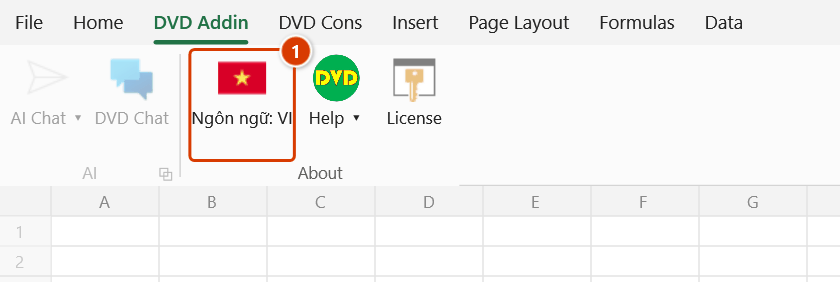
Step 2. Click it: the ribbon and the add-in windows switch language at once and the button label flips. The choice is remembered for later Excel sessions.
Step 3. Only DVDAddin's interface language changes — not Excel's language, and no worksheet content is translated. Add-in windows that are already open may need to be closed and reopened to show every new label.
Example
A project team shares a workstation between a Vietnamese estimator and an expatriate planning engineer. The estimator works the morning shift with the Vietnamese interface (the caption reads Language: EN); in the afternoon the planning engineer clicks the button once and the whole ribbon, plus dialogs such as Gantt Builder and Batch Print, appear in English and stay that way for his following sessions.
Notes
- The command changes the DVDAddin interface only; it does not change Excel's own language and does not translate worksheet content.
- The button's caption, flag icon and screentip are all in the language you will switch to, not the language currently in use.
- The setting is stored per Windows user profile, so a shared PC keeps a separate choice for each account.
- A window that is already open may need to be closed and reopened before every label picks up the new language.
- The online documentation exists in both languages; switching inside the add-in does not switch the website locale.
Related
- Preferences — the add-in's other default settings.
- About — version, license and support contact details.
- Quick start guide — replay the feature overview in the language you just selected.
- Header language — change the language of table headers the add-in generates.