
Header Language
Location on ribbon: Tab DVD Cons → Group Schedule → the arrow next to Setup
Command ID: btnHeaderLang
What it does
Toggles the active schedule sheet's column headers between Vietnamese and English. It renames the header text only — data, formulas and the Gantt drawing are left untouched.
This matters when the same programme has to serve two audiences: a Vietnamese version for the local client and an English one for a foreign consultant or international main contractor. Every add-in command recognises both languages, so everything keeps working after the switch.
How to use
- Open the schedule sheet whose headers you want to change (it needs a recognisable header row containing, for example, Activity ID / Start / Finish).
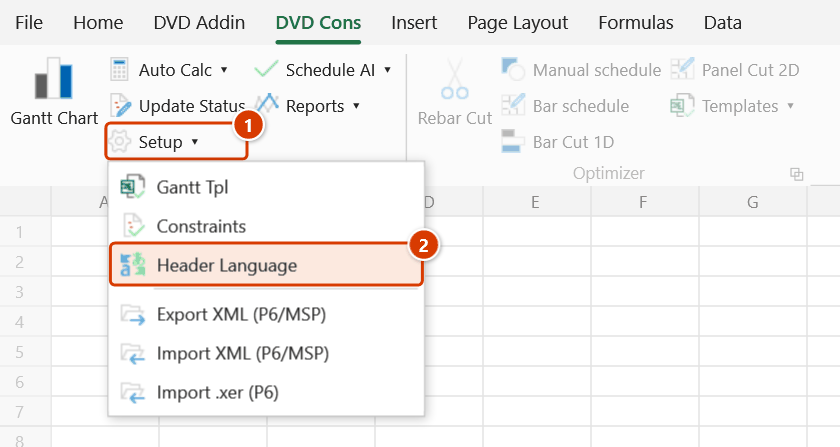
- Go to the DVD Cons tab → Schedule group → click the arrow next to Setup → Header Language.
- The command runs immediately; there is no dialog. The add-in counts which language the header row currently leans towards and flips it to the other one (currently English, or a tie, means it switches to Vietnamese).
- Read the message:
✓ Switched N column header(s) to <language>.If nothing needed changing you getNo headers needed changing (already in that language). - Click the command again to switch back.
Video tutorial
Narrated in Vietnamese, with Vietnamese subtitles. Cài đặt tiến độ, Mẫu, Ngôn ngữ tiêu đề · 6 min 52 s · 15 cases · Download the video · Practice workbook for the video
Commands in this video: Setup · Calendar Setup · Gantt Tpl · Header Language
Chapters (19)
- Giới thiệu
- Mở lệnh
- 1 · Đổi tiêu đề Anh → Việt
- 2 · Bảng lẫn hai thứ tiếng
- 3 · Bảng không phải tiến độ
- 4 · Cửa sổ Cài đặt – ba thẻ
- 5 · Hiển thị, màu, thang
- 6 · Đường găng
- 7 · Từ khoá tài nguyên
- 8 · Tuần làm việc 5 ngày
- 9 · Ngày lễ, ngày nghỉ riêng
- 10 · Lưu theo sổ hay theo máy
- 11 · Ẩn/Hiện cột
- 12 · Sắp xếp cột, Ctrl+Z
- 13 · Mẫu tiến độ → sổ mới
- 14 · Không tìm thấy mẫu
- 15 · Sheet đang khoá
- Mẹo
- Kết thúc
Illustrated walkthrough
Practice
Download this command's sample workbook — the data matches the pictures below (sheet Import 9-storey office building), so you can follow each step right away.
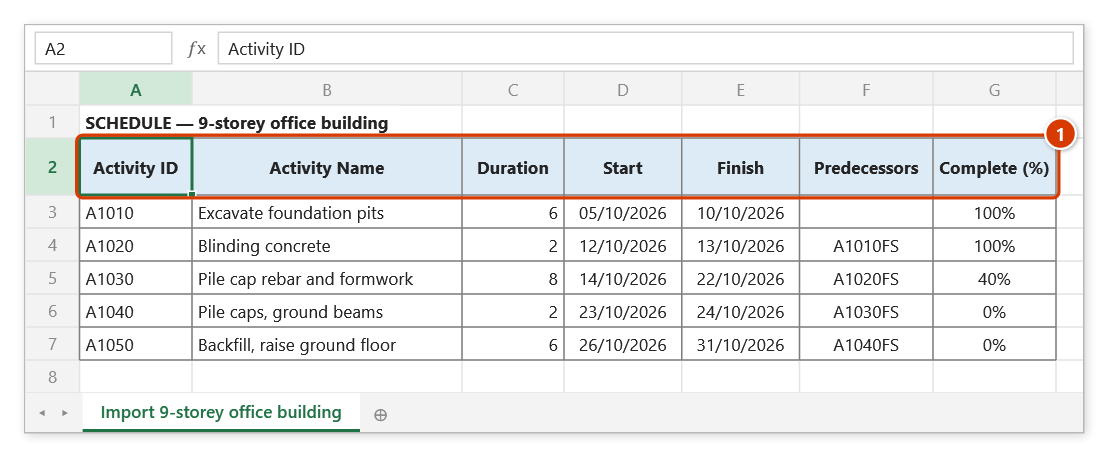
Step 1. Open the schedule sheet whose headers you want to switch — e.g. a sheet just imported from MS Project, with English headers (1).
Step 2. On the ribbon, open the DVD Cons tab → Schedule group → open Setup → choose Header Language.
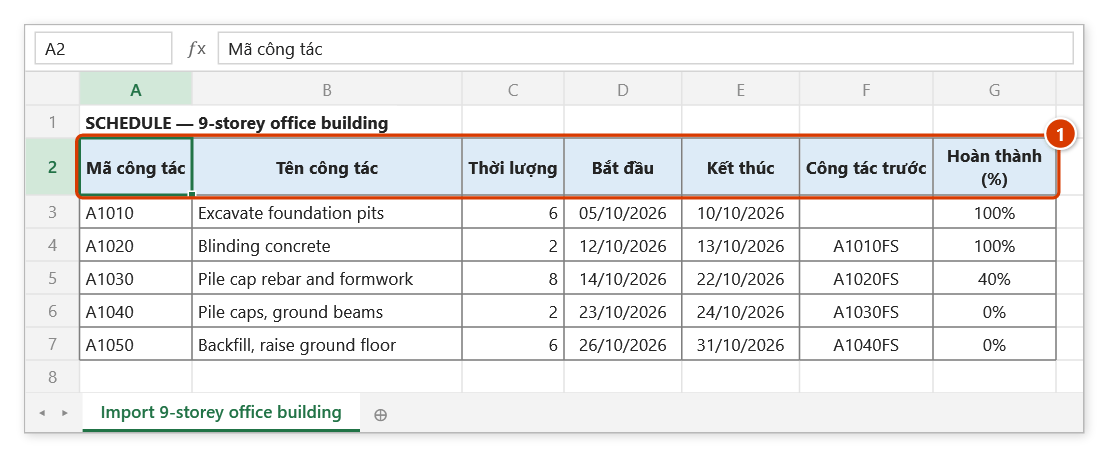
Step 3. The command runs at once, with no input window: the add-in counts which language the header row leans to and switches to the other one — here every standard header becomes Vietnamese (1); data, formulas and the chart stay as they are. The message reads ✓ Switched 7 column header(s) to Vietnamese. Run it again to switch back.
Example
The Urban area infrastructure programme currently uses English headers because it was imported from the consultant's MS Project XML file.
| Before | After |
|---|---|
| Activity ID | Mã công tác |
| Activity Name | Tên công tác |
| Duration | Thời lượng |
| Start | Bắt đầu |
| Finish | Kết thúc |
| Complete (%) | Hoàn thành (%) |
| Predecessors | Công tác trước |
One click on Header Language turns the whole header row Vietnamese for the client submission; click again when you need the English version for the consultant meeting.
Notes
- The active sheet must be a recognisable schedule worksheet; otherwise the add-in reports "Not a recognised schedule sheet (need a header row with Activity ID / Start / Finish…)" and stops.
- The command affects only the active sheet, not the whole workbook.
- Only the standard headers the add-in knows are renamed; columns you added yourself keep their names.
- The rename cannot be undone with Ctrl+Z — but running the command again returns to the previous language.
- There is no way to choose the target language; the command always flips to the opposite of whichever language currently dominates.
Related
- Import XML (P6/MSP) — imported MS Project sheets usually arrive with English headers.
- Setup — pick which columns are visible before switching the header language.
- Gantt Chart — still recognises the sheet normally after the switch.
- Gantt Tpl — the template ships with correct headers in both languages.