
Gantt Chart
Location on ribbon: Tab DVD Cons → Group Schedule
Command ID: btnDrawGanttChart
License required
This command needs an active DVDAddin account (Standard or PRO). It is fully available during the trial period.
What it does
Draws a construction Gantt chart directly on the Excel sheet from your task table (task name, start / finish dates, % complete…). The command auto-detects the header row and the data range, so you never have to declare the range by hand.
Use it whenever you need a schedule to show the client or the site supervisor without leaving Excel for MS Project. After the first draw, turn on Auto Calc and Auto Draw so the chart keeps itself up to date as you edit.
How to use
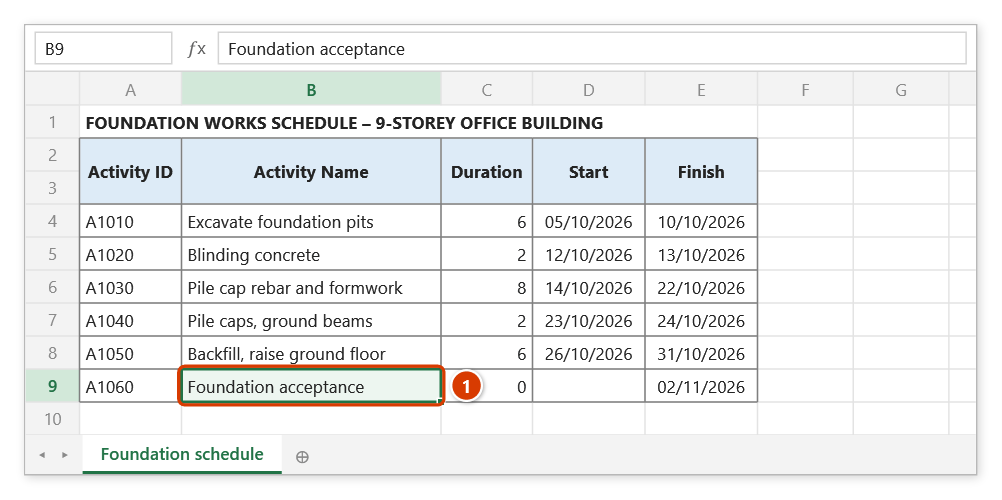
- Open the schedule sheet and put the cursor anywhere inside the task table (or select the data range).
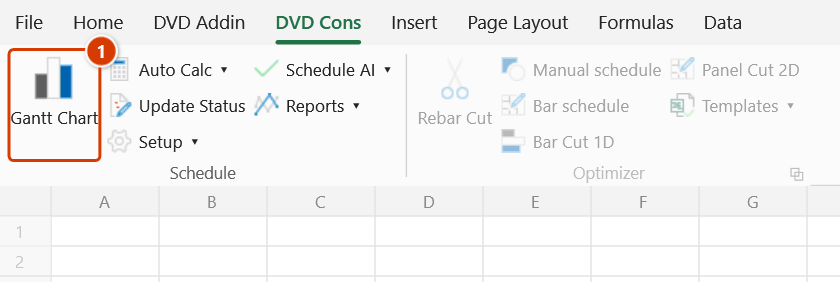
- Go to the DVD Cons tab → Schedule group → click Gantt Chart.
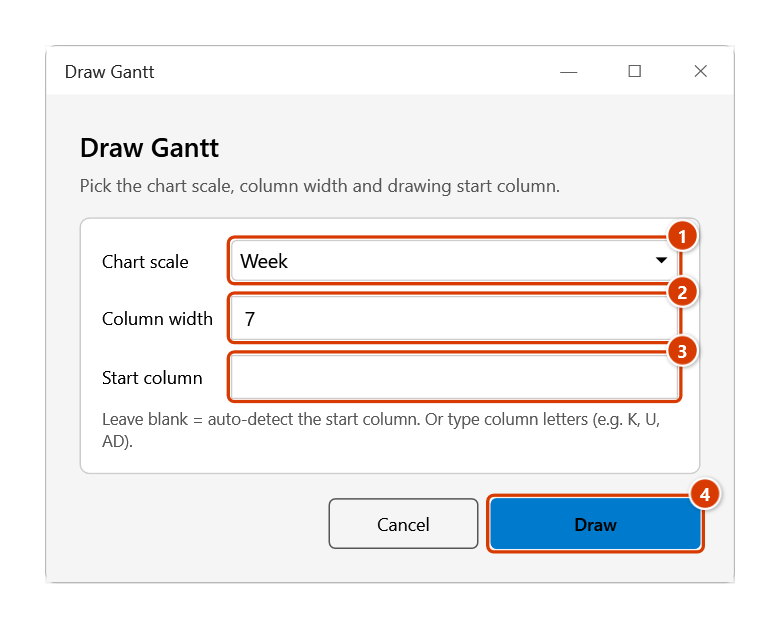
- The Draw Gantt window appears with three fields, pre-filled with the values you last used on this sheet:
- Chart scale — pick Month, Week or Day. On a sheet that has never been drawn, the default comes from your Gantt settings.
- Column width — width of each time column. Defaults to 24 for Month and 12 for Week; the field is disabled when you pick Day.
- Start column — the column letter where the chart area begins (for example
AD). Leave it blank to let the add-in choose.
- Click Draw (or Cancel to back out). Invalid input is flagged inline: the width must be a number greater than 0, and the start column must be letters only.
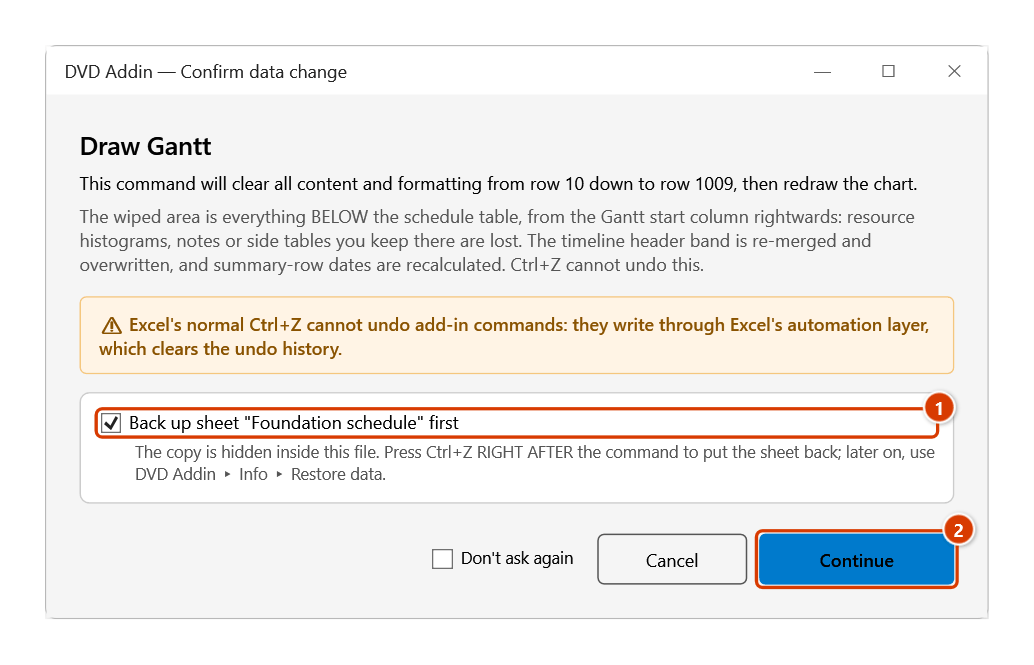
- The Confirm data change box appears (drawing wipes everything below the table). Keep Back up sheet … first ticked and click Continue.
- The chart is drawn to the right of your data, using exactly the scale and start column you chose.
Video tutorial
Narrated in Vietnamese, with Vietnamese subtitles. Vẽ tiến độ, Tự động tính, Tự động vẽ · 7 min 42 s · 18 cases · Download the video · Practice workbook for the video
Commands in this video: Gantt Chart · Auto Calc · Auto Draw
Chapters (23)
- Giới thiệu
- Mở lệnh
- Cửa sổ Vẽ tiến độ
- 1 · Bảng tiến độ cơ bản
- 2 · Sửa mốc cuối bảng, vẽ lại
- 3 · Bố trí bảng đúng
- 4 · Quan hệ FS, SS, FF, SF
- 5 · Mốc và thang Ngày
- 6 · Công tác nhóm theo cấp
- 7 · % hoàn thành, nhân lực
- 8 · Đường găng
- 9 · Thang Tháng
- 10 · Cột bắt đầu vẽ
- 11 · Bảng lớn, dừng bằng ESC
- 12 · Tự động tính
- 13 · Tắt tự động tính / vẽ
- 14 · Công tác trước theo dòng
- 15 · Ngày trống, ngày sai
- 16 · Vòng lặp quan hệ
- 17 · Sheet đang bảo vệ
- 18 · Hoàn tác Ctrl+Z
- Mẹo
- Kết thúc
Illustrated walkthrough
Practice
Download this command's sample workbook — the data matches the pictures below (sheet Foundation schedule), so you can follow each step right away.
Step 1. Open the schedule sheet and put the cursor in a cell of the task table, e.g. the last row (1) — the add-in finds the header row (Duration / Start / Finish) and the data range by itself.
Step 2. On the ribbon, open the DVD Cons tab → Schedule group → click Gantt Chart.
Step 3. The Draw Gantt window gathers three choices: pick the Chart scale (1) (Month / Week / Day), type the timeline Column width (2), and leave Start column (3) blank so the add-in places the chart right after the last table column (or type column letters, e.g. AD). Click Draw (4).
Step 4. Because drawing wipes everything below the table (resource histograms, notes, side tables…), the Confirm data change box appears. Keep Back up sheet "Foundation schedule" first ticked (1) so Ctrl+Z right after the command restores the sheet, then click Continue (2).
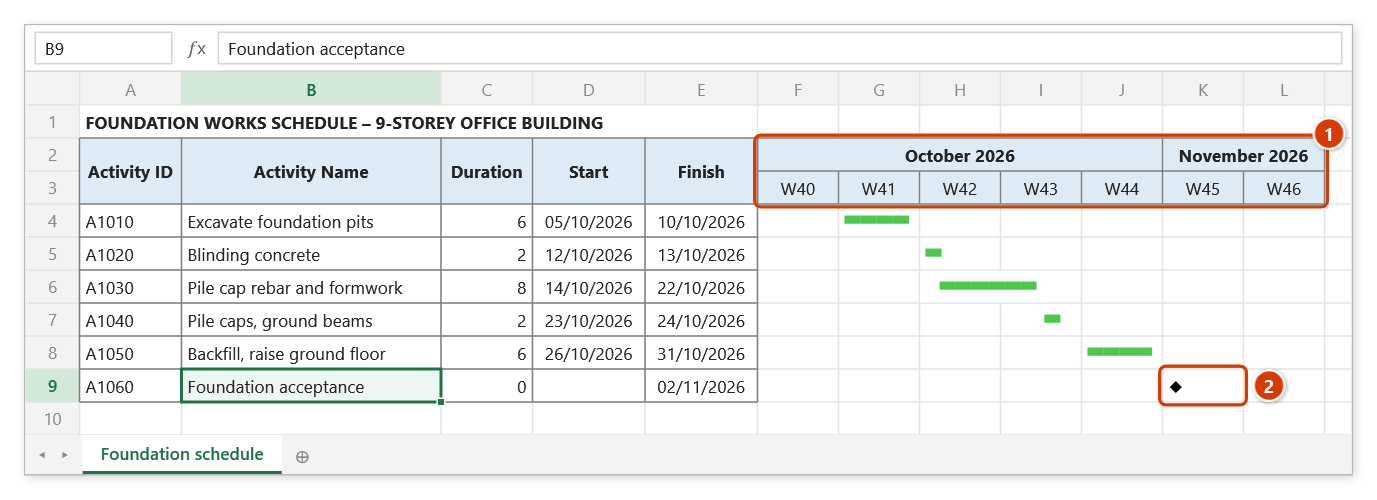
Step 5. The chart is drawn right of the table, from column F: months on the upper row, week numbers (W41, W42…) below (1); one bar per task, milestones (duration 0) as diamonds (2). On the real sheet the bars also carry date and duration labels and link arrows. The choices are remembered for this sheet.
Example
A structural-works schedule for a 12-storey apartment block: 60 activities from Pile driving to External finishes, with data columns ending at column AC.
Put the cursor on any task-name cell, click Gantt Chart, then set Chart scale = Week, Column width = 12, Start column = AD. Click Draw — the weekly bar chart appears from column AD onward, one bar per activity, with the completed portion shaded according to the % complete values in the table.
Notes
- Scale, column width and start column are remembered per sheet, inside the workbook. Next time you open the window on that sheet the fields are pre-filled with the previous values, and Auto Draw redraws with that sheet's own scale — drawing another sheet in Month no longer changes this sheet's Week chart.
- With the Day scale, Column width is locked — the add-in uses a fixed width for daily columns.
- The sheet must contain the schedule columns the add-in recognises (Start / Finish / Duration…). If it does not, start from the Gantt Tpl template or Import XML (P6/MSP).
- Drawing overwrites the previous chart area on the sheet. When you run the command, Ctrl+Z right after the command puts the sheet back as it was (thanks to the backup); see Restore data. Redraws done by Auto Draw take no backup and cannot be undone with Ctrl+Z.
- Do not trigger the command while a cell is in edit mode (cursor blinking inside a cell) — Excel will refuse the operation.
Related
- Auto Calc — turn on so dates recalculate whenever you edit Duration / Start / Finish.
- Auto Draw — turn on so the Gantt redraws itself and you need not click this command again.
- Setup — change the default scale, working calendar and column visibility.
- Gantt Tpl — open a template workbook that already has the column layout this command expects.