
Preferences
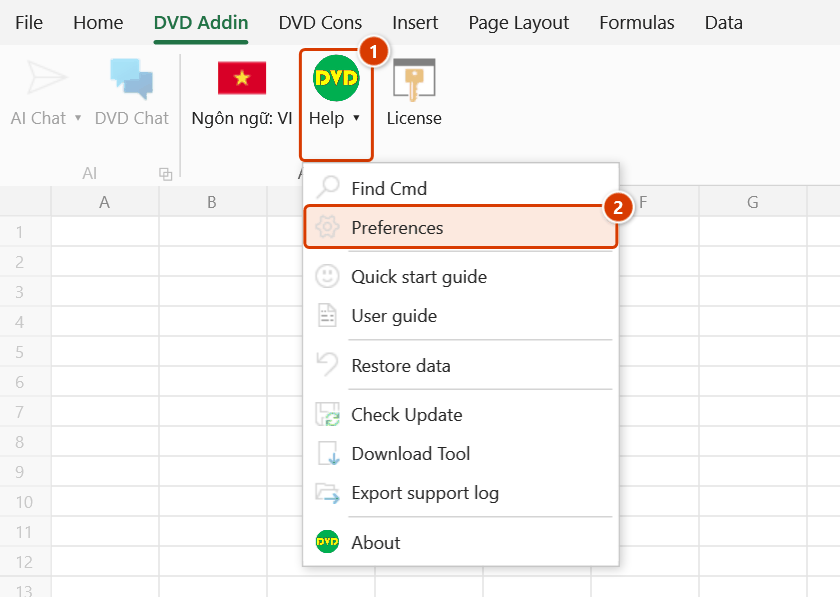
Location on ribbon: Tab DVD Addin → Group About → Menu Help
Command ID: btnPreferences
What it does
Opens the Preferences window, the single place where all of DVDAddin's default behaviour is configured. Instead of re-picking the same options every time you run a command, you set them once here and the related commands follow. The window is split into sections listed down the left: Text and Number, Cells and Rows, Formula, Graphics, File and Print, View and Sheets, AI Assistant, Rebar cutting, Data protection and Shortcuts.
How to use
- Go to tab DVD Addin → group About → Help menu → Preferences.
- Click a section on the left; its settings appear in the panel on the right.
- Adjust what you need. Typical settings per section:
- Text and Number — the default translation engine (Google, ChatGPT or Gemini).
- Cells and Rows — the delimiter used when joining cells (space, comma, semicolon, newline or a custom string), whether deletion skips hidden rows, and the default number of rows to insert.
- Formula — the default rounding function and decimal count, the reference-locking style (lock both row and column, row only, or column only), skip hidden cells, and error checking on or off.
- Graphics — how inserted pictures fit the cell, comment width, auto-click interval, and whether captures include the Excel frame.
- File and Print — default paper size and automatic row-height fitting for printing.
- Data protection — confirm before delete/overwrite commands, back the sheet up automatically, how many backups to keep, delete backups older than N days, offer to delete backups on Save As — see Restore data.
- AI Assistant — the provider, model and API key used by every AI command.
- Click Save at the bottom to commit your settings, or Cancel to discard them. Reset to defaults puts the settings back as they were at install time; if API keys for the AI Assistant are saved, the add-in asks whether to delete them too — Cancel (the default) keeps them.
Video tutorial
Narrated in Vietnamese, with Vietnamese subtitles. Tùy chọn và Ngôn ngữ · 3 min 50 s · 10 cases · Download the video
Commands in this video: Preferences · Lang: EN
Chapters (13)
- Giới thiệu
- 1 · Mở Tùy chọn
- 2 · Mười mục ở cột trái
- 3 · Giao diện sáng / tối
- 4 · Khoá API cho lệnh AI
- 5 · Chọn nhà cung cấp AI
- 6 · Bảo vệ dữ liệu
- 7 · Phím tắt
- 8 · Lưu và áp dụng
- 9 · Khôi phục mặc định
- 10 · Đổi ngôn ngữ
- Mẹo
- Kết thúc
Illustrated walkthrough
Step 1. On the ribbon, open the DVD Addin tab → About group → open Help → choose Preferences.
Step 2. The Preferences window opens. Pick a section on the left — for example Formula (1) — and set the defaults for that group's commands: 3 decimal places for rounding (2) and the Column only ($A1) lock style (3). Click Save (4).
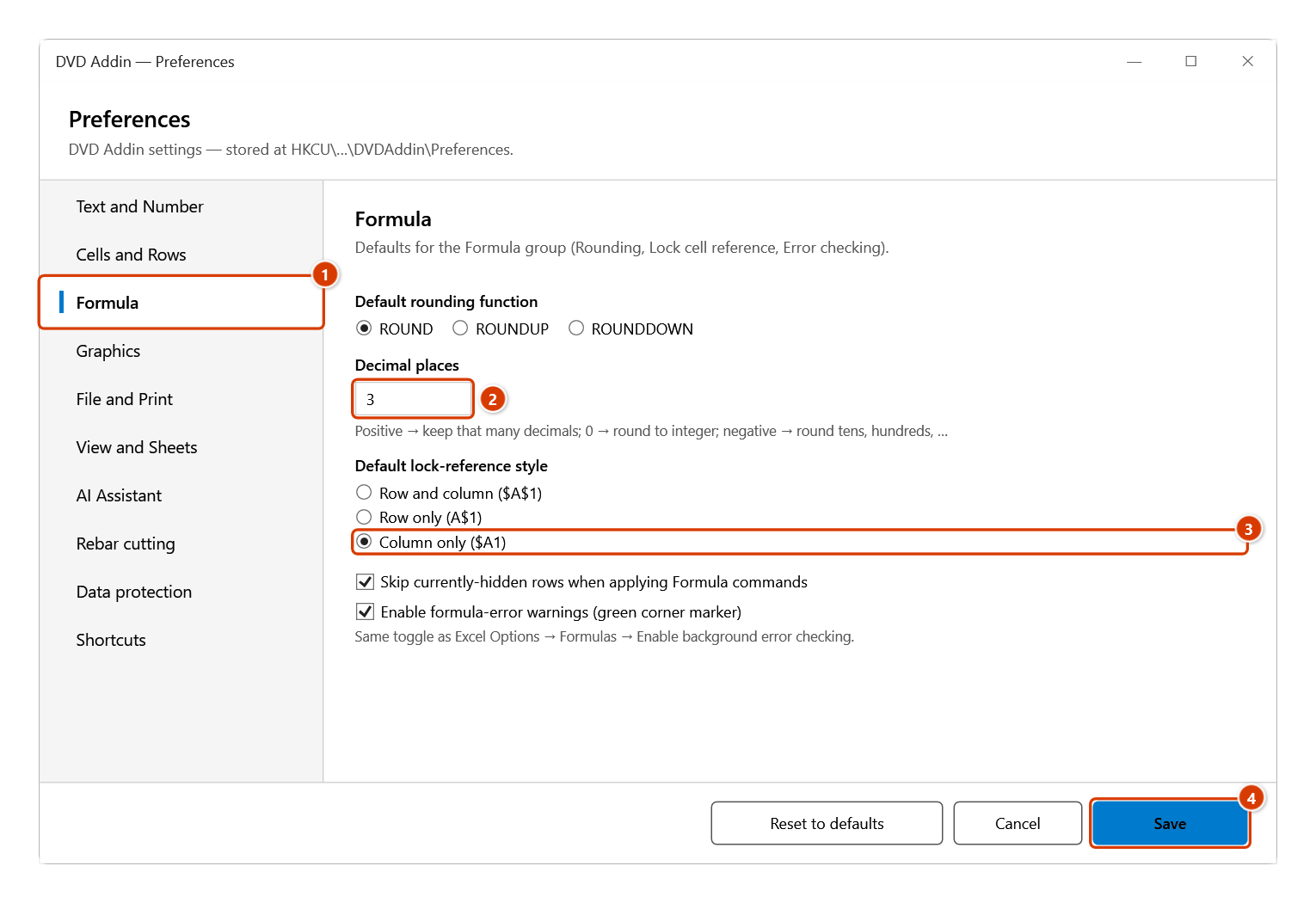
Step 3. From the next run on, the related commands use the saved defaults — e.g. the Rounding Func tab opens with 3 decimals and the Lock Ref tab preselects the column lock. Results produced earlier are not changed. Reset to defaults puts the settings back to their installed values; saved API keys are deleted only if you choose so in the question box.
Example
An estimating team standardises on ROUND to three decimals for all quantity sheets, and on column-only reference locking. Each machine opens Preferences → Formula, sets the rounding function to ROUND, decimals to 3, locking style to column only, and saves. From then on the Rounding functions and Lock cell references commands produce identical results across the team without anyone remembering to pick the options by hand.
Notes
- The window is modal — close it before you can work in Excel again.
- Settings are stored in your Windows user profile, not in the workbook; copy the file to another PC and that PC uses its own preferences. The exception is the Rebar cutting section: Save also embeds the rebar-cutting settings in the open workbook (press
Ctrl+Sso the file keeps them), and a file that has its own settings uses those. - Changes apply to subsequent runs of a command only; they do not rework output produced earlier.
- The API key in the AI Assistant section is mandatory for every AI-backed command; without it the command says “No API key for … Paste one under Preferences ▸ AI assistant” and does nothing else.
- A few settings only take effect the next time you reopen the relevant command window.
Related
- AI Chat — uses the provider and model set in the AI Assistant section.
- Rounding functions — takes its function and decimal count from the Formula section.
- Lock cell references — follows the locking style set in the Formula section.
- Lang: EN — the interface language, which is toggled outside this window.