
Lock Ref
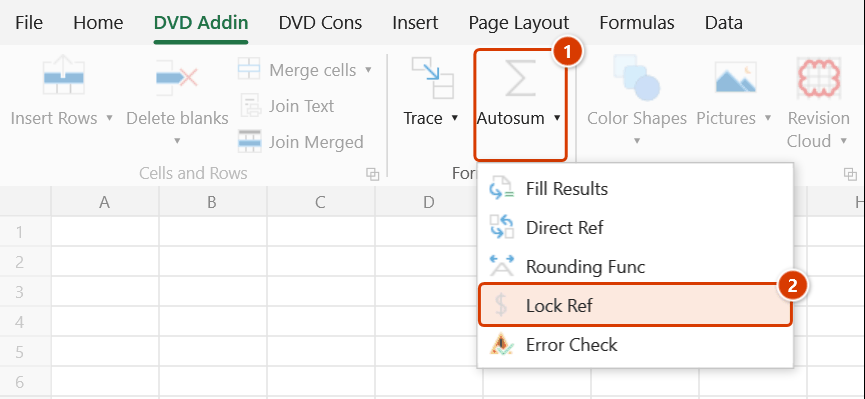
Location on ribbon: Tab DVD Addin → Group Formula → ▾ of Autosum
Command ID: btnLockCellReferences
What it does
This command converts the reference style of every formula in the selected range between four forms: A1, $A1, A$1 and $A$1. Instead of pressing F4 cell by cell, you convert a whole column or table with one Apply.
It matters most right after you build a master formula and are about to fill it down hundreds of rows: lookup tables, coefficient cells and base rates must be pinned while the per-row data cells must stay relative. In the other direction, stripping all $ signs is what lets a table shift correctly when you move it into a new file.
How to use
- Select the range of cells whose formula references you want to change.
- Go to tab DVD Addin → group Formula → click the ▾ of Autosum → choose Lock Ref.
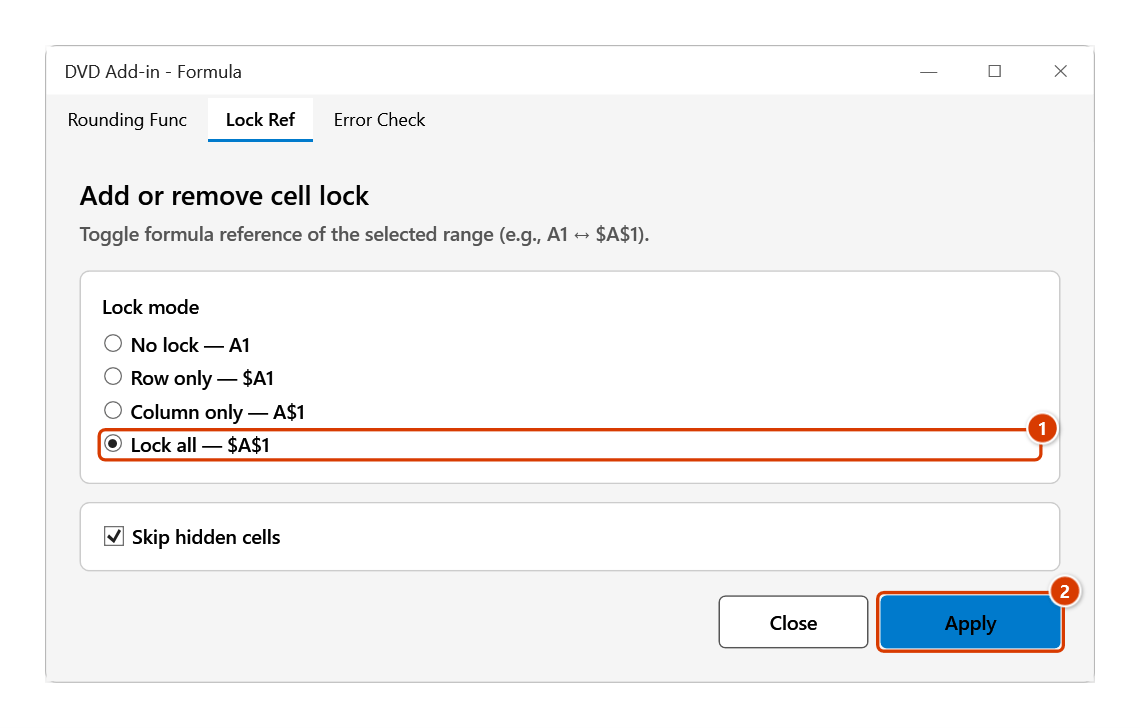
- The Lock Ref tab (heading Add or remove cell lock) of the Formula tool window opens, with a Lock mode block of four choices:
- No lock — A1
- Row only — $A1 (actually produces
A$1— see Notes) - Column only — A$1 (actually produces
$A1— see Notes) - Lock all — $A$1 (default)
- Underneath is the Skip hidden cells checkbox (on by default).
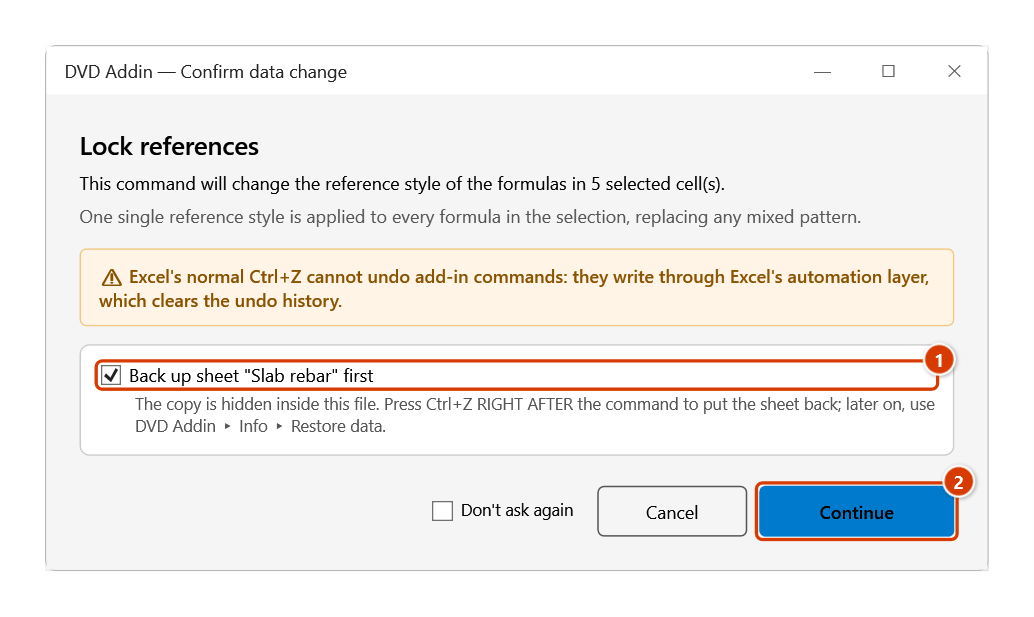
- Pick the mode and click Apply. The Confirm data change box appears — keep the sheet backup ticked and click Continue; the formulas in the selection are rewritten in place.
- The window stays open: select another range and click Apply again, or click Close when done.
Video tutorial
Narrated in Vietnamese, with Vietnamese subtitles. Khóa tham chiếu · 6 min 05 s · 12 cases · Download the video · Practice workbook for the video
Chapters (17)
- Giới thiệu
- Mở lệnh
- Cửa sổ Khóa tham chiếu
- 1 · Khóa cả hàng và cột
- 2 · Kéo công thức
- 3 · Khóa cột – kéo ngang
- 4 · Khóa hàng – kéo xuống
- 5 · Bỏ hết dấu $
- 6 · Chuỗi, sheet khác, tên vùng
- 7 · Hàm trùng địa chỉ ô
- 8 · Tham chiếu kiểu Bảng
- 9 · Nhiều vùng, ô ẩn, gõ tay
- 10 · Công thức dài
- 11 · Ghi đè và hoàn tác
- 12 · Khi lệnh không đổi gì
- Mẹo
- Kết thúc
Illustrated walkthrough
Practice
Download this command's sample workbook — the data matches the pictures below (sheet Slab rebar), so you can follow each step right away.
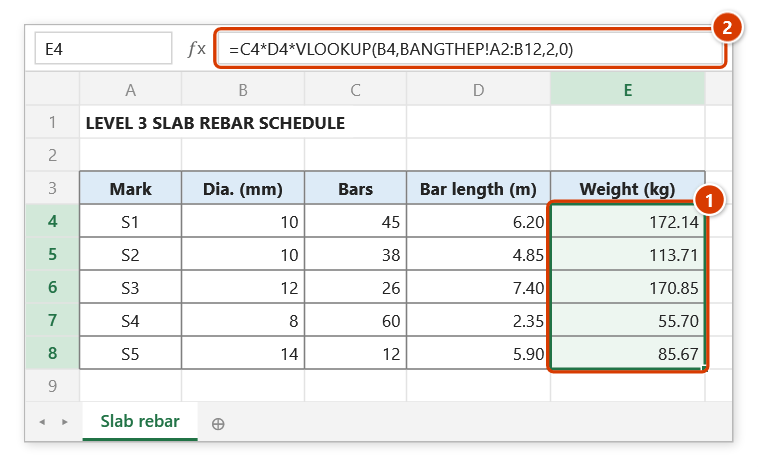
Step 1. Select the formula cells whose reference style you want to change (1) — for example the rebar weight column before copying the whole block to a summary sheet without the references shifting. The formulas currently use relative references (2).
Step 2. On the ribbon, open the DVD Addin tab → Formula group → open Autosum → choose Lock Ref.
Step 3. The Lock Ref tab of the Formula tool window opens. Choose Lock all — $A$1 (1), leave Skip hidden cells ticked, then click Apply (2).
Step 4. The confirmation box warns that one single reference style is applied to every formula in the selection. Keep the sheet backup ticked (1) and click Continue (2).
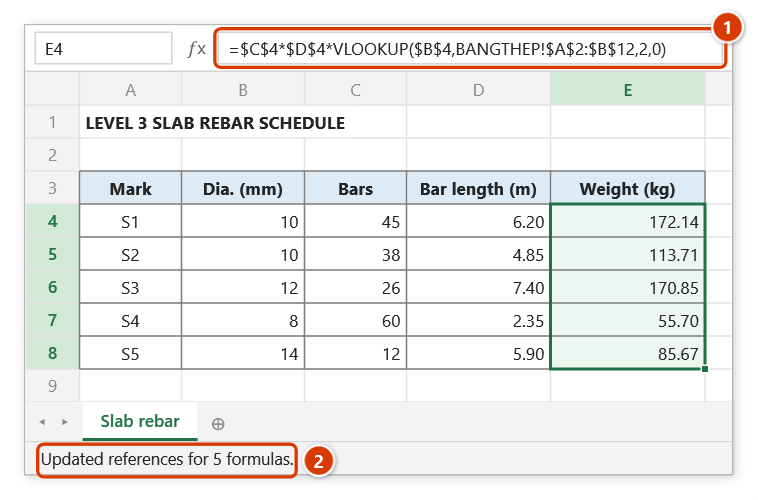
Step 5. Every reference in the selected formulas becomes absolute (1) — including C4, D4, B4 — so the block keeps pointing at the same cells wherever you copy it. The status bar reports how many formulas changed (2).
Example
A rebar take-off sheet where G8 looks up unit weight by bar diameter:
| Before | After (Lock all) |
|---|---|
=E8*F8*VLOOKUP(D8,BARTABLE!A2:B12,2,0) | =E8*F8*VLOOKUP(D8,BARTABLE!$A$2:$B$12,2,0) |
If you only want the row pinned (A$2:B$12) so the formula can still be dragged sideways across floor columns, choose Row only instead of locking both directions — although its label says $A1, the result is A$1.
Notes
- The chosen mode is applied to every reference in the formulas of the selection, including references that should have stayed relative. Keep the selection tight around what you actually want changed.
- Only cells containing formulas are affected; typed numbers and text are untouched.
- No lock — A1 removes
$from cell references only. A$inside a text string in the formula (for example the format code"$#,##0"in aTEXTfunction) or inside a quoted sheet name is kept. - The notation in the two middle labels is swapped: Row only (label says
$A1) really pins the row and producesA$1; Column only (label saysA$1) really pins the column and produces$A1. Choose by the words "row"/"column", not by the notation. - The row, column and lock-all modes rely on Excel's built-in converter, which only accepts formulas up to 255 characters long. Longer formulas are skipped and left as they are; the message at the end tells you how many cells were skipped and lists up to 5 of their addresses so you can fix them by hand.
- Skip hidden cells leaves hidden or filtered-out rows and columns as they are; clear it if you want those processed too.
- The window is modeless, so the selection can be changed between Apply clicks.
- Formulas are overwritten.
Ctrl+Zright after the command puts the sheet back as it was (thanks to the backup); see Restore data.
Related
- Rounding Func — the same style of window, adding or removing ROUND around formulas.
- Direct Ref — build cross-table reference formulas before pinning the lookup range.
- Error Check — toggle formula error flags while reviewing the range you just edited.