
Direct Ref
Location on ribbon: Tab DVD Addin → Group Formula → ▾ of Autosum
Command ID: btnAssignDirectReference
License required
This command needs an active DVDAddin account (Standard or PRO). It is fully available during the trial period.
What it does
This command links two tables with direct reference formulas built on a shared key column. The add-in matches the source keys against the target keys and writes, into the last column of the source range, a formula pointing straight at the matching value cell in the target table.
Unlike a VLOOKUP that scans a whole table, the generated formula addresses exactly one cell — lighter to recalculate, easier to audit, and obvious at a glance where the number came from. Ideal for pulling unit rates from a rate sheet into a BoQ, or approved quantities into an interim payment sheet.
How to use
- Prepare the source range: its first column is the lookup key, its last column is where the reference formula will be written.
- Prepare the target range with at least 2 columns: first column = key, last column = the value to reference.
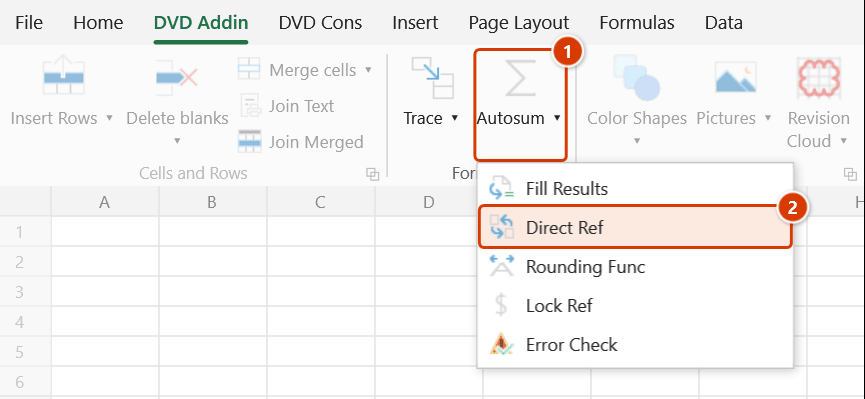
- Go to tab DVD Addin → group Formula → click the ▾ of Autosum → choose Direct Ref.
- The tool window opens on the Direct Ref tab (the Calculation tab group).
- Pick the ranges for Source and Target (the target may live on another sheet).
- Click Assign. The Confirm data change box counts in advance how many formulas will be written and how many cells cleared — keep the sheet backup ticked and click Continue. Reference formulas are written into the last column of the source range on every row whose key matched. Progress is shown in Excel's status bar; press
Escto stop part-way. - When it finishes, a message reports how many formulas were assigned and how many cells were cleared.
Video tutorial
Narrated in Vietnamese, with Vietnamese subtitles. Tham chiếu · 6 min 04 s · 9 cases · Download the video · Practice workbook for the video
Chapters (14)
- Giới thiệu
- Mở lệnh
- Cửa sổ Tham chiếu
- 1 · Đơn giá ở sheet khác
- 2 · Bảng giá cùng sheet
- 3 · Mã trùng trong bảng đích
- 4 · Cách so khớp mã
- 5 · Dòng không có mã, ô gộp
- 6 · Bảng đang lọc
- 7 · Hoàn tác bằng Ctrl+Z
- 8 · Bảng đích ở file khác
- 9 · Khi chọn sai vùng
- Mẹo
- Kết thúc
Illustrated walkthrough
Practice
Download this command's sample workbook — the data matches the pictures below (sheet KHOI LUONG), so you can follow each step right away.
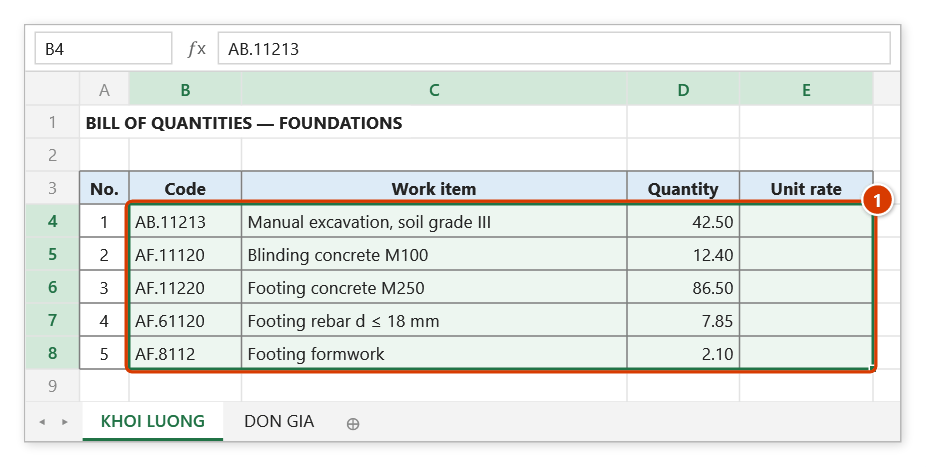
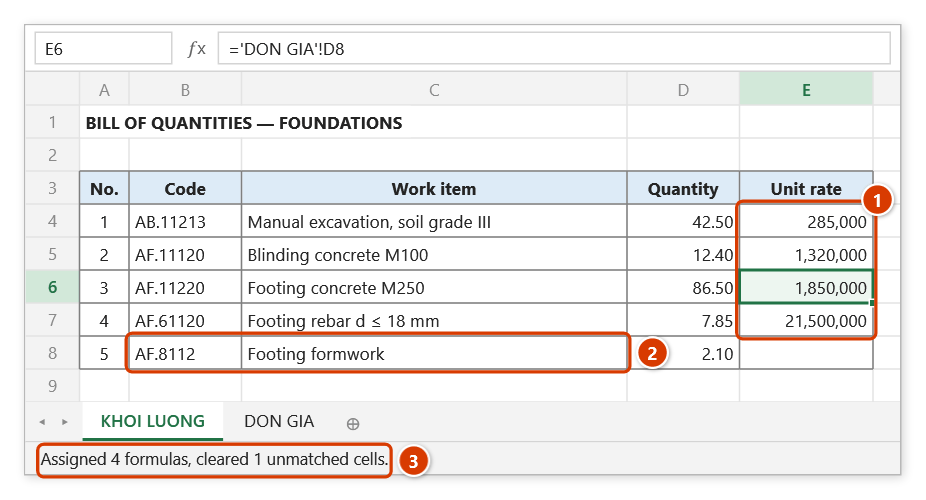
Step 1. Prepare the source range (1): its first column is the item code (key), its last column receives the unit-rate formula. The target is the rates table on sheet DON GIA, with codes in column A and rates in column D.
Step 2. On the ribbon, open the DVD Addin tab → Formula group → open Autosum → choose Direct Ref.
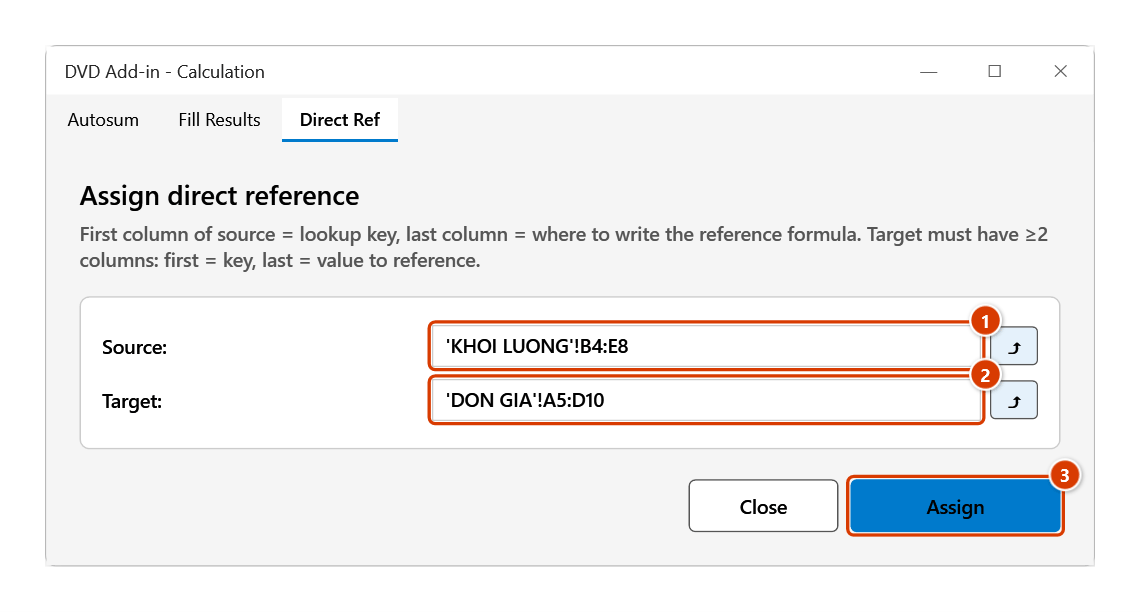
Step 3. The Calculation tool window opens on the Direct Ref tab. In Source (1) pick B4:E8, in Target (2) pick the rates table A5:D10 on sheet DON GIA (type it or click ⤴ to select), then click Assign (3).
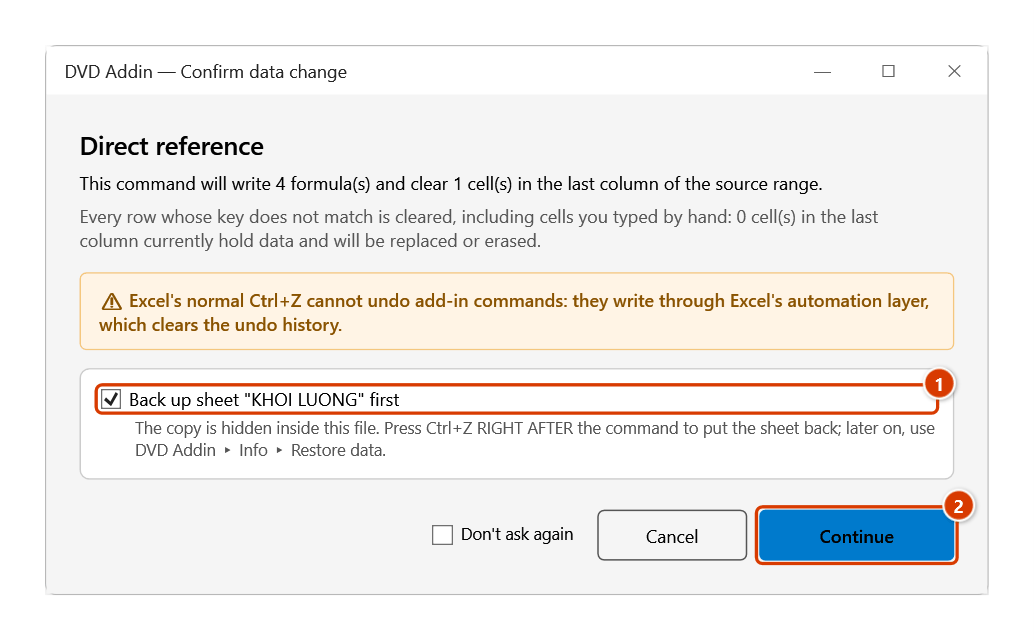
Step 4. The confirmation box counts the formulas that will be written and the cells that will be cleared in the last source column. Keep the sheet backup ticked (1) and click Continue (2); press Esc while it runs to stop.
Step 5. Each row whose code matches gets a formula pointing straight at its rate cell on sheet DON GIA (1), e.g. E6 = ='DON GIA'!D8. Code AF.8112 (2) is missing a digit, so it matches nothing in the rates table and E8 is cleared; fix the code and run again. The status bar reports the result (3).
Example
Sheet RATES (target) has item codes in column A and unit rates in column D. Sheet BOQ (source) has item codes in column B and an empty column G waiting for the rate.
- Source =
B10:G250on sheetBOQ - Target =
'RATES'!A5:D400
Click Assign: the row whose code AF.11220 sits in B37 gets a formula in G37 pointing directly at that code's rate cell on RATES. When the client later revises pricing, editing the rate sheet updates the whole BoQ.
Notes
- The target range must have two or more columns; with a single column the tool cannot tell key from value.
- The layout convention is fixed: the first column of each range is always the key, the last column is where the value is written or read. If your table is arranged differently, select the range so those two edge columns are correct.
- Existing content in the last column of the source range is overwritten. If you keep the backup ticked in the confirmation box, press
Ctrl+Zright after the command to put the source sheet back; see Restore data. - Rows whose key is not found in the target get no formula and their last-column cell is cleared, including values you typed by hand — check for typos and stray spaces in the codes before running.
- If a key appears more than once in the target, the formula always points at the first row with that key.
- Pressing
Escstops the run: rows already processed keep their result, the rest stay as they were. - The formulas point at specific cells: inserting or deleting rows in the target keeps them aligned, but re-sorting the target table can make a reference point at the wrong key.
- The ⤴ pick button opens a range picker that does not lock Excel: this window steps aside while you pick, and you can scroll, switch sheets or switch workbooks. Click OK or press Enter on the sheet to fill the box; Cancel or Esc leaves it unchanged. If the box already holds an address, the picker starts from it.
Related
- Lookup Trace — verify the other way round which cell a lookup formula reads from.
- Autosum — sibling tab that builds SUBTOTAL rows once the rates are in place.
- Lock Ref — add
$signs to pin a lookup range before copying formulas around.