
Lookup Trace
Location on ribbon: Tab DVD Addin → Group Formula → Menu Trace
Command ID: btnGetLookup
What it does
This command jumps straight to the source cell that the lookup formula in the current cell pulled its value from. Instead of opening the lookup table, hunting for the code by hand and counting columns, one click switches Excel to the right sheet and selects the exact cell.
It pays off on cost estimates, BoQ sheets and unit-price tables with hundreds of rows looked up from a norm sheet: when you need to know "where did this 1,850,000 unit rate come from?", this is the fastest answer.
How to use
- Select a single cell that contains a lookup formula (VLOOKUP, HLOOKUP, XLOOKUP or INDEX).
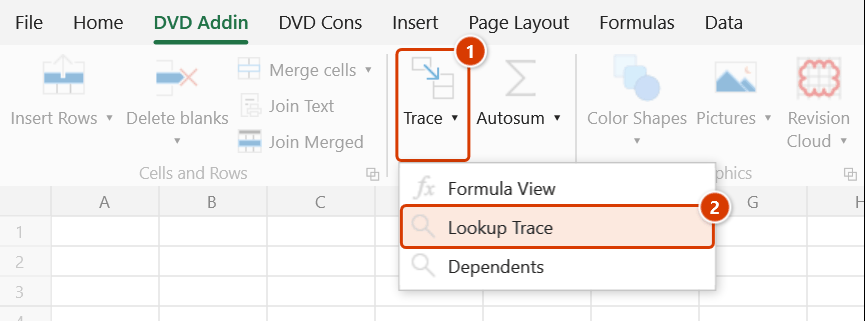
- Go to tab DVD Addin → group Formula → menu Trace → click Lookup Trace.
- The command parses the formula, re-evaluates the lookup value and resolves the matching source cell.
- Excel activates the sheet holding that cell and selects it, so the original value shows in the formula bar.
- If the current cell has no formula, a notice appears — "Please select a cell that contains a formula!" — and nothing else happens.
Video tutorial
Narrated in Vietnamese, with Vietnamese subtitles. Truy vết Lookup và Ô phụ thuộc · 5 min 55 s · 12 cases · Download the video · Practice workbook for the video
Commands in this video: Lookup Trace · Dependents
Chapters (17)
- Giới thiệu
- Mở lệnh
- 1 · VLOOKUP – bảng ở sheet khác
- 2 · HLOOKUP – bảng tra đặt tên
- 3 · INDEX + MATCH hai chiều
- 4 · XLOOKUP – dò sang trái
- 5 · Không tìm thấy (#N/A)
- 6 · Tra gần đúng (TRUE)
- 7 · Nhiều hàm dò trong một ô
- 8 · Ô không có hàm dò
- Ô phụ thuộc
- 9 · Ai đang dùng ô này?
- 10 · Phụ thuộc ở nhiều sheet
- 11 · Không có ô phụ thuộc
- 12 · So với Trace Dependents
- Mẹo
- Kết thúc
Illustrated walkthrough
Practice
Download this command's sample workbook — the data matches the pictures below (sheet BOQ), so you can follow each step right away.
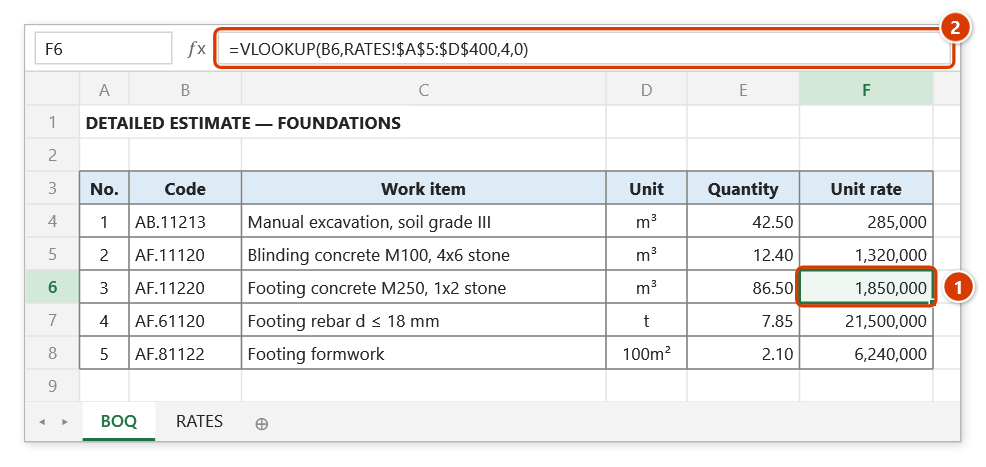
Step 1. Select one cell that holds a lookup formula (1) — for example a unit rate pulled with VLOOKUP from the rates sheet. The formula shows in the formula bar (2).
Step 2. On the ribbon, open the DVD Addin tab → Formula group → open Trace → choose Lookup Trace.
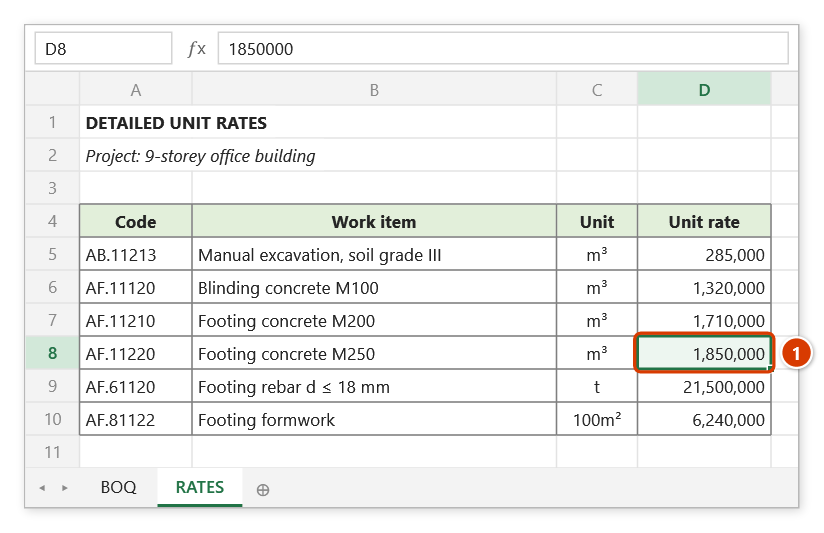
Step 3. No window opens: the add-in re-evaluates the lookup, switches to the sheet that holds the table and selects the source cell (1) — here the unit rate of code AF.11220 on sheet RATES. The command only moves the selection; it changes no data.
Step 4. The command understands XLOOKUP, VLOOKUP, HLOOKUP and INDEX and always matches exactly. If the cell has no formula the add-in says “Please select a cell that contains a formula!”; if the lookup cannot be resolved (for example #N/A) it reports that the target could not be traced.
Example
On sheet BOQ, cell F12 holds:
=VLOOKUP(B12,'RATES'!$A$5:$E$400,4,0)
where B12 is item code AF.11220 (M250 foundation concrete). Put the cursor on F12 and click Lookup Trace: Excel switches to sheet RATES and selects D137, the cell that stores the unit rate for AF.11220. From there you can verify the norm reference, the pricing date and whether a row was edited by mistake.
Notes
- Only four functions are recognised: XLOOKUP, VLOOKUP, HLOOKUP, INDEX. Formulas built on LOOKUP, a bare MATCH, OFFSET, INDIRECT or custom functions cannot be traced — the command then does nothing and shows no message.
- When several lookups are nested in one formula, only the first recognised one is followed, in the order XLOOKUP → VLOOKUP → HLOOKUP → INDEX.
- Matching is always performed as an exact match; if the original formula used approximate matching, the cell you land on may differ from the real result.
- A formula returning
#N/A, or a lookup range that cannot be evaluated, produces the notice "Could not trace target" instead of a jump. - The command changes the active cell and sheet but never edits data, and it does not remember where you were — to go back, select the original cell yourself. If you need to jump back and forth repeatedly, use Formula View: click the lookup function name (VLOOKUP, XLOOKUP…) in its window to trace, then click Formula cell to return to the original cell.
Related
- Formula View — breaks a formula into clickable tokens so you can inspect each argument before tracing.
- Dependents — the opposite direction: which cells reference the current one.
- Direct Ref — generate cross-table reference formulas keyed on a shared column.