
Autosum
Location on ribbon: Tab DVD Addin → Group Formula
Command ID: btnAutosum
What it does
This command writes SUBTOTAL(9,…) formulas into a data column, using a key column to work out which rows are summary rows and which rows each one adds up:
- Key column filled only on package rows, with the detail rows left blank (as in the example below): every key is a summary row that sums the rows between it and the next key.
- Key column filled on most rows: the command reads each row's level from the key column, and every summary row sums the child rows directly below it, up to the next row of the same or a higher level.
- Item-number (STT) column: Roman numerals (
I,II…) are the group level (level 0); numbers1/1.1/1.1.1are levels 1 / 2 / 3. - Not an item-number column: Gantt-style level numbers from
1to20. - Plain-text key column (work item names…): a row that has a key but an empty data cell is a summary row.
- Item-number (STT) column: Roman numerals (
It is the quickest way to build section totals in a multi-item BoQ: the work-package column acts as the key, the quantity column as the data, and each package gets its own subtotal row without dragging formulas by hand.
How to use
- Prepare a table with one key column (item-number column, level column, package code, work item…) and one data column to sum.
- Go to tab DVD Addin → group Formula → click Autosum.
- The tool window opens on the Autosum tab (the Calculation tab group, alongside Fill Results and Direct Ref).
- In Reference column, pick the key column range on the sheet.
- In Data column to sum, pick the range of the column to be added up (same number of rows as the key column).
- Click Create SUBTOTAL, then in the Confirm data change window keep the sheet backup ticked and click Continue. The formulas are written directly into the data cell of each summary row.
Video tutorial
Narrated in Vietnamese, with Vietnamese subtitles. Tự động tổng · 5 min 37 s · 12 cases · Download the video · Practice workbook for the video
Chapters (18)
- Giới thiệu
- Mở lệnh
- Cửa sổ Tự động tổng
- 1 · Cột key chỉ ở dòng tổng
- Cách đọc cột key
- 2 · Cột STT nhiều cấp
- 3 · Bảng cũ đã có tổng
- 4 · Cột cấp 1, 2, 3
- 5 · Bẫy: STT chỉ có 1, 2, 3
- 6 · Cột tên công việc làm key
- 7 · Nhiều cột số liệu
- 8 · Cột hạng mục gộp ô
- 9 · Ghi đè và hoàn tác
- 10 · Bảng đang lọc
- 11 · Sheet đang khoá
- 12 · Khi nhập sai
- Mẹo
- Kết thúc
Illustrated walkthrough
Practice
Download this command's sample workbook — the data matches the pictures below (sheet Quantities), so you can follow each step right away.
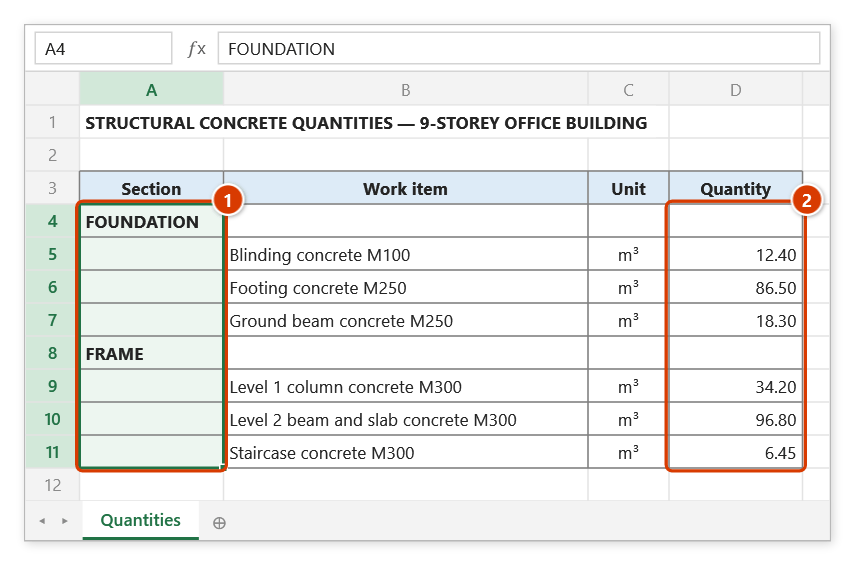
Step 1. Prepare a table with a key column (1) — here the section column is filled only on summary rows and left blank on detail rows — and the data column to sum (2), both with the same rows.
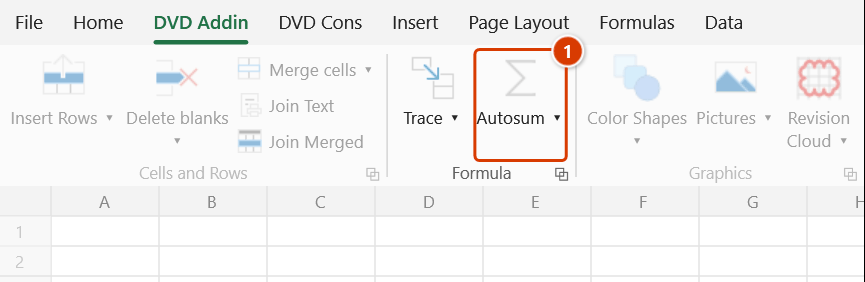
Step 2. On the ribbon, open the DVD Addin tab → Formula group → click Autosum.
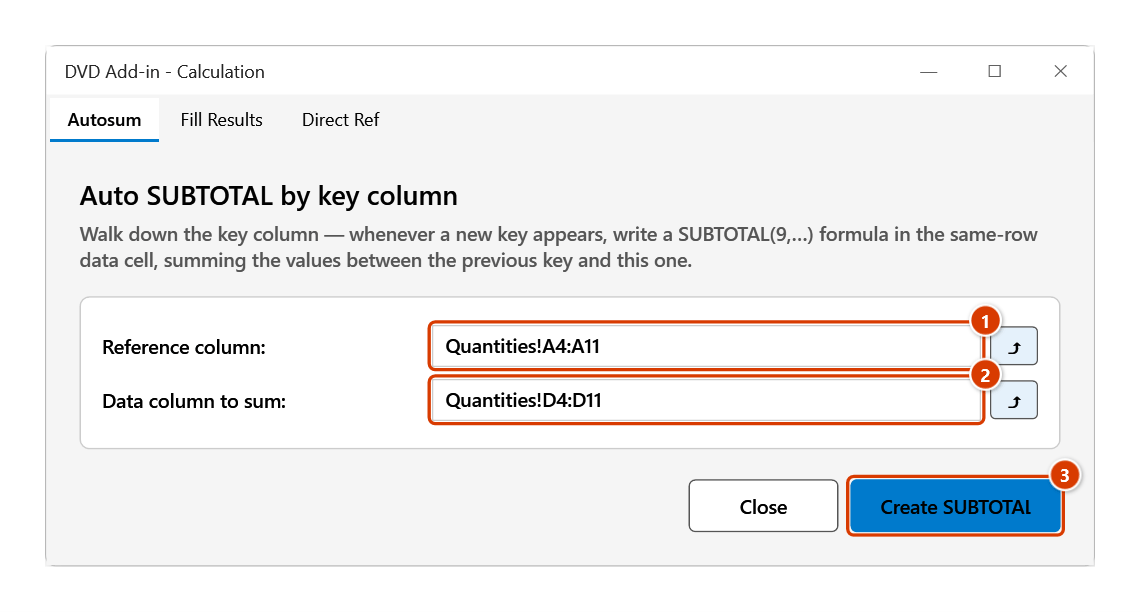
Step 3. The Calculation tool window opens on the Autosum tab. In Reference column (1) type or click ⤴ to pick A4:A11, in Data column to sum (2) pick D4:D11, then click Create SUBTOTAL (3).
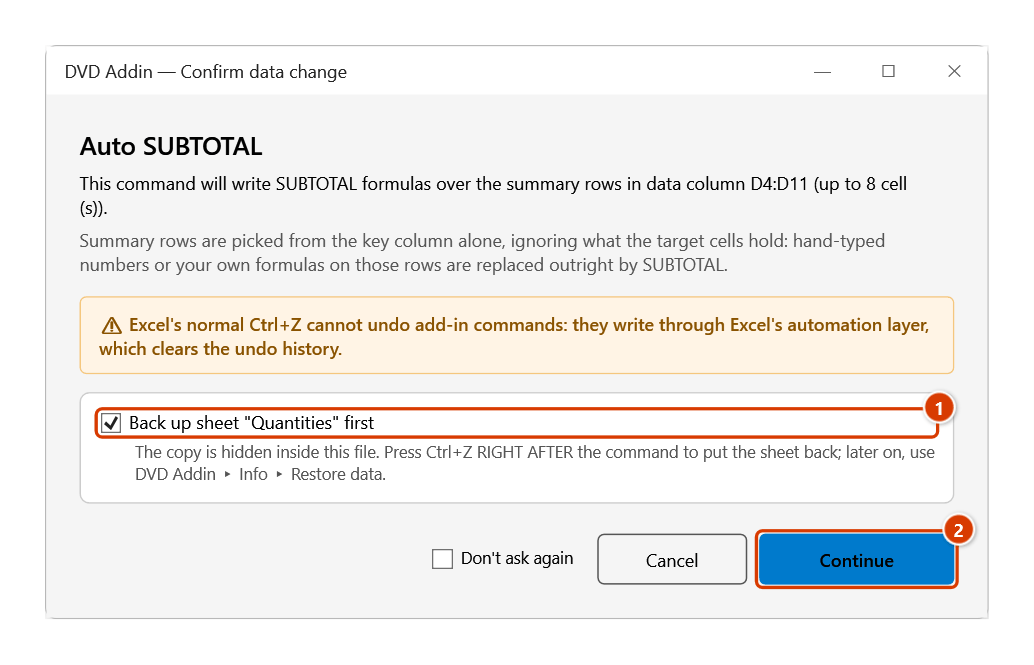
Step 4. The confirmation box warns that summary rows are picked from the key column alone and whatever their data cells hold is replaced by SUBTOTAL. Keep the sheet backup ticked (1) and click Continue (2).
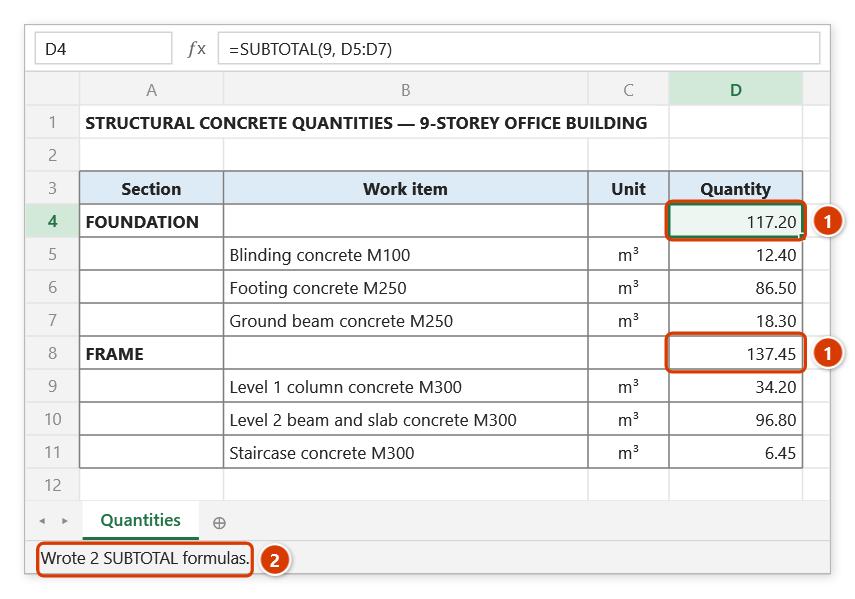
Step 5. Each key row receives a SUBTOTAL(9, …) formula that adds the detail rows up to the next key (1) — D4 sums D5:D7, D8 sums D9:D11. Detail rows are left untouched. The status bar reports how many formulas were written (2).
Step 6. If the key column is a numbering column such as I, 1, 2, 3, II, 1, 2 (or 1, 1.1, 1.1.1), the command reads the levels: row I sums its child rows down to row II. Summary cells that hold hand-typed numbers are kept and listed in the final message.
Example
Structural works quantity table:
| A (Package) | B (Detail) | C (Quantity) | |
|---|---|---|---|
| 5 | FOUNDATION | (SUBTOTAL of C6:C8) | |
| 6 | Blinding concrete | 12.4 | |
| 7 | Footing concrete | 86.5 | |
| 8 | Footing formwork | 210.0 | |
| 9 | SUPERSTRUCTURE | (SUBTOTAL of C10:C12) | |
| 10 | Level 1 columns | 34.2 |
Set Reference column = A5:A12, Data column to sum = C5:C12, then click Create SUBTOTAL: cells C5 and C9 receive SUBTOTAL(9,…) formulas covering exactly the detail rows of their own package.
If the key column is an item-number column reading I, 1, 2, 3, II, 1, 2, row I gets a SUBTOTAL of the three rows 1–3 below it and row II sums the two rows after it; rows 1, 2, 3 are detail rows and keep their quantities.
Notes
- Both ranges must have the same number of rows and be aligned; an offset produces formulas that sum the wrong block.
- Formulas are written only on summary rows; detail rows are left untouched.
SUBTOTAL(9,…)skips filtered-out rows and does not double-count nested SUBTOTALs — exactly what a section total should do.- When levels are read from the key column, a summary row whose data cell holds a hand-typed number (not a formula) is not overwritten — it is most likely a detail row picked by mistake. The final message lists the cells that were kept (up to 5 addresses); to replace them, clear those cells and run again.
- A summary-row cell that holds an old formula is overwritten with the SUBTOTAL; on a table whose key column is filled only on package rows, any existing content in the summary-row cells is overwritten. If you keep the sheet backup ticked in the confirmation window, press Ctrl+Z right after the command to put the sheet back; the backup also stays available in Restore data.
- If no summary row is recognised, nothing is written and a message explains why (for example, a plain-text key column with no row that has an empty data cell and detail rows below it).
- The tool window is modeless, so you can change the selection and run it again for another table without reopening.
- The ⤴ pick button opens a range picker that does not lock Excel: this window steps aside while you pick, and you can scroll, switch sheets or switch workbooks. Click OK or press Enter on the sheet to fill the box; Cancel or Esc leaves it unchanged. If the box already holds an address, the picker starts from it.
Related
- Fill Results — sibling tab that appends computed results to description cells as "text = result".
- Direct Ref — sibling tab that writes cross-table reference formulas keyed on a shared column.
- Rounding Func — wrap the new formulas in ROUND to fix decimals for submission.