
Fill Results
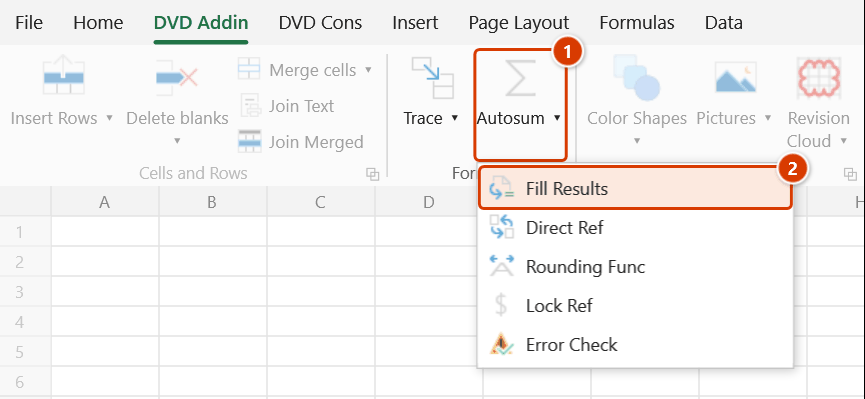
Location on ribbon: Tab DVD Addin → Group Formula → click the ▾ of Autosum
Command ID: btnFillInResults
License required
This command needs an active DVDAddin account (Standard or PRO). It is fully available during the trial period.
What it does
This command appends computed results to the description cells themselves, in the form "text = result". The add-in pairs each row between the description range and the result range, then rewrites the description cell so the number sits inside it.
That is the shape quantity take-off sheets and BoQ submissions are expected to have: the description column must show both the calculation and its result (2 x 4.5 x 0.8 = 7.2) instead of forcing the reviewer to look at another column.
How to use
- Prepare a table with a description column (the calculation text) and a matching result column, row by row.
- Go to tab DVD Addin → group Formula → click the ▾ of Autosum → Fill Results.
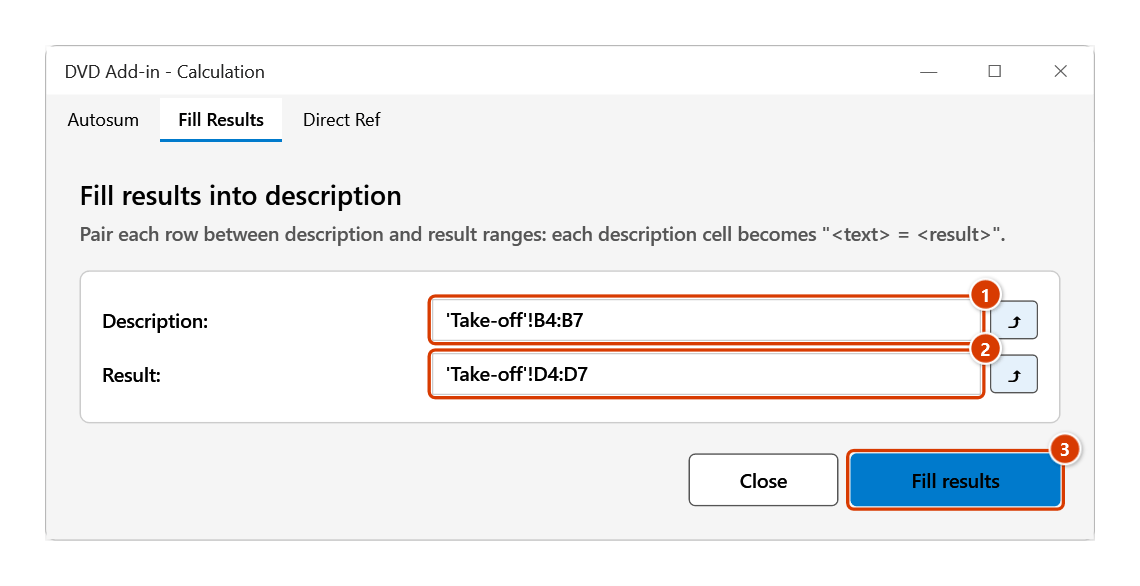
- The tool window opens on the Fill Results tab (the Calculation tab group).
- In Description, pick the range holding the text or calculation string.
- In Result, pick the range holding the corresponding values (same number of rows).
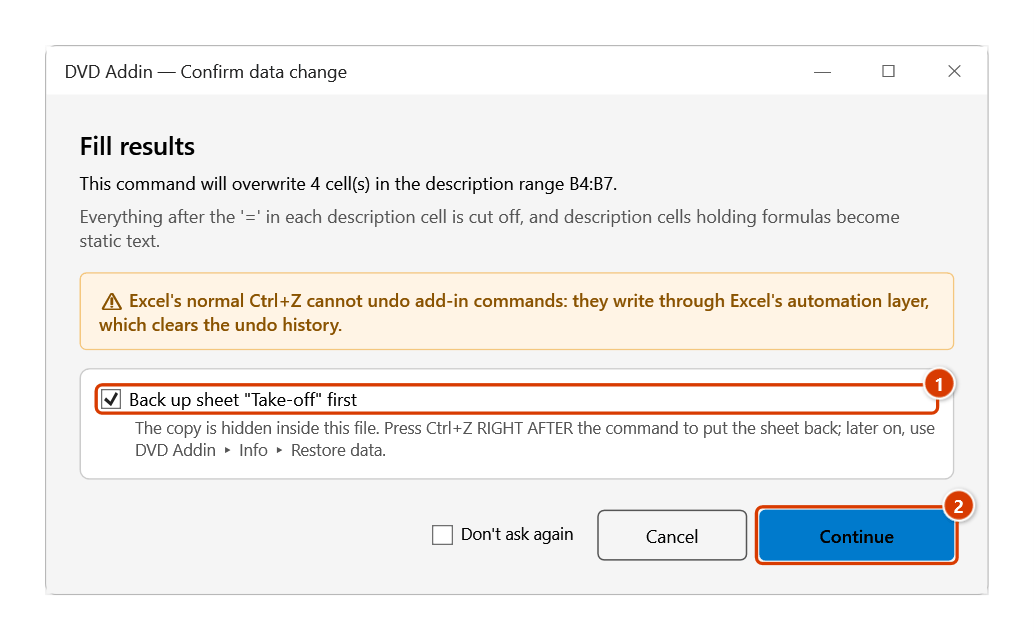
- Click Fill results, then in the Confirm data change window keep the sheet backup ticked and click Continue. Each description cell is rewritten as
<existing text> = <result>.
Video tutorial
Narrated in Vietnamese, with Vietnamese subtitles. Điền kết quả · 5 min 56 s · 9 cases · Download the video · Practice workbook for the video
Chapters (13)
- Giới thiệu
- Mở lệnh
- 1 · Bảng tiên lượng cơ bản
- 2 · Sửa số liệu, chạy lại
- 3 · Chữ hiển thị của ô kết quả
- 4 · Dòng tiêu đề nhóm, dòng trống
- 5 · Dấu = có sẵn trong diễn giải
- 6 · Diễn giải là công thức – Ctrl+Z
- 7 · Kết quả ở sheet khác
- 8 · Tính số bằng hàm dvdEvaluate
- 9 · Khi nhập sai
- Mẹo
- Kết thúc
Illustrated walkthrough
Practice
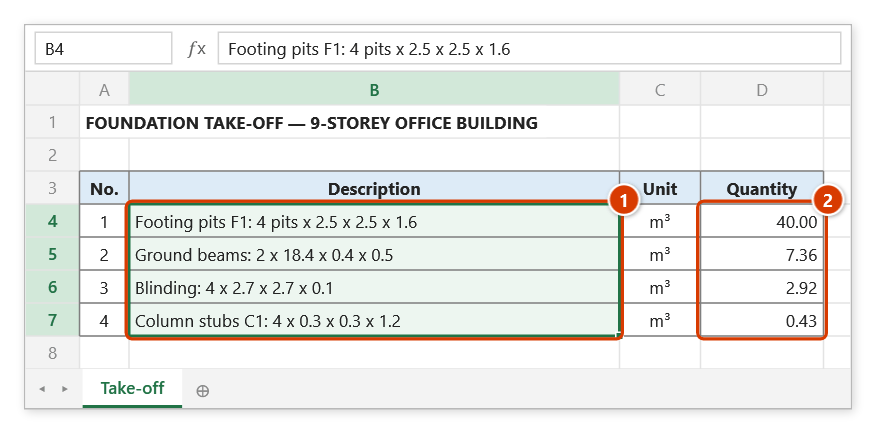
Download this command's sample workbook — the data matches the pictures below (sheet Take-off), so you can follow each step right away.
Step 1. Prepare a table with a description column (1) (the calculation text) and a matching result column (2), row by row.
Step 2. On the ribbon, open the DVD Addin tab → Formula group → open Autosum → choose Fill Results.
Step 3. The Calculation tool window opens on the Fill Results tab. In Description (1) type the address or click ⤴ to pick B4:B7 on the sheet; in Result (2) pick D4:D7 (same number of rows). Click Fill results (3).
Step 4. The confirmation box says the command will overwrite 4 cells in the description range. Keep Back up sheet "Take-off" first ticked (1) so you can press Ctrl+Z right after the command, then click Continue (2).
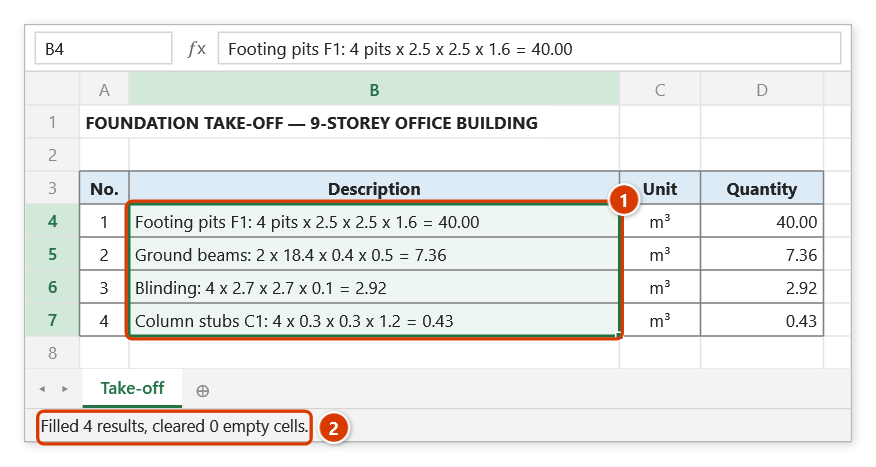
Step 5. Each description cell becomes <description> = <result> (1), using the result cell's displayed text. The status bar reports how many cells were filled (2). Running it again after editing a calculation replaces the part after = instead of appending.
Example
Excavation take-off sheet:
| B (Description) — before | C (Quantity) | |
|---|---|---|
| 8 | 4 pits x 2.5 x 2.5 x 1.6 | 40.00 |
| 9 | Tie beam: 2 x 18.4 x 0.4 x 0.5 | 7.36 |
Set Description = B8:B9, Result = C8:C9, then click Fill results:
| B (Description) — after | |
|---|---|
| 8 | 4 pits x 2.5 x 2.5 x 1.6 = 40.00 |
| 9 | Tie beam: 2 x 18.4 x 0.4 x 0.5 = 7.36 |
Notes
- Both ranges must have the same number of rows; an offset pairs the wrong result with the wrong line.
- The description cell is overwritten with plain text: if it previously held a formula, that formula is lost. Work on a copy, or save first.
- If you keep the sheet backup ticked in the confirmation window, Ctrl+Z right after puts the sheet back; the backup also stays available in Restore data.
- Running it again over the same range replaces the part after
=with the new result (it does not append a second one) — fix the working, then simply run it again. - The number is the result cell's displayed text, following its number format (decimals, thousands separator, %):
=2.3*3gives= 6.9, no longer= 6.8999999999999995. Format the result column first if you want more or fewer decimals. - The number is the value at the moment of the run; if the result range recalculates later, the text in the description cell does not follow.
- The ⤴ pick button opens a range picker that does not lock Excel: this window steps aside while you pick, and you can scroll, switch sheets or switch workbooks. Click OK or press Enter on the sheet to fill the box; Cancel or Esc leaves it unchanged. If the box already holds an address, the picker starts from it.
Related
- Autosum — sibling tab that builds SUBTOTAL rows per package before results are filled in.
- Rounding Func — fix the decimals of the result column before merging it into the text.
- Direct Ref — link a detail table to a summary table with reference formulas.