
Rounding Func
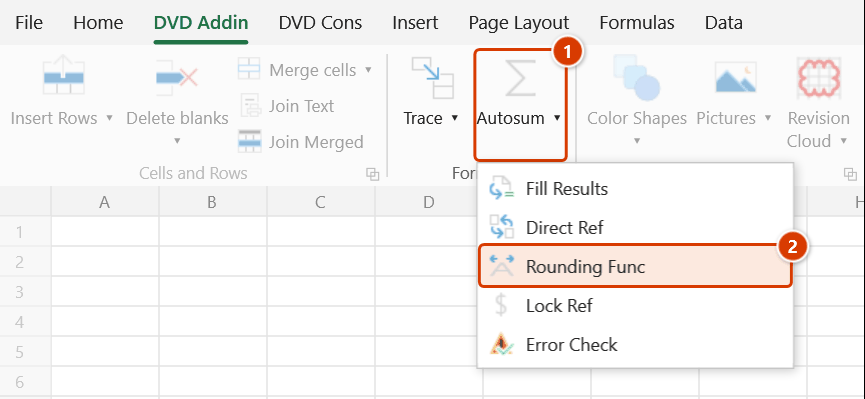
Location on ribbon: Tab DVD Addin → Group Formula → ▾ of Autosum
Command ID: btnRoundingFunctions
What it does
This command wraps the formulas in the selected range with ROUND, ROUNDUP or ROUNDDOWN — or strips that wrapper back off. It edits the formulas themselves, not the display format, so the stored values really are rounded and downstream sums no longer drift by hidden decimals.
On acceptance records and payment applications, a few thousandths of difference caused by Excel keeping invisible decimals is one of the most common review findings. Wrapping a whole quantity column in ROUND settles it, and the same dialog unwraps it when you need the raw numbers back.
How to use
- Select the range of cells whose formulas you want to change.
- Go to tab DVD Addin → group Formula → click the ▾ of Autosum → choose Rounding Func.
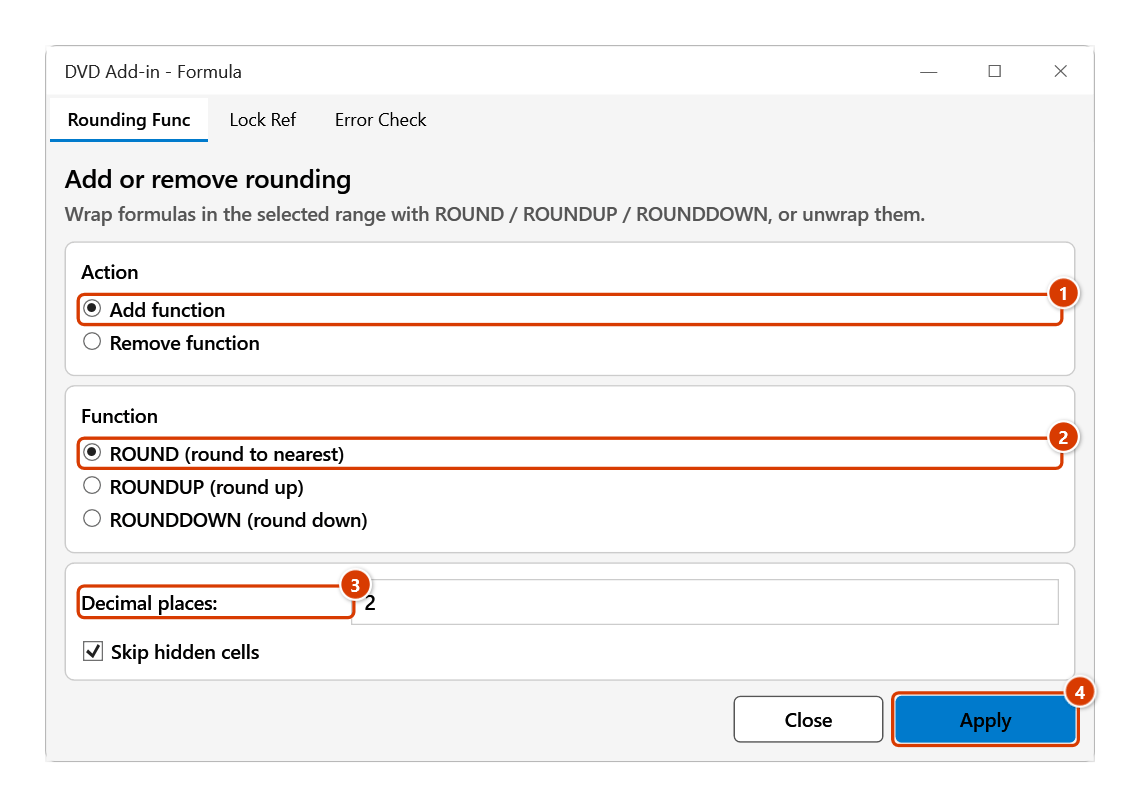
- The Rounding Func tab (heading Add or remove rounding) of the Formula tool window opens with three option blocks:
- Action: Add function or Remove function.
- Function: ROUND (round to nearest), ROUNDUP (round up), ROUNDDOWN (round down); with Remove function a fourth choice All of the above (remove only) appears.
- Decimal places (default
2, shown only for Add function) and the Skip hidden cells checkbox (on by default).
- Pick the action, pick the function, type the number of decimal places you want.
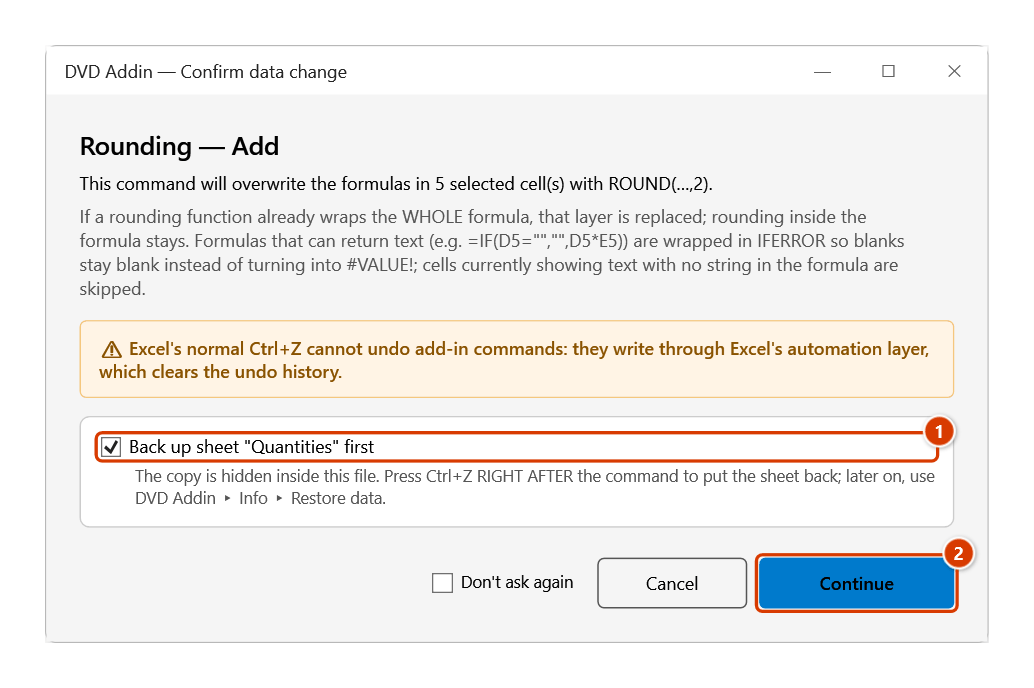
- Click Apply. The Confirm data change box appears — keep the sheet backup ticked and click Continue; the formulas in the selection are rewritten in place.
- The window stays open: select another range and click Apply again, or click Close when finished.
Video tutorial
Narrated in Vietnamese, with Vietnamese subtitles. Hàm làm tròn · 5 min 10 s · 12 cases · Download the video · Practice workbook for the video
Chapters (17)
- Giới thiệu
- Mở lệnh
- Cửa sổ Hàm làm tròn
- 1 · Bọc ROUND cột khối lượng
- 2 · Số gõ tay giữ nguyên
- 3 · Công thức để trống ô
- 4 · Ô ra TRUE, FALSE
- 5 · Đổi sang ROUNDUP
- 6 · ROUNDDOWN hàng nghìn
- 7 · Danh sách đang lọc
- 8 · Nhiều vùng rời (Ctrl)
- 9 · Xóa hàm ROUND
- 10 · Xóa tất cả – MROUND giữ
- 11 · Ghi đè và hoàn tác
- 12 · Khi nhập sai
- Mẹo
- Kết thúc
Illustrated walkthrough
Practice
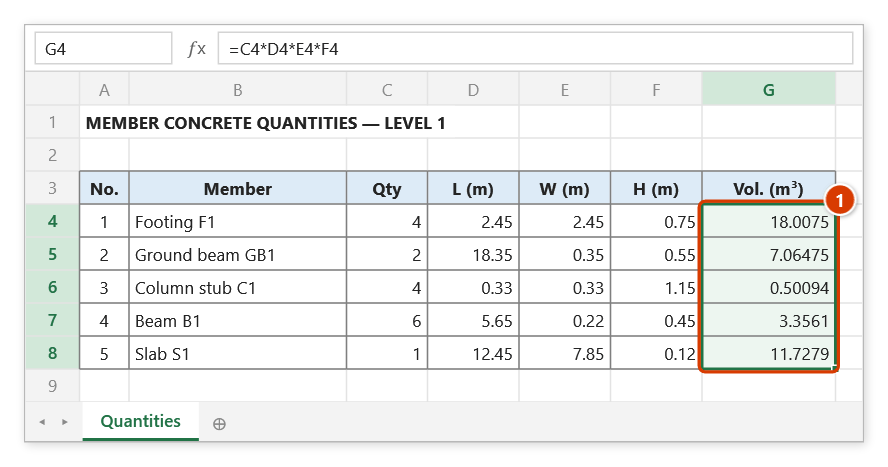
Download this command's sample workbook — the data matches the pictures below (sheet Quantities), so you can follow each step right away.
Step 1. Select the cells whose formulas you want to round (1) — here a quantity column that shows too many decimals.
Step 2. On the ribbon, open the DVD Addin tab → Formula group → open Autosum → choose Rounding Func.
Step 3. The Rounding Func tab of the Formula tool window opens. Choose Add function (1), pick ROUND (2), check Decimal places (2) (3), then click Apply (4).
Step 4. The confirmation box states how many cells will have their formulas overwritten and how existing rounding or text-returning formulas are handled. Keep the sheet backup ticked (1) and click Continue (2).
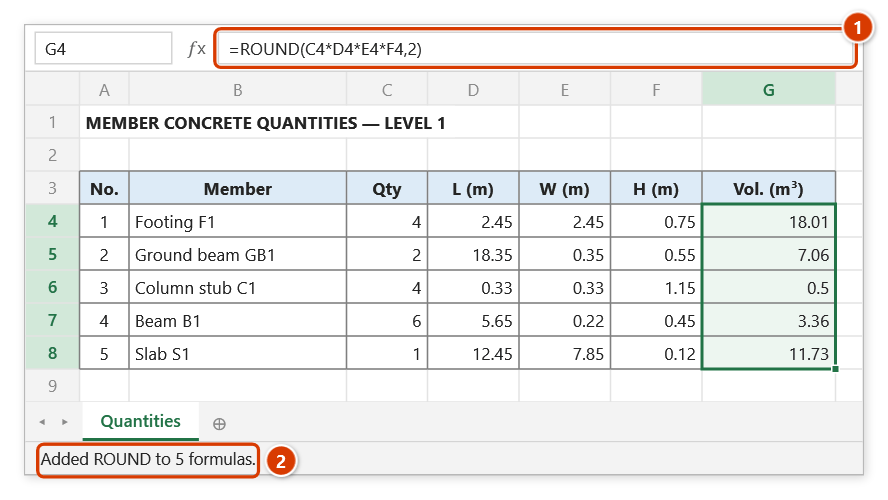
Step 5. Every formula is wrapped as =ROUND(…,2) in place (1), leaving two decimals. The status bar reports how many formulas were processed (2). The window stays open so you can select another range and Apply again; choose Remove function to strip the rounding functions again.
Example
The concrete quantity column of an acceptance sheet, after selecting F10:F45 and applying Add function + ROUND + 2 decimals:
| Before | After |
|---|---|
=D10*E10 | =ROUND(D10*E10,2) |
=SUM(F11:F14) | =ROUND(SUM(F11:F14),2) |
=B20*0.3*1.15 | =ROUND(B20*0.3*1.15,2) |
=IF(D21="","",D21*E21) | =IFERROR(ROUND(IF(D21="","",D21*E21),2),IF(D21="","",D21*E21)) |
The last row contains a text string, so it gets an extra IFERROR wrapper: a numeric result is rounded, while a text result (here the empty "") comes through unchanged.
When you need the unrounded figures again to check against the drawings, reselect the range, switch to Remove function and click Apply.
Notes
- Only cells containing formulas are touched; hard-typed numbers are left alone.
- With Add function, a formula
=Xbecomes=ROUND(X,n)(orROUNDUP/ROUNDDOWN, depending on the function chosen). If the formula contains a text string, it is wrapped as=IFERROR(ROUND(X,n),X)instead, so text results are not turned into errors. - Cells whose formula returns
TRUE/FALSE, or returns text without containing any text string, are skipped; the number of skipped cells is reported at the end. - Decimal places applies to the Add function action; when removing, the rounding wrapper is stripped regardless of the number of digits it uses.
- Add function only replaces a rounding layer that wraps the whole formula; rounding nested inside the formula is kept.
- Remove function strips every layer of the chosen function (or of all three with All of the above), including ones nested inside the formula:
=SUM(ROUND(A1,2),B1)becomes=SUM(A1,B1). TheIFERROR(ROUND(…))form this command added loses itsIFERRORshell too. - Skip hidden cells skips hidden or filtered-out rows only; cells in hidden columns are still processed. Clear it if you want those rows processed too.
- The window is modeless: you can change the selection between Apply clicks, which is convenient but also makes it easy to apply to the wrong range.
- Formulas are overwritten.
Ctrl+Zright after the command puts the sheet back as it was (thanks to the backup); see Restore data.
Related
- Lock Ref — the same style of window, adding or removing
$signs in formula references. - Error Check — toggle Excel's formula error flags while reviewing the range you just edited.
- Fill Results — merge the rounded results into the description cells of a take-off sheet.