
AI Chat
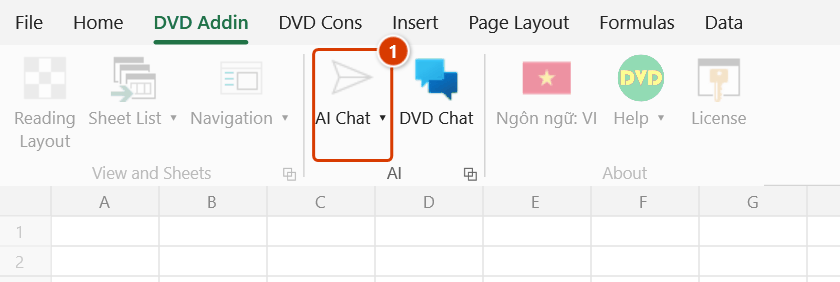
Location on ribbon: Tab DVD Addin → Group AI
Command ID: btnAIAssistant
License required
This command needs an active DVDAddin account (Standard or PRO). During the Trial period it is fully available.
What it does
Opens the AI Assistant pane inside Excel so you can ask questions, have a formula built or explained, and draft text without leaving the workbook. The pane talks to whichever provider (Gemini, OpenAI, Groq or NVIDIA) and model you selected under Preferences ▸ AI Assistant. It is handy in the middle of a quantity take-off or a programme sheet when you need an unfamiliar formula, a technical wording, or a quick summary.
How to use
- First open Preferences (About group → Help menu) → AI Assistant section, choose a provider and paste your API key. Without a key the command cannot reach the server.
- On the DVD Addin tab, AI group, click AI Chat.
- The assistant pane opens beside the worksheet; type your question in the input box and send it.
- Read the reply in the pane, then copy the formula or paragraph you need into your cells.
- Click the ribbon command again when you want to close the pane.
Video tutorial
Narrated in Vietnamese, with Vietnamese subtitles. Trợ lý AI cho công thức · 6 min 46 s · 12 cases · Download the video · Practice workbook for the video
Commands in this video: Explain formula (Coach) · AI Chat · Fix formula error
Chapters (18)
- Giới thiệu
- Mở lệnh
- 1 · Giải thích từng hàm
- 2 · Công thức lồng, chọn cả vùng
- 3 · Ô không có công thức
- Sửa lỗi công thức
- 4 · Sửa lỗi #N/A
- 5 · Áp dụng, xác nhận, Ctrl+Z
- 6 · Lỗi do dữ liệu #VALUE!
- 7 · #NAME? và sửa đề xuất
- 8 · Ô không báo lỗi
- 9 · Không đồng ý gửi số liệu
- Khung Trợ lý AI
- 10 · Hỏi khung Trợ lý AI
- 11 · Trợ lý ghi công thức vào ô
- 12 · Khoá, nhà cung cấp, bản quyền
- Mẹo
- Kết thúc
Illustrated walkthrough
Step 1. First time only: open Preferences → AI Assistant, pick the provider (Gemini, OpenAI, Groq or NVIDIA) and paste your API key.
Step 2. On the ribbon, open the DVD Addin tab → AI group → click AI Chat.
Step 3. The AI Assistant pane opens beside the sheet. Type your question, e.g. Write a SUMIFS that adds column E where the item code in column B equals H3 and the concrete grade in column C equals H4, and send it. The assistant answers in the pane; when you ask it to write to the sheet, the Confirm data change window asks first.
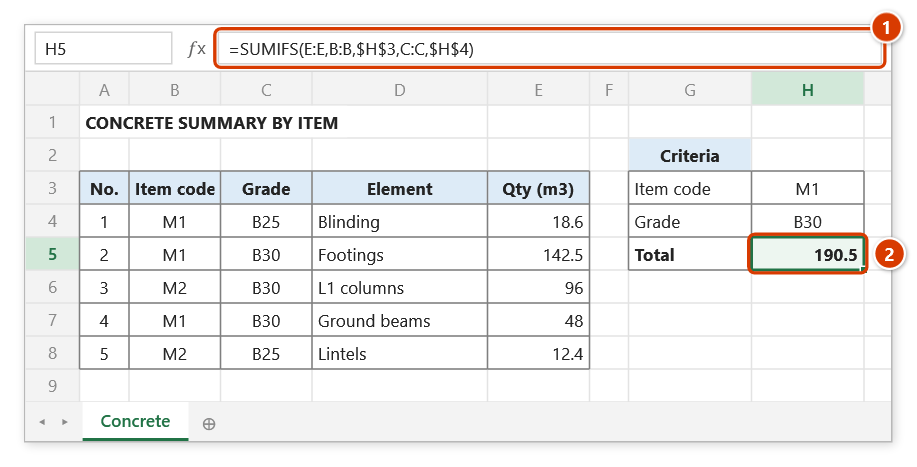
Step 4. Copy the formula the assistant returns, paste it into the target cell (1) and check the result on a few sample rows (2). Click AI Assistant on the ribbon again to hide the pane.
Example
You are consolidating concrete quantities for five work packages and need a conditional sum keyed on both the package code and the concrete grade. Open AI Chat and ask: "Write a SUMIFS that adds column E where the package code in column B equals H2 and the concrete grade in column C equals H3." The assistant returns SUMIFS(E:E,B:B,$H$2,C:C,$H$3); copy it into your summary cell and adjust the ranges to match your sheet.
Notes
- An Internet connection and a valid API key stored in Preferences are both required; missing either one leaves the pane unable to answer.
- Whatever you send goes to the AI provider's servers — including the data of cells whose addresses you mention in the question, or of the current selection (two cells or more; the first time, the add-in asks whether you agree to send cell data). Do not send contract terms, sensitive rates or client personal data.
- When you ask it to act on the sheet (write values/formulas, colour, borders, conditional formatting…), the assistant can apply the changes to the active sheet itself. Overwriting or clearing data shows the Confirm data change window (with a back-up-sheet box — press Ctrl+Z right afterwards to restore); ordinary formatting changes are applied straight away without asking.
- AI answers can be wrong — always test a suggested formula on a few sample rows before rolling it out over the whole table.
- You can switch provider right in the drop-down at the top of the chat pane (or in Preferences); the new provider and model are used from your next question.
Related
- Fix formula error — have AI diagnose an error cell and propose a corrected formula.
- Explain formula — turn an existing formula into plain language, also AI-backed.
- Preferences — where the AI provider, model and API key are configured.
- DVD Chat — the pane for talking to teammates, as opposed to talking to AI.