
Explain formula (Coach)
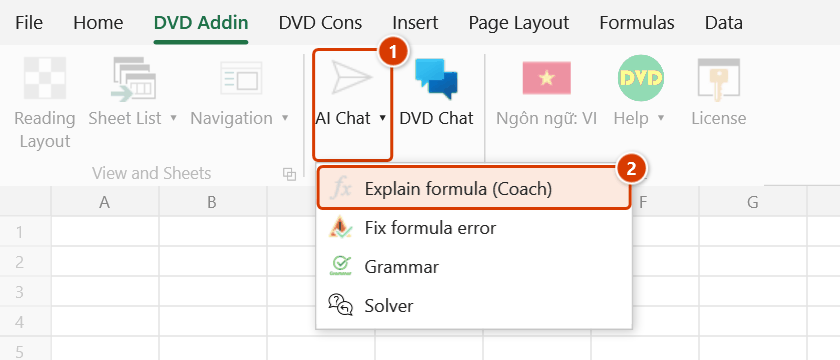
Location on ribbon: Tab DVD Addin → Group AI → click the ▾ of AI Chat
Command ID: btnFormulaExplain
What it does
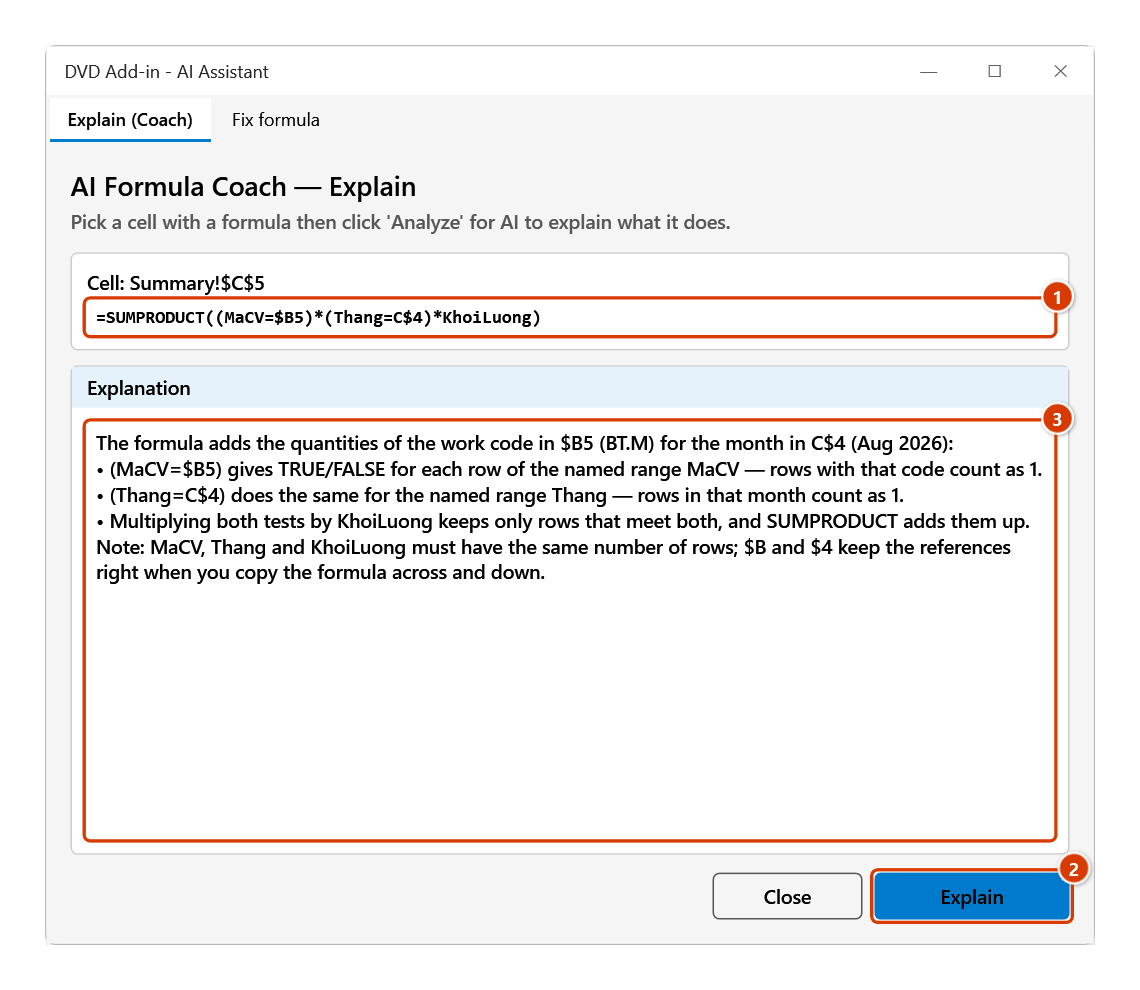
Opens the AI Formula Coach — Explain panel: it sends the active cell's formula to AI (the provider selected in Preferences ▸ AI Assistant: Gemini, OpenAI, Groq or NVIDIA) and returns a plain-language explanation in Vietnamese — what the formula does, the role of each function, what the referenced ranges are for, and common pitfalls. Handy when you inherit someone else's estimate or quantity workbook full of nested formulas. Unlike the dvdAIExplain UDF, the answer stays in the panel — nothing is written to the sheet.
How to use
- Select the cell whose formula you want explained (if you select a range, only the first cell is analyzed).
- On the DVD Addin tab, AI group, click the ▾ of AI Chat → Explain formula (Coach) — the Explain (Coach) tab (headed "AI Formula Coach — Explain") opens in the AI Assistant tool window.
- Click Explain. The panel shows the cell address, the formula, and the Explanation box with the AI answer (selectable for copying).
- The panel is modeless: click another cell on the sheet and press Explain again to analyze it. Click Close when done.
Video tutorial
Narrated in Vietnamese, with Vietnamese subtitles. Trợ lý AI cho công thức · 6 min 46 s · 12 cases · Download the video · Practice workbook for the video
Commands in this video: Explain formula (Coach) · AI Chat · Fix formula error
Chapters (18)
- Giới thiệu
- Mở lệnh
- 1 · Giải thích từng hàm
- 2 · Công thức lồng, chọn cả vùng
- 3 · Ô không có công thức
- Sửa lỗi công thức
- 4 · Sửa lỗi #N/A
- 5 · Áp dụng, xác nhận, Ctrl+Z
- 6 · Lỗi do dữ liệu #VALUE!
- 7 · #NAME? và sửa đề xuất
- 8 · Ô không báo lỗi
- 9 · Không đồng ý gửi số liệu
- Khung Trợ lý AI
- 10 · Hỏi khung Trợ lý AI
- 11 · Trợ lý ghi công thức vào ô
- 12 · Khoá, nhà cung cấp, bản quyền
- Mẹo
- Kết thúc
Illustrated walkthrough
Practice
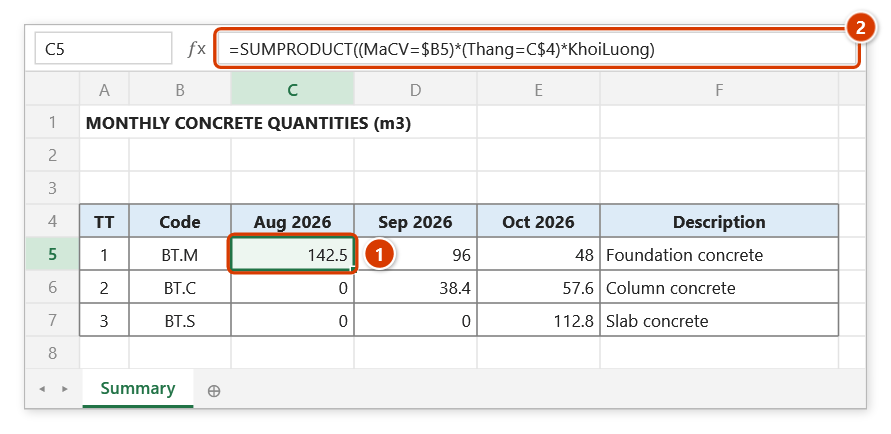
Download this command's sample workbook — the data matches the pictures below (sheet Summary), so you can follow each step right away.
Step 1. Select the cell whose formula you want explained (1) — here a SUMPRODUCT over named ranges (2).
Step 2. On the ribbon, open the DVD Addin tab → AI group → open AI Chat → choose Explain formula (Coach).
Step 3. The Explain (Coach) tab opens in the AI Assistant tool window and shows the cell and formula to be sent (1). Click Explain (2): the AI walks through each part of the formula in the Explanation box (3) — select the text to copy it.
Step 4. The window does not lock Excel: select another cell and click Explain again to analyse it; click Close when done. The explanation is AI-generated — check it against what the cell really returns before relying on it.
Example
You receive a quantity summary with =SUMPRODUCT((TaskCode=$B5)*(Month=C$4)*Qty) in a cell. Select it → Explain → the AI describes that it sums quantities for the task code in B5 during the month in C4, walks through each multiplied condition inside SUMPRODUCT, and warns that the named ranges TaskCode, Month, Qty must have equal row counts.
Notes
- An API key for the selected provider must be configured in Preferences ▸ AI Assistant first; without it the Explanation box reports "No API key for …".
- The selected cell must contain a formula (starting with
=) — a value-only cell shows "The selected cell has no formula". - The answer is AI-generated — verify it against the cell's actual behaviour, especially for cost/quantity formulas.
- Requires an Internet connection; the formula text is sent to the external AI service (other cell data is not sent).
- The range picker does not lock Excel: while it is open you can scroll, switch sheets or switch workbooks to pick the range there. Click OK or press Enter on the sheet when done; Cancel or Esc to stop.
Related
- Fix formula error — the twin mode: diagnoses an error cell and proposes a corrected formula.
- Formula View — quick non-AI view of the formulas in a selection.
- Error Check — scan the sheet for error cells before fixing them one by one.
- AI Chat — general AI chat panel for deeper questions about your data.