
DVD Chat
Location on ribbon: Tab DVD Addin → Group AI
Command ID: btnDvdChat
License required
This command needs an active DVDAddin account (Standard or PRO). During the Trial period it is fully available.
What it does
Toggles the DVD Chat task pane on the right-hand side of the Excel window so you can message your team without switching to a messaging app or email. You can attach the selected cell or range (the 📋 button) or a file/image (the 📎 button) to a message, which keeps the discussion anchored to the exact figures in dispute. Messages are stored on a Firebase Realtime Database. Handy when the estimating desk, the site engineer and the project manager are all reviewing the same quantity sheet.
How to use
- Open the workbook you want to discuss.
- On the DVD Addin tab, AI group, click DVD Chat.
- The chat pane docks to the right of the Excel window. Type your message and send it to the workspace.
- To talk about a specific area: select the cell or range on the sheet, then click the 📋 button (attach the selected Excel cell / range) in the pane to send that reference along with the message. The 📎 button next to it attaches a file or image (≤10 MB).
- Click DVD Chat on the ribbon again to hide the pane, and once more to bring it back.
Video tutorial
Narrated in Vietnamese, with Vietnamese subtitles. DVD Chat · 6 min 23 s · 14 cases · Download the video
Chapters (19)
- Giới thiệu
- Mở lệnh
- Khung DVD Chat
- 1 · Đính kèm vùng ô
- 2 · Bấm thẻ để tới đúng vùng
- 3 · Vùng lớn hơn 10 × 10 ô
- 4 · Cột ẩn vẫn bị gửi đi
- 5 · Tệp, ảnh, ghi âm, khảo sát
- 6 · Tạo nhóm và mời
- 7 · Trò chuyện riêng 1-1
- 8 · Tài khoản và tên hiển thị
- 9 · Thông báo tin mới
- 10 · Trả lời, sửa, xoá, ghim
- 11 · Tìm và xuất lịch sử
- 12 · Khi mất mạng
- 13 · Tin nhắn lưu ở đâu
- 14 · Bản quyền
- Mẹo
- Kết thúc
Illustrated walkthrough
Practice
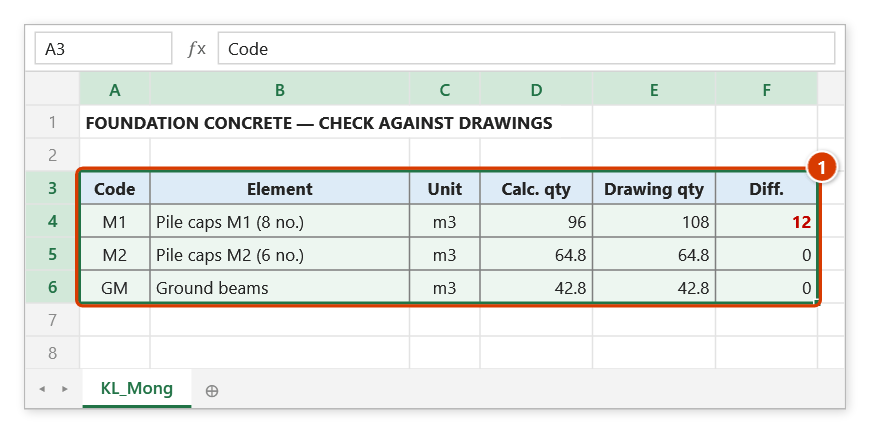
Download this command's sample workbook — the data matches the pictures below (sheet KL_Mong), so you can follow each step right away.
Step 1. Open the workbook you want to discuss.
Step 2. On the ribbon, open the DVD Addin tab → AI group → click DVD Chat.
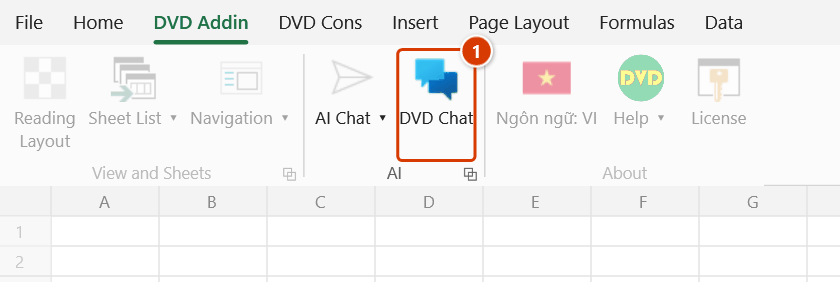
Step 3. The DVD Chat pane docks on the right edge of the Excel window. Type in the message box and click Gửi (Send) to post to your team.
Step 4. To discuss exact figures: select the range on the sheet (1), click the 📋 button (attach the selected Excel cell / range) in the chat pane, write your message and send — the message carries the reference and the data of that range.
Step 5. Click DVD Chat on the ribbon again to hide the pane and once more to show it; the message history is kept.
Example
A quantity surveyor spots that the foundation concrete for pile cap M1 on sheet QTY_Found is 12 m³ away from the drawing. He opens DVD Chat, selects B18:H24, attaches that range to a message and writes: "M1 is out by 12 m³ — please re-check the cap height from level -1.80 m." The site engineer opens the attached range and replies right in the pane, with nobody screenshotting the sheet into another app.
Notes
- The pane belongs to each Excel window; open a second Excel window and you have to toggle the pane there separately.
- Pane width is remembered — widen or narrow it now and the next toggle reopens at that size (the default is 380 px).
- An Internet connection is required because every message lives on the Firebase backend, not inside the workbook file.
- Attaching a cell or range sends the reference (workbook, sheet, address) and a snapshot of at most 10 rows × 10 columns of its data — think before sharing rate tables or contract information. The recipient clicks the attachment card to jump to that range if a workbook with the same name is open; otherwise only the snapshot can be viewed.
- Closing the pane does not delete history; the conversation is still there when you reopen it.
Related
- AI Chat — the pane for asking an AI, as opposed to talking to teammates.
- Send email — push a sheet or notice outside the team through Outlook.
- Screen annotate — capture and mark up a screenshot to illustrate a message.
- Preferences — general add-in settings, including the account section.