
File Tools
The File Tools menu (tab DVD Addin → group File and Print) collects the commands that work on files and folders outside Excel: build the folder skeleton for a dossier, list and rename files in bulk, dump a folder tree onto a sheet as an index, shrink site photos, pull images back out of a workbook, and unlock protected sheets. The first four commands of the menu work on tables across workbooks: combine many Excel files into one, split one table into many sheets or files, compare two versions of a sheet, and bring columns over from a lookup table into a main table.
This is the document controller's toolkit: anything that would take hundreds of right-clicks in Windows Explorer is prepared as a table in Excel and then applied in one pass.
Commands in this group
| Command | What it does |
|---|---|
| File List | Write a file listing to the sheet with path, extension, date modified and size |
| Combine files | Combine many Excel files with the same layout into one new workbook — one sheet per source sheet, or everything stacked into one sheet |
| Split table | Cut one table into several sheets or files by the values of a key column, repeating the header rows |
| Compare sheets | Compare two sheets cell by cell, list the differences and highlight them on the returned version |
| Merge tables | Bring several columns from a lookup table into the main table by a key column, written as values (instead of a row of VLOOKUPs) |
| Rename Files | Bulk rename from a two-column old name → new name table on the sheet |
| File Tree | Dump subfolders and files onto the sheet as an indented tree |
| Create Hyperlink | Turn cells holding text paths into clickable links |
| Folder Tree | Same as above but folders only, no files |
| Create Folder | Read a list from the sheet and actually create that folder tree under a parent |
| UnDiacritics Folder | Rename every file and subfolder to its accent-free form |
| Resize Images | Batch-shrink JPG/PNG by longest edge into a ResizeOutput sub-folder |
| Export Images | Extract every embedded image from a closed workbook into a media <filename> folder |
| Transcribe Audio | Turn a recording into text with AI |
| Unprotect Sheet | Remove sheet protection and workbook-structure protection from an external file |
Combine, split, compare and merge tables
These four commands work on tables rather than folders. Each section below sums up the main steps with a picture of the dialog; click the command name for the full step-by-step guide.
Combine files — collect the files every team sends back
- Click Add folder… (1) to take every Excel file in a folder (or Add files… to pick them one by one).
- Choose how to combine: One sheet per source sheet (keeps formulas, formatting and pictures) or Stack everything into one sheet (2) (rows appended, values only — ready to filter or pivot).
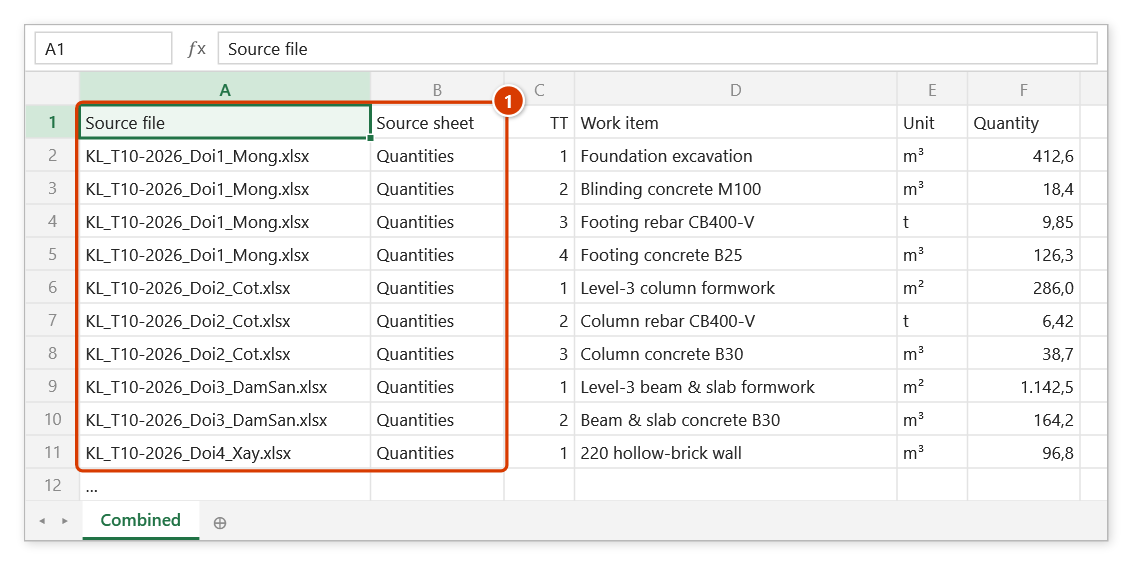
- In stacking mode enter the header rows of each table (3) — the header is kept from the first table only; keep Add columns for source file / sheet (4) to know where each row came from, then click Combine (5).
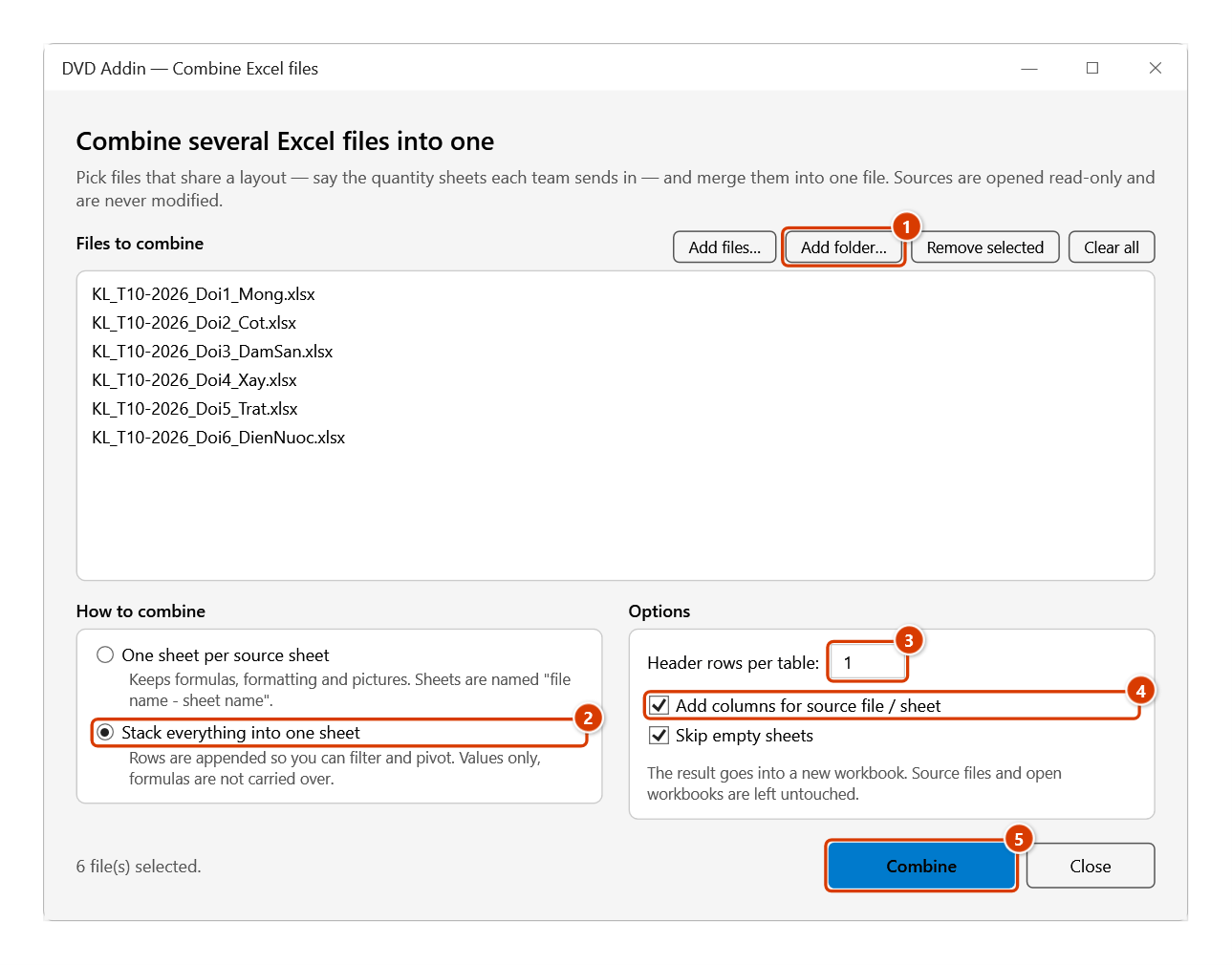
The result goes into a new workbook, sheet Combined; the source files are only opened for reading. Full step-by-step guide →
Split table — one sheet or one file per package
- Select the table including its header row, then click Split table — the selection is filled in.
- Enter the Header rows (1), choose the key column (2) and read the preview line (3): it tells you how many groups will be created and names the first few.
- Choose Several sheets in a new workbook (4) or one
.xlsxper group, then click Split (5).
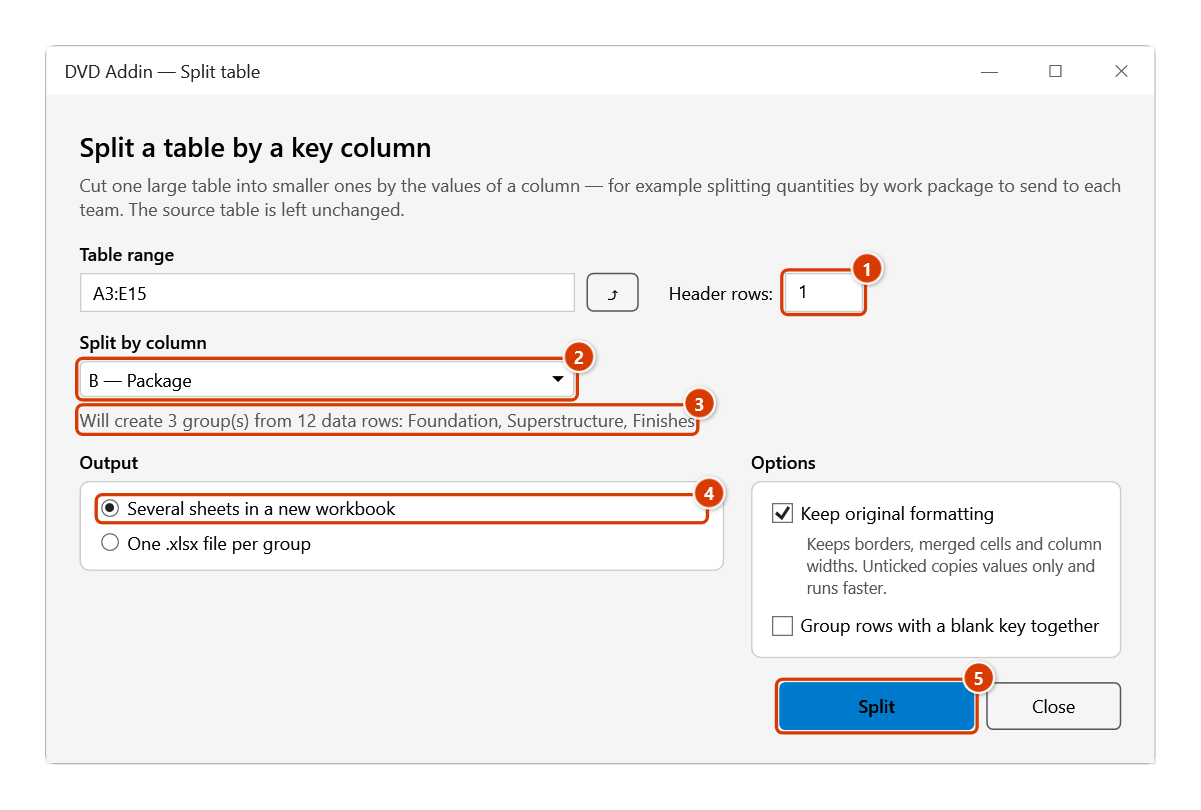
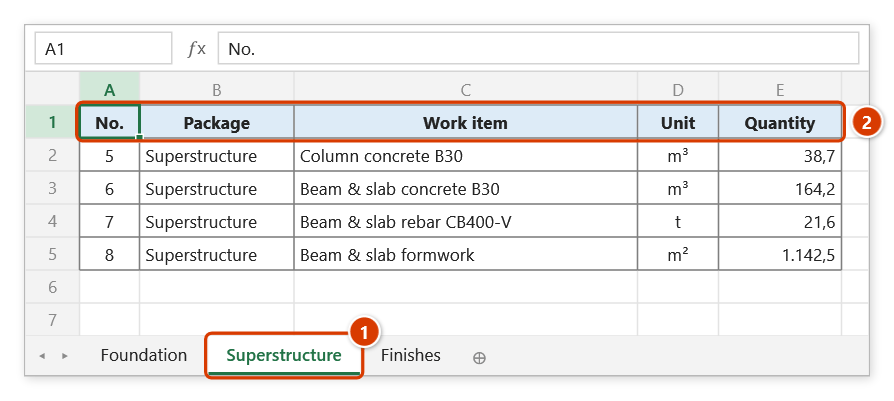
Every group becomes a sheet named after it, with the header row, borders and column widths repeated; the source table is left unchanged. Full step-by-step guide →
Compare sheets — which cells did the contractor change
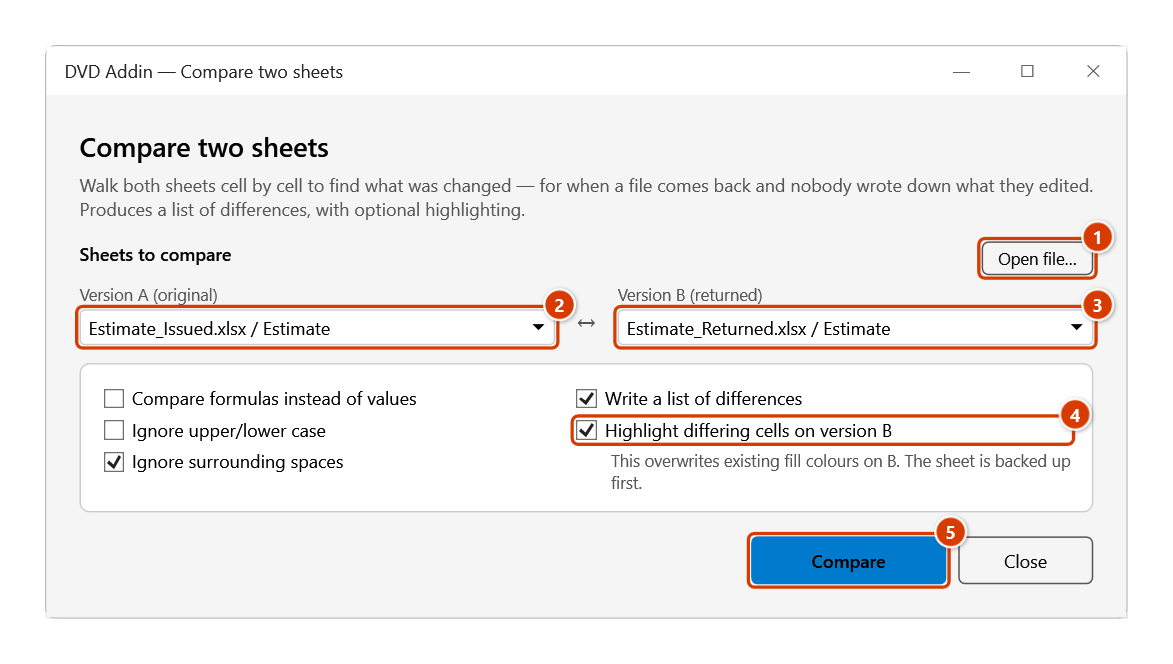
- Pick Version A (original) and Version B (returned) from the list of open sheets; if a file is not open yet, click Open file….
- Options: compare formulas instead of values, ignore case and stray spaces, highlight differing cells on version B (the add-in asks first and backs the sheet up before colouring). Click Compare.
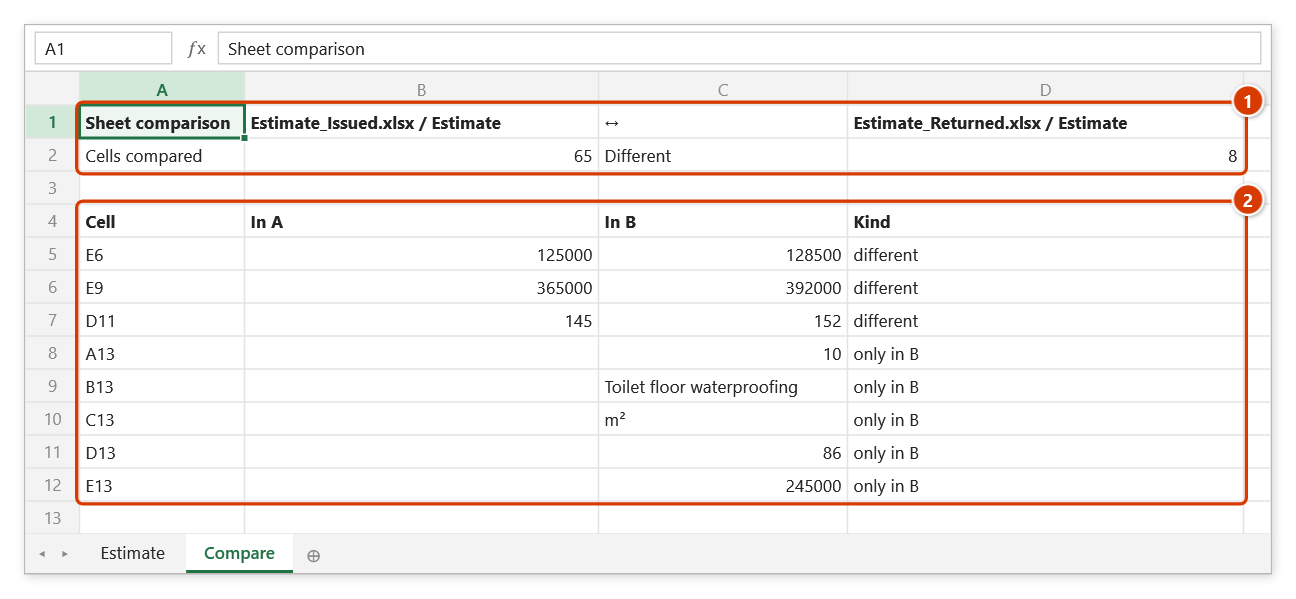
A new Compare sheet in version B's workbook lists every difference: cell address, both values and the kind of difference (2). Full step-by-step guide →
Merge tables — fill unit rates from the company price list
- Click
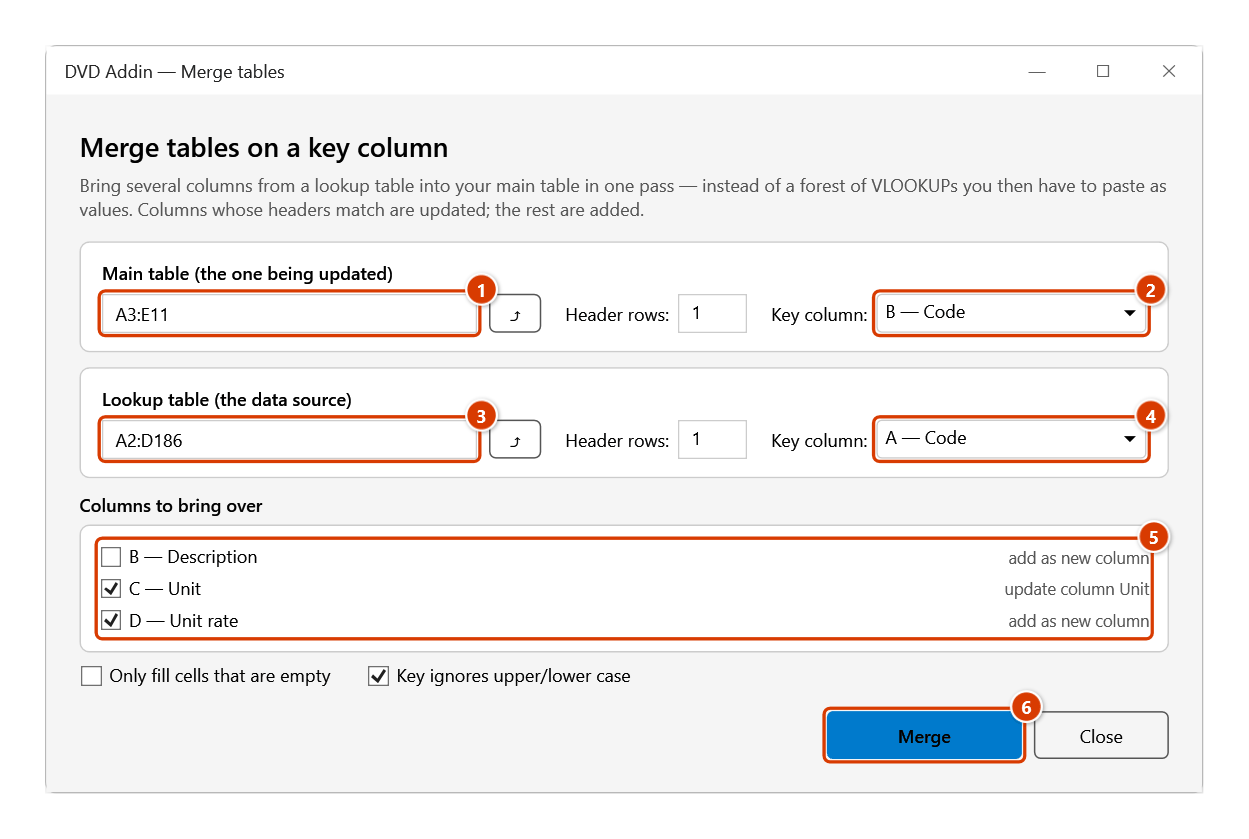
⤴to pick the main table (header row included) and its key column; do the same for the lookup table — it may be on another sheet or in another open workbook. - Under Columns to bring over, tick what you need: a column whose header matches is updated, one that does not is added as a new column on the right. Tick Only fill cells that are empty to keep figures that are already there.
- Click Merge, check how many columns will be written in the confirmation window (keep Back up sheet so Ctrl+Z works) and click Continue.
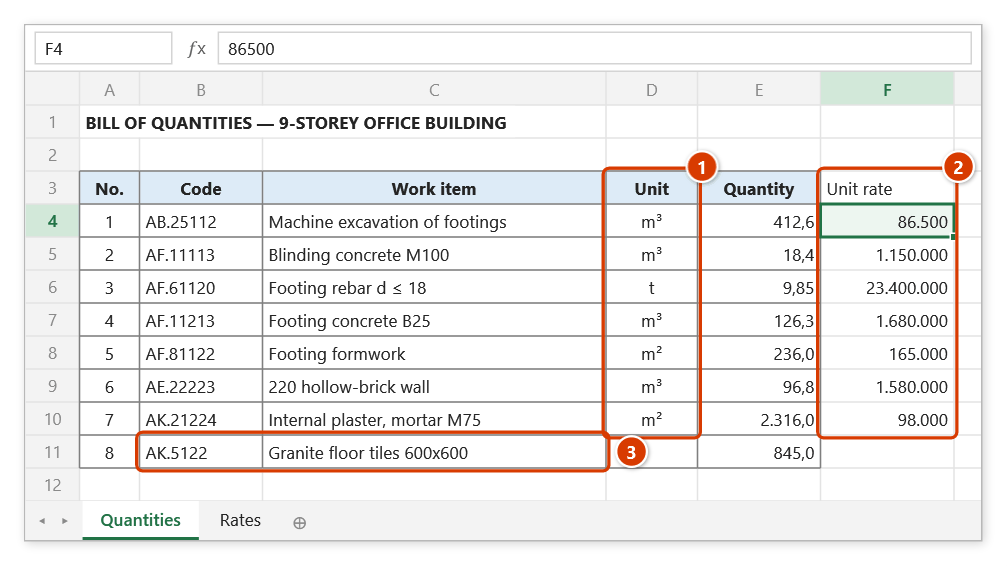
The result is plain values, with no lookup formulas left; codes that did not match are listed straight away so you can fix them. Full step-by-step guide →
Building and handing over an electronic dossier
- Type the folder skeleton on a sheet from row 2 downwards (column A = level 1, column B = level 2, and so on), run Create Folder, pick the parent folder — the whole tree is created on disk.
- File the documents into it. For phone photos, run Resize Images and enter the longest edge you want (the box is pre-filled with 800 px); the shrunk copies land in the
ResizeOutputsub-folder and the originals are untouched. - Run File List, press Pick files…, tick the columns you need (Filename, Path, Extension, Date modified, Size), switch on Show column headers and press Apply — the register is written from the active cell down.
- Use that filename column as the left column, type the standardised names in the right column, then run Rename Files: drag over the two-column body (skip the header row) → pick the folder → the files on disk are renamed to match.
- If the dossier goes to a public portal or onto a disc, run UnDiacritics Folder on the root so every path is plain ASCII.
- Run Create Hyperlink over the path column so reviewers can click straight through to each file.
- Finally, open an empty sheet and run File Tree (or Folder Tree if a folder-level index is enough) → print it with the electronic handover record.
Example
Standardising four inspection photos before filing them. The mapping table sits in B3:C6, the files in D:\Dossier\Inspection_Photos:
| Old name (column B) | New name (column C) |
|---|---|
| IMG_2841.JPG | IR-501_beam_gridline-A.jpg |
| IMG_2842.JPG | IR-501_beam_gridline-B.jpg |
| IMG_2843.JPG | IR-502_slab_S1.jpg |
| IMG_2844.JPG | IR-502_slab_S2.jpg |
Select B3:C6 → Rename Files → point at the photo folder: the four files on disk take their new names. Then run Resize Images at 1200 px and insert the copies from ResizeOutput into the site diary.
Tips and caveats
- File Tree and Folder Tree erase everything on the active sheet before writing (there is a confirmation prompt) — always run them on an empty sheet. Create Folder overwrites cell
A1with the parent path. - In Rename Files, both columns must carry the full extension; a new name that already exists is skipped rather than overwritten, and only files sitting directly in the folder are processed — subfolders are ignored.
- UnDiacritics Folder breaks every hyperlink and formula reference that points at the old paths — run it before creating hyperlinks, never after.
- The File List window is modeless: it writes to whichever cell is active each time you press Apply, so check the cursor first. Save options remembers the configuration for next time.
- Resize Images only handles
.jpg,.jpegand.png, never enters subfolders, and skips images already present inResizeOutput— delete that folder before re-running at a different size. - Export Images and Unprotect Sheet both require the source workbook to be closed; Unprotect Sheet edits the original file in place, so back it up first and only use it on files you own or are allowed to edit.
- File Tree, Folder Tree, Create Folder, Transcribe Audio and Unprotect Sheet need a current DVDAddin account (Standard or PRO) and are fully available during the trial; the rest of the menu is free to use.
- Most commands here rename or overwrite for real on disk and cannot be undone with Ctrl+Z; on large trees you can hold ESC to stop midway (File Tree, Folder Tree, Create Folder).
- Combine files and Split table always write to a new sheet or workbook and never change the source files or the source table. Stack everything into one sheet takes values only — use one sheet per source sheet when the formulas must survive.
- Compare sheets compares by cell position: if rows were inserted in the middle of version B, every row below is reported as different. Highlighting overwrites version B's fill colours — keep Back up sheet so you can restore them with Restore data.
- Merge tables overwrites the main table but leaves formula cells untouched; duplicate keys in the lookup table take the first row, like
VLOOKUP, and every unmatched code is reported.
See also
- Insert Pictures — bring the resized photos into Excel forms.
- Transcribe Audio — the transcription command in the same File Tools menu.
- PDF and OCR — assemble the PDF dossier once the filenames are standardised.
- Merge to Word — generate documents in bulk, then tidy their names with Rename Files.
- Compare BoQ — compares two bills of quantities by item code instead of cell position (not thrown off by inserted rows).
- Merge rows by key — merge rows sharing a key within one table after Combine files.