
Rename Files
Location on ribbon: Tab DVD Addin → Group File and Print → Menu File Tools
Command ID: btnRenameFiles
What it does
The command batch-renames files in a folder using a two-column mapping table you build on the sheet: left column is the old name, right column is the new name. Excel becomes the place where you compose and verify the new names with formulas before they touch the disk.
It is exactly what you need when tidying a submission: turning hundreds of camera file names (IMG_2841.JPG) into meaningful work-item codes, or renaming drawings to the client's numbering convention before handover.
How to use
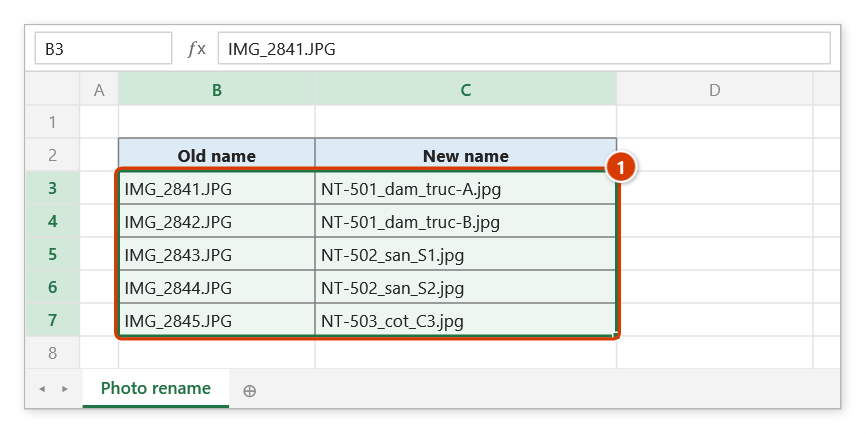
- On the sheet, build a two-column table: the left column holds the old file name, the right column the new file name. (Use File List to grab the old-name column quickly.) Including the extension is recommended; see the Notes if you leave it out. Keep the column just right of the table empty — the command writes a status for each row there.
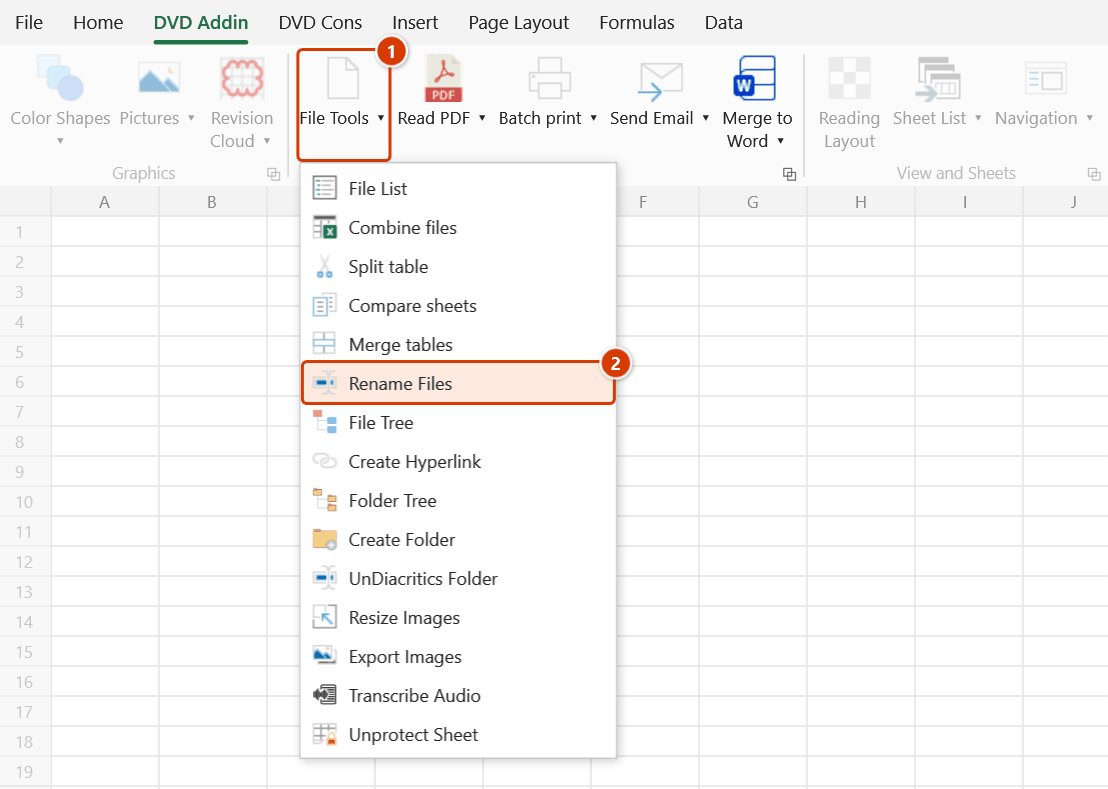
- Go to tab DVD Addin → group File and Print → File Tools → Rename Files.
- A range picker appears explaining "LEFT column = old name, RIGHT column = new name" — drag over the table body (skip the header row) and press OK.
- The Pick folder containing files dialog opens — choose the folder holding the files and press OK.
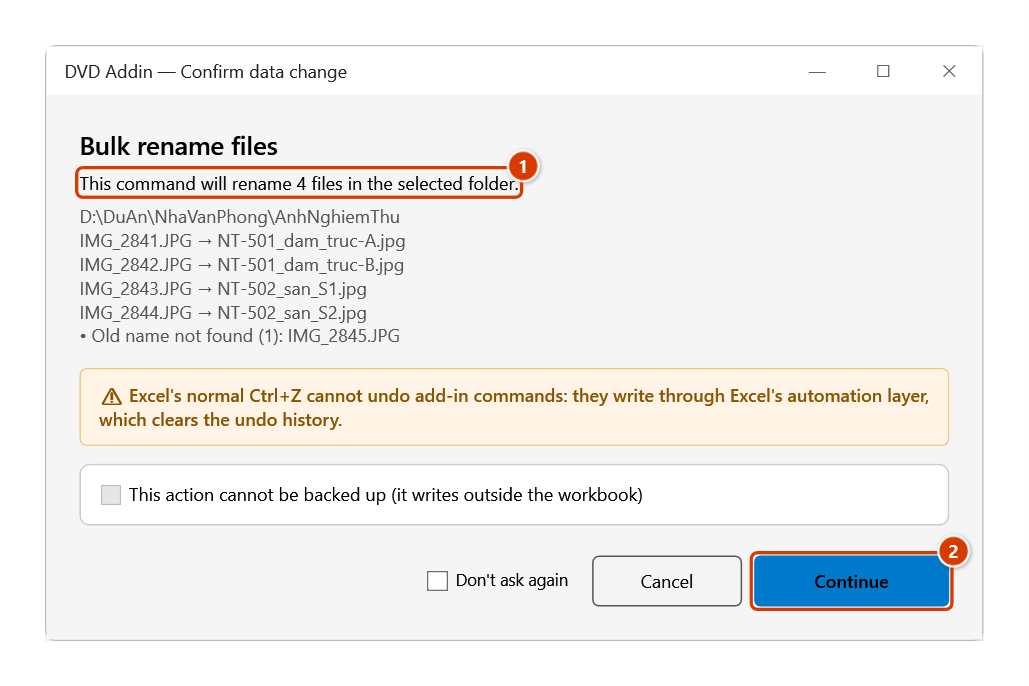
- The command plans the whole table before touching the disk: it finds the file matching each row's old name and checks the new name, then the Confirm data change window shows how many files will be renamed, a few examples and the problem rows (no backup is possible) — click Continue. It then renames in two phases through temporary names, so swapping
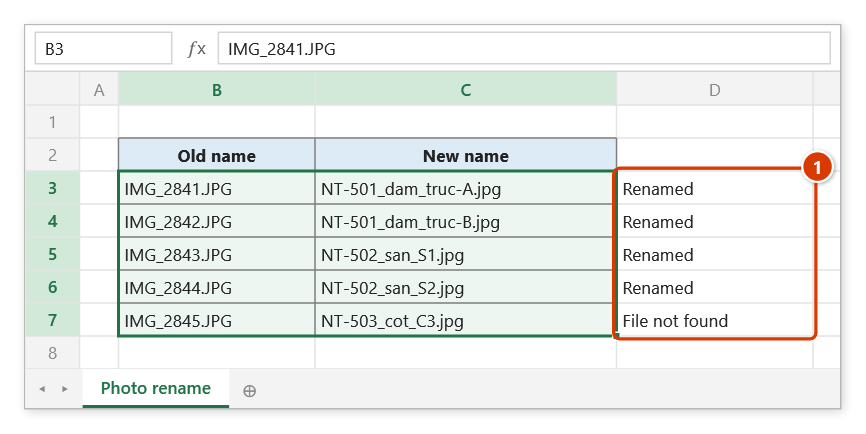
A ↔ Bor chainingA → B,B → Cworks in a single run. - Each row of the table gets a status in the column just right of the selected range: Renamed, File not found, Target name taken, Invalid new name, Already named so, or Error: … (with the reason).
- The final message reports how many files were renamed, groups the problem rows by reason with their file names, and shows the path of the run's CSV log.
Video tutorial
Narrated in Vietnamese, with Vietnamese subtitles. Đổi tên file, Tạo folder, Bỏ dấu folder · 5 min 47 s · 15 cases · Download the video · Practice workbook for the video
Commands in this video: Rename Files · Create Folder · UnDiacritics Folder
Chapters (23)
- Giới thiệu
- Mở lệnh
- Hai hộp hỏi
- 1 · Đổi tên ảnh nghiệm thu
- 2 · Không ghi đuôi file
- 3 · Tên mới có dấu chấm
- 4 · Bảng có dòng lỗi
- 5 · Đổi chéo hai tên
- 6 · File đang mở
- 7 · Đổi ngược lại
- Lệnh Tạo Folder
- 8 · Khung thư mục dự án
- 9 · Nhân bản cây thư mục cũ
- 10 · Chạy lại, thêm thư mục
- 11 · Ký tự cấm, gạch ngược
- 12 · Sheet trống – bảng mẫu
- Lệnh Bỏ dấu Folder
- 13 · Bỏ dấu cả cây hồ sơ
- 14 · Mục bị bỏ qua
- 15 · Khi chọn sai
- Hoàn tác
- Mẹo
- Kết thúc
Illustrated walkthrough
Practice
Download this command's sample workbook — the data matches the pictures below (sheet Photo rename), so you can follow each step right away.
Step 1. Build a two-column table: the left column holds the old file name, the right column the new file name (preferably with the extension). Leave the column right of the table empty — the command writes each row's status there. The range to pick is the data only, without the header row (1).
Step 2. On the ribbon, open the DVD Addin tab → File and Print group → open File Tools → choose Rename Files.
Step 3. The range box shows the hint LEFT column = old name, RIGHT column = new name — select B3:C7 and click OK. Then, in the Pick folder containing files box, choose the photo folder (for example D:\DuAn\NhaVanPhong\AnhNghiemThu) and click OK.
Step 4. The add-in plans the whole table before touching the disk: the number of files to rename (1), followed by the folder, a few examples and the problem rows — here IMG_2845.JPG is not in the folder. Renaming is a real change on disk that cannot be backed up; click Continue (2).
Step 5. Four files are renamed; every row of the table gets a status in the column to its right (1). The final message reads Renamed 4/4 files., groups the problem rows by reason and gives the path of the CSV log (in %LocalAppData%\DVDAddin\Logs).
Example
The folder D:\Records\Inspection_Photos holds camera images that need inspection-record codes. You build this table in B3:C6:
| Old name (column B) | New name (column C) |
|---|---|
| IMG_2841.JPG | INS-501_beam_gridA.jpg |
| IMG_2842.JPG | INS-501_beam_gridB.jpg |
| IMG_2843.JPG | INS-502_slab_S1.jpg |
| IMG_2844.JPG | INS-502_slab_S2.jpg |
Select B3:C6, point at the photo folder, and the four files on disk are renamed to match; column D reads Renamed on all four rows. Run Comment by Name afterwards and the register instantly has hover-preview photos.
Notes
- Extensions: a new name without a real extension keeps the old file's extension — for an old PDF file,
BB-01becomesBB-01.pdf;BV 1.2becomesBV 1.2.pdfbecause.2is not a file extension. The old-name column may leave out the extension when exactly one file in the folder has that name; if several files share the name with different extensions, write the extension in full. - The command renames real files on disk — Ctrl+Z will not undo it and there is no revert button. Back up the folder before running it on important records.
- Every run saves a CSV log (folder, old name, new name, status) in
%LocalAppData%\DVDAddin\Logs, namedDoiTenTep_<date>_<time>.csv; its path is shown in the final message so you can look it up later. - If the new name matches another file that stays in the folder, that row reads Target name taken and is skipped — no file is ever overwritten. Swaps and chains between files in the same table do not count as clashes.
- A row whose new name equals the old name reads Already named so; a new name containing characters Windows does not allow in file names reads Invalid new name; a blank new-name cell is skipped.
- Statuses are written only when the column just right of the table is empty or holds statuses from a previous run; if it contains other data, it is left untouched.
- The last column of the selected range is used as the new name; if you drag over three columns the middle one is ignored, so select exactly two.
- Matching is case-insensitive and ignores Unicode normalisation differences: names coming from a Mac or extracted from a zip file still match names typed with Unikey. Only files sitting directly in the folder are processed — subfolders are not touched.
- Press ESC to stop mid-run. Any file already moved to a temporary name is always either finished or put back under its old name — never left stranded.
- The range picker does not lock Excel: while it is open you can scroll, switch sheets or switch workbooks to pick the range there. Click OK or press Enter on the sheet when done; Cancel or Esc to stop.
Related
- File List — export the existing file names into the sheet to build the "old name" column.
- Strip Accents in Folder — remove Vietnamese diacritics from file and folder names.
- Create Folders — build the document folder tree from a list on the sheet.
- File Tree — re-check the whole folder after the rename.