
File List
Location on ribbon: Tab DVD Addin → Group File and Print → Menu File Tools
Command ID: btnFileList
What it does
The command writes a list of files with their details into the sheet: file name, path, extension, date modified and size. You choose which columns appear, whether hyperlinks are created, and whether everything is squeezed onto a single row.
It is the tool for building a document register: a list of issued shop drawings, a handover file index, or a site-photo schedule with capture dates you can cross-check against the site diary.
How to use
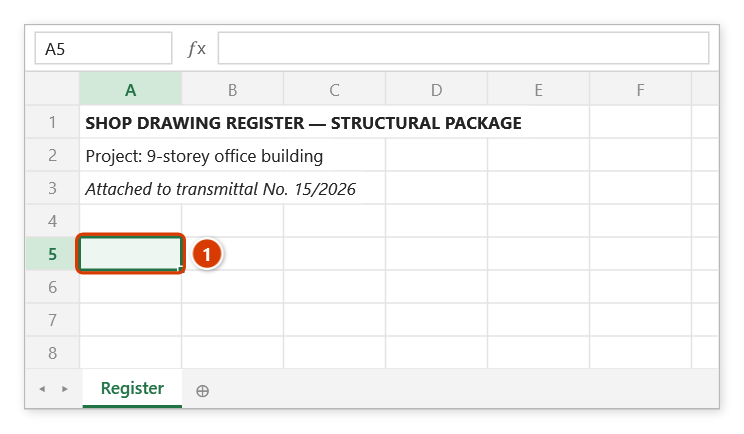
- Click the cell where the list should start.
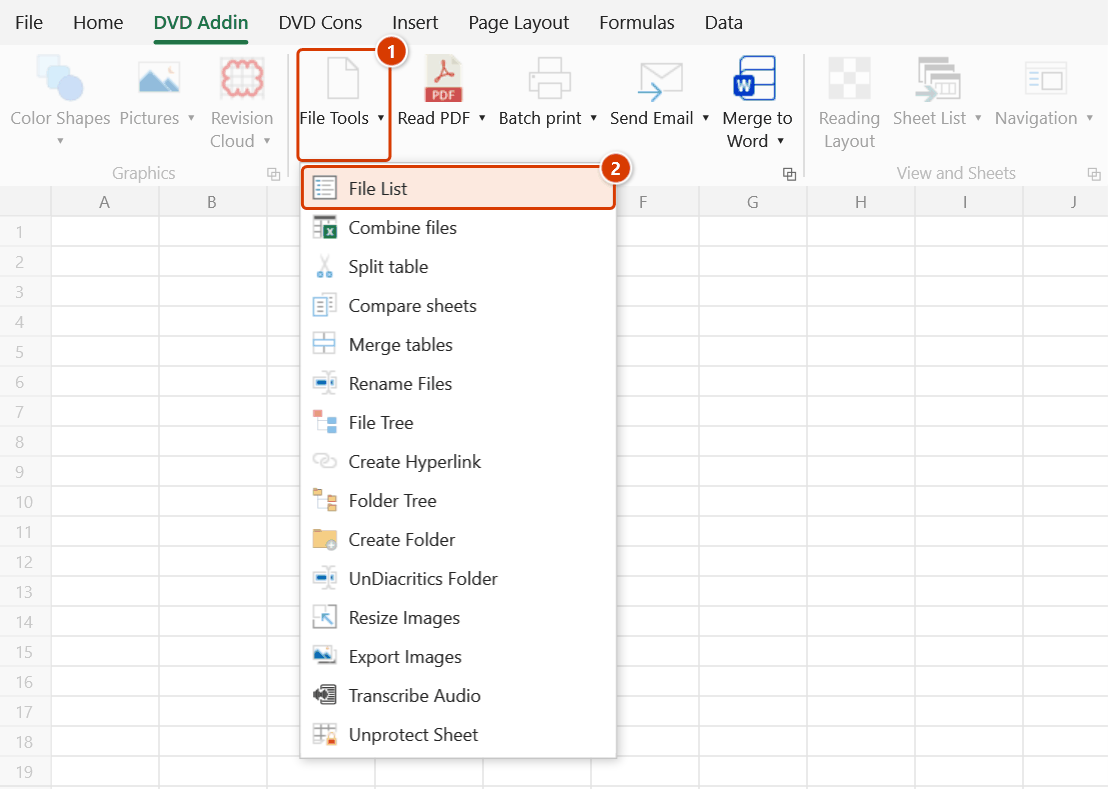
- Go to tab DVD Addin → group File and Print → File Tools → File List. The Filenames list window opens and does not lock Excel — you can still select cells and switch sheets.
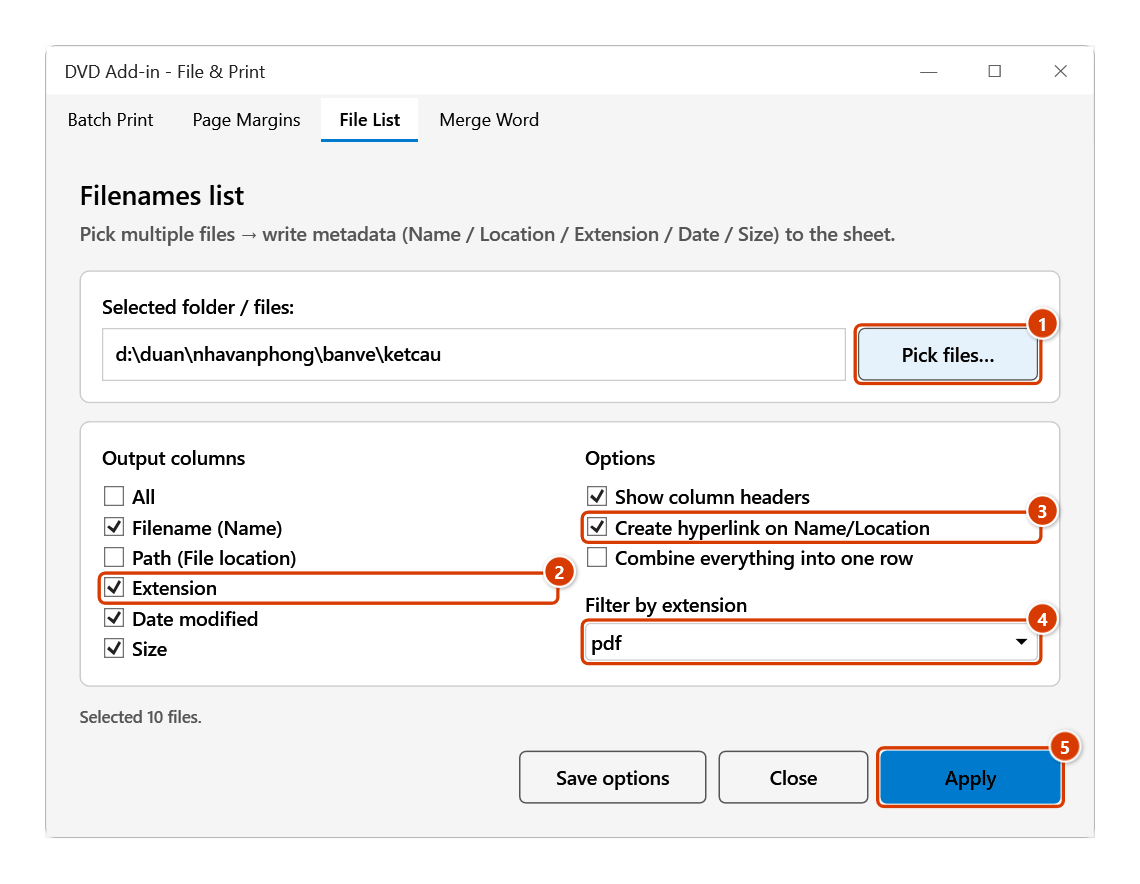
- Press Pick files… to choose the files; the chosen path appears in Selected folder / files.
- Under Output columns, tick what you need: All, Filename (Name), Path (File location), Extension, Date modified, Size.
- Under Options, set Show column headers, Create hyperlink on Name/Location, Combine everything into one row, and choose an extension in Filter by extension.
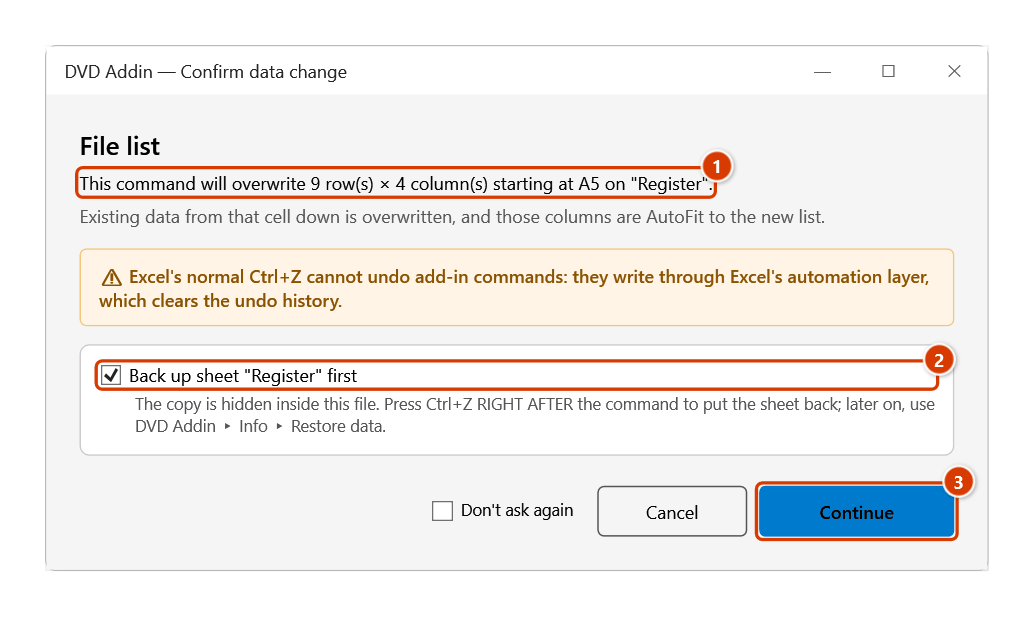
- Press Apply, check the block to be overwritten in the Confirm data change window and press Continue — the list is written starting at whichever cell is active at that moment. To output somewhere else, click a new cell and press Apply again.
- Press Save options to remember the configuration for next time, or Close to dismiss the window.
Video tutorial
Narrated in Vietnamese, with Vietnamese subtitles. Danh sách file và cây thư mục · 7 min 32 s · 11 cases · Download the video · Practice workbook for the video
Commands in this video: File List · File Tree · Folder Tree
Chapters (17)
- Giới thiệu
- Mở lệnh
- Cửa sổ Liệt kê file
- 1 · Bảng kê bản vẽ PDF
- 2 · Đường dẫn đầy đủ
- 3 · Ghi nối vào bảng có sẵn
- 4 · Gộp tên file vào một ô
- 5 · Thư mục rất nhiều tệp
- 6 · Khi thao tác sai
- Hai lệnh cây thư mục
- 7 · Cây thư mục file
- 8 · Cây thư mục folder
- 9 · Tệp ẩn, thư mục bị khoá
- 10 · Tắt hyperlink cho cây
- 11 · Chạy nhầm sheet – Ctrl+Z
- Mẹo
- Kết thúc
Illustrated walkthrough
Practice
Download this command's sample workbook — the data matches the pictures below (sheet Register), so you can follow each step right away.
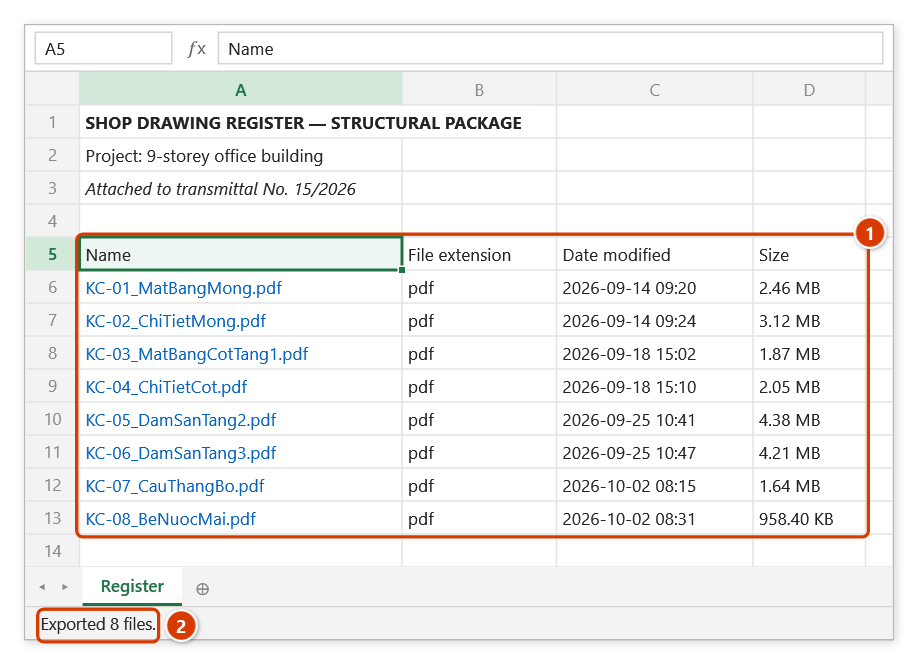
Step 1. Click the cell where the list should start, for example A5 on the register sheet (1).
Step 2. On the ribbon, open the DVD Addin tab → File and Print group → open File Tools → choose File List.
Step 3. The File List tab opens without locking Excel (you can still select cells and switch sheets). Click Pick files… (1) and select the files in the drawings folder — the folder and the number of files appear right away. Under Output columns (2) keep four columns — Filename / Extension / Date modified / Size; keep Show column headers and Create hyperlink on Name/Location (3); in Filter by extension choose pdf (4). Click Apply (5) — the list is written from the cell active at that moment.
Step 4. The add-in states which block will be overwritten (1) (8 pdf files + the header row). Keep Back up sheet (2) so Ctrl+Z right after the command can restore the sheet, then click Continue (3).
Step 5. From A5 down you get the register (1): a header row, then one drawing per line; each file name (in blue) is a hyperlink that opens the PDF, and the modified date doubles as the issue date. The status bar reports how many files were exported (2).
Example
You need a register of shop drawings issued for the structural package, to attach to a transmittal.
Click cell A5 on the "Register" sheet, open File List, press Pick files… and select everything in the drawings folder. Tick four columns — Filename / Extension / Date modified / Size — enable Show column headers and Create hyperlink on Name/Location, and set Filter by extension to pdf.
Press Apply: from A5 down you get a register with a header row, one drawing per line, clickable names that open the PDF directly, and the modified date standing in for the issue date.
Notes
- The window is modeless — it writes to the active cell each time you press Apply, so check where the cursor sits before pressing.
- Data overwrites whatever sits below the starting cell; leave room or output to a fresh sheet.
- Keep Back up sheet ticked in the confirmation and Ctrl+Z right after the command puts the sheet back; untick it and the write cannot be undone — clear the range manually if it lands in the wrong place.
- The header row is always in English:
Name,File location,File extension,Date modified,Size. - Combine everything into one row produces a single horizontal line, useful when you want a run of file names to paste into a remarks cell rather than a register.
- Filter by extension applies to the files you picked, so the result can have fewer rows than the number selected in step 3.
- Size and date are read at run time; if a file changes afterwards the table does not refresh itself — press Apply again.
Related
- File Tree — export a multi-level folder tree instead of a flat list.
- Folder Tree — list folders only, skipping the files.
- Rename Files — use this list as the "old name" column for a batch rename.
- Create Hyperlink — turn exported paths into clickable links.