
Create Hyperlink
Location on ribbon: Tab DVD Addin → Group File and Print → Menu File Tools
Command ID: btnCreateHyperlink
What it does
Turns cells that already hold a path written as plain text into clickable hyperlinks. This is the fast way to finish a drawing register, a document index, or an inspection-record tracker where one column stores the path to a PDF or DWG on the site server.
After the command runs, every linked cell shows one common caption (for example "Open drawing") instead of a long unreadable path, while still opening the correct file when clicked.
How to use
- Select the cells that contain the paths — a single column, several columns, or any block.
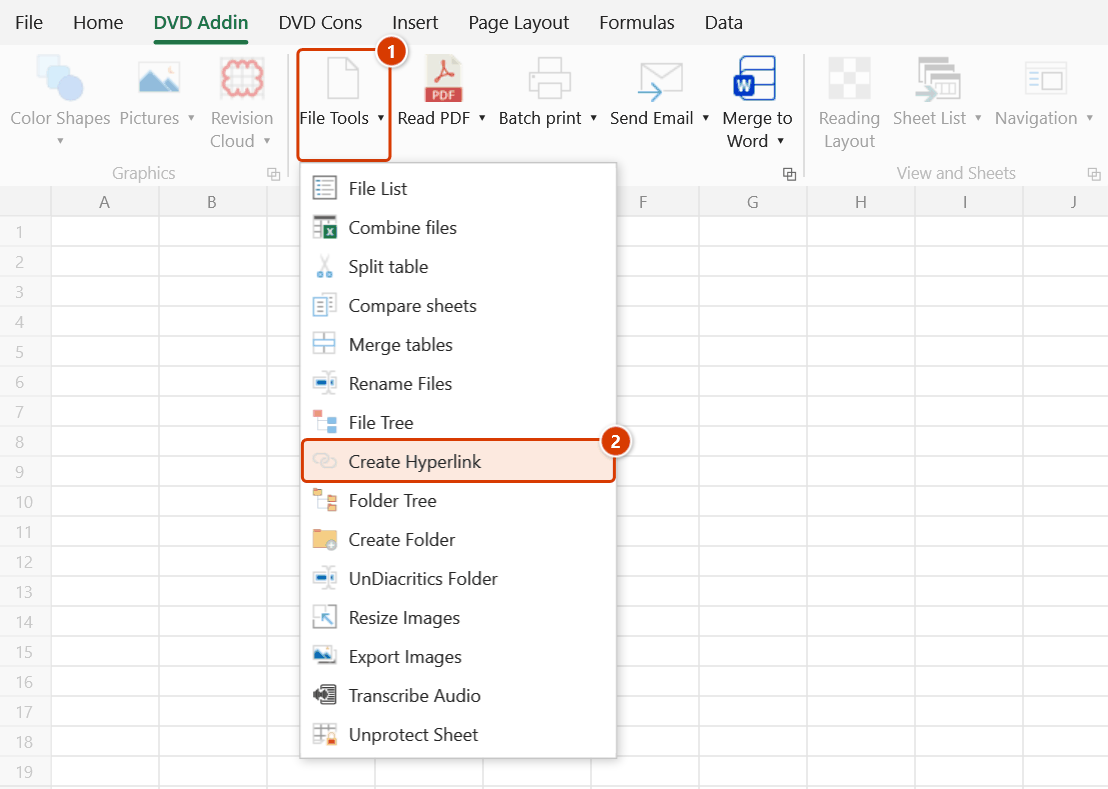
- Go to tab DVD Addin → group File and Print → menu File Tools → click Create Hyperlink.
- Excel shows an input box, "Enter display text", pre-filled with a suggested caption. Type the caption you want for all links and click OK.
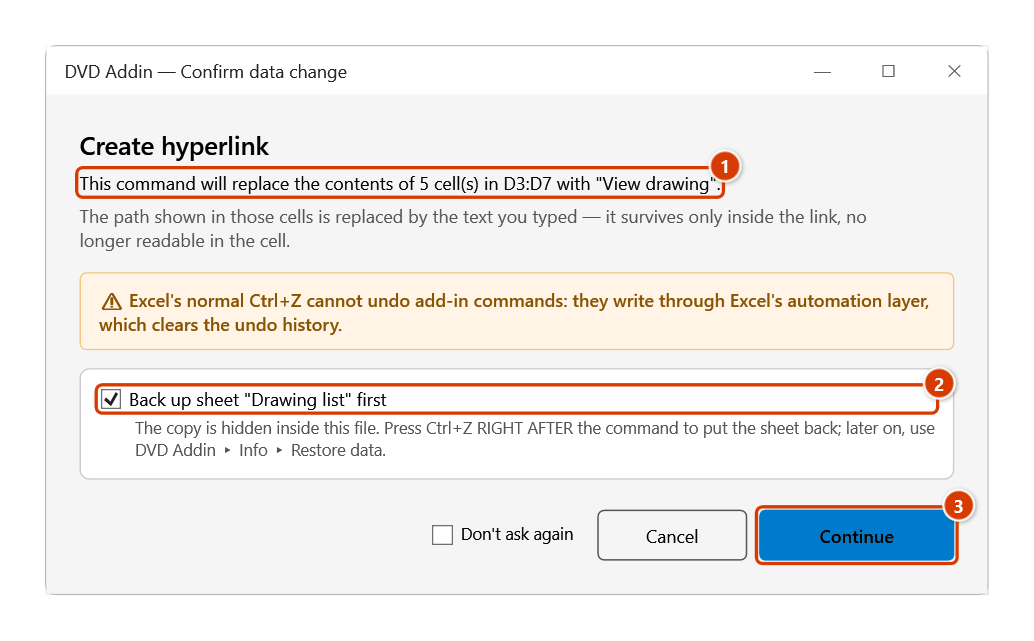
- The Confirm data change window states how many cells will have their text replaced — keep Back up sheet ticked and click Continue.
- The command walks every cell in the selection: empty cells are skipped, and each non-empty cell gets a hyperlink pointing at the value it already holds.
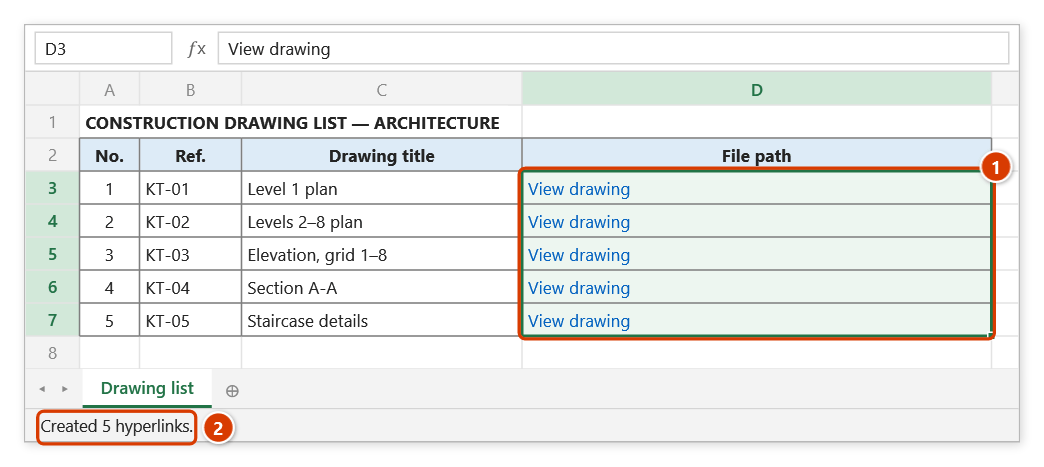
- The status bar reports how many links were created, for example "Created 24 hyperlinks."
Video tutorial
Narrated in Vietnamese, with Vietnamese subtitles. Tạo Hyperlink · 5 min 53 s · 10 cases · Download the video · Practice workbook for the video
Chapters (15)
- Giới thiệu
- Mở lệnh
- Hộp nhập
- 1 · Đường dẫn tệp
- 2 · Thư mục, trang web, email
- 3 · Ô trống xen giữa
- 4 · Hai cột – hai chữ riêng
- 5 · Danh sách đang lọc
- 6 · Chọn nhầm cả bảng
- 7 · Chạy lại – mất đường dẫn
- 8 · Tên sheet trong ô
- 9 · Sheet đang bảo vệ
- 10 · Khi lệnh không chạy
- Mẹo
- Kết thúc
Illustrated walkthrough
Practice
Download this command's sample workbook — the data matches the pictures below (sheet Drawing list), so you can follow each step right away.
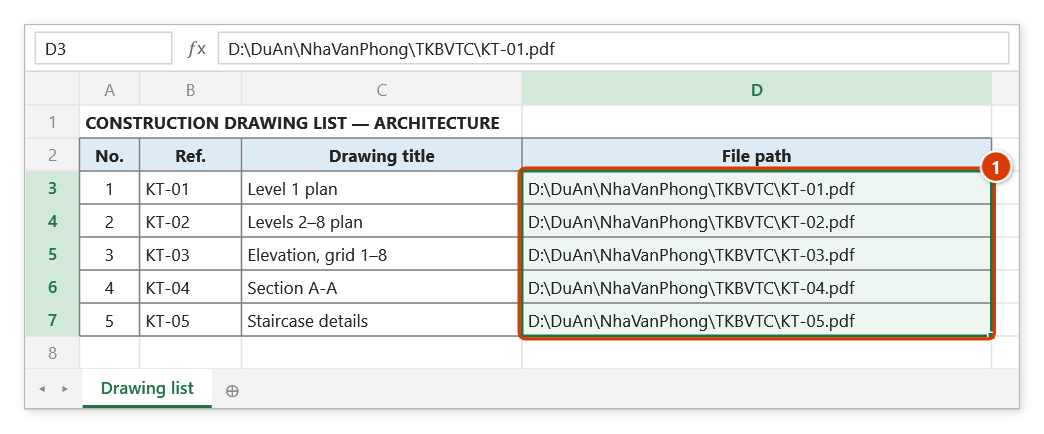
Step 1. Select the cells that hold file paths as plain text (1).
Step 2. On the ribbon, open the DVD Addin tab → File and Print group → open File Tools → choose Create Hyperlink.
Step 3. Excel shows the Enter display text box with the suggestion View attached document; type the text shared by every link, for example View drawing, and click OK.
Step 4. The add-in tells you how many cells will have their text replaced (1) — the path survives only inside the link. Keep Back up sheet (2) so Ctrl+Z right after the command can restore the sheet, then click Continue (3).
Step 5. Every cell with a path becomes a blue link reading View drawing (1) that opens the right file. The status bar reports how many hyperlinks were created (2).
Example
A construction drawing register where column File path holds network paths:
| Before (column D) | After (column D) |
|---|---|
\\SERVER\ProjectA\IFC\AR-01.pdf | Open drawing |
\\SERVER\ProjectA\IFC\AR-02.pdf | Open drawing |
D:\Records\Inspection\IR-045.pdf | Open drawing |
Select D2:D40, run the command, type Open drawing — all 39 cells become links, and the site engineer opens the drawing with one click.
Notes
- Every cell in the selection gets the same display text; run the command per block if you need different captions.
- The original path text is replaced by the caption, so keep a helper column with the raw paths if you still need them.
- If a cell already has a hyperlink, the old one is deleted before the new link is added.
- Keep Back up sheet ticked in the confirmation and Ctrl+Z right after the command puts the sheet back (later on, use Restore data); untick it and the change cannot be undone.
- The command does not verify that the path exists; a wrong path still becomes a link and only fails when clicked.
- You must select a range first, otherwise the command just reports "Please select a data range."
Related
- File List — produce a list of files with full paths to feed this command.
- File Tree — build a file/folder tree that can attach hyperlinks automatically.
- Rename Files — batch-rename files before linking so names stay in sync.
- Folder Tree — folders only, handy when building a document index.