
Merge rows by key
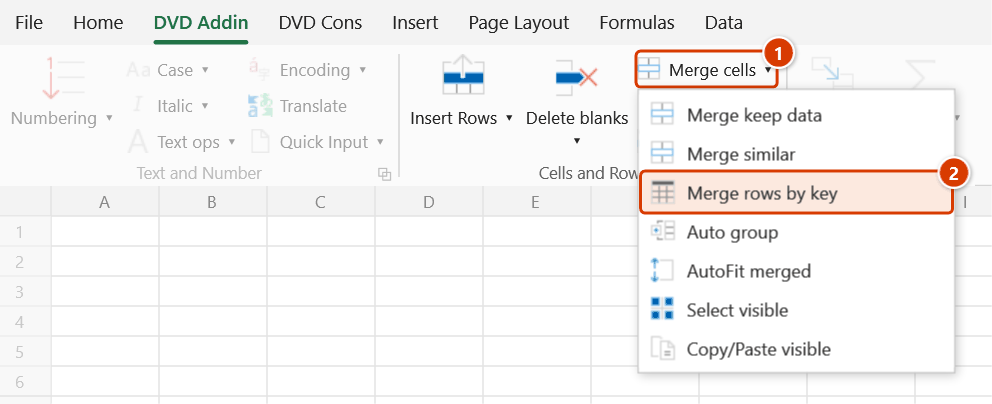
Location on ribbon: Tab DVD Addin → Group Cells and Rows → Menu Merge cells
Command ID: btnMergeRows
License required
This command needs a valid DVDAddin account (Standard or PRO). It is fully available during the trial period.
What it does
The command collapses all rows that share the same value in the first column (the key column) into a single row. In the remaining columns, numeric cells are added together as a formula such as =12.5+8.4+3 — keeping every term visible so quantities stay auditable — while text cells are concatenated on separate lines.
It suits detailed quantity take-offs that must be summarised per work code, or a material log with many deliveries per month that needs grouping by material name.
How to use
- Click DVD Addin → Cells and Rows → Merge rows by key.
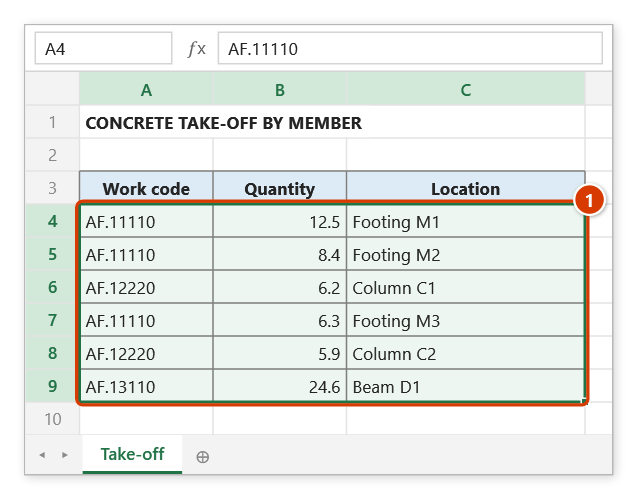
- The range picker appears with the prompt "Please select a range". Drag over the data block (exclude the header row) and click OK.
- The selection must be at least 2 columns × 2 rows; column 1 is always treated as the key column.
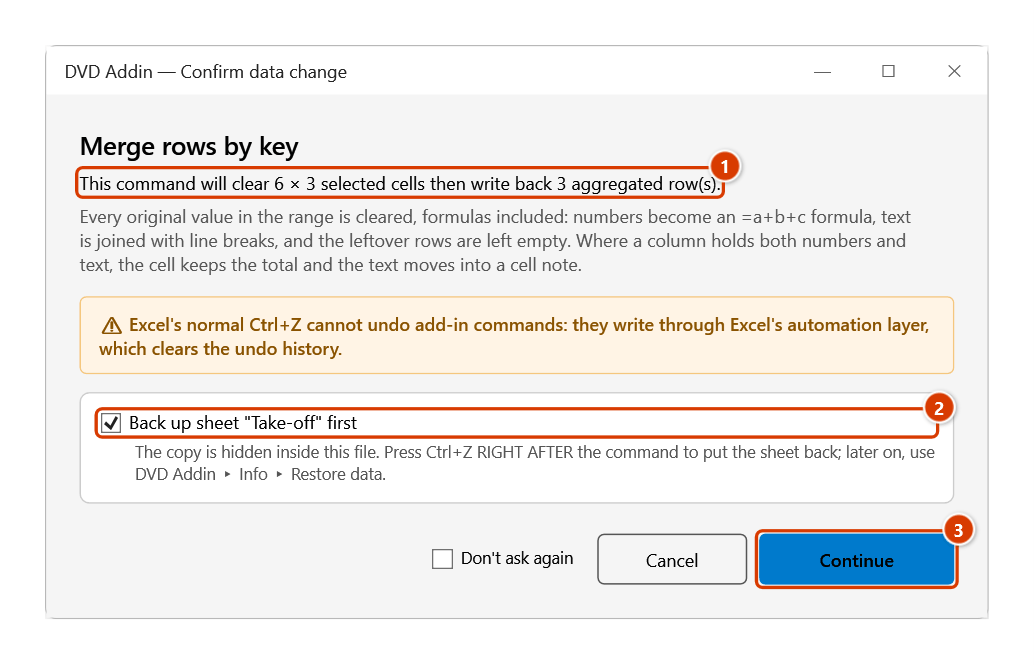
- The command reads the whole block, then the Confirm data change window states that the selection will be cleared and how many aggregated rows are written back. Keep the backup ticked and click Continue.
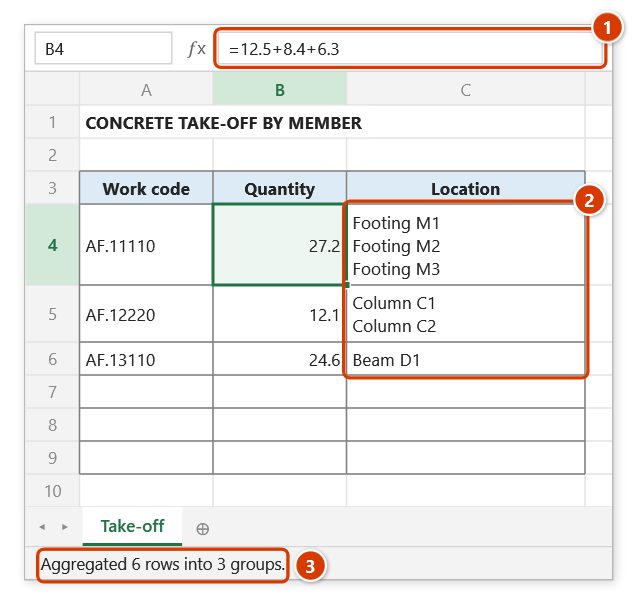
- The command clears the selected range and writes the result back from the first row: one row per key, in first-appearance order.
- The status bar reports "Aggregated 40 rows into 12 groups".
Video tutorial
Narrated in Vietnamese, with Vietnamese subtitles. Gộp giữ data, Gộp ô giống nhau, Gộp dòng theo key · 7 min 18 s · 16 cases · Download the video · Practice workbook for the video
Commands in this video: Merge keep data · Merge rows by key · Merge similar
Chapters (22)
- Giới thiệu
- Mở lệnh
- 1 · Diễn giải nhiều dòng
- 2 · Gạch đầu dòng, ô trống
- 3 · Ô số, ngày, công thức
- 4 · Nhiều vùng rời (Ctrl)
- 5 · Có ô gộp sẵn, dòng ẩn
- 6 · Bấm lại để tách gộp
- Gộp ô giống nhau
- 7 · Cột lặp tên cấu kiện
- 8 · Ô trống, khác dấu cách
- 9 · Gộp tiêu đề theo hàng
- 10 · Cột con và cột cha
- Gộp dòng theo key
- 11 · Tổng hợp theo mã công tác
- 12 · Công thức, ô có chữ
- 13 · Khoá trống, dư dấu cách
- 14 · Dòng đang ẩn
- 15 · Hoàn tác, sheet khoá
- 16 · Khi lệnh không chạy
- Mẹo
- Kết thúc
Illustrated walkthrough
Practice
Download this command's sample workbook — the data matches the pictures below (sheet Take-off), so you can follow each step right away.
Step 1. On the ribbon, open the DVD Addin tab → Cells and Rows group → open Merge cells → choose Merge rows by key.
Step 2. The range box asks Please select a range: drag over the data block without the header row, for example A4:C9 (1), then click OK. The first column is always the key; the range needs at least 2 columns × 2 rows.
Step 3. The confirmation box states that the selection is cleared and how many aggregated rows are written back (1). Keep the backup ticked (2) and click Continue (3).
Step 4. Each work code keeps one row, in order of first appearance. Numbers become a sum formula that keeps every term for checking (1), text is joined with line breaks (2) (turn on Wrap Text if it does not show fully). Leftover rows below are left empty; the status bar reports the result (3).
Example
A concrete take-off measured per member, to be summarised per work code:
| Before | After | ||||
|---|---|---|---|---|---|
| Code | Quantity | Location | Code | Quantity | Location |
| AF.11110 | 12.5 | Footing M1 | AF.11110 | =12.5+8.4 → 20.9 | Footing M1 Footing M2 |
| AF.11110 | 8.4 | Footing M2 | AF.12220 | =6.2 → 6.2 | Column C1 |
| AF.12220 | 6.2 | Column C1 |
Notes
- The selected range is cleared and overwritten. Ctrl+Z right after the command puts the sheet back as it was (thanks to the backup); see Restore data.
- Numeric cells become an addition formula (
=12.5+8.4); copy and Paste Special → Values if you need static numbers. - Text cells are joined with line breaks — turn Wrap Text on to see the full content. If a column holds both numbers and text for the same key, the cell keeps the sum formula and the text moves into a cell note.
- Rows left over below the collapsed result are blanked, not deleted; remove them manually if needed.
- Only column 1 can act as the key; move the key column to the front of the selection if it sits elsewhere.
- Holding ESC during the scan stops the command before the clear-and-write step, leaving the original data intact.
- The range picker does not lock Excel: while it is open you can scroll, switch sheets or switch workbooks to pick the range there. Click OK or press Enter on the sheet when done; Cancel or Esc to stop.
Related
- Merge similar — merges cells visually without aggregating numbers.
- Copy/Paste visible — transfers values between two tables using a key column.
- Auto group — rebuild the outline levels once the table is summarised.