
Split table
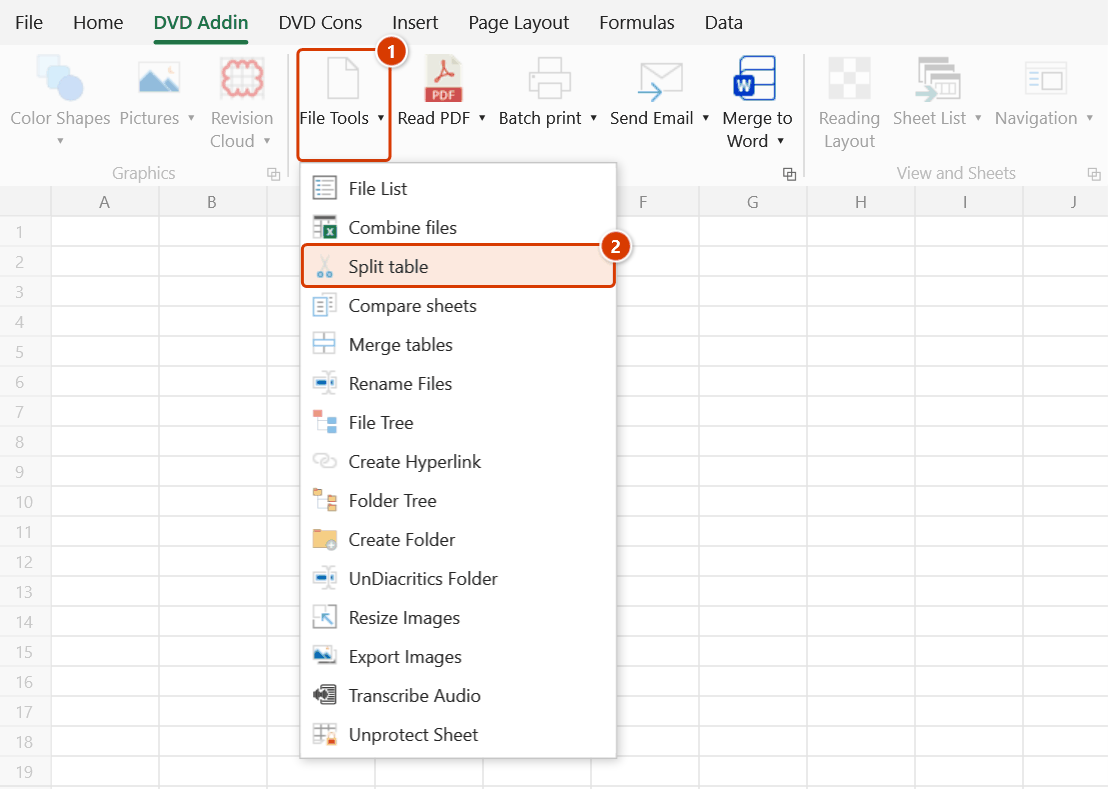
Ribbon location: DVD Addin tab → File and Print group → File Tools menu
Command ID: btnSplitTable
What it does
Cut one large table into smaller ones by the values of a key column — one sheet or one file per value, with the header rows repeated on every result.
By hand this means filtering to each value, copying what is visible, creating a sheet, pasting, renaming — once per group. A table with 20 work packages is 20 rounds of that.
How to use it
- Select the table on the sheet (optional), then click Split table.
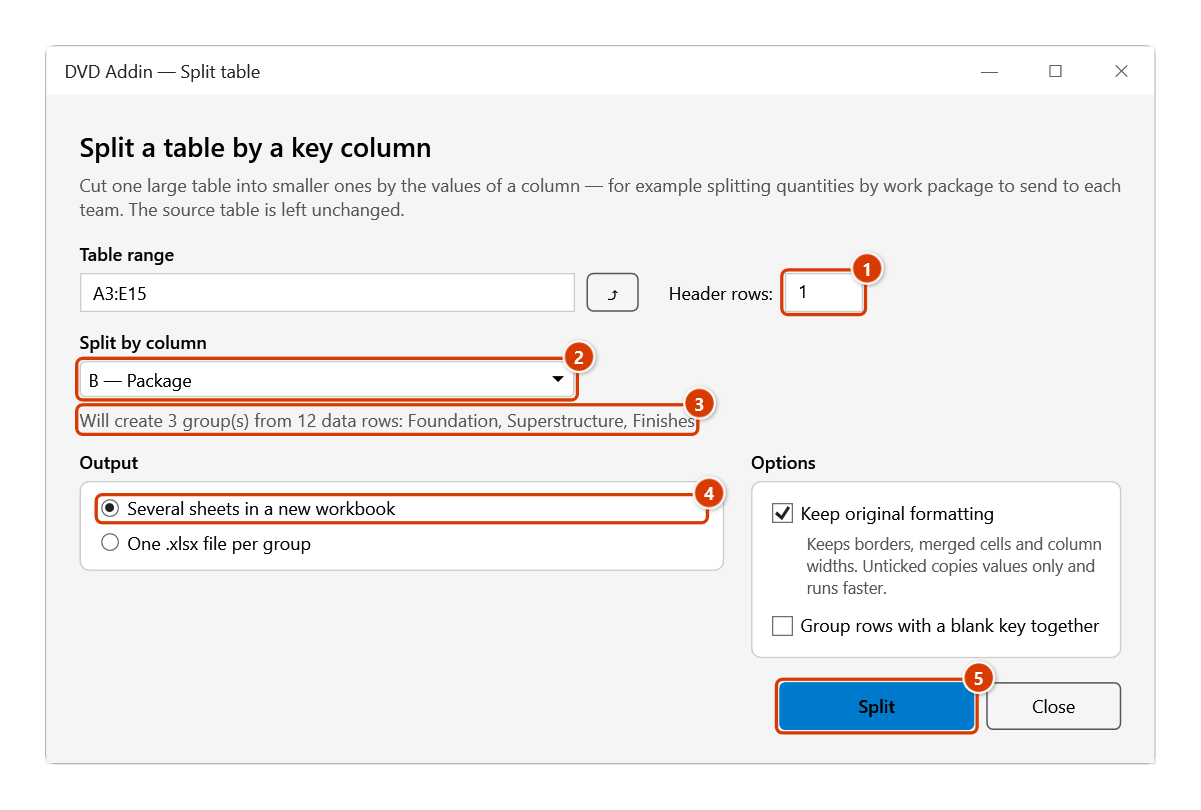
- The current selection is pre-filled; press
⤴to pick a different one. Include the header rows. - State the number of header rows — they are copied to the top of every result table.
- Choose the key column from the list (shown as
A — Column nameso it is easy to recognise). - The line underneath tells you how many groups will be created and names the first few — read it to confirm you picked the right column before running.
- Choose the output: several sheets in a new workbook, or one
.xlsxper group in a folder you pick. - Click Split.
Video tutorial
Narrated in Vietnamese, with Vietnamese subtitles. Tách bảng · 6 min 01 s · 14 cases · Download the video · Practice workbook for the video
Chapters (18)
- Giới thiệu
- Mở lệnh
- 1 · Tách ra nhiều sheet
- 2 · Mỗi nhóm một file
- 3 · Chạy lại – trùng tên file
- 4 · Nhiều dòng tiêu đề
- 5 · Ô gộp ở cột khoá
- 6 · Ô khoá để trống
- 7 · Hoa thường, chính tả
- 8 · Tên sheet: ký tự cấm, quá dài
- 9 · Cột khoá là ngày
- 10 · Bảng đang lọc
- 11 · Công thức trỏ dòng khác
- 12 · Chỉ chép giá trị
- 13 · Bảng lớn – dừng bằng ESC
- 14 · Khi nhập sai
- Mẹo
- Kết thúc
Illustrated walkthrough
Practice
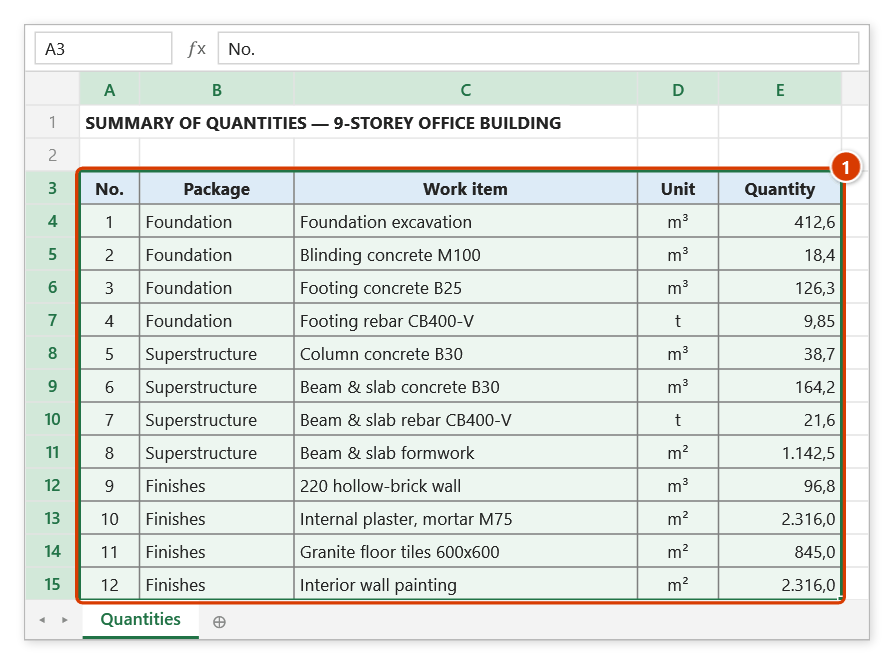
Download this command's sample workbook — the data matches the pictures below (sheet Quantities), so you can follow each step right away.
Step 1. Select the table to split, including its header row (1). The Package column will be the key column.
Step 2. On the ribbon, open the DVD Addin tab → File and Print group → open File Tools → choose Split table.
Step 3. The selected range is filled in (click ⤴ to pick again). Enter the Header rows (1), choose the key column B — Package (2) and read the preview line (3) to confirm the number of groups. Choose Several sheets in a new workbook (4) and click Split (5).
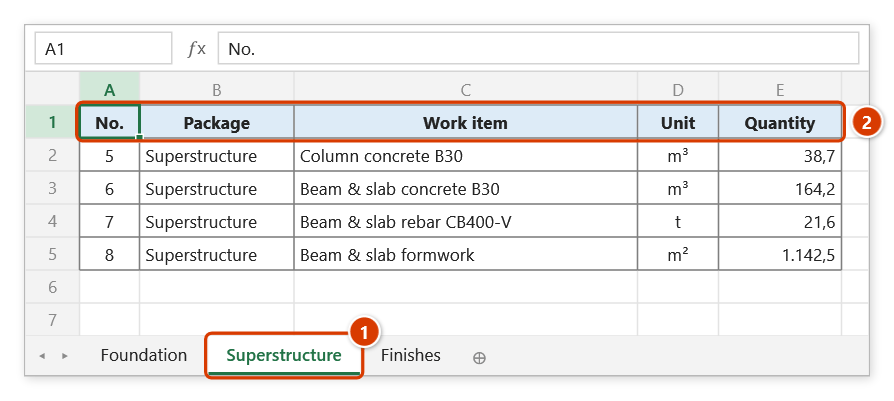
Step 4. The add-in creates a new workbook with one sheet per package, named after the group (1); every sheet repeats the header row (2) and keeps the borders and column widths. The source table is unchanged; the add-in reports Done: 3 group(s), 12 rows.
Example
An 1,800-row quantity table where column C is Work package with 23 distinct values.
Pick key column C, output one file per group → 23 .xlsx files named after the packages, each with the full header, ready to send to each team.
Notes
- Keep-formatting mode copies the table without the clipboard (whatever you had copied stays there) and keeps column widths too.
- The source table is not modified. Results always go to new sheets or new files.
- Keep original formatting (on by default) preserves borders, merged cells and column widths. Unticking copies values only — much faster on large tables.
- Group names become sheet and file names, so characters Excel and Windows forbid (
: \ / ? * [ ]) become-. Sheet names longer than 31 characters are trimmed; duplicates get(2),(3). - Existing files in the output folder are never overwritten — the add-in appends
(2)instead. - Rows with a blank key are skipped by default. Tick Group rows with a blank key together to keep them in their own table.
- Splitting to files creates many files on disk at once — the add-in confirms first and tells you how many.
- Hold ESC to stop partway; groups already created are kept.
- This window does not block Excel: you can keep working on the sheet while it is open. The ⤴ button opens a range picker that does not lock Excel — the window steps aside, and while picking you can scroll, switch sheets or workbooks; click OK or press Enter on the sheet to take the range, Cancel or Esc to keep the old one.
See also
- Combine files — the reverse operation.
- Compare sheets — find the differences between two versions.
- Export category — export by an existing category list.