
Export Images
Location on ribbon: Tab DVD Addin → Group File and Print → Menu File Tools
Command ID: btnExportImages
What it does
Pulls every image embedded inside an Excel file out to disk as separate image files, without opening the workbook and copying pictures one by one.
Useful when a subcontractor hands over a site diary or an inspection record with hundreds of pasted site photos and you need the original images back — for the project archive, for a photo album, or to re-insert into your own template.
How to use
- Close the source workbook if it is open — the command refuses to run against a file that Excel currently holds open.
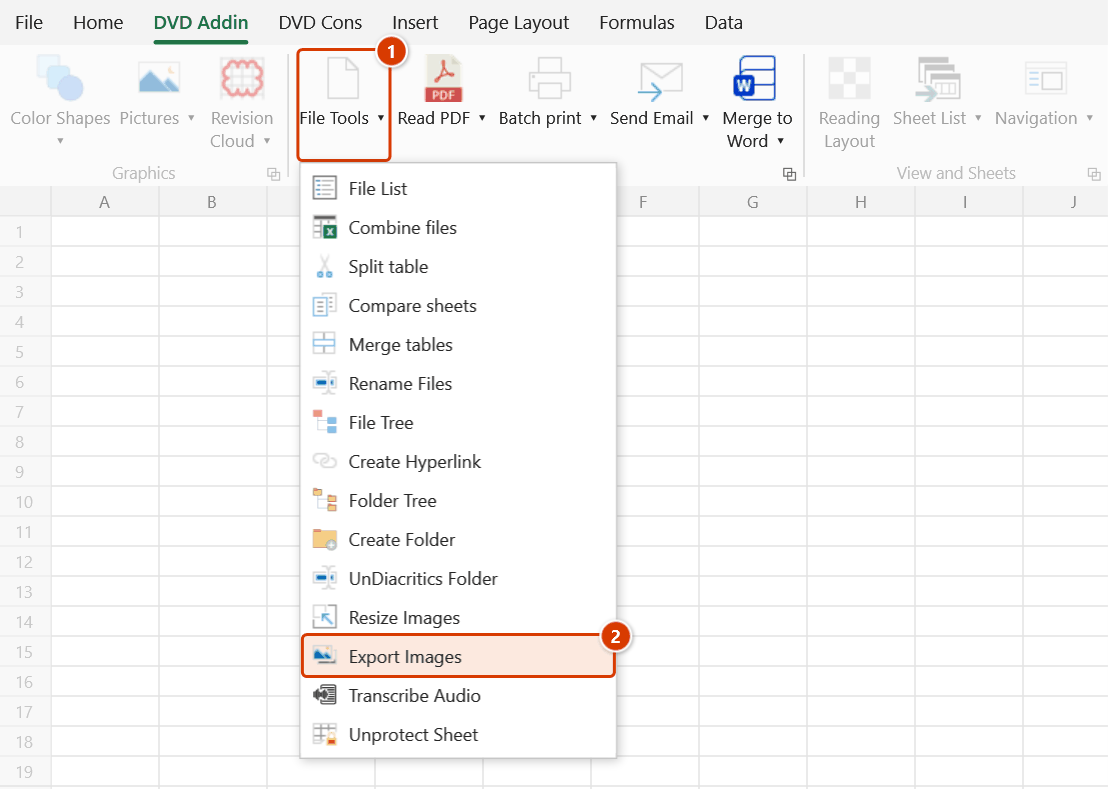
- Go to tab DVD Addin → group File and Print → menu File Tools → click Export Images.
- The "Pick xlsx file" dialog opens, filtered to
*.xlsx; *.xlsm; *.xlam; *.xlsb→ choose a file → OK. - The command creates a folder named
media <filename>next to the source file and extracts all embedded images into it. - A message reports how many images were exported and asks "Open the image folder?" → click Yes to open it in Windows Explorer.
Video tutorial
Narrated in Vietnamese, with Vietnamese subtitles. Chuyển Word, Visio sang PDF và xử lý ảnh · 5 min 52 s · 13 cases · Download the video · Practice workbook for the video
Commands in this video: Word → PDF · Export Images · Resize Images · Visio → PDF
Chapters (18)
- Giới thiệu
- Mở lệnh
- 1 · Word → PDF cả lô
- 2 · PDF đã có, file lỗi
- 3 · Hai file trùng tên
- 4 · Thiếu Word, Esc
- 5 · Visio → PDF
- 6 · Visio báo lỗi
- Lệnh xử lý ảnh
- 7 · Thu nhỏ ảnh
- 8 · Ảnh dọc, ảnh đã nhỏ
- 9 · HEIC, PNG, thư mục con
- 10 · Chạy lại, nhập sai
- 11 · Xuất ảnh
- 12 · Ảnh nào ra
- 13 · Xuất ảnh báo lỗi
- Mẹo
- Kết thúc
Illustrated walkthrough
Step 1. Close the source workbook if it is open — the command refuses to run on a file that is open in Excel.
Step 2. On the ribbon, open the DVD Addin tab → File and Print group → open File Tools → choose Export Images.
Step 3. In the Pick xlsx file box (filter *.xlsx; *.xlsm; *.xlam; *.xlsb) choose the workbook, for example D:\DuAn\NhaVanPhong\NhatKyThiCong_T09.xlsx, and click OK.
Step 4. The add-in creates a media NhatKyThiCong_T09 folder next to the file and extracts every embedded picture into it (image1.jpeg, image2.png… at their original resolution). The message Exported 240 images. shows the folder path and asks Open the image folder? — click Yes to open it in Windows Explorer. The source file is only read, never modified.
Example
A subcontractor sends SiteDiary_May.xlsx containing 240 pasted site photos.
Run the command against that file → a folder media SiteDiary_May appears beside it, holding 240 files named image1.jpeg, image2.png and so on at their original resolution. Follow up with Resize Images to shrink them before assembling the as-built photo album.
Notes
- The source file must be closed; if it is open in Excel the command asks you to close the workbook and try again.
- Only
.xlsx,.xlsm,.xlamand.xlsbare supported; the legacy.xlsformat cannot be read. - Images come out exactly as they were embedded, not at the size shown on the sheet — they are often much larger.
- Exported names are Excel's internal names (
image1,image2, …), not the original file names used when inserting; numbering follows the storage order inside the workbook. - If the workbook contains no images, the command says so and deletes the empty folder it just created.
- The source file is only read, never modified.
Related
- Resize Images — shrink the exported batch in one pass.
- Insert Pictures — put the images back into your own template.
- Insert Picture By Name — match images to the right rows by file name.
- Unprotect Sheet — same approach of working on an external workbook without opening it.