
Sync page setup
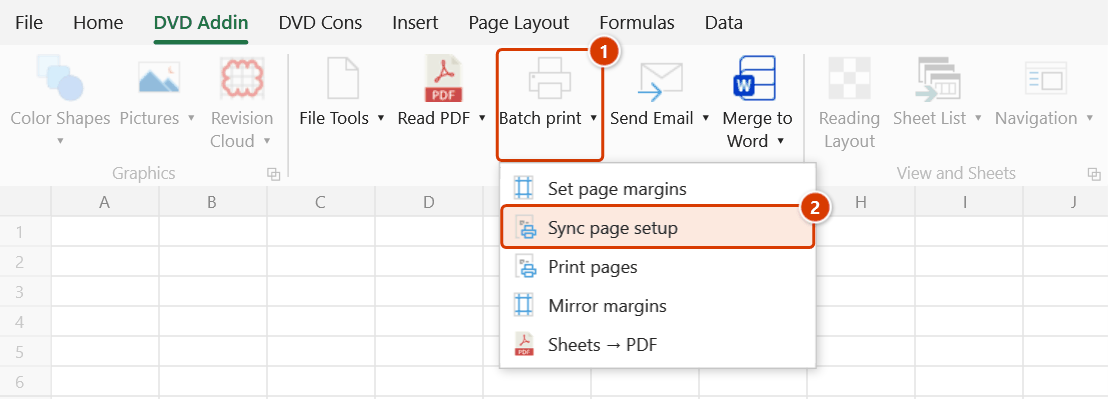
Ribbon location: DVD Addin tab → File and Print group → the arrow next to Batch print
Command ID: btnSyncPageSetup
License required
This command needs an active DVDAddin account (Standard or PRO). During the Trial period it is fully available.
What it does
Set the page setup right on one sheet, then copy it to every other sheet in a single click.
As-built and method-statement files often run to dozens of sheets that must share a paper size, margins, and the same title rows repeated at the top of every page. Doing that by hand means opening Page Layout on each sheet — slow, and you will miss one, usually discovering it only after it is printed.
How to use it
- Pick one sheet and set its page setup the way you want it (paper size, margins,
Print Titles, header/footer…). - Click Sync page setup in the DVD Addin tab → File and Print group → the arrow next to Batch print.
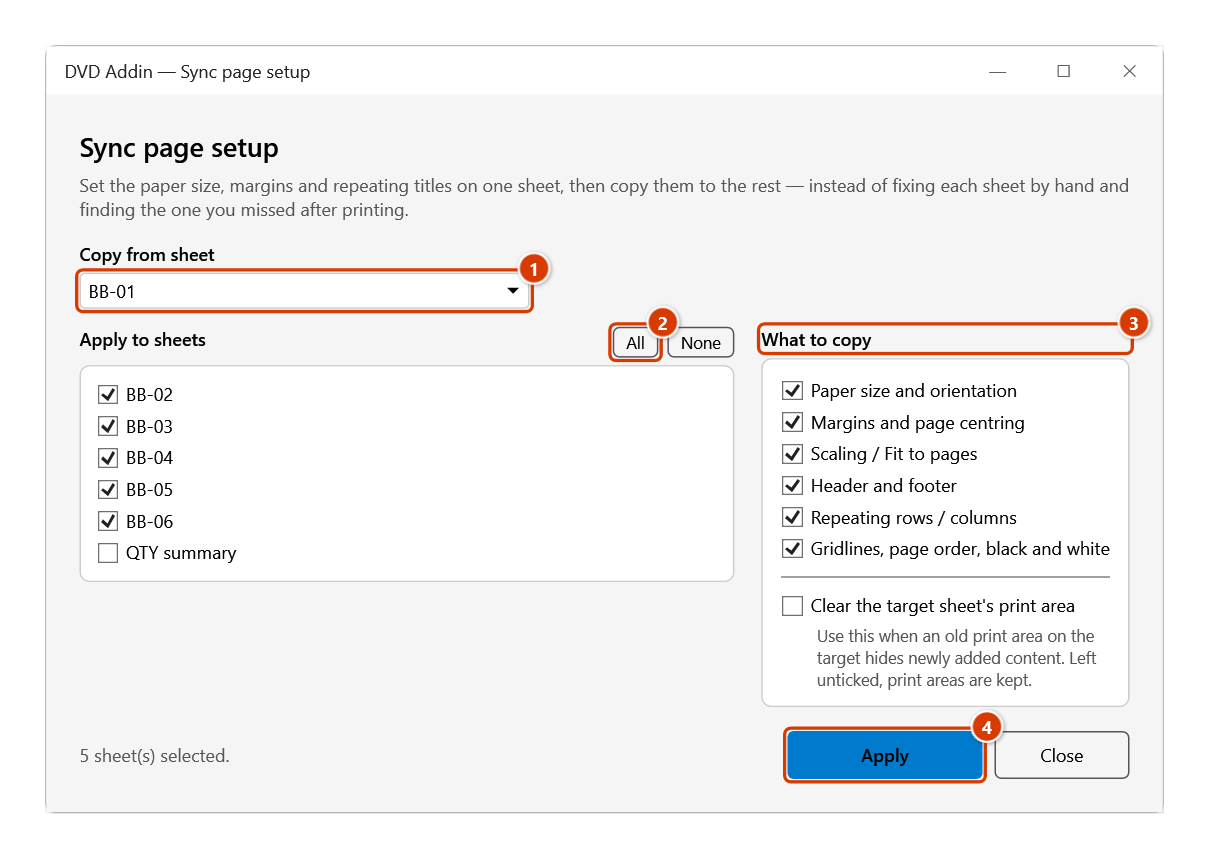
- Copy from sheet is pre-filled with the active sheet — change it if needed.
- The left panel lists every other sheet, all ticked by default. Use All / None, or tick them individually.
- The right panel chooses what to copy. Unticking a group leaves that part of the target sheets alone — useful when you want shared margins but each sheet keeps its own header.
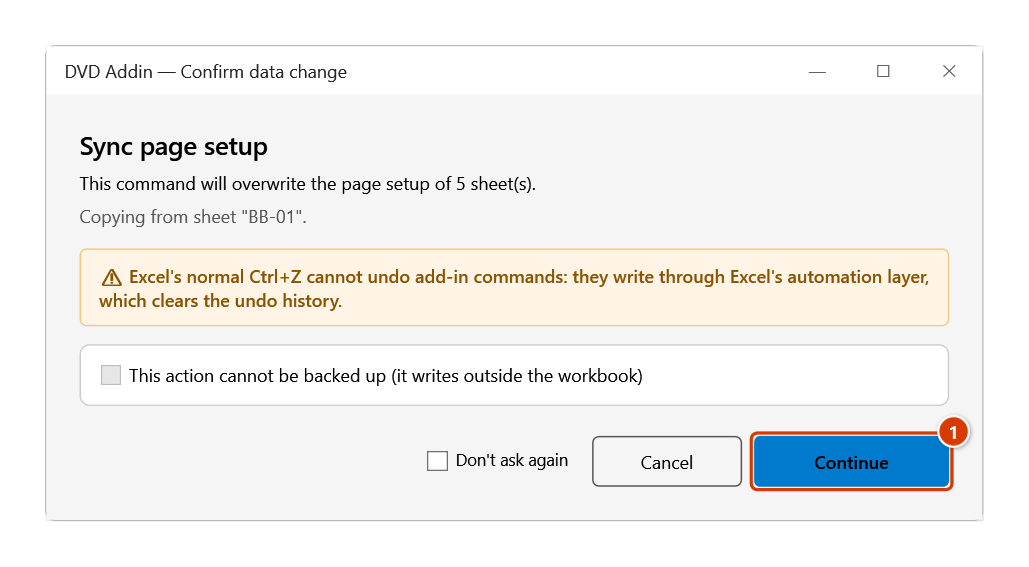
- Click Apply, then click Continue in the Confirm data change window (this action cannot be backed up). The status bar shows progress; hold ESC to stop.
Video tutorial
Narrated in Vietnamese, with Vietnamese subtitles. Trang in và xuất PDF · 7 min 13 s · 16 cases · Download the video · Practice workbook for the video
Commands in this video: Set page margins · Mirror margins · Print pages · Sheets → PDF · Sync page setup
Chapters (20)
- Giới thiệu
- Mở lệnh
- 1 · Đặt lề cho nhóm sheet
- 2 · Nhóm khác: A3 ngang
- 3 · Gõ lề: số lẻ, lỗi nhập
- 4 · Lưu mặc định
- 5 · Bẫy sheet biểu đồ
- 6 · Đồng bộ từ sheet mẫu
- 7 · Chọn phần cần chép
- 8 · In lại vài trang
- 9 · Trang lẻ, trang chẵn
- 10 · Xuất từng trang ra PDF
- 11 · Nhập sai và hủy
- 12 · PDF lề gương
- 13 · Bẫy lề gương
- 14 · Sheet → PDF từng tệp
- 15 · Gộp thành một tệp
- 16 · Khi xuất PDF lỗi
- Mẹo
- Kết thúc
Illustrated walkthrough
Step 1. Get the page setup of one template sheet right in Page Layout — e.g. sheet BB-01: A4 landscape, 2 cm left margin, Print Titles repeating rows $1:$3, header and footer.
Step 2. On the ribbon, open the DVD Addin tab → File and Print group → open Batch print → choose Sync page setup.
Step 3. In Copy from sheet (1) pick the template sheet. The list on the left holds the other sheets; tick the ones to update — All / None (2) tick them quickly. On the right choose What to copy (3): anything left unticked stays as it is on the target sheets. Click Apply (4).
Step 4. The add-in asks for confirmation because the target sheets' page setup is overwritten and cannot be backed up (Ctrl+Z will not bring it back) — save the file first if in doubt. Click Continue (1).
Step 5. The status bar shows progress (hold ESC to stop); when done, the window's status line reads Applied to 5 sheet(s). Sheets that could not be updated (e.g. too few rows for the repeating titles) are counted and reported.
Example
A 42-sheet acceptance file where every sheet must print A4 landscape, 2 cm left margin, and repeat 3 header rows at the top of each page.
| By hand | 42 sheets × (open Page Layout → set 4 values) ≈ 20 minutes, 2–3 missed |
| This command | set 1 sheet → tick all → Apply ≈ 15 seconds |
Notes
- This overwrites the target sheets' page setup and
Ctrl+Zcannot undo it — you are asked to confirm first. Page setup is not part of the sheet's content, so it cannot be backed up; save the file first if you are unsure. - Repeating rows (
$1:$3) only apply if the target sheet actually has those rows. Sheets that could not take a setting are counted and reported. - On a machine with no printer installed, Windows rejects some properties — the command still runs and copies the rest.
- Clear the target sheet's print area is off by default. Tick it only when an old
Print Areaon the target is cutting off newly added content. - The command is fast because it suspends printer-driver communication while assigning; without that, each property is a driver round-trip and 42 sheets would take minutes.
See also
- Set page margins — set margins on the selected sheets.
- Batch print — print many sheets from a list.
- Mirror margins — mirrored margins for bound documents.