
Set page margins
Location on ribbon: Tab DVD Addin → Group File and Print → the arrow next to Batch print
Command ID: btnSetPageMargins
What it does
The command applies paper size, orientation and page margins (in millimetres) to every currently selected sheet in one click. Beyond the margins it also turns on Fit-to-Page by width and centres the content horizontally, so wide tables stop spilling onto a second page.
A construction submittal workbook typically holds dozens of form sheets that must share one margin standard before they are bound. Setting each one through Page Layout is slow and easy to get wrong; this command does the whole set at once.
How to use
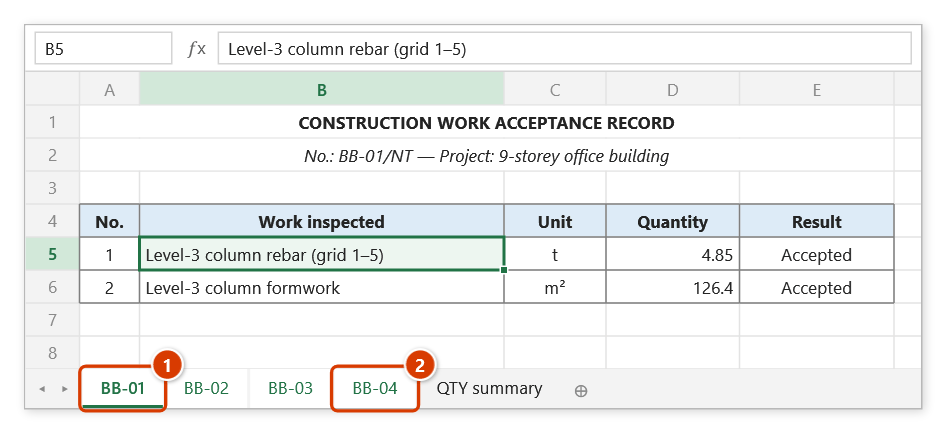
- Select the sheets to change: click the first sheet tab, then hold Ctrl (individual tabs) or Shift (a contiguous run) to add more.
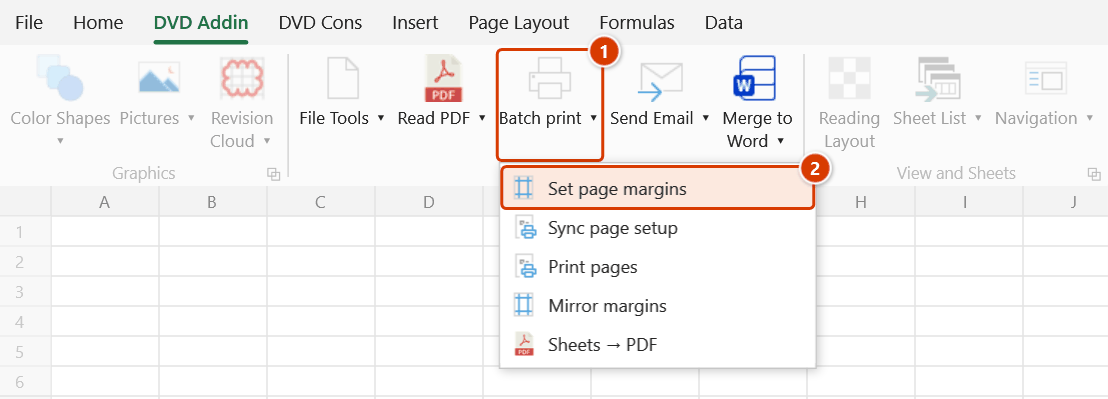
- Go to tab DVD Addin → group File and Print → the arrow next to Batch print → click Set page margins.
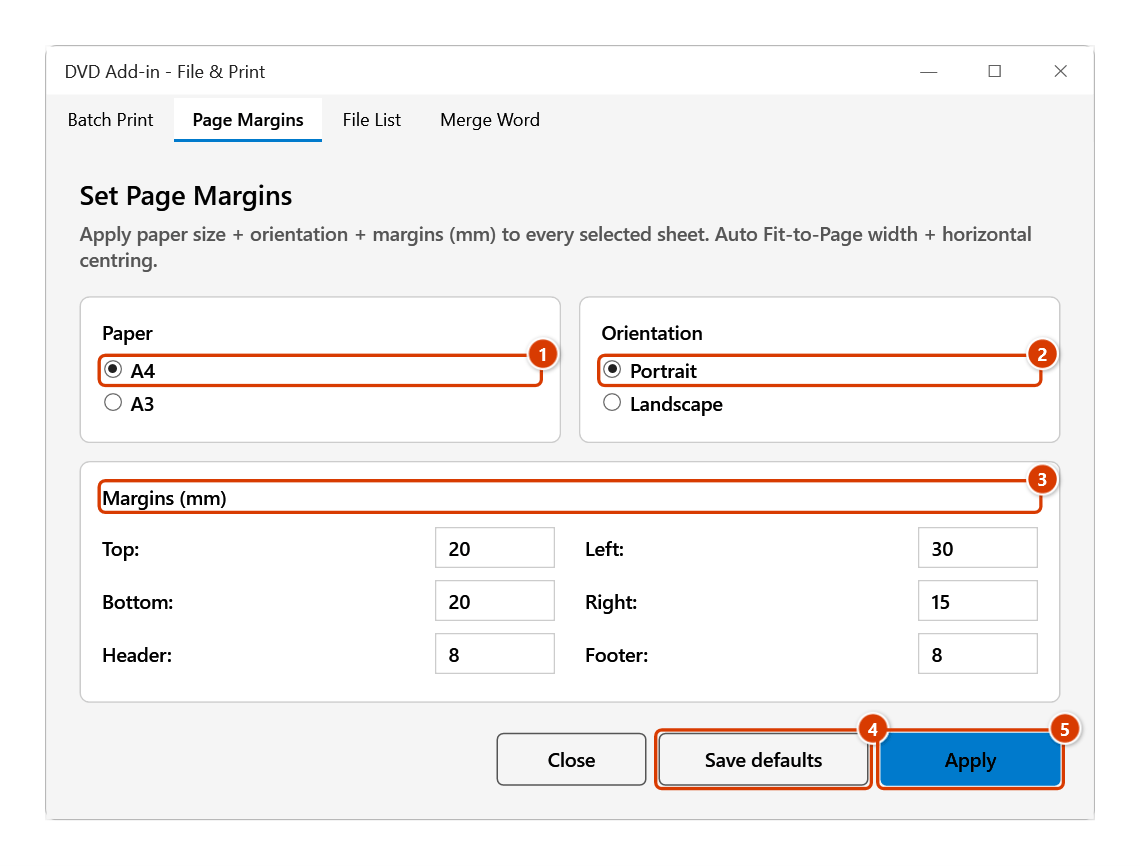
- Under Paper, choose A4 or A3.
- Under Orientation, choose Portrait or Landscape.
- Under Margins (mm), enter Top, Bottom, Left, Right, Header and Footer. The starting defaults are 20 / 20 / 30 / 15 with 8 / 8 — the usual layout for a document bound on the left edge.
- Click Apply. To reuse the same figures later, click Save defaults first.
- The window stays open after applying, so you can select a different group of sheets and click Apply again, then Close when you are done.
Video tutorial
Narrated in Vietnamese, with Vietnamese subtitles. Trang in và xuất PDF · 7 min 13 s · 16 cases · Download the video · Practice workbook for the video
Commands in this video: Set page margins · Mirror margins · Print pages · Sheets → PDF · Sync page setup
Chapters (20)
- Giới thiệu
- Mở lệnh
- 1 · Đặt lề cho nhóm sheet
- 2 · Nhóm khác: A3 ngang
- 3 · Gõ lề: số lẻ, lỗi nhập
- 4 · Lưu mặc định
- 5 · Bẫy sheet biểu đồ
- 6 · Đồng bộ từ sheet mẫu
- 7 · Chọn phần cần chép
- 8 · In lại vài trang
- 9 · Trang lẻ, trang chẵn
- 10 · Xuất từng trang ra PDF
- 11 · Nhập sai và hủy
- 12 · PDF lề gương
- 13 · Bẫy lề gương
- 14 · Sheet → PDF từng tệp
- 15 · Gộp thành một tệp
- 16 · Khi xuất PDF lỗi
- Mẹo
- Kết thúc
Illustrated walkthrough
Practice
Download this command's sample workbook — the data matches the pictures below (sheet BB-01), so you can follow each step right away.
Step 1. Select the sheets to set up: click the first sheet tab (1), then hold Shift and click the last one (2) for a run of tabs (or hold Ctrl for individual tabs) — here the four record sheets BB-01 … BB-04.
Step 2. On the ribbon, open the DVD Addin tab → File and Print group → open Batch print → choose Set page margins.
Step 3. The Page Margins tab opens. Choose the Paper size (1) and Orientation (2), type the margins in mm (3) — the defaults 20 / 20 / 30 / 15 with an 8 mm header/footer suit documents bound on the left. To reuse the values next time click Save defaults (4), then click Apply (5).
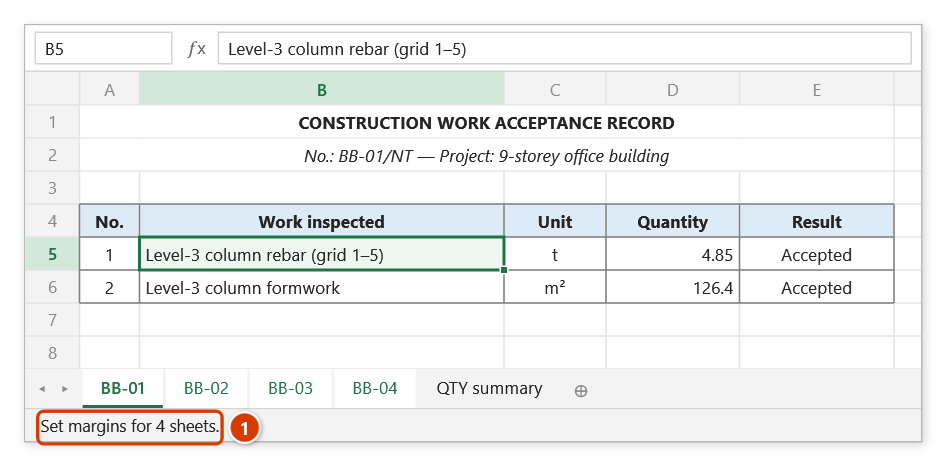
Step 4. Every selected sheet gets the same paper size, orientation and margins; the add-in also turns on Fit to Page width and horizontal centring. The status bar reports how many sheets were set (1). The window stays open: select another group of sheets (for example summary tables on A3 + Landscape), change the values and click Apply again.
Example
An as-built workbook contains 18 A4 portrait form sheets and 4 A3 landscape quantity summaries.
Hold Ctrl and select the 18 form sheets, open the window, leave A4 + Portrait, enter margins 20 / 20 / 30 / 15 mm and click Apply. Without closing, switch to the 4 A3 sheets, change to A3 + Landscape, enter 15 / 15 / 25 / 10 mm and click Apply again. All 22 sheets now share a consistent print setup, ready to be exported for the client.
Notes
- Each Apply affects only the sheets selected at that moment — reselect another group and click again for a second setup.
- Values are entered in millimetres, not inches; a non-numeric entry shows an error message beneath the input boxes.
- The command also forces Fit-to-Page by width and horizontal centring — if a sheet must stay at exactly 100% scale, adjust it in Page Layout after applying.
- Page setup changes cannot be undone with Ctrl+Z; check the result in Print Preview before printing for real.
- Save defaults stores the figures in the add-in's options and reuses them in every workbook you open afterwards.
Related
- Batch print — once margins are consistent, print the whole series of forms.
- Sheets → PDF — export the sheets you have just set up.
- Mirror margins — when a two-sided bound document needs mirrored inner margins.
- Preferences — review and change the saved print defaults.