
Batch print
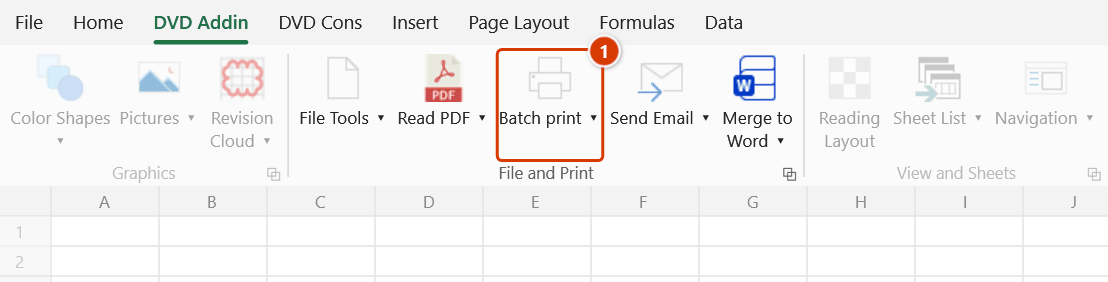
Location on ribbon: Tab DVD Addin → Group File and Print
Command ID: btnBatchPrint
License required
This command needs an active DVDAddin account (Standard or PRO). During the trial period it is fully available.
What it does
This command prints or exports a whole series of documents from one template sheet by writing each number of a range into a single driver cell and reprinting after every change. Every formula that references that cell recalculates, so one form can produce hundreds of different documents.
It is the standard way to issue inspection records per structural element, inspection requests per work package, or payment sheets per period, instead of editing and printing one at a time. The dialog can store the whole configuration in a hidden DVDAddinSetting sheet inside the workbook so it is ready next time.
How to use
- Prepare a template sheet driven by one cell (for example
A1holds the element number and the rest of the form usesVLOOKUPagainst it). - Go to tab DVD Addin → group File and Print → click Batch print. The window is modeless, so you can keep working in the sheet while it is open.
- Under Number range, choose Continuous (Start–End) and type whole numbers into the From and To boxes, or choose Discrete (1+3+5) and list the individual numbers separated by plus signs. An empty or invalid box is reported as an error and nothing runs (there is no silent 1–10 default); To smaller than From, or an empty Discrete box, is also an error.
- Fill in Driver cell (number) — the cell that receives the current loop value. Click the ⤴ button to pick the cell straight from the worksheet.
- Fill in Sheet-print cell — a cell holding the names of the sheets to print each round, separated by
+. - Fill in Filename cell if you plan to export PDFs — the cell that supplies the file name for each iteration.
- Set Copies (Print) and tick Collate to print 123, 123 rather than 111, 222, 333.
- Under Options, enable what you need: refresh AutoFilter between loops, auto-fit row height for merged cells, auto-insert a page break at the signature block, combine all exported PDFs into one file, and skip picture areas or whole print areas where a
dvdPicformula has no image. - Click Save to store the configuration, Export PDF to write files, or Print to send everything to the active printer. When printing to paper, the add-in first asks "Print N set(s) × M copies on printer <printer>?" with the list of numbers — printing starts only after you confirm.
- At the end, if some iterations failed, the message lists each failed number with its reason and gives a ready-made Discrete string (for example
5+12+19) to re-run just those numbers.
Video tutorial
Narrated in Vietnamese, with Vietnamese subtitles. In hàng loạt · 7 min 36 s · 14 cases · Download the video · Practice workbook for the video
Chapters (19)
- Giới thiệu
- Mở lệnh
- Cửa sổ In hàng loạt
- 1 · PDF từng tệp theo cấu kiện
- 2 · Gộp thành một tệp PDF
- 3 · In ra giấy, chọn máy in
- 4 · Nhiều bản – In theo bộ
- 5 · Số riêng lẻ
- 6 · Danh sách sheet cần in
- 7 · Đặt tên tệp PDF
- 8 · Số bị lỗi, tệp PDF đang mở
- 9 · Lọc dữ liệu theo từng bộ
- 10 · Ô gộp, ngắt trang vùng ký
- 11 · Ảnh hiện trường dvdPic
- 12 · Khổ giấy, vùng in
- 13 · Dừng giữa chừng (ESC)
- 14 · Khi nhập sai
- Mẹo
- Kết thúc
Illustrated walkthrough
Practice
Download this command's sample workbook — the data matches the pictures below (sheet BBNT), so you can follow each step right away.
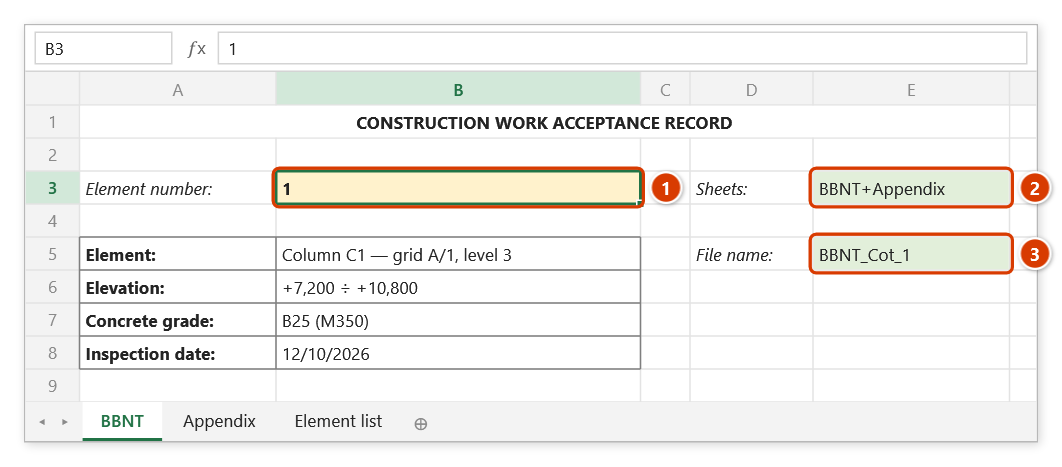
Step 1. Build the form so that it is driven by one control cell — here B3 holds the element number (1) and the cells below use VLOOKUP on B3. Add a cell listing the sheets to print, separated by + (2), and a cell building the PDF file name for each loop, e.g. ="BBNT_Cot_"&B3 (3).
Step 2. On the ribbon, open the DVD Addin tab → File and Print group → click Batch print.
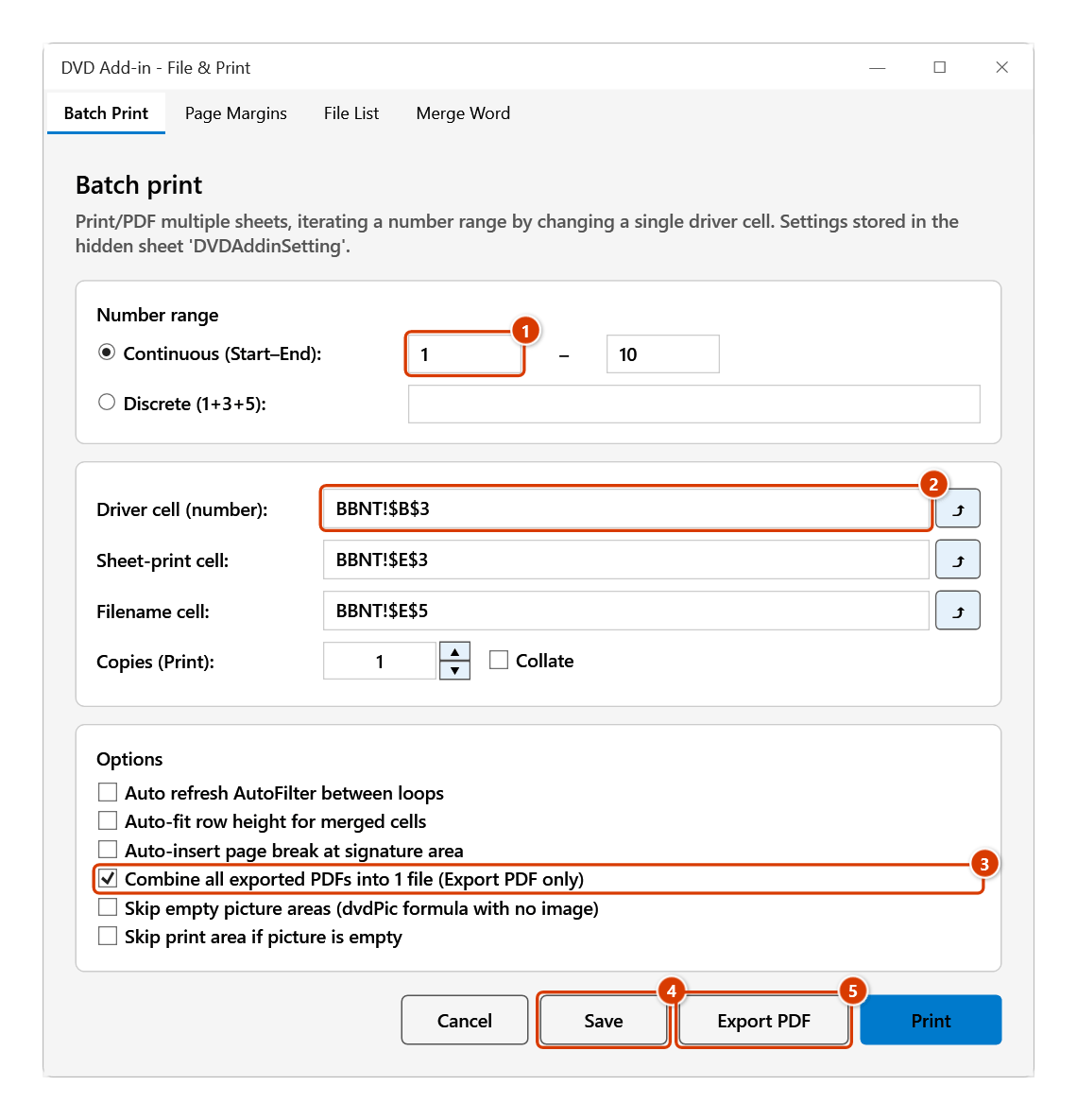
Step 3. The Batch Print tab opens (a modeless window, so you can keep working on the sheet). Choose Continuous and enter the range 1 → 10 (1) (or Discrete 1+3+5). Fill Driver cell BBNT!$B$3 (2), Sheet-print cell BBNT!$E$3 and Filename cell BBNT!$E$5 — type the address or click ⤴ to pick the cell with the mouse. Tick Combine all exported PDFs… (3) for a single file. Click Save (4) to store the settings in the workbook, then Export PDF (5) (or Print to send it to the printer).
Step 4. The add-in writes 1, 2, … 10 into B3 in turn, lets the sheet recalculate and exports the sheets named in the Sheet-print cell. With combining ticked it asks where to save the merged file (suggesting Merged.pdf) and reports Completed 10 iterations, 10 PDFs (errors 0). with the number of pages merged. When you click Print for paper, the add-in first asks Print 10 set(s) × 1 copy/copies on printer …?. Failed loops are listed with the reason and a Discrete string to rerun exactly those numbers.
Example
A project has 120 columns, each needing a work inspection record. The Record sheet pulls element name, level and concrete grade from the number in B2.
In the Batch print window you choose Continuous from 1 to 120, set Driver cell to Record!$B$2, point Sheet-print cell at a cell containing Record+Annex, and point Filename cell at a cell with ="Record_Column_"&B2. Tick Combine all exported PDFs into 1 file and click Export PDF: the add-in runs 120 iterations, exporting two sheets each time, and finishes with a single continuous PDF ready for signature.
Notes
- The add-in really changes the driver cell while it runs, so save the workbook before starting a large batch.
- The file name from the Filename cell only matters for Export PDF; clicking Print ignores it.
- Combining PDFs likewise only applies to Export PDF — each loop writes a temporary file that is merged into one at the end.
- A target PDF that is open in Foxit/Acrobat cannot be overwritten: the add-in detects it and names the file in the failure list — close it, then re-run the failed numbers with the Discrete string from the message.
- Settings are stored in a hidden
DVDAddinSettingsheet inside the workbook itself, so they travel with the file when you send it to someone else. - If the sheet uses
dvdPicformulas whose images are missing, enable the two skip-empty-picture options so you do not print blank pages. - A long run can take several minutes; avoid typing into cells while the add-in is printing to prevent conflicts with Excel.
- The ⤴ pick button opens a range picker that does not lock Excel: this window steps aside while you pick, and you can scroll, switch sheets or switch workbooks. Click OK or press Enter on the sheet to fill the box; Cancel or Esc leaves it unchanged. If the box already holds an address, the picker starts from it.
Related
- Print pages — when you only need a few individual pages of the current sheet.
- Sheets → PDF — quick export of the selected sheets, no loop involved.
- Set page margins — align paper size and margins across sheets before a batch run.
- Get sheet print — build the sheet-name string you feed into the Sheet-print cell.