
Join Text
Location on ribbon: Tab DVD Addin → Group Cells and Rows
Command ID: btnGetSheetPrint
What it does
The command takes the value of every non-empty cell in the selection, joins them into a single string using a configurable delimiter, and writes the result into a cell you pick. The output is plain text, not a formula, so it never returns #VALUE! even when the selection mixes text and numbers.
Use it to build the sheet-code list that Batch print expects (YCNTCV+BBNTCV+KT_DD), to flatten a material list into one line, or to combine member codes into a description string.
How to use
- Select the cells whose values you want to join (empty cells are skipped automatically).
- Click DVD Addin → Cells and Rows → Join Text.
- The prompt "Select cell to paste" appears — click the destination cell and press OK.
- The joined string is written there and the status bar reports "Joined 5 cells into H2".
- To change the separator, go to Preferences → Cells and Rows → Delimiter for Join Text: Space (default), Comma, Semicolon, Newline or Custom (your own text, e.g.
+).
Video tutorial
Narrated in Vietnamese, with Vietnamese subtitles. Nối chuỗi và Nối ô gộp · 5 min 37 s · 12 cases · Download the video · Practice workbook for the video
Commands in this video: Join Text · Join Merged
Chapters (18)
- Giới thiệu
- Mở lệnh
- Hộp chọn ô đích
- 1 · Nối mã sheet cần in
- 2 · Đổi ký tự nối
- 3 · Kết quả là chữ, không tự đổi
- 4 · Số, ngày và công thức
- 5 · Ô trống và ô gộp
- 6 · Dòng ẩn, danh sách lọc
- 7 · Nhiều vùng rời (Ctrl)
- Lệnh Nối ô gộp
- 8 · Nối địa chỉ ô gộp
- 9 · Ô đơn cũng được lấy
- 10 · Gộp nhiều dòng, gộp trống
- 11 · Khi không có dữ liệu
- 12 · Ô đích: ghi đè, không hoàn tác
- Mẹo
- Kết thúc
Illustrated walkthrough
Practice
Download this command's sample workbook — the data matches the pictures below (sheet Print setup), so you can follow each step right away.
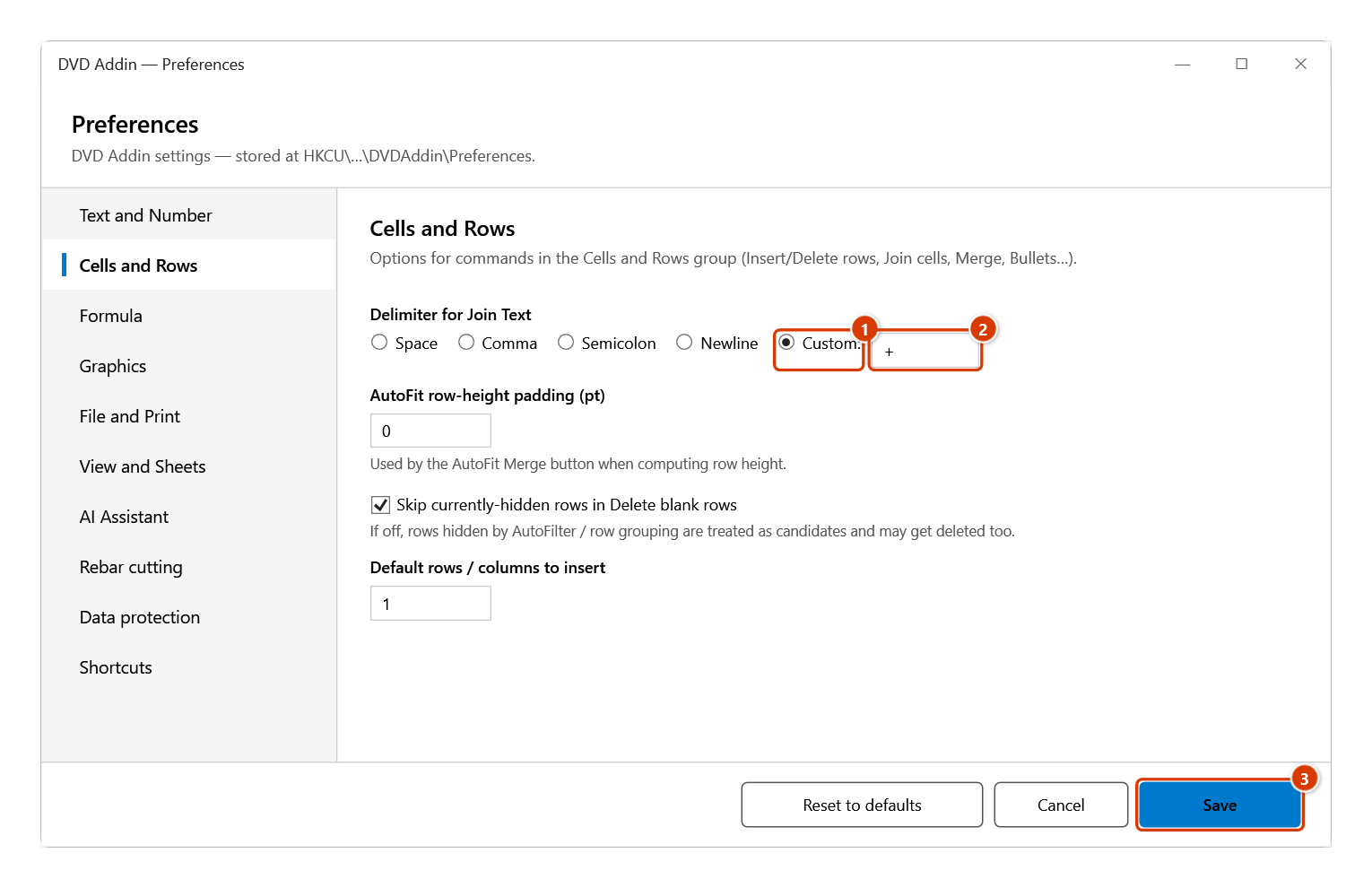
Step 1. The command joins with the delimiter set in Preferences (a space by default). For the YCNTCV+BBNTCV+KT_DD form that Batch Print expects, set it once: click the small arrow at the corner of the Cells and Rows group to open Preferences ▸ Cells and Rows, under Delimiter for Join Text choose Custom: (1), type + (2) and click Save (3).
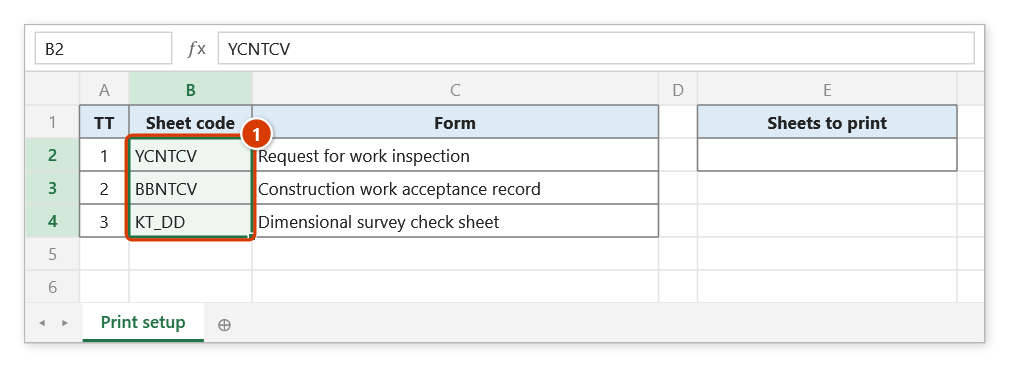
Step 2. Select the cells whose values you want to join, for example the form sheet codes B2:B4 (1). Blank cells in the range are skipped.
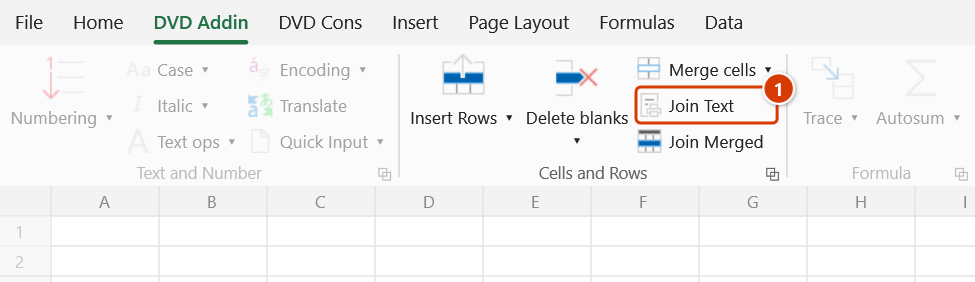
Step 3. On the ribbon, open the DVD Addin tab → Cells and Rows group → click Join Text.
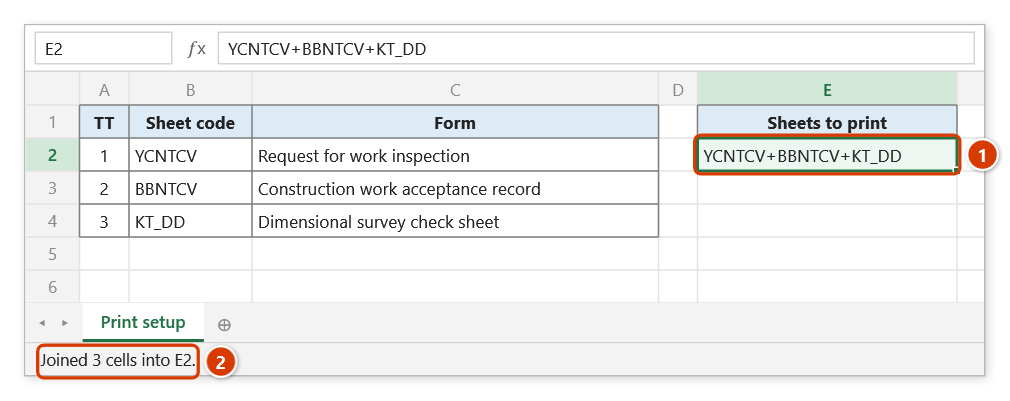
Step 4. The Select cell to paste box appears: click the target cell, here E2, then OK. The joined string is written there as plain text (not a formula) (1), using each cell's displayed text; the status bar reports how many cells were joined (2). Run the command again if the source changes.
Example
A batch-print configuration sheet needs one cell listing the form codes to print for each section. In Preferences set the delimiter to Custom = +, then select B2:B4 holding YCNTCV, BBNTCV, KT_DD, click Join Text and pick E2 as the destination.
| Before (B2:B4) | After (E2) |
|---|---|
| YCNTCV | YCNTCV+BBNTCV+KT_DD |
| BBNTCV | |
| KT_DD |
Notes
- The result is static text and does not update when the source cells change — rerun the command after edits.
- Each cell contributes its displayed text (following the cell's number / date format): a date comes out as
07/10/2026, not its serial number, and a number exactly as shown, not6.8999999999999995. - Leading and trailing spaces of each cell are trimmed before joining.
- With no selection, or when no selected cell holds data, the status bar says so and nothing is written.
- The destination cell is overwritten without confirmation and Ctrl+Z cannot undo it.
- The range picker does not lock Excel: while it is open you can scroll, switch sheets or switch workbooks to pick the range there. Click OK or press Enter on the sheet when done; Cancel or Esc to stop.
Related
- Join Merged — joins merged-cell addresses instead of values, using the same delimiter.
- Batch print — consumes the
CODE1+CODE2+CODE3string you just built. - Preferences — where the Join Text delimiter is configured.