
Join Merged
Location on ribbon: Tab DVD Addin → Group Cells and Rows
Command ID: btnGetCellMerge
What it does
The command scans the selection and collects the address of the top-left cell of every merged area (or single cell) that holds data, joins them into one string and writes it into a cell you pick. The output looks like F8+F10 — addresses, not cell contents.
Use it to build the configuration columns Batch print relies on — the filename cell, the driver cell, the ranges to auto-fit — without typing addresses by hand or miscounting cells on a form full of merges.
How to use
- Select the area containing the merged cells you need addresses for (a generous selection is fine; the command works it out).
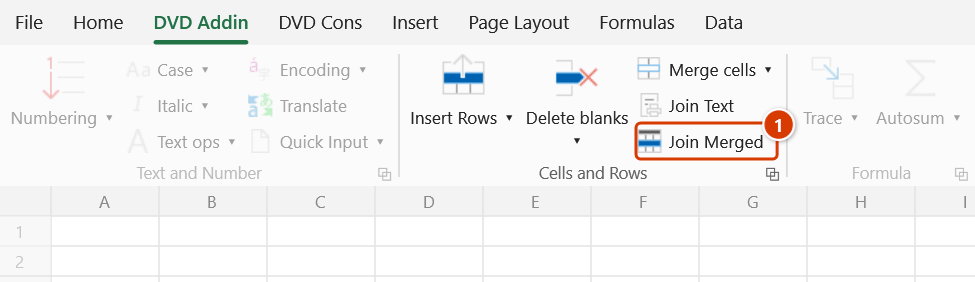
- Click DVD Addin → Cells and Rows → Join Merged.
- The prompt "Select cell to paste" appears — click the destination cell and press OK.
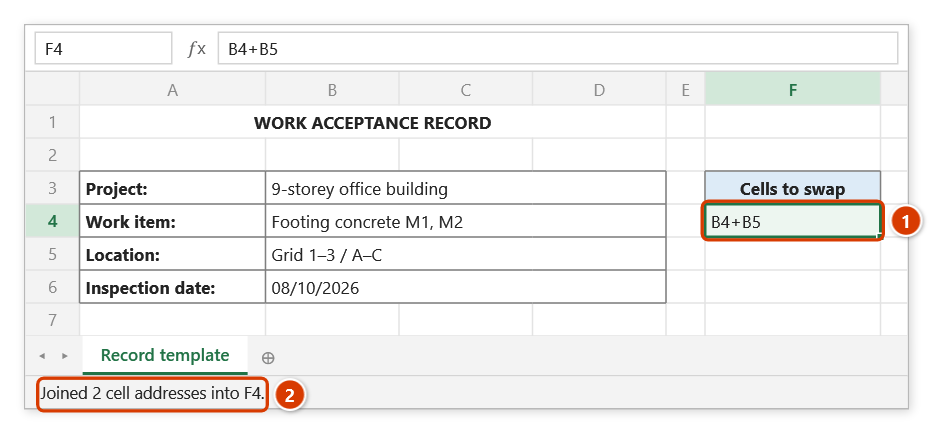
- The address string is written there and the status bar reports "Joined 2 cell addresses into J2".
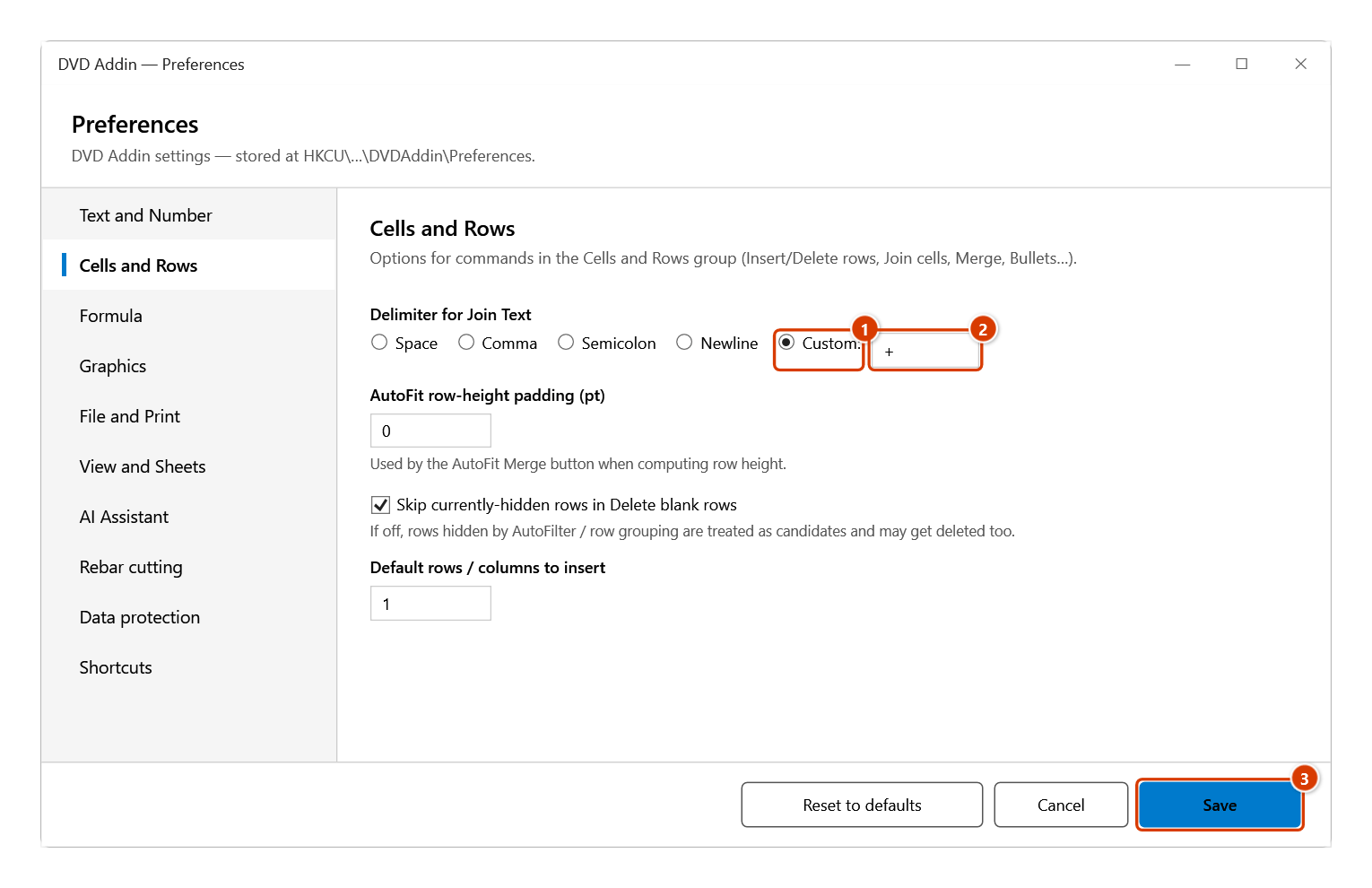
- The separator comes from Preferences → Cells and Rows → Delimiter for Join Text; set Custom =
+to get theF8+F10form the other DVD Addin commands expect.
Video tutorial
Narrated in Vietnamese, with Vietnamese subtitles. Nối chuỗi và Nối ô gộp · 5 min 37 s · 12 cases · Download the video · Practice workbook for the video
Commands in this video: Join Text · Join Merged
Chapters (18)
- Giới thiệu
- Mở lệnh
- Hộp chọn ô đích
- 1 · Nối mã sheet cần in
- 2 · Đổi ký tự nối
- 3 · Kết quả là chữ, không tự đổi
- 4 · Số, ngày và công thức
- 5 · Ô trống và ô gộp
- 6 · Dòng ẩn, danh sách lọc
- 7 · Nhiều vùng rời (Ctrl)
- Lệnh Nối ô gộp
- 8 · Nối địa chỉ ô gộp
- 9 · Ô đơn cũng được lấy
- 10 · Gộp nhiều dòng, gộp trống
- 11 · Khi không có dữ liệu
- 12 · Ô đích: ghi đè, không hoàn tác
- Mẹo
- Kết thúc
Illustrated walkthrough
Practice
Download this command's sample workbook — the data matches the pictures below (sheet Record template), so you can follow each step right away.
Step 1. The addresses are joined with the delimiter set in Preferences (a space by default). For the B4+B5 form that Batch Print uses, set it once: click the small arrow at the corner of the Cells and Rows group to open Preferences ▸ Cells and Rows, under Delimiter for Join Text choose Custom: (1), type + (2) and click Save (3).
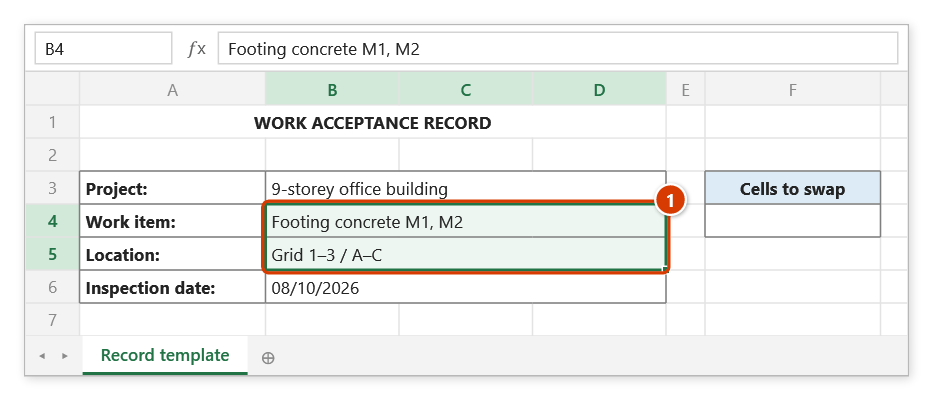
Step 2. Select the range holding the merged cells whose addresses you need — here the two cells that change per batch print, Work item and Location: B4:D5 (1). Empty cells are skipped.
Step 3. On the ribbon, open the DVD Addin tab → Cells and Rows group → click Join Merged.
Step 4. The Select cell to paste box appears: click the target cell, here F4, then OK. The cell receives the addresses of each merged area's top-left cell, once per area — B4+B5, not the contents (1); the status bar reports how many addresses were joined (2).
Example
An acceptance-record template has merged cell F8:H8 for "Section" and merged cell F10:H10 for "Location" — the two cells whose values change on every printed copy. Select F5:H15, click Join Merged and pick the destination in your configuration sheet. The result F8+F10 drops straight into the Batch print configuration column.
Notes
- The output is cell addresses, not content. Use Join Text when you want the values.
- A merge spanning several columns or rows yields a single address, its top-left cell (
F8forF8:H8), and each merged area appears only once no matter how widely you select. - Cells with no data are skipped — put a temporary value in a blank cell if you need its address.
- Un-merged single cells that hold data are included as well.
- Addresses are relative and carry no sheet name; overwriting the destination cell cannot be undone with Ctrl+Z.
- The range picker does not lock Excel: while it is open you can scroll, switch sheets or switch workbooks to pick the range there. Click OK or press Enter on the sheet when done; Cancel or Esc to stop.
Related
- Join Text — joins cell values instead of addresses.
- Batch print — consumes this address string as its driver-cell / filename-cell configuration.
- Merge keep data — create and adjust the merged cells on the template.