
Print pages
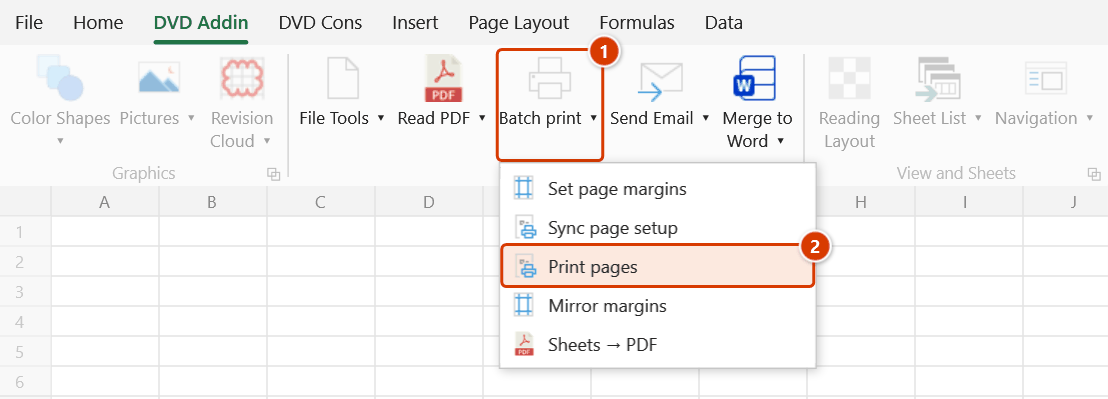
Location on ribbon: Tab DVD Addin → Group File and Print → the arrow next to Batch print
Command ID: btnPrintPages
License required
This command needs an active DVDAddin account (Standard or PRO). During the trial period it is fully available.
What it does
The command prints each page of the active sheet as its own job, restricted to the pages you list — all pages, even pages only, odd pages only, or an arbitrary selection. Every page goes out as a separate print job rather than one multi-page job.
That makes it easy to reprint exactly the sheets ruined by a paper jam, to run odd and even sides separately for manual duplex on a single-sided printer, or to pull a few forms out of the middle of a long sheet without touching the print area.
How to use
- Open the sheet you want to print — the command works on the active sheet.
- Go to tab DVD Addin → group File and Print → the arrow next to Batch print → click Print pages.
- The add-in reports how many pages the sheet has and opens an input box. Enter one of:
A— print all pagesE— print even pages onlyO— print odd pages only1,3-7,10— print page 1, pages 3 to 7, and page 10
- Click OK. Excel's printer setup dialog appears so you can pick the right printer and confirm.
- If the active printer is Microsoft Print to PDF, the add-in asks for an output folder and writes one file per page as
<Sheet name>_Trang_001.pdf,<Sheet name>_Trang_002.pdf, and so on (the sheet name keeps another sheet's run from overwriting them). Otherwise the pages are printed in sequence. Cancel in the printer dialog cancels the command — nothing is printed. - When it finishes, a message reports how many pages were printed, or how many PDFs were written and where.
Video tutorial
Narrated in Vietnamese, with Vietnamese subtitles. Trang in và xuất PDF · 7 min 13 s · 16 cases · Download the video · Practice workbook for the video
Commands in this video: Set page margins · Mirror margins · Print pages · Sheets → PDF · Sync page setup
Chapters (20)
- Giới thiệu
- Mở lệnh
- 1 · Đặt lề cho nhóm sheet
- 2 · Nhóm khác: A3 ngang
- 3 · Gõ lề: số lẻ, lỗi nhập
- 4 · Lưu mặc định
- 5 · Bẫy sheet biểu đồ
- 6 · Đồng bộ từ sheet mẫu
- 7 · Chọn phần cần chép
- 8 · In lại vài trang
- 9 · Trang lẻ, trang chẵn
- 10 · Xuất từng trang ra PDF
- 11 · Nhập sai và hủy
- 12 · PDF lề gương
- 13 · Bẫy lề gương
- 14 · Sheet → PDF từng tệp
- 15 · Gộp thành một tệp
- 16 · Khi xuất PDF lỗi
- Mẹo
- Kết thúc
Illustrated walkthrough
Step 1. Open the sheet you want to print — the command works on the active sheet, e.g. sheet PhieuNghiemThu, 24 pages long.
Step 2. On the ribbon, open the DVD Addin tab → File and Print group → open Batch print → choose Print pages.
Step 3. The input box says Sheet [PhieuNghiemThu] has 24 pages. Enter pages to print: — type A (all), E (even pages), O (odd pages) or a list such as 1,3-7,10. For example, to reprint three jammed pages type 13-15 and click OK.
Step 4. Excel's printer box appears: pick the printer and click OK (Cancel stops without printing). If you pick Microsoft Print to PDF, the add-in asks for a folder and saves each page as its own file: PhieuNghiemThu_Trang_013.pdf, PhieuNghiemThu_Trang_014.pdf…
Step 5. When it finishes, the add-in reports Printed 3 pages. (or Exported 3 PDFs into: plus the folder). Hold ESC to stop early; pages already printed are kept. Tip for duplex on a single-sided printer: run with O, flip the stack, then run again with E.
Example
The InspectionForm sheet is 24 pages long, and a paper jam at page 15 ruins pages 13, 14 and 15.
Open that sheet, run Print pages, type 13-15, click OK, select the site-office HP printer and confirm. Only those three pages are reprinted. Another time, to duplex on a single-sided printer, run the command with O for the odd sides, flip the stack, then run it again with E for the even sides.
Notes
- The page count comes from the sheet's current page setup. If nothing is printable, the add-in reports that the sheet has 0 pages and stops.
- The entry is rejected if it contains anything other than digits, commas and hyphens, if a page number exceeds the total, or if a range starts higher than it ends.
- Hold ESC during the run to stop early; pages already printed or exported are kept.
- Only a printer whose name contains "Microsoft Print to PDF" switches the command into file-export mode; other PDF drivers are treated as ordinary printers.
- In PDF mode each page becomes its own file — to get a single document, merge them afterwards or use batch print with its combine option.
Related
- Batch print — print a whole series driven by a cell loop, with PDF merging.
- Mirror margins — export a mirrored-margin PDF for two-sided printing.
- Sheets → PDF — export whole selected sheets instead of individual pages.
- Set page margins — adjust paper and margins so pages break where you want.