
Number Shapes
Location on ribbon: Tab DVD Addin → Group Graphics → the ▾ arrow of Color Shapes
Command ID: btnNumberShapes
What it does
The command renames the selected shapes to 1, 2, 3… in reading order: left → right within a row, upper rows before lower ones. Optionally it also writes the number inside each shape.
Use it when laying out footings, columns or zones where every shape needs a number for the tracking table and for Linked Labels to look it up by name. Numbering 57 footings by hand is slow and easy to get wrong.
How to use
- Select the shapes to number: hold Ctrl and click each one. If they all sit inside one group (drawings pasted from CAD usually do), just click the group — the command numbers the shapes inside it. To drag a box around them you must first turn on Home → Find & Select → Select Objects (an ordinary drag only selects cells), or use the Selection Pane.
- Background or frame shapes (whose outline contains the centres of two or more other shapes — for example a drawing picture inside the group) and lines are skipped automatically; the dialog names them.
- Go to tab DVD Addin → group Graphics → the ▾ arrow of Color Shapes → Number Shapes.
- The dialog shows a preview, one line per shape as
new name ← old name, plus the rows it detected (for example 8 rows: 9 · 3 · 8 · 8 · 1 · 9 · 4 · 15). Three options:- Start at —
1by default; use another number when continuing a second area. - Same-row tolerance (pt) — blank means automatic. Only set it when the preview order is not what you want (see Notes).
- Write the number inside each shape — replaces the shape's text with its new number, keeping the current text colour and size. A shape with no text and no fill gets its number in black so it stays visible.
- Start at —
- Check the preview and click Number.
Video tutorial
Narrated in Vietnamese, with Vietnamese subtitles. Danh sách, Đổi tên, Đánh số, Lấy vị trí Shape · 7 min 11 s · 18 cases · Download the video · Practice workbook for the video
Commands in this video: List Shapes · Number Shapes · Rename Shapes · Get Position
Chapters (22)
- Giới thiệu
- Mở lệnh
- 1 · Shape trong nhóm
- 2 · Tên dạng số, nhãn liên kết
- 3 · Ảnh, biểu đồ, nút, shape ẩn
- 4 · Tên trùng
- 5 · Đổi tên theo bảng
- 6 · Dòng bị bỏ qua, bị từ chối
- 7 · Thứ tự dòng: dời số, đổi chéo
- 8 · Cả nhóm, bỏ ảnh nền
- 9 · Hàng chéo, shape xoay
- 10 · Sai số cùng hàng
- 11 · Bắt đầu từ, tên đã có
- 12 · Nhiều nhóm, ảnh
- 13 · Lấy toạ độ Top;Left
- 14 · Tên sai, ô trống
- 15 · Dời lại bằng dvdMoveShape
- 16 · Ghi đè và hoàn tác
- 17 · Sheet đang bảo vệ
- 18 · Khi chọn sai
- Mẹo
- Kết thúc
Illustrated walkthrough
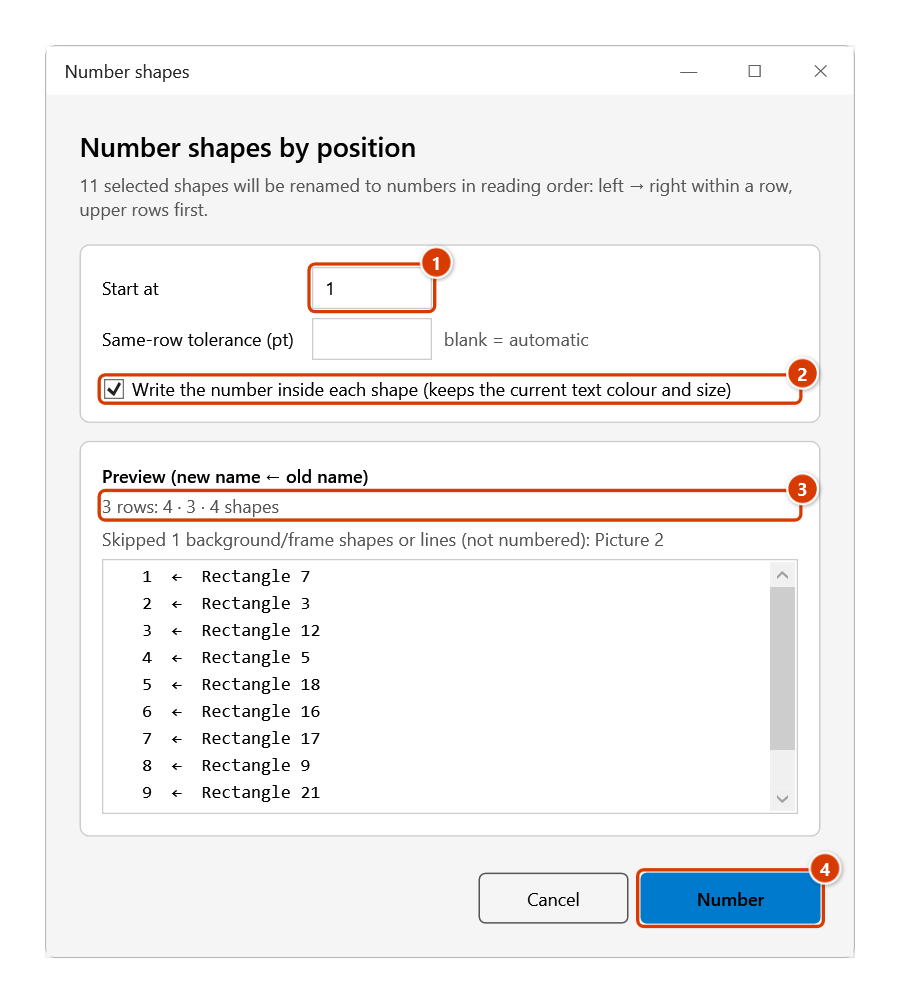
Step 1. Select the shapes to number: hold Ctrl and click each one, or — if they all sit in one group (typical for a plan pasted from CAD) — just click the group. Background pictures, frames and lines inside the group are skipped automatically.
Step 2. On the ribbon, open the DVD Addin tab → Graphics group → open Color Shapes → choose Number Shapes.
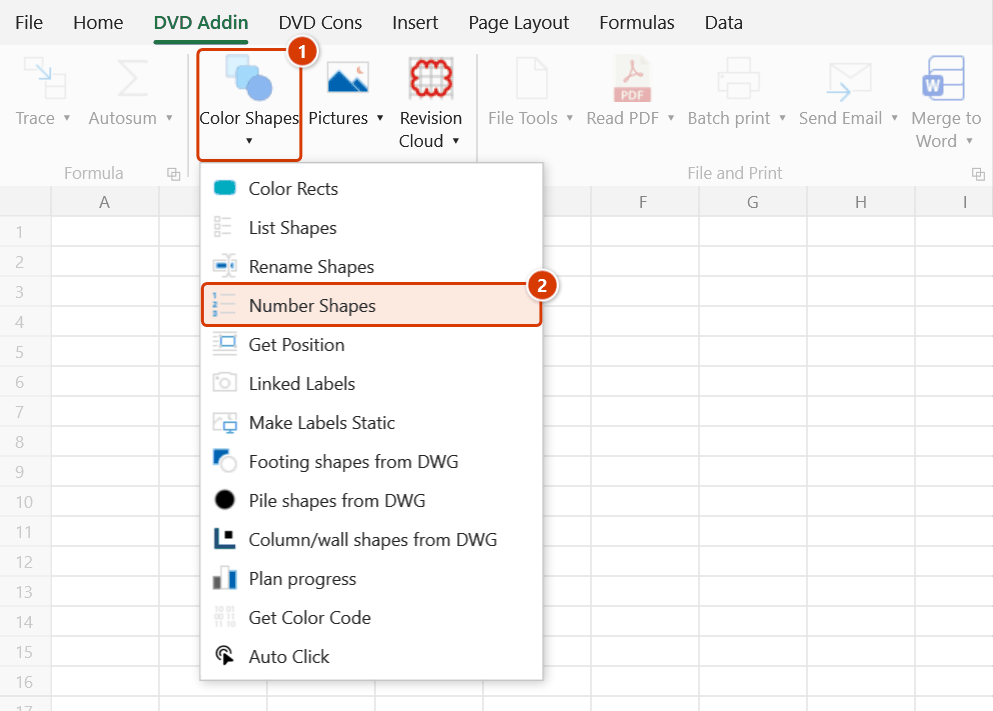
Step 3. Set Start at when continuing another area (1) and tick Write the number inside each shape to show the number on the drawing (2). The preview lists every new name ← old name line in reading order (left → right, upper rows first) with the rows it found (3) — here 3 rows of 4 · 3 · 4 footings, with the background picture Picture 2 skipped. When it looks right, click Number (4).
Step 4. The shapes are renamed 1 … 11 (and the number is written inside, keeping the current text colour and size); a message confirms Numbered 11 shapes (1 → 11). The command cannot be undone with Ctrl+Z — that is why there is a preview. These numeric names work straight away with Linked Labels or Color Shapes.
Example
A foundation plan for an auxiliary building has 57 footings and the background drawing picture in one group, laid out in 8 rows that are not perfectly straight: small footings 10, 11, 12 sit a little below footings 1, 2, 3; footing 19 is twice as wide as its neighbours, and footing 28 is much taller than the others in its row.
Click the group and run the command: the dialog reports that it skipped the background picture, finds 8 rows and numbers 1 → 57 exactly as the engineer had numbered them by hand — including footings 10–12 as their own row after the first, and footing 29 alone on its row. The background picture keeps its name.
Notes
- Automatic row detection: the command works down from the shape with the highest centre. A shape joins the open row when it shares a row with its nearest horizontal neighbour already in that row — that is, the centre of one lies within the height of the other. Rows chain from neighbour to neighbour, so a slightly slanted row (a CAD drawing pasted a little rotated) still comes out in order, mixed footing sizes land in the right row, and a tall footing next to two rows of small ones does not interleave them. Rotated shapes are measured by their visible, rotated outline.
- Same-row tolerance: when set, a shape whose centre is no more than that many points (vertically) from its nearest neighbour in the row counts as the same row. Raise it if a row gets split in two; lower it if two rows get merged. The preview updates as you type.
- The command cannot be undone with Ctrl+Z — that is why there is a preview. Shape names are the key your tracking table looks up, so check before you click.
- The command refuses to run when the selection contains shapes from a pile / footing / column-wall shape set created from DWG (Pile shapes from DWG, Footing shapes from DWG, Column/wall shapes from DWG): their names (
P1,M1,C1…) are the keys that the progress table, linked labels and thedvdColorShapesfunction look up. Deselect those shapes, or recreate the set from DWG if you want different names. - If a shape that is not selected already uses one of the new names, the dialog warns you beforehand: after numbering the sheet would have two shapes with the same name. Rename it first, or include it in the selection.
- Shapes that cannot hold text (pictures…) are still renamed; only the number-writing step is skipped, and the command reports how many.
- When you select several groups, each group is renamed but no number is written into it — writing into a group overwrites the text of every shape inside. The command reports these groups separately.
- On a sheet that protects drawing objects, unlocked shapes are still renamed normally; locked ones cannot be — the command lists them and the numbers left unused, with a hint to unprotect the sheet.
Related
- Rename Shapes — rename from an old name → new name table you prepare yourself.
- Linked Labels — put date/status cells on shapes by their new numbers.
- List Shapes — lists the shape names on the sheet, including shapes inside groups (the group name, e.g. "Group 88", followed by each child shape).
- Color Shapes — colour shapes in bulk by name.