
Rename Shapes
Location on ribbon: Tab DVD Addin → Group Graphics → the ▾ arrow of Color Shapes
Command ID: btnRenameShapes
What it does
This command renames many shapes on the active sheet at once from a two-column mapping table: old names on the left, new names on the right. The add-in walks each row and renames the matching shape.
Shapes named by Excel (Rectangle 27, Oval 143…) are useless to any command that works by name. Giving them a systematic naming scheme — by grid line, by zone, by work code — is what makes progress colouring, coordinate extraction and formula-driven shape control possible afterwards.
How to use
- Open the sheet holding the shapes (the command affects the active sheet only).
- Build a two-column table on the worksheet: left = old name, right = new name.
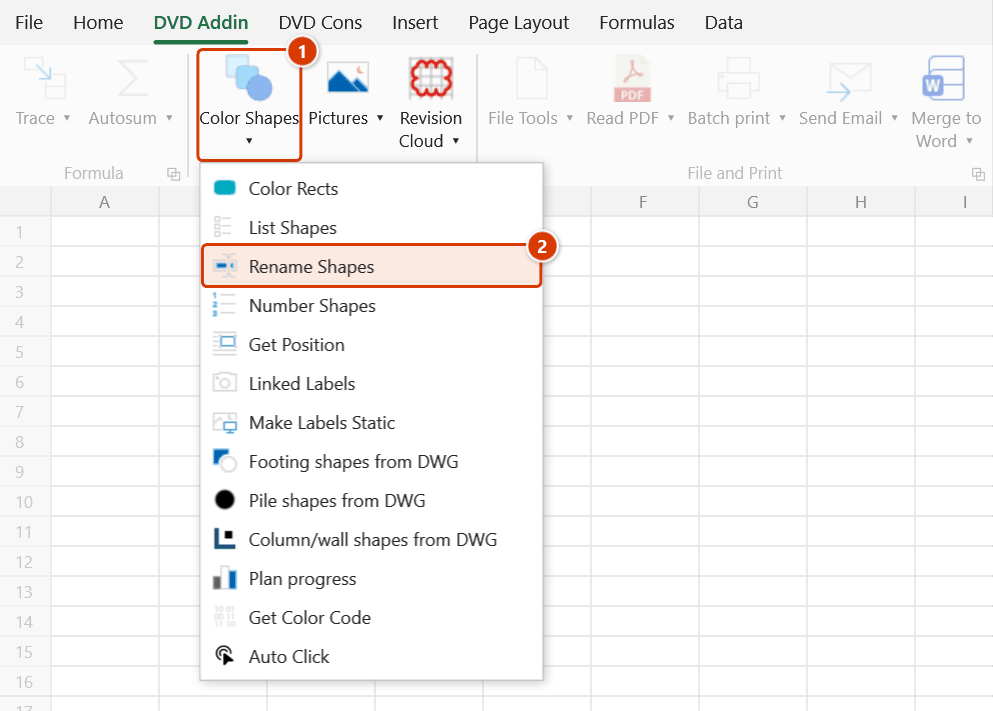
- Go to tab DVD Addin → group Graphics → the ▾ arrow of Color Shapes → click Rename Shapes.
- The range picker appears with the prompt "Select 2-col range: old shape name (left), new shape name (right)". Drag over the table and click OK.
- The add-in processes the rows from top to bottom; press ESC to stop midway.
- When it finishes, a message reports how many shapes were renamed and lists the old names not found and the refused rows.
Video tutorial
Narrated in Vietnamese, with Vietnamese subtitles. Danh sách, Đổi tên, Đánh số, Lấy vị trí Shape · 7 min 11 s · 18 cases · Download the video · Practice workbook for the video
Commands in this video: List Shapes · Number Shapes · Rename Shapes · Get Position
Chapters (22)
- Giới thiệu
- Mở lệnh
- 1 · Shape trong nhóm
- 2 · Tên dạng số, nhãn liên kết
- 3 · Ảnh, biểu đồ, nút, shape ẩn
- 4 · Tên trùng
- 5 · Đổi tên theo bảng
- 6 · Dòng bị bỏ qua, bị từ chối
- 7 · Thứ tự dòng: dời số, đổi chéo
- 8 · Cả nhóm, bỏ ảnh nền
- 9 · Hàng chéo, shape xoay
- 10 · Sai số cùng hàng
- 11 · Bắt đầu từ, tên đã có
- 12 · Nhiều nhóm, ảnh
- 13 · Lấy toạ độ Top;Left
- 14 · Tên sai, ô trống
- 15 · Dời lại bằng dvdMoveShape
- 16 · Ghi đè và hoàn tác
- 17 · Sheet đang bảo vệ
- 18 · Khi chọn sai
- Mẹo
- Kết thúc
Illustrated walkthrough
Practice
Download this command's sample workbook — the data matches the pictures below (sheet Foundation plan), so you can follow each step right away.
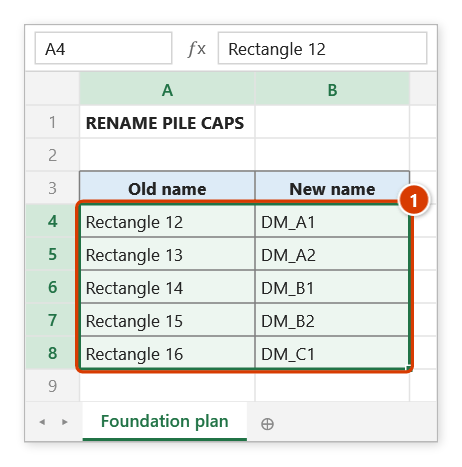
Step 1. On the sheet that holds the shapes, build a two-column table: left = old name, right = new name (1). Get the old names quickly with List Shapes.
Step 2. On the ribbon, open the DVD Addin tab → Graphics group → open Color Shapes → choose Rename Shapes.
Step 3. The range picker appears with the prompt Select 2-col range: old shape name (left), new shape name (right): drag over A4:B8 and click OK. Rows are processed from top to bottom; press ESC to stop midway.
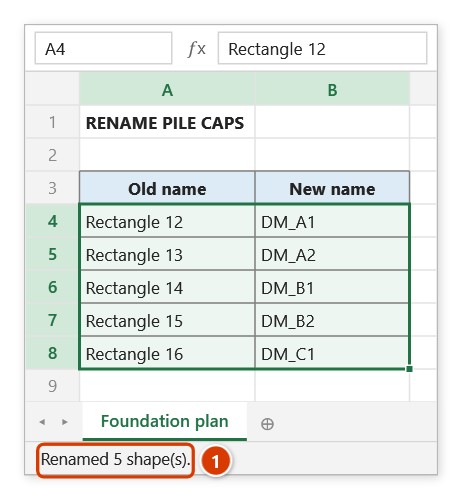
Step 4. The status bar reports how many shapes were renamed (1). If an old name is not found, or a new name already belongs to another shape (the row is refused and the shape keeps its name), a warning lists each such row.
Example
A foundation layout pasted into Excel arrives with Excel's default shape names. After running List Shapes to get the old-name column, you fill in the new names using pile-cap codes:
| P (Old name) | Q (New name) |
|---|---|
| Rectangle 12 | PC_A1 |
| Rectangle 13 | PC_A2 |
| Rectangle 14 | PC_B1 |
Select P5:Q40 in the picker and click OK — every shape now carries its pile-cap code and is ready for Color Shapes.
Notes
- Old names must match the shape names on the active sheet exactly; names that cannot be found are listed in the final message.
- Rows where either the old or the new name cell is empty are skipped.
- The command refuses any row whose new name already belongs to another shape on the sheet (including shapes inside groups): duplicate names make colouring, labelling or moving by name hit the wrong shape. Refused rows are listed and the shape keeps its old name.
- Rows are processed from top to bottom, so to swap the names of two shapes go through a temporary name, for example three rows:
PC_A1→TMP,PC_A2→PC_A1,TMP→PC_A2. - Press
ESCto stop midway; shapes already renamed keep their new names. - The rename cannot be undone with
Ctrl+Z— keep the old-name column so you can reverse the mapping if needed. - The range picker does not lock Excel: while it is open you can scroll, switch sheets or switch workbooks to pick the range there. Click OK or press Enter on the sheet when done; Cancel or Esc to stop.
Related
- List Shapes — dump the current shape names onto the sheet to build the "old name" column.
- Color Shapes — the next step: map the new names to colour codes driven by progress.
- Get Position — read shape coordinates by name once the naming is standardised.