
Footing shapes from DWG
Location on ribbon: Tab DVD Addin → Group Graphics → the ▾ arrow of Color Shapes
Command ID: btnFootingsFromDwg
PRO feature
This command is part of the PRO plan. STANDARD accounts activated before 1 Jul 2026 keep it until their license expires; other Standard accounts see the upgrade dialog when they click it.
What it does
A foundation plan in Excel is usually a picture exported from the CAD drawing, and engineers draw a rectangle over every footing by hand so they can colour progress. This command does that from the original DWG (or DXF) file itself:
- it reads the drawing and finds the footings without relying on layer or block names (closed outlines with piles inside, within the grid area), together with each footing's mark (F1, F2A, F1a, FD1…) written next to it — including two-line MTEXT labels (mark on the first line);
- it matches the drawing's coordinates onto the plan picture on the sheet automatically — even when Excel has stretched the picture differently in each direction, or the picture is cropped;
- it shows a preview of every footing over the picture, then draws exact-outline shapes (rectangles, chamfered footings, polygons), named in reading order like Number Shapes, with the number written inside and the DWG footing mark stored in the shape's Alt Text.
The new shapes are grouped with the picture, so they move with it when you change row heights or column widths instead of drifting off.
How to use
- Open the sheet with the plan picture. Click the picture (or the group containing it) — if nothing is selected, the command takes the largest picture on the sheet, including pictures inside groups.
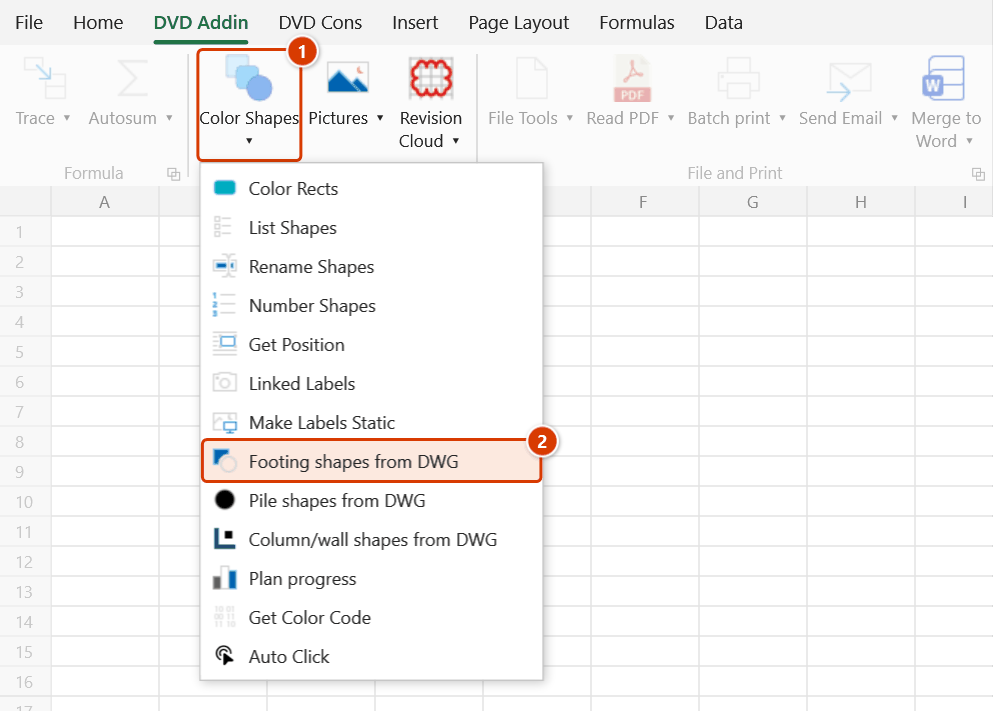
- Go to tab DVD Addin → group Graphics → the ▾ arrow of Color Shapes → Footing shapes from DWG.
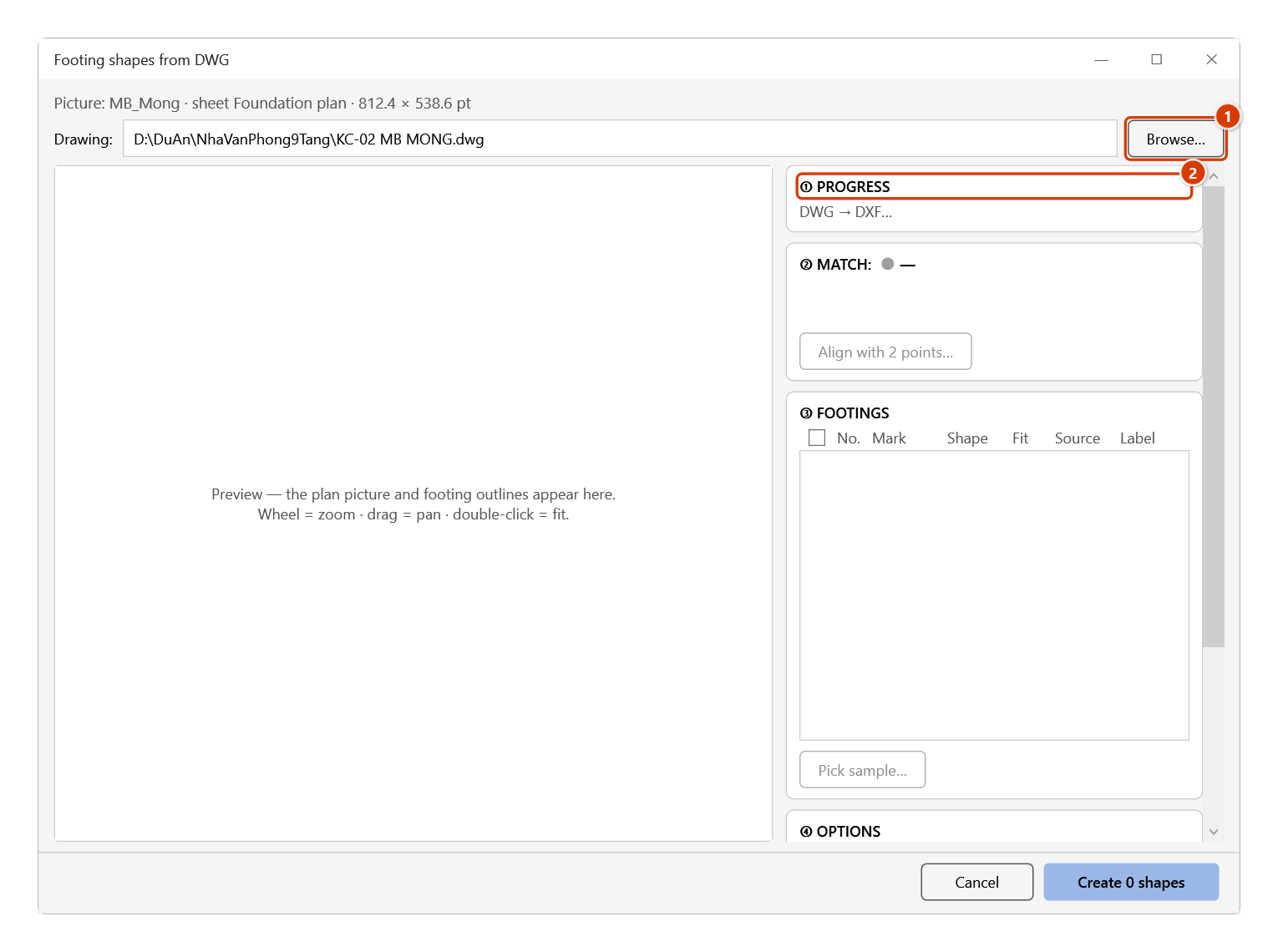
- The first line of the dialog names the picture the command took (name, group, size). Click Browse… to choose the original .dwg or .dxf file — or paste the path and press Enter, or drag the file onto the dialog. Next time the dialog fills in the last file and starts analysing straight away.
- Watch the Progress panel: read picture → DWG → DXF → detect → match. For a DWG file the command uses AutoCAD Core Console in the background — no CAD window ever opens.
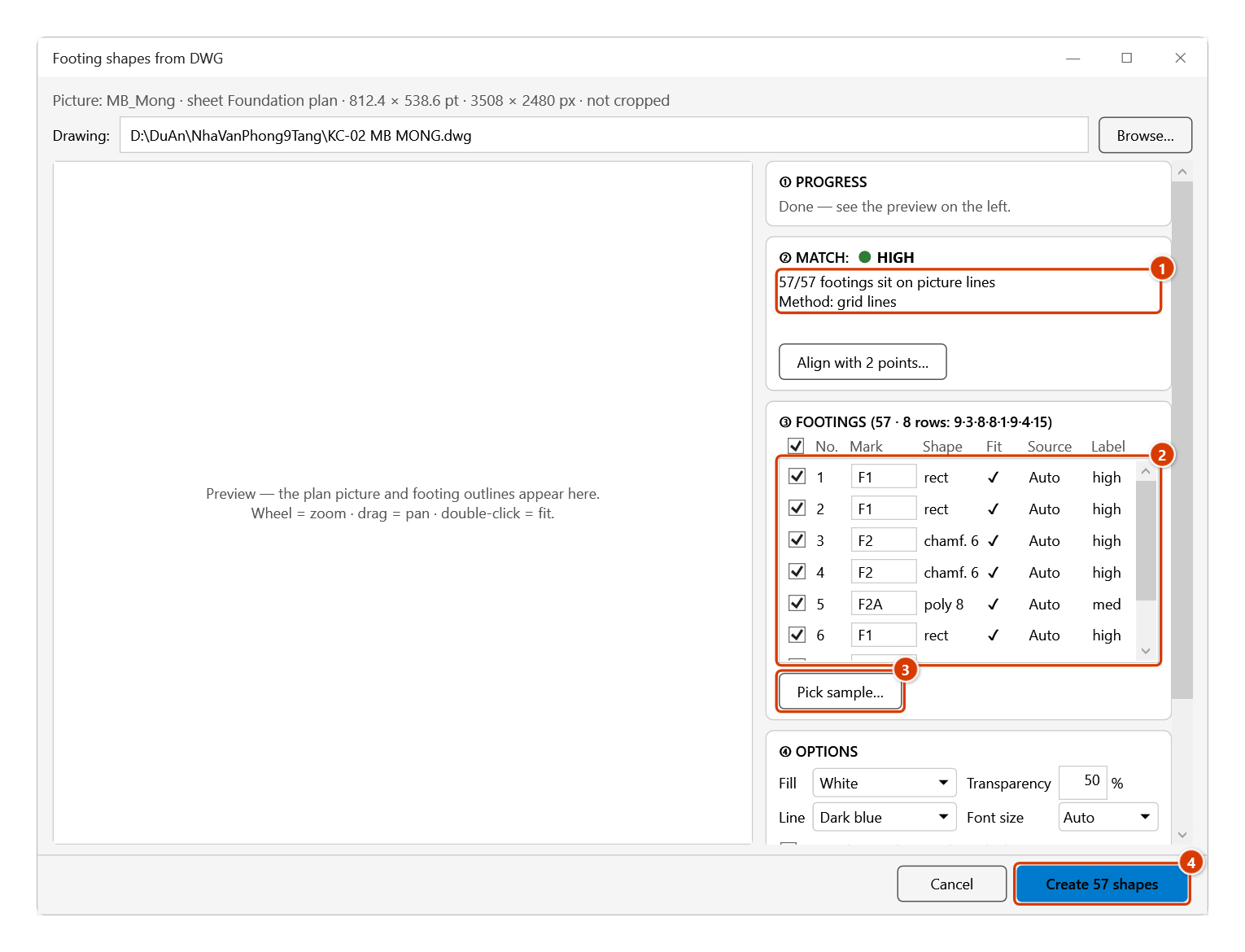
- Check the Match level:
- High — the footing edges sit on the picture's lines; Create is enabled straight away (unless a name clashes or an option is invalid — the reason shows right above the buttons).
- Hover over the explanation line to see two numbers: FEO = share of footings whose outline sits on the picture's lines (1.00 = all), and the same score with the drawing shifted by exactly one grid bay — the lower the second is compared to FEO, the surer the match is not off by a bay.
- Medium — footings that do not match are shown in orange; check the preview, then tick I checked the preview, positions are right.
- Low — the command switches to Align with 2 points (see Notes).
- In the Footings list, untick footings you do not want and edit a mark if needed. The Source column says whether a footing was found Automatically or learned from Sample 1, Sample 2… Clicking a footing in the preview selects its row, and the other way round. In the preview, scroll to zoom, drag to pan, double-click to fit.
- If a type of footing is missing (typically pad footings without piles, or footings drawn only as hatches), see Picking samples — drawings with several footing types.
- Set the Options: fill colour (white by default, 50 % transparent), outline colour, font size (Auto = the largest size from 6 to 12 pt at which the number still fits inside the smallest footing; hover over the box to see the size it will use), whether to write the number inside, Name = prefix + start number, and Group with the picture (best left on).
- Click Create N shapes. Hold ESC to stop part-way — the command removes every shape it has just made, so you never get half a set.
Video tutorial
Narrated in Vietnamese, with Vietnamese subtitles. Tạo shape móng từ DWG · 6 min 51 s · 12 cases · Download the video
Chapters (17)
- Giới thiệu
- Mở lệnh
- 1 · Ảnh mặt bằng và bản vẽ DWG
- Cửa sổ lệnh
- 2 · Phân tích, độ khớp Cao
- 3 · Xem trước từng móng
- 4 · Bỏ tick, sửa ký hiệu
- 5 · Tuỳ chọn màu, chữ, tên
- 6 · Tạo shape, bảng tiến độ
- 7 · Trùng tên shape đang có
- 8 · Ảnh bị cắt (Crop)
- 9 · Ảnh nét mảnh: căn tay 2 điểm
- 10 · Loại móng bị sót: Chọn mẫu
- 11 · Chạy lại: thay bộ cũ, gỡ bộ
- 12 · Khi có lỗi
- Mẹo
- Kết thúc
Illustrated walkthrough
Step 1. Open the sheet with the foundation plan picture (exported from the CAD drawing) and click the picture — or the group holding it. With nothing selected, the command takes the largest picture on the sheet, including one inside a group.
Step 2. On the ribbon, open the DVD Addin tab → Graphics group → open Color Shapes → choose Footing shapes from DWG.
Step 3. The first line shows which picture the command took. Click Browse… (1) to pick the original .dwg or .dxf — or paste a path and press Enter, or drag the file onto the dialog. The Progress panel (2) runs through: read picture → DWG → DXF → read drawing → detect footings → match to picture; a DWG is converted by AutoCAD Core Console in the background, no CAD window opens.
Step 4. Check the Match level (1): High means the footing outlines sit on the picture lines and Create is enabled at once (Medium: review the preview and tick I checked the preview, positions are right; Low: the command switches to Align with 2 points). The left pane overlays every footing outline on the picture, coloured as in the legend at the bottom. In the Footings list (2) untick footings you do not need and edit marks if you like; if a footing type is missing (pad footings without piles…), click Pick sample… (3) and click one footing of that type. Set colours, font size and names in the ④ Options card (scroll down), then click Create 57 shapes (4).
Step 5. The add-in creates 57 shapes with the true outlines (rectangles, chamfered, polygons), named 1 … 57 in reading order, the number written in the middle, the footing mark in Alt Text, grouped with the picture so they follow it when rows or columns are resized. Hold ESC to stop — the command removes everything it just created. Afterwards the add-in offers to create a Plan progress table for these shapes. To remove the set: run the command again and click Remove this set.
Picking samples — drawings with several footing types
The command recognises footings by the piles inside them. Footing types without piles (pad footings such as FD…), footings drawn only as hatches, or drawings without a grid can be missed — then show the command one footing of each missing type:
- Click Pick sample… (the button turns into Done). Closed outlines that could be footings are shown grey dashed in the preview.
- Click one footing of a missing type. The command learns its layer and block depth, finds every footing like it and adds them to the list — the footings already found stay. Footings learned from a sample are shaded purple (their numbers too) and the Source column says Sample 1.
- If there is another missing type, click one of those too — every click adds a sample and picking stays on. Clicking the middle of an existing footing with a column box inside picks the footing itself, not the column box.
- Click Done when finished (or Esc — Esc only ends picking, it never closes the dialog).
Each sample gets a tag under the list, for example Sample 1: FD3 · 18 footings ✕:
- ✕ (or clicking a purple footing again while picking) removes that sample; Clear all samples goes back to the automatic result.
- Keep the automatically detected footings (67) is ticked by default. Untick it to keep only the footings learned from samples.
- A sample that adds nothing says 0 new with the reason right under the tags: already in the automatic set (you clicked a type the command had already found), same as Sample 1 (two samples of one type), or every outline it found is a pedestal, lean-concrete or outer outline of an existing footing. Duplicate footings are never counted twice, and marks are assigned once over the whole list, so no mark ends up on two footings.
- If you untick a footing or edit its mark and then add or remove samples, that footing keeps your tick and your mark.
- The list title and the Create button follow, for example ③ FOOTINGS (85 footings: 67 automatic + 18 from samples) and Create 85 shapes.
Tried on the footing plan of an ancillary building: the automatic pass found the 67 piled footings (F1, F2, F3…) but missed 18 pile-less pad footings; clicking one FD3 footing as a sample added exactly those 18 (FD3 ×16, FD2, FD1) for 85 in total, all 85 with their marks.
Example
Sheet NSP holds the foundation plan picture MB_NSP inside the group "Group 2", and the original drawing is …-MB KET CAU.dwg. The sheet already has 57 rectangles the engineer drew by hand, named 1…57.
Select the group, run the command and pick the DWG. The dialog reports 57 footings · 8 rows: 9·3·8·8·1·9·4·15 and a High match (57/57 footings sit on picture lines). Because the names 1…57 are already taken, it suggests the prefix DWG_. Click Create 57 shapes: 41 rectangles and 16 chamfered polygons, named DWG_1…DWG_57 in the same order as the hand-drawn set, with the numbers in 9 pt (the automatic size — the narrowest footing is 13.3 pt wide), grouped as "Group 2 + Móng DWG". Tried on this very plan: the shape edges sit a mean 0.07 pt from the picture's lines.
Notes
- After a clean run the add-in offers to create the progress tracking table (Plan progress) for the new shapes right away; if the plan already has a table, rows for the new shapes are added automatically and the statuses you entered are kept.
- Reading a DWG needs full AutoCAD (vertical products such as Civil 3D included) no older than the file's format: drawings saved by AutoCAD 2018 or later (the 2018 format — the most common today) need AutoCAD 2018 or later; AutoCAD 2013–2017 only reads older formats. Or install ODA File Converter. If your AutoCAD is older than the file, ask the sender for a DXF, or convert it to DXF yourself with DWG TrueView / ODA File Converter (free). AutoCAD LT, GstarCAD, ZWCAD and BricsCAD have no background mode: save the drawing as DXF (AutoCAD:
SAVEAS→ AutoCAD 2018 DXF; GstarCAD / ZWCAD / BricsCAD: File → Save As → .dxf) and pick the .dxf file. The command never opens a CAD window. - The first run on a machine starts AutoCAD Core Console more slowly (about 20 seconds); later runs are quicker, and the same DWG reuses the DXF it already converted.
- A drawing open in CAD can still be read, but the command reads the saved version — press Ctrl+S in CAD if you just edited it. The dialog reminds you when it sees the drawing is open.
- Rotated or flipped pictures (including a rotated or flipped group around the picture) are not supported — set the rotation back to 0 or remove the flip and run again. Cropped pictures are fine: the crop is taken into account, and footings outside the visible part of the picture start unticked.
- The workbook must be .xlsx (including Strict Open XML) / .xlsm / .xlsb; save an .xls (Excel 97-2003) workbook as .xlsx first. Remove an open password (encryption) first — the command cannot read the picture from an encrypted snapshot. To read the picture's pixels the command saves a snapshot of the workbook to a temporary folder (no clipboard, your file is not changed) and deletes it as soon as the dialog closes.
- Align with 2 points — used when the automatic match is not certain because the picture is blurry or small, or the DWG holds several plans side by side: the dialog body splits into two panes, the picture from Excel on the left and the DWG on the right. Click a grid intersection on the picture → the same intersection on the DWG, then a second pair diagonally opposite the first and as far away as possible (at least 30 % of the picture apart in each direction). Manual alignment cannot fix two cases: the picture is a different drawing (pick the right DWG) or it is rotated (export it again without rotation). Press Esc to leave manual alignment (or sample picking) without closing the dialog. Clicks snap to the picture's lines and to the nearest grid intersection (showing the axis names, for example
1-1 / 1-F). - No footings found (no piles in the drawing, footings drawn only as hatches…) or a footing type is missing: click Pick sample… and click one footing of each type — see Picking samples. If the drawing has XREFs, the plan may live in one: open the DWG, bind the XREF, save and try again.
- Names: the command never renames, deletes or edits your own shapes. If a new name clashes with a shape already on the sheet, the dialog shows a red warning and disables Create until you change the prefix.
- Number Shapes refuses to run when the selection contains shapes from a footing set created from DWG — their names are the keys that the progress table, linked labels and the
dvdColorShapesfunction look up. Deselect those shapes; to number them differently, recreate the set from DWG. - List Shapes lists the footing shapes inside the picture's group too and skips the set's background picture; colouring with the
dvdColorShapesfunction needs no IFERROR wrapper — rows without a colour (blank,#N/A) are skipped. - The picture's group ends up inside a new group. With Group with the picture on (the default), the picture's existing group (for example
Group 2) becomes a sub-group inside a new group named<old name> + Móng DWG(for exampleGroup 2 + Móng DWG). While it is nested, Excel cannot look the sub-group up by name: a VBA macro or tool that callsShapes("Group 2")will fail — switch it to the new outer group's name. Your own shapes (the pictureMB_NSP, the rectangles1…57) keep their names and can still be looked up by name as before. Remove this set puts the old group back with its original name and position. - Running again on the same picture: the Existing set section shows the shape count, date and DWG name of the last run. Choose Replace the existing set (default) or Keep it, add a new set (the names must then differ). The previous match is used as the starting point.
- Replace the existing set also removes progress colours and any formatting you applied to the old shapes — the command asks before creating, and the line right above Create says "Will replace the existing set…". To keep that formatting, choose Keep it, add a new set with another prefix.
- The new set keeps the old set's prefix and start number, so the names do not change (tables from Linked labels that look shapes up by name stay correct).
- The command finishes the new set before it removes the old one: if you press ESC or an error occurs, the old set is left intact.
- Only a set tied to this very picture is offered for replacement; footing sets of another plan picture on the same sheet are left alone. Old shapes you have grouped with your own shapes are not removed (that would dissolve your group) — the dialog reports the name clash until you take them out or change the prefix.
- Ctrl+Z cannot undo this. To remove the shapes, run the command again and click Remove this set — the command asks once, then removes only the shapes it made; if the set sat in the picture's group, that group is restored. If no set belongs to the selected picture, the button reads Remove all N sets — it removes the sets of OTHER pictures on the sheet, and the question lists each one. The command takes no sheet backup, because a backup would duplicate the plan picture and every linked picture on the sheet.
- If the sheet protects drawing objects (Protect Sheet), unprotect it before running. The Locked and Print object settings of the picture (or its group) are kept when it is grouped and when you Remove this set.
- An R12 DXF drops xclips and explodes hatches into lines — footings may be added or missed; save it as DXF 2000 or later if you can. A drawing with wrong units (drawn in mm but
$INSUNITSsays inches or cm — common when it started from acad.dwt) is recognised from the pile/text sizes and read as mm, with a notice.
Related
- Pile shapes from DWG — the same workflow for pile layout plans: circle shapes named by pile mark (P1…).
- Column/wall shapes from DWG — the same workflow for column/wall plans: true-section shapes, columns C1…, walls V1….
- Number Shapes — renumber the selected shapes in reading order (same row detection); it does not run on shapes of a set created from DWG.
- Linked Labels — put date/status cells on the new footing shapes by name.
- Make Labels Static — turn linked labels into static pictures so a large plan does not slow Excel down.
- Get Position — look up a shape's
Top;Leftcoordinates by name.