
Plan progress
Location on ribbon: Tab DVD Addin → Group Graphics → the ▾ arrow of Color Shapes
Command ID: btnPlanProgress
License required
This command needs an active DVDAddin account (Standard or PRO). It is fully available during the trial period.
What it does
Tracks the status of each element on a plan drawn with shapes — piles, footings, slab bays, pour sections — then colours the whole plan by status and draws a legend with counts right on the plan, e.g. Driven: 132/225 (58.7%).
Unlike Color Shapes (which needs a name ↔ RGB-code table you build yourself), this command does the groundwork:
- The name list comes straight from the plan, including shapes inside groups — shapes made with Footing shapes from DWG / Pile shapes from DWG / Column/wall shapes from DWG work as they are.
- Statuses are picked from a drop-down instead of typed.
- Colour = the fill of the legend cell: to change a colour, just fill the cell (Home ▸ Fill) — no RGB codes.
- Counts and shares are calculated by formulas in the table and printed on the legend.
How to use
- Open the plan sheet (the one with the named shapes) → click Plan progress. The dialog has three steps.
- 1. Create / update the tracking table — the add-in creates a "TĐ <plan name>" sheet right after the plan:
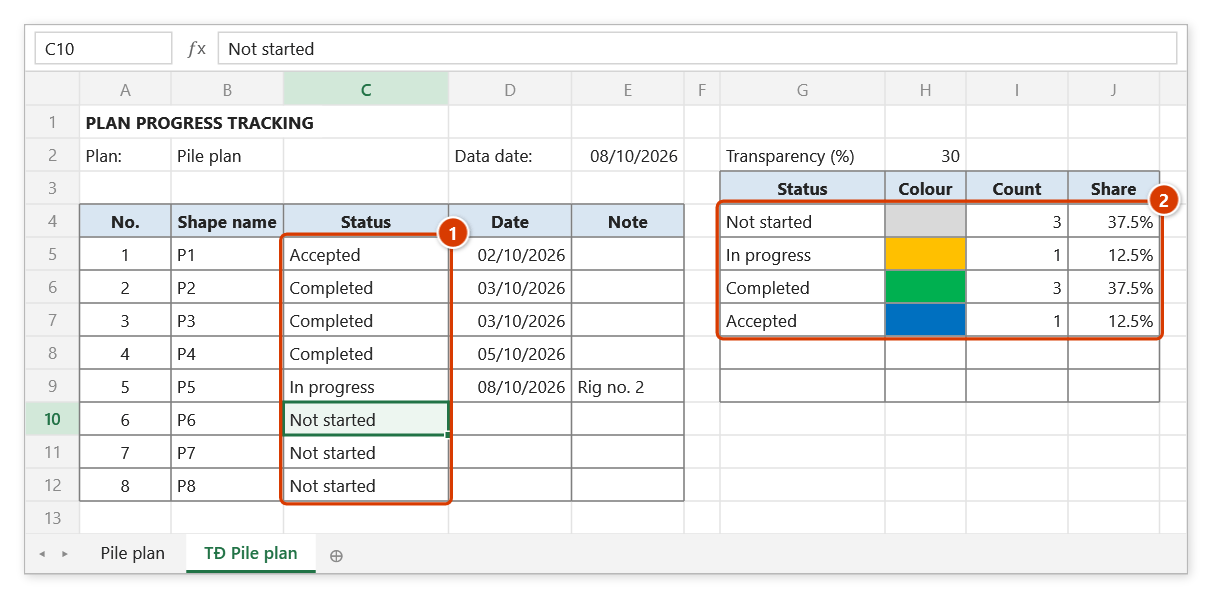
- A No. | Shape name | Status | Date | Note table, names in natural order (P2 before P10). The Status column has a drop-down.
- A legend on the right (columns G:J): Not started (grey), In progress (yellow), Completed (green), Accepted (blue), with Count and Share calculated. Rename, add rows, recolour as you like.
- A Transparency (%) cell (default 30) so the plan picture still shows through the colour.
- Re-running this step after adding shapes only adds new rows and keeps the statuses/dates/notes you entered; rows whose shape is gone from the plan get their name struck through (not deleted).
- Pick a status for each row (fill Date and Note if needed).
- 2. Colour the plan + legend — colours every shape by its status and draws a legend box to the right of the shapes (title PROGRESS — <data date>, one line per status with its count). The first time this plan is coloured, the Confirm data change window appears — click Continue (see Notes). Drag the legend where you want it — the next run keeps that position.
- 3. Export the plan to PDF — one page, fitted (landscape/portrait by shape), saved next to the workbook as Tien do mat bang - <plan> - <date>.pdf; the sheet's print settings are restored afterwards.
Two options in step 1:
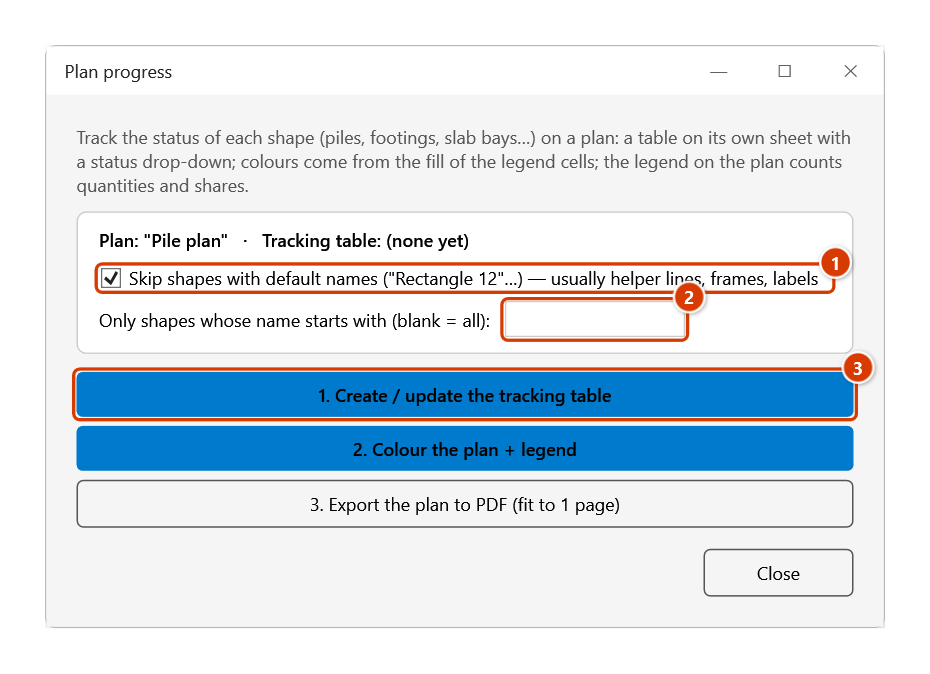
- Skip shapes with default names ("Rectangle 12"…) — usually helper lines, frames, labels. On by default.
- Only shapes whose name starts with… — e.g.
Pto track only piles when the plan also has footings.
Video tutorial
Narrated in Vietnamese, with Vietnamese subtitles. Tiến độ mặt bằng · 5 min 29 s · 10 cases · Download the video · Practice workbook for the video
Chapters (14)
- Giới thiệu
- Mở lệnh
- 1 · Lập bảng theo dõi
- 2 · Tô màu lần đầu
- 3 · Cập nhật hằng ngày
- 4 · Xuất PDF báo cáo
- 5 · Đổi màu, thêm trạng thái
- 6 · Đổi tên trạng thái – bẫy
- 7 · Thêm và xoá shape
- 8 · Shape trong nhóm
- 9 · Lọc tiền tố, tên trùng
- 10 · Khi lệnh báo lỗi
- Mẹo
- Kết thúc
Illustrated walkthrough
Practice
Download this command's sample workbook — the data matches the pictures below (sheet TĐ Pile plan), so you can follow each step right away.
Step 1. Open the plan sheet that holds the named shapes — for example the Pile plan sheet with piles P1…P8 made by Pile shapes from DWG.
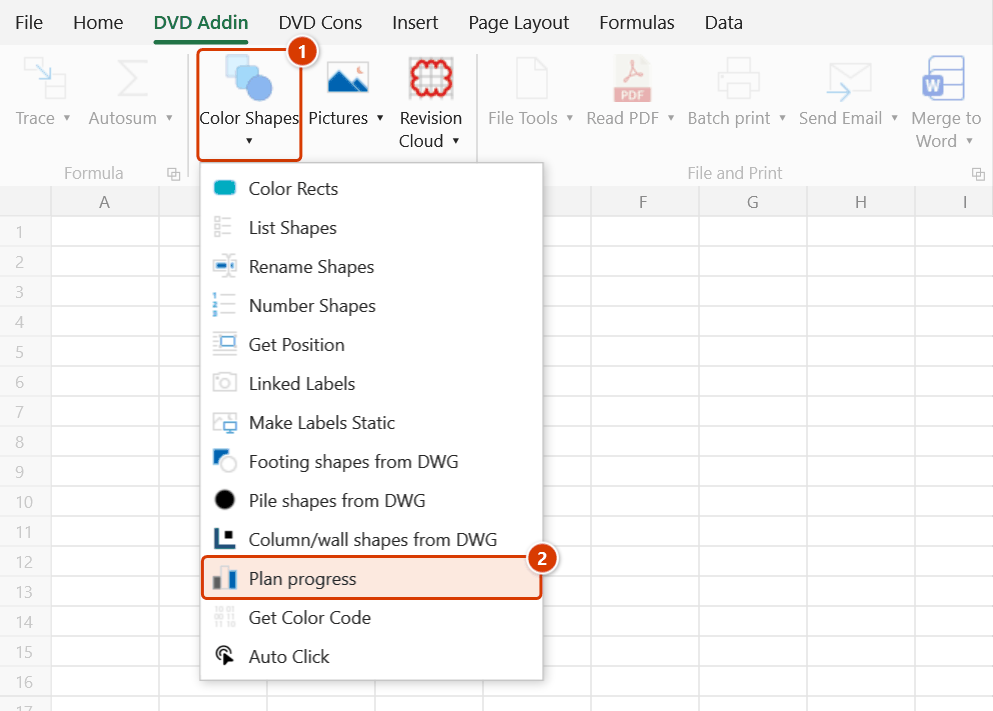
Step 2. On the ribbon, open the DVD Addin tab → Graphics group → open Color Shapes → choose Plan progress.
Step 3. The Plan progress dialog has three steps. Keep Skip shapes with default names ticked (1) (helper lines, frames, labels); to track only one kind, type a prefix such as P (2). Click 1. Create / update the tracking table (3).
Step 4. The add-in creates the sheet TĐ Pile plan right after the plan: a No. | Shape name | Status | Date | Note table with names in natural order. Pick each row's status from the drop-down (1) and fill in dates if needed. The legend on the right (2): each colour is the fill of the Colour cell (change it with Home ▸ Fill); Count and Share are computed automatically.
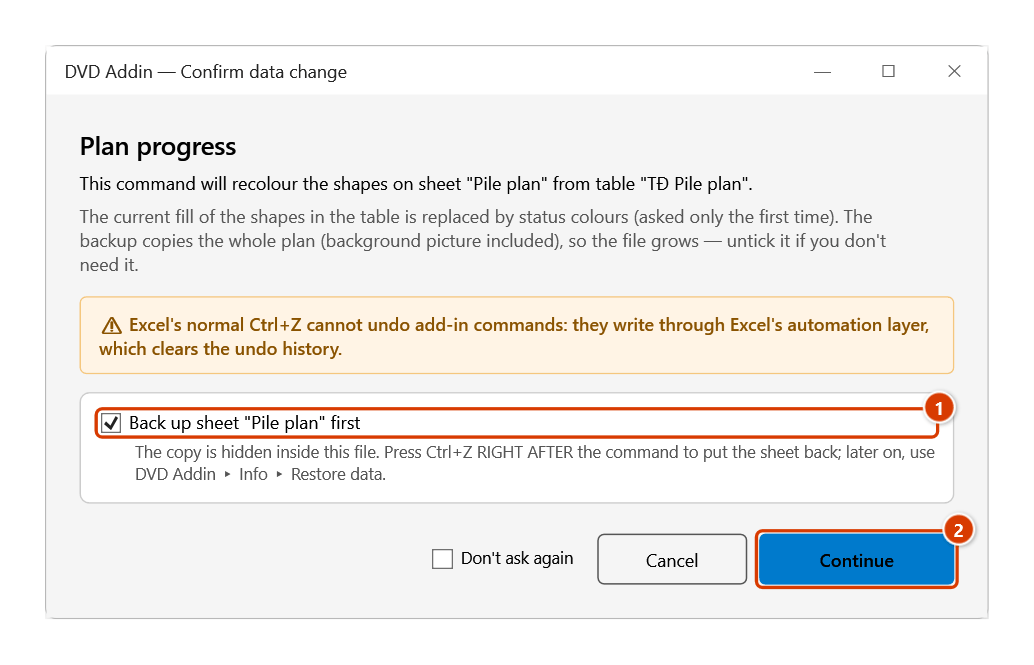
Step 5. Back in the dialog, click 2. Colour the plan + legend. The first time this plan is coloured, the add-in asks because the shapes' current fill will be replaced. The backup copies the whole plan (background picture included), so the file grows — untick it (1) if you don't need it, then click Continue (2).
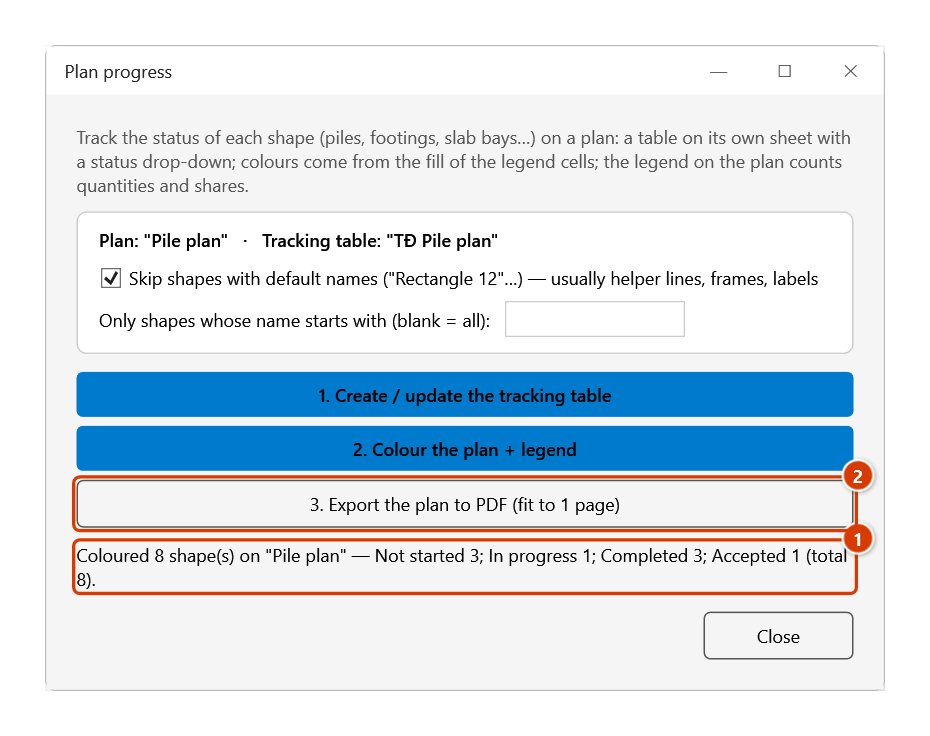
Step 6. Every shape is coloured by its status and a PROGRESS — 08/10/2026 legend box with counts per status is drawn to the right of the plan; the result line shows how many shapes were coloured (1). Click 3. Export the plan to PDF (2) to get Tien do mat bang - Pile plan - 2026-10-08.pdf next to the Excel file.
Example
A pile plan with 225 piles created from DWG (shapes P1…P225 inside groups). Step 1 → sheet TĐ MB coc with 225 rows. Rename the legend statuses to Not driven / Driven / Load-tested. Each evening the crew reports the piles driven; set Driven on those rows (filter the Name column to go faster). Step 2: driven piles change colour and the legend reads Driven: 132/225 (58.7%). Step 3 gives a PDF for the weekly report.
Notes
- When shapes come from Pile shapes from DWG / Footing shapes from DWG / Column/wall shapes from DWG, the table is created/updated right after that step — no need to open this command for step 1.
- Only the shape fill changes — never position, size or text. Shapes inside groups do not move.
- The first time a plan is coloured the add-in asks for confirmation (the shapes' current fill is replaced) and offers to back the sheet up. The backup copies the whole plan including its background picture, so the file grows — untick it if you don't need it.
- Names in the table must match the shape names exactly (Selection Pane: Home ▸ Find & Select ▸ Selection Pane). Several shapes with the same name share one row and one colour.
- Statuses typed by hand that are not in the legend are skipped and listed after colouring; names no longer on the plan are listed too.
- If the plan sheet protects its drawing objects (Protect Sheet ▸ Edit objects), unprotect it first.
- Renaming the plan sheet is fine — the tracking sheet points to it through a defined name that Excel updates.
- The legend date is the workbook's shared data date if one is set (name
dvdDataDate), otherwise today.
See also
- Pile shapes from DWG · Footing shapes from DWG · Column/wall shapes from DWG — create shapes named after their marks / numbered.
- Color Shapes — colour from a hand-made colour-code table when you need more control.
- List Shapes · Rename Shapes — list and tidy shape names.