
Pile shapes from DWG
Location on ribbon: Tab DVD Addin → Group Graphics → the ▾ arrow of Color Shapes
Command ID: btnPilesFromDwg
PRO feature
This command is part of the PRO plan. STANDARD accounts activated before 1 Jul 2026 keep it until their license expires; other Standard accounts see the upgrade dialog when they click it.
What it does
Tracking pile driving or boring progress on a pile layout plan needs one shape per pile — hundreds of circles or squares that take ages to draw by hand and never sit quite right. This command builds the whole set from the original DWG (or DXF) file, using the same workflow as Footing shapes from DWG:
- it reads the drawing and finds the round piles (200–2500 mm diameter) and square piles (150–1200 mm side) without relying on layer or block names: the concentric shapes of one pile symbol become one pile, and piles are grouped by diameter or side (D500, D350, □300…). A plan that mixes round and square piles is handled in one run;
- a square pile is a closed square drawn as a polyline (no arc segments), a hatch, or four loose LINEs (diagonals and other strokes inside the symbol are ignored), inside a block or loose in the drawing; its four sides must be equal (within 2 %) and its four corners square (within 1°). Rotated squares are found too. When a symbol holds both circles and squares, the outermost shape decides whether the pile is round or square (except a pile cap, see below). A circle and a square drawn separately (in different blocks, or loose) on the same centre: in a square-pile plan — where the square piles standing alone (not in the middle of round-pile caps, within about two grid bays) number at least half of those with an extra circle, or at least 2 when the circle is inscribed in the square (a pre-boring circle), and the square is not solid-filled (SOLID hatch) — the pile is square (the circle is a test-pile ring, a pre-boring circle or a round column); otherwise the pile is round (the square is a column or a pile cap; a solid-filled square is always taken as a column);
- it does not mistake pile caps for piles: a square that fully contains one or more other pile symbols is a cap / pile-group outline — it still appears in the list but unticked, with the note Pile cap — contains piles, not a pile. A concentric square outline around exactly one pile (a single-pile cap, round or square pile) does not become a shape of its own: the pile keeps its true size, the Label column adds (cap?), and its Alt Text records the outline as a possible pile cap — even when the outline is drawn in the same block as the pile or the drawing is exploded, as long as its side is at least 1.6 times the pile size (square side / round diameter); a lean-concrete outline or a cap drawn twice around it is dropped as well;
- it does not mistake columns for piles: repeated squares none of which carries a pile mark (columns, solid-filled column stubs) are listed but unticked, with the note (column?), and the warnings list says how many were left out — when the drawing carries pile marks (not counting the
TP/CTtest-pile marks), or when it carries none and those squares sit among round piles (a column in the middle of a cap) and are fewer than the round piles; an isolated square (a pad-footing column) that is solid-filled, plain without the X diagonals (square piles are conventionally drawn with an X), or of the same block as the columns drawn over single piles, is a column too, even with no marks and more columns than piles. In a drawing with pile marks, repeated symbols carrying their own non-pile label (HK1,BH2— boreholes), or unlabelled ones that each stand alone and lie much farther from the grid intersections than every marked pile (boreholes, equipment pedestals in mid-bay), are unticked as well, with a warning. A column drawn concentric with a round pile — larger than the pile (column on a single-pile cap) or smaller (column outline inside a large bored pile) — does not take over the pile, even when the same column block also stands alone on other caps, and a column drawn over a neighbouring pile's mark does not steal that mark (a single square pile standing beside a cap of round piles keeps the mark touching it). In a square-pile plan, repeated unmarked circles sitting among the square piles (round columns in the middle of caps) are unticked as (column?) too, and a round column drawn over a neighbouring square pile's mark gives that mark back; - it assigns the pile mark written next to each pile — the
P,TP,CT,PT,CandKfamilies followed by a number, e.g.P12,P1-1,P12A,TP1. The command takes the family most marks belong to (always plus the TP/CT test-pile families) — except that when the largest family isC, theCtexts label columns (one per column, next to it; a column drawn concentric with a single pile does not count — a mark there may just as well name the pile) and the drawing has 3 or moreP…texts, it takesP; a plan whose piles are markedCkeeps theCfamily even with a fewP…tags of other things; a column labelled with the leading part of the marks of the piles around it (C1amongC1-1…C1-4) is a column: it loses the mark and is unticked as (column?);Ctexts written against the columns in the middle of the plan (one per column) do not count either — so a column mark such asC1is not mistaken for a pile when the piles are markedP…, even when only a few piles carry a mark. A plan whose round and square piles use two different families gets only one of them: piles of the other family have no mark (unmarked square piles are unticked like columns — tick them in the list); - it skips the symbols in the legend (PILE SCHEDULE / KEY) outside the grid area: they still appear in the list but unticked, with the note Outside the plan;
- it flags test piles: a round pile with an extra, larger concentric circle around it (e.g. a Ø1200 ring around a D500 pile) keeps its true diameter, the Label column of the list adds (test?), and its Alt Text also records the Ø1200 ring as a possible test pile;
- it matches the drawing's coordinates onto the plan picture on the sheet (a picture stretched differently in each direction, or cropped, still matches), shows a preview, then draws circle shapes at the true diameter for round piles and square shapes at the true side for square piles — a rotated pile gets a shape turned to the same angle as in the drawing;
- shape name = pile mark (
P1,P2…P225), Alt Text = mark and size (P17 · D500, orP17 · □300for a square pile). Every DVDAddin colouring and labelling tool finds shapes by name, so a progress table only needs one column of pile marks.
The new shapes are grouped with the picture (a new group named <old name> + Cọc DWG), so the piles move with the picture when you change row heights or column widths instead of drifting off.
How to use
- Open the sheet with the pile layout plan picture. Click the picture (or the group containing it) — with nothing selected, the command takes the largest picture on the sheet.
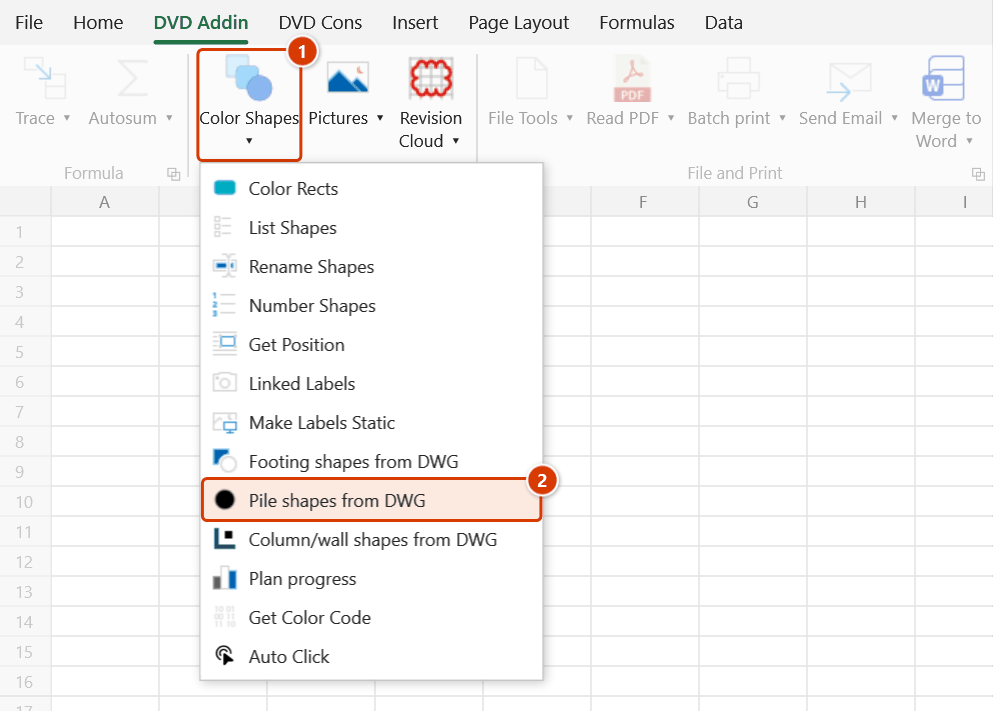
- Go to tab DVD Addin → group Graphics → the ▾ arrow of Color Shapes → Pile shapes from DWG.
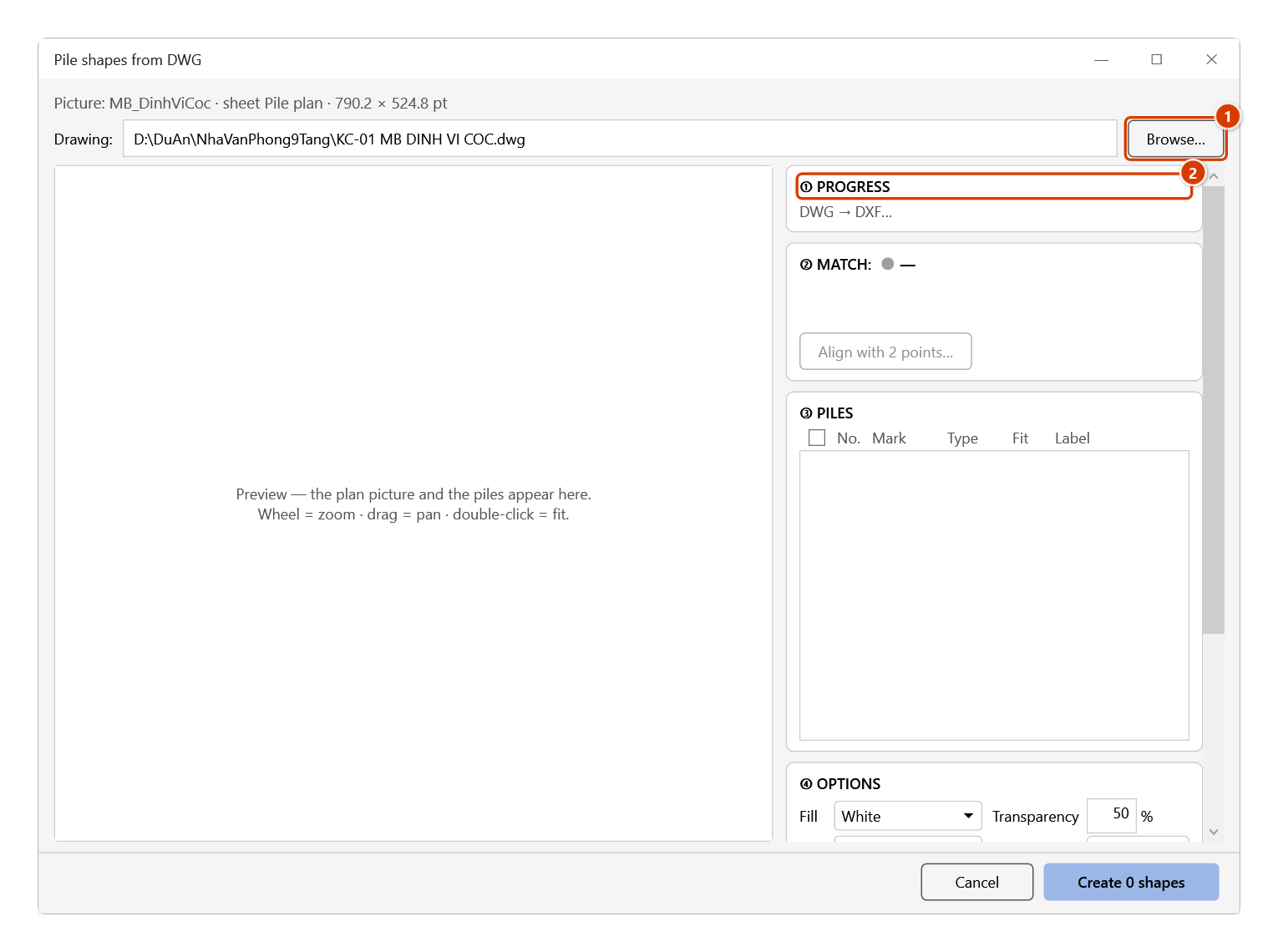
- Click Browse… to choose the original .dwg or .dxf file (or paste the path and press Enter, or drag the file onto the dialog). The pile command remembers its own file and options, separate from the footing command — opening it never re-analyses the footing drawing you used last time.
- Watch the Progress panel: read picture → DWG → DXF → detect → match. A DWG file is converted by AutoCAD Core Console in the background; no CAD window ever opens.
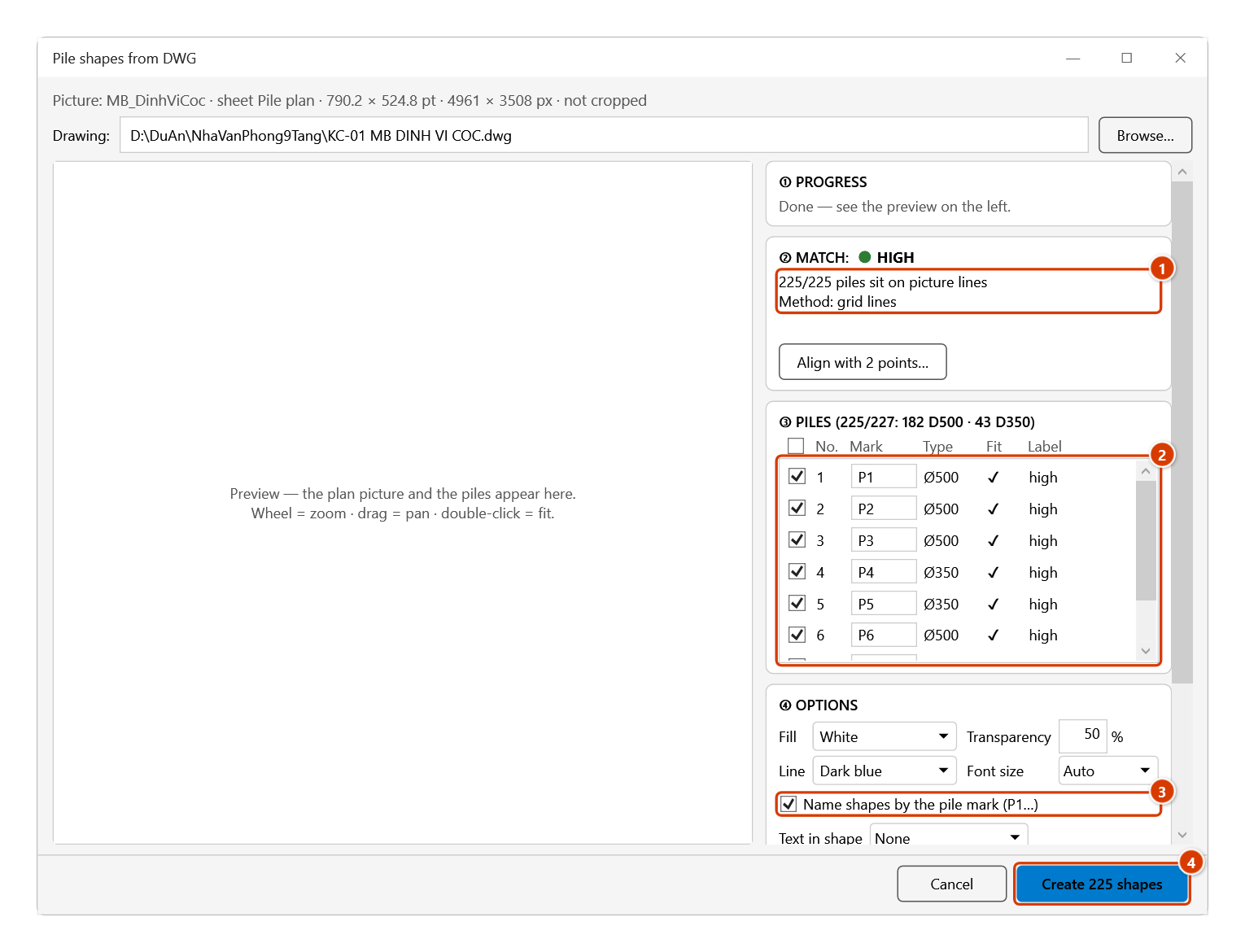
- Check the Match level — High enables Create straight away; Medium means check the preview, then tick I checked the preview, positions are right; Low switches to Align with 2 points (click a grid intersection on the picture, then the same intersection in the DWG, two pairs diagonally apart).
- In the Piles list the heading gives the pile count per diameter, then per square-pile side (e.g.
③ PILES (245/247: 182 D500 · 43 D350 · 20 □300)), and the Type column shows a round pile's diameter (Ø500) or a square pile's side (□300). Untick piles you do not want; the Mark cell is editable — it is also the name the shape will get. Piles outside the plan, piles without a mark, stray symbols that look like no pile and pile-cap outlines are all unticked to begin with. The pile command has no Pick sample… button. - Set the Options:
- fill colour (white by default, 50 % transparent — so progress colours can go on top) and outline colour;
- Name shapes by the pile mark (P1…) — on by default; leave the prefix empty and the name is exactly the mark;
- Text in shape: None (default — a pile on the picture is often only a few points wide), Mark (P17) or Sequence number. With text, the Font size box is enabled: Auto (default) picks one size for the whole set — the largest size from 1 to 8 pt whose text fits inside the smallest pile shape without reaching the next pile; a fixed size (1–8 pt) is used as is. Excel clips text that sticks out of a shape, so raise the Shape size for larger, readable text;
- Shape size: 100 % of the diameter / side — the true pile size (50–300 % makes piles bigger, easier to click and to see in colour; you get a warning when they grow large enough to overlap);
- Group with the picture (best left on).
- Click Create N shapes. Hold ESC to stop part-way — the command removes every shape it has just made, so you never get half a set.
Video tutorial
Narrated in Vietnamese, with Vietnamese subtitles. Tạo shape cọc từ DWG · 5 min 03 s · 11 cases · Download the video
Chapters (15)
- Giới thiệu
- Mở lệnh
- 1 · Ảnh mặt bằng cọc và bản vẽ
- 2 · Phân tích: 225 cọc, khớp Cao
- 3 · Danh sách: ký hiệu, đường kính
- 4 · Cọc thử
- 5 · Ký hiệu ở bảng thống kê
- 6 · Khổ khác trong cùng tệp
- 7 · Ký hiệu là tên shape
- 8 · Trùng tên shape đang có
- 9 · Chữ trong shape, cỡ shape
- 10 · Tạo shape, bảng tiến độ
- 11 · Chạy lại: thay bộ cũ, gỡ bộ
- Mẹo
- Kết thúc
Illustrated walkthrough
Step 1. Open the sheet with the pile layout picture and click the picture (or the group holding it). With nothing selected, the command takes the largest picture on the sheet.
Step 2. On the ribbon, open the DVD Addin tab → Graphics group → open Color Shapes → choose Pile shapes from DWG.
Step 3. Click Browse… (1) to pick the original .dwg or .dxf (or paste a path and press Enter, or drag the file onto the dialog). The pile command remembers its own file and options, separate from the footing command. The Progress panel (2) runs: read picture → DWG → DXF → read drawing → detect piles → match to picture; a DWG is converted by AutoCAD Core Console in the background.
Step 4. With a High Match (1) the Create button is enabled at once. The Piles list (2) counts piles per diameter; piles outside the plan (marks in the legend table), unmarked piles and pile-cap frames are unticked; piles with a larger ring around them show (test?) in the Label column. The Mark cell is editable — it is also the shape name. Keep Name shapes by the pile mark (P1…) ticked (3) — with an empty prefix the name is exactly the mark. Click Create 225 shapes (4).
Step 5. The add-in creates 225 circles of the true diameter named P1 … P225 (square piles get square shapes), Alt Text holds the mark and size (P17 · D500), grouped with the picture. A piling progress table then only needs a pile-mark column to colour them with Color Shapes, or accept the offer to create a Plan progress table.
Shape names
- By default a shape is named prefix + pile mark and created in natural mark order:
P1,P2, …,P10,P10A, …,TP1. - Names follow the marks only when every ticked pile has a mark and no two marks are the same (ignoring case, as Excel shape names do). If a mark is missing or repeated (drawings that mark the pile type rather than each pile), Create is disabled and the dialog states why right above the button — the command does not switch to numbers on its own, so a progress table that looks shapes up by name never gets mismatched names. Type or fix the mark in the Mark column, untick that pile, or clear Name shapes by the pile mark to name the whole set prefix + reading-order number as for footings.
- If a new name clashes with a shape already on the sheet (say a hand-drawn shape named
P1), the dialog shows a red warning and disables Create until you set a prefix (e.g.Coc_→Coc_P1). The command never renames or deletes your shapes. - Piles that overlap (in the drawing, or because of a large Shape size) are not flagged in the list — the result message after Create has a ⚠ warning line about the overlapping shapes.
- Re-running with Replace the existing set keeps the old set's naming mode and prefix, so a progress table that looks shapes up by name stays correct.
Colouring pile progress
Example table: column A pile name, column B colour code, column C status (Not started, Driving, Done…), with a status → colour legend in H3:I9.
- Name column. Type
P1inA3and drag the fill handle down: Excel increments the trailing number toP2,P3…. You can also use List Shapes: it lists the child shapes inside the picture's group too — the group name row comes before the piles (delete it), and the set's background picture and linked labels are not listed. - Colour column. In
B3look the colour up from the status:=VLOOKUP(C3;$H$3:$I$9;2;0), then fill down. There is no need to wrap it in IFERROR: a row without a colour (a blank cell,#N/A) is skipped — that pile keeps its current fill — and the rows after it are still coloured. If you want piles with no status painted white, wrap it as=IFERROR(VLOOKUP(C3;$H$3:$I$9;2;0);16777215)(16777215 is white). - Colour. Enter
=dvdColorShapes($A$3:$B$227;;50%)in a cell on the sheet holding the pile plan (an empty sheet name means the sheet that contains the formula; if the formula lives on another sheet, give the plan sheet's name as the second argument). The function recolours whenever the workbook recalculates and returns a summary such asColoured 223/225 · missing: P10A, P12Awhen those two (mistyped) names in the table have no shape on the sheet. Or click Color Shapes and pick the name and colour columns. Both find shapes inside a group by name.
Example
The pile layout plan of a factory: the drawing has 227 pile symbols — 225 piles inside the grid (182 D500 and 43 D350), marked P1…P225, plus a D500 and a D350 symbol in the legend below the plan; piles P66 and P148 have an extra dashed Ø1200 ring next to the text CỌC THỬ (test pile).
Select the plan picture, run the command and choose the DWG file. The list shows 227 piles: the 225 plan piles are ticked, the 2 legend symbols are not, and P66 and P148 show (test?) in the Label column while staying D500 piles. Click Create 225 shapes: 225 circles named P1…P225 are grouped with the picture. A 225-row pile driving table with P1→P225 filled down its first column can be coloured straight away.
Notes
- After a clean run the add-in offers to create the progress tracking table (Plan progress) for the new shapes right away; if the plan already has a table, rows for the new shapes are added automatically and the statuses you entered are kept.
- Reading DWG needs full AutoCAD no older than the file's format (files saved by AutoCAD 2018 or later need AutoCAD 2018+), or ODA File Converter; otherwise save the drawing as DXF and choose the .dxf file. The details (AutoCAD LT, GstarCAD, ZWCAD, rotated or flipped pictures, .xls workbooks, password-protected workbooks) are exactly as for footings — see the Notes on Footing shapes from DWG.
- Not supported yet: rectangular piles / barrettes (a rectangle that is not a square is treated as a cap or beam, not a pile), round piles not drawn as CIRCLE entities (donuts, arc polylines, ellipses), and square piles with chamfered or rounded corners (polylines with more than 4 corners or with arc segments) — the command does not find them. A square pile where every pile has a separately drawn concentric circle (no square pile stands alone) is read as a round pile — when only some piles have one they stay square. A test pile drawn in the same block as its ring is read at the ring (a round pile of the ring size); a ring in its own block or drawn loose is fine — except in a drawing that has both round and square piles (or many other circles outside the plan), where a square test pile with a separately drawn ring is read as a round pile of the ring size. Grid lines drawn as polylines are not recognised yet (the plan is treated as having no grid). A square pile symbol with an inner shape smaller than 1/1.6 of its side (a hollow core, a small centre circle) in the same block is read as a pile of the inner size with a cap. In a plan without grid lines the command searches around the marked piles and follows the chain of symbols of the same type as the marked piles, with a step equal to the spacing between the marked caps (about a third or half of the plan marked in one block is enough); when only one cap carries marks it searches only around that cap — draw the grid, or mark a pile in another cap too; a legend or a copy of the plan placed closer than that step is taken in. With only
TP/CTtest-pile marks it searches around every pile-size symbol, so legend symbols may be included (a warning says so). A narrow single-pile cap outline (side under 1.6 times the pile size) drawn in the same block as the pile, or in an exploded drawing, is read as part of the pile symbol, so the pile gets the outline's size; an outline drawn outside an intact pile block is not affected. Piles marked by number only (1…225with no leading letter) or with the mark in an unusual block attribute are still found when that pile type repeats 3 or more times, but they have no mark, so they start unticked: clear Name shapes by the pile mark and tick them (the tick box at the top of the column selects all piles) to create them named prefix + reading-order number, or type each mark in the Mark column. - Number Shapes refuses to run when the selection contains shapes from a pile set created from DWG: renaming them to
1,2,3… would wipe out theP…names that the progress table, linked labels and thedvdColorShapesfunction look up. Deselect those piles; to get different names, recreate the set from DWG. - Linked labels: every label made by Linked Labels makes each Enter a few milliseconds slower — 225 labels add more than a second to every Enter. Label only the piles currently being worked on, or use Make Labels Static once they are placed.
- The footing and pile commands never touch each other's sets: Replace the existing set and Remove this set in the pile command only see pile sets, and in the footing command only footing sets — even when both sets are on the same sheet.
- If the picture is already grouped with a footing set (
… + Móng DWG), the pile set does not nest that group inside a new one; it is grouped on its own asCọc DWG …, laid over the picture, with a warning line. Usually the pile plan is a separate picture anyway. - No undo with Ctrl+Z. To remove the set, run the command again and click Remove this set — the command asks once; only shapes made by the pile command are removed, and if the set sat in the picture's group, that group goes back to how it was.
- If the sheet protects drawing objects (Protect Sheet), unprotect it before running the command.
Related
- Footing shapes from DWG — the same workflow for foundation plans: exact-outline shapes numbered in reading order.
- Column/wall shapes from DWG — the same workflow for column/wall plans: columns C1…, walls V1….
- Color Shapes — colour many shapes at once from a pile name → colour table.
- Linked Labels — put driving-date / status cells on the pile shapes by name.
- Make Labels Static — turn linked labels into static pictures so a plan with many piles does not slow Excel down.
- Get Position — look up a pile shape's
Top;Leftcoordinates by name.