
Linked Labels
Location on ribbon: Tab DVD Addin → Group Graphics → the ▾ arrow of Color Shapes
Command ID: btnLinkedLabels
License required
This command needs an active DVDAddin account (Standard or PRO). During the Trial period it is fully available.
What it does
The command puts a label on each Shape in a drawing: the label is a linked picture of an Excel cell (what Excel calls Paste Special ▸ Linked Picture), with a white background, placed above, below, to the left of, to the right of or centred on the Shape of the same name. Because it is a linked picture, the label updates by itself whenever the source cell changes — edit a date in the table and the date on the drawing follows.
This used to be done by hand, one label at a time: right-click the cell ▸ Paste Special ▸ Linked Picture ▸ Format Picture ▸ Solid fill white ▸ drag it into place. A foundation plan with 38 footings meant 38 rounds of that; the command does them all in one pass.
How to use
- Name the Shapes in the drawing (for example footings named
1,2,3…). Use Rename Shapes if needed. - Build a table: one column with the Shape names, one column with what you want to show (date, status, quantity…).
- Select the range: the first column holds Shape names, the last column holds the cells to place. Columns in between are ignored, so a
Footing | Colour code | Datetable can be selected across all three. Or hold Ctrl to pick two separate columns. - Go to tab DVD Addin → group Graphics → the ▾ arrow of Color Shapes → Linked Labels.
- A dialog shows the range the command picked up (so you can check the columns are right) and the options:
Label position — one of five places:
- Just above the shape — centred horizontally (the default).
- Just below the shape — centred horizontally.
- Left of the shape / Right of the shape — next to the shape's left / right edge, centred vertically.
- Centred on the shape — the label's centre on the shape's centre, so the label sits on top of the shape.
The gap (in points) is the distance from the shape's edge to the label and applies to above, below, left and right; for centred labels the gap has no effect. The preview in the dialog draws the label around a sample shape — you can also click the preview to pick the position.
Skip empty source cells — when on, no empty white box is created.
Label type: Linked — the label updates when the source cell changes; or Static — it captures the cells now and does not update (run the command again after the cells change) but does not slow Excel down. The dialog tells you how many linked pictures the workbook holds (how many are existing labels, how many sit in hidden backups) and gives a rough estimate of how much slower each Enter becomes.
Turn the linked pictures in hidden backups into static pictures — shown only when the workbook has older backups that still hold linked pictures; leave it on. Restoring a backup still relinks them. Press Ctrl+S afterwards.
- Click Place labels. The command reports how many labels it placed and lists any names with no matching Shape.
Video tutorial
Narrated in Vietnamese, with Vietnamese subtitles. Gắn nhãn liên kết và Chuyển nhãn sang Tĩnh · 6 min 07 s · 14 cases · Download the video · Practice workbook for the video
Commands in this video: Linked Labels · Make Labels Static
Chapters (18)
- Giới thiệu
- Mở lệnh
- 1 · Bảng và bản vẽ cùng sheet
- 2 · Nhãn tự cập nhật
- 3 · Chạy lại để đổi vị trí
- 4 · Nhãn nằm giữa shape
- 5 · Ô nguồn còn trống
- 6 · Tên không khớp, tên trùng
- 7 · Bảng đang lọc
- 8 · Ô nguồn là ô gộp
- 9 · Shape xoay, sát mép sheet
- 10 · Shape nằm trong nhóm
- 11 · Bảng ở sheet khác
- 12 · Nhãn Tĩnh
- 13 · Chuyển nhãn sang Tĩnh
- 14 · Khi lệnh từ chối
- Mẹo
- Kết thúc
Illustrated walkthrough
Practice
Download this command's sample workbook — the data matches the pictures below (sheet Foundation plan), so you can follow each step right away.
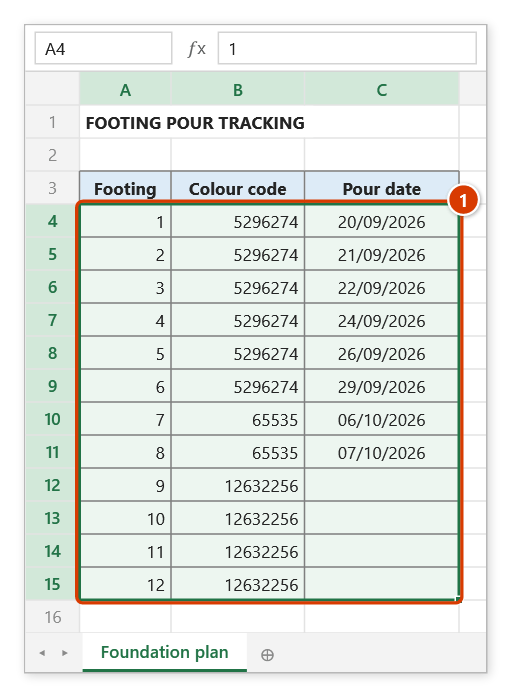
Step 1. The footings on the drawing are shapes named 1, 2, 3… (quickly set with Number Shapes). Next to it is the tracking table: select a range whose first column = shape names and last column = the cells to place (here the pour date) — columns in between are ignored (1).
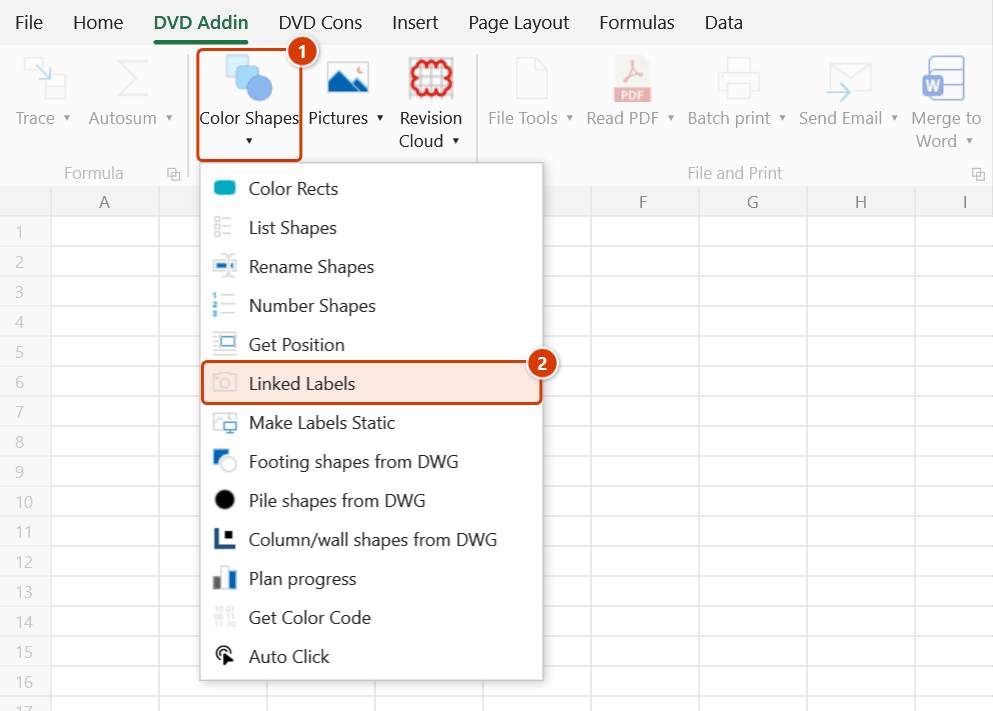
Step 2. On the ribbon, open the DVD Addin tab → Graphics group → open Color Shapes → choose Linked Labels.
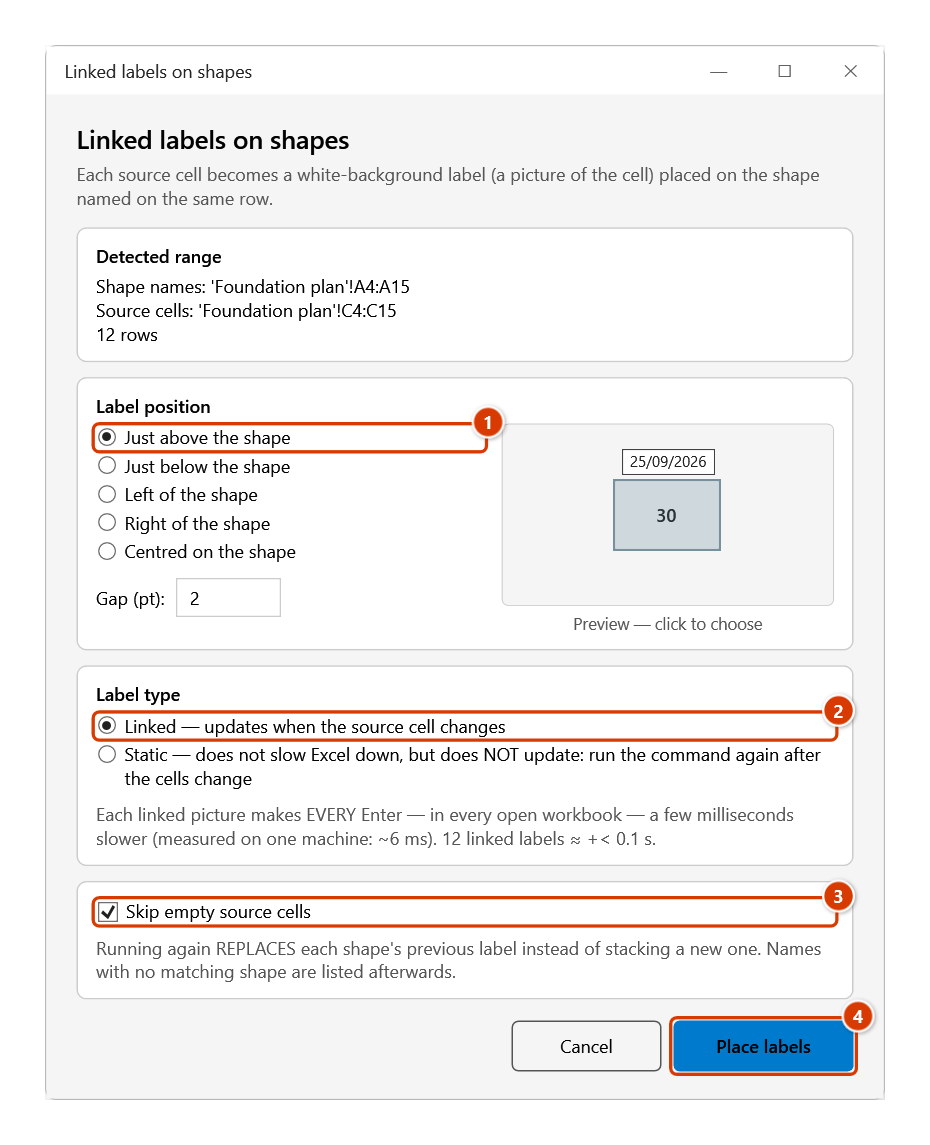
Step 3. Check the Detected range (name column and source column). Choose the Label position (1) — clicking straight into the preview works too; Gap is the distance from the shape edge to the label. Choose the Label type (2): Linked updates with the cell, Static does not slow Excel down. Keep Skip empty source cells ticked (3) so footings not yet poured get no empty white box, then click Place labels (4).
Step 4. Each footing with a pour date gets a white label just above it; a message confirms Placed linked labels on 8 shapes. (plus any names with no matching shape). Change a date in the table the next day and the label on the drawing follows. To move the labels, run the command again — old labels are replaced, not stacked. If a large drawing makes Excel slow, choose the Static type or use Make Labels Static.
Example
A foundation plan for an auxiliary building has 38 footings, each a Shape named 1 to 38. The tracking table on the right has a Footing column (AA) and a Date column (AC) with the pour dates.
Select AA7:AC44, choose Just above the shape, click Place labels:
| Footing | Date | Result on the drawing |
|---|---|---|
| 1 | 20/09/2026 | white date box just above footing 1 |
| 2 | 21/09/2026 | white date box just above footing 2 |
| 3 | 22/09/2026 | … |
The next day, change footing 2's date to 23/09/2026 in the table — the label on the drawing changes at once, no need to run the command again.
Footings stacked close together vertically, with no room above for a label? Select the range again, choose Right of the shape (or Left of the shape) and run it again — the old labels are replaced, nothing to delete by hand.
Notes
- Linked labels have a cost. After EVERY recalculation — that is, every Enter in any open workbook — Excel redraws every linked picture in every open workbook, hidden sheets included: a few milliseconds per picture (one test machine measured ~6 ms). On that machine a 57-footing plan with 64 linked pictures made each Enter about 0.35 s slower; with all labels static it was under 1 ms. For large drawings or workbooks you type into a lot, choose Static labels and run the command again after updating the dates.
- Running the command again replaces each Shape's previous label (labels are named
DVDLBL_<shape name>) instead of stacking a new one. To change the position (say from "above" to "right" or "centred"), just run it again. If a source cell is now empty, its old label is removed. - The table can be on a different sheet from the drawing, as long as it is the same workbook — the labels link to the table's sheet. A table in another workbook is refused, because a link to another file breaks when that file closes.
- Filtered tables: hidden rows are skipped; only visible rows get labels.
- Merged source cells (across or down) work: when you drag across a merged date column, Excel widens the selection to the merge's tail column, and the command moves back to the column that holds the text. The label covers the whole merged area, not a clipped part.
- Shape names written as numbers (1, 2, 3…) are matched by name, never mistaken for the Shape's position in the sheet. Names with a trailing space (
"2 ") or cells formatted00(showing"02") match too. - Shapes inside a group are found too, and the label lines up with where Excel actually draws that Shape. A drawing group is sometimes stretched or squashed with the row heights (for example a shared workbook opened on a machine with a different display scaling) — Excel then reports positions for the Shapes inside it that drift from where they are drawn, more and more towards the bottom; the command converts back to the drawn position, so the gap between label and shape is the same from the first row to the last. Labels made with an earlier version only need the command to be run again.
- Rotated Shapes: the label is placed against the real, rotated outline and does not overlap the footing.
- No room on the chosen side: a sheet has no negative coordinates, so with Just above the shape a Shape at the top edge of the sheet gets its label just below it, and with Left of the shape a Shape at the left edge of the sheet gets its label on its right — instead of the label being pushed against the edge and covering the Shape itself. The command reports how many labels had to move like this. Below and to the right there is always room.
- The label follows the Shape's own "move with cells" setting, so inserting rows above keeps the label and the footing together.
- The command does not touch the clipboard (also when Excel uses R1C1 references): whatever you had copied is still there afterwards.
- If a picture cannot be created for a shape, its previous label is kept and the shape is reported on its own — not mixed up with "no shape named".
- A sheet that protects drawing objects cannot receive pictures — the command says so and stops; unprotect the sheet and run again.
- Hold ESC to stop part-way; labels already placed are kept.
- The range picker does not lock Excel: while it is open you can scroll, switch sheets or switch workbooks to pick the range there. Click OK or press Enter on the sheet when done; Cancel or Esc to stop.
Related
- Make Labels Static — one click turns every linked label on the sheet into a static one.
- Rename Shapes — name your Shapes before labelling them.
- List Shapes — see the exact name of every Shape on the sheet.
- Get Position — read Shape coordinates into cells.
- Color Shapes — colour Shapes in bulk from the same kind of name table.