
Filled circle
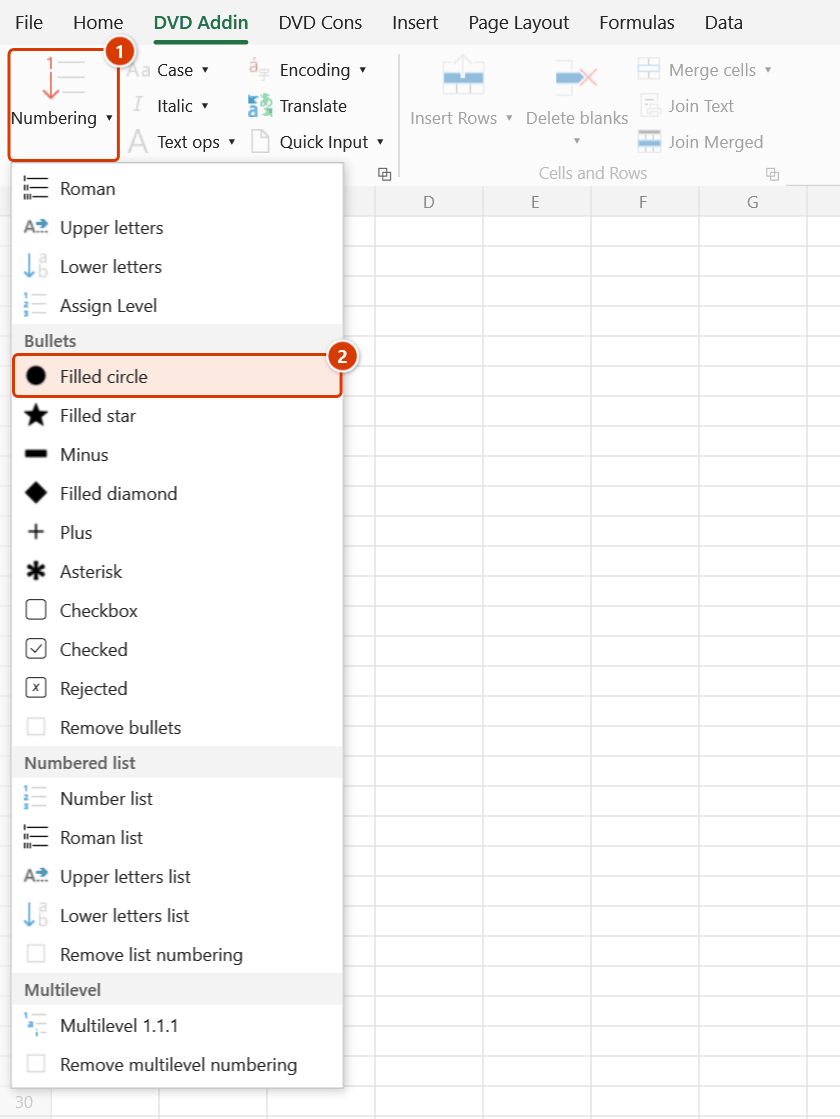
Location on ribbon: Tab DVD Addin → Group Text and Number → arrow on Numbering → section Bullets
Command ID: btnBlackCircle
What it does
Prepends a filled-circle bullet ● plus a space to every line inside the selected cells. This is the workhorse bullet for method statements, material lists, and the "Scope of work" column of an acceptance record — the places where one Excel cell holds several lines broken with Alt+Enter.
Before inserting, the command runs the bullet-strip step itself, so you can switch a range from ★, ◆, or − to ● in one click without ending up with two stacked symbols.
How to use
- Select the cells that need bullets.
- Go to the DVD Addin tab → Text and Number group → arrow on Numbering → Bullets section → choose Filled circle.
- The add-in handles each eligible cell in the selection:
- Text cell —
●is added at the start of every line. - Empty cell — just
●is written, ready for you to type after it. - Formula cell — the formula is wrapped as
=""&"● "&(original formula), so the bullet shows in the result while the formula stays live.
- Text cell —
- The status bar reports
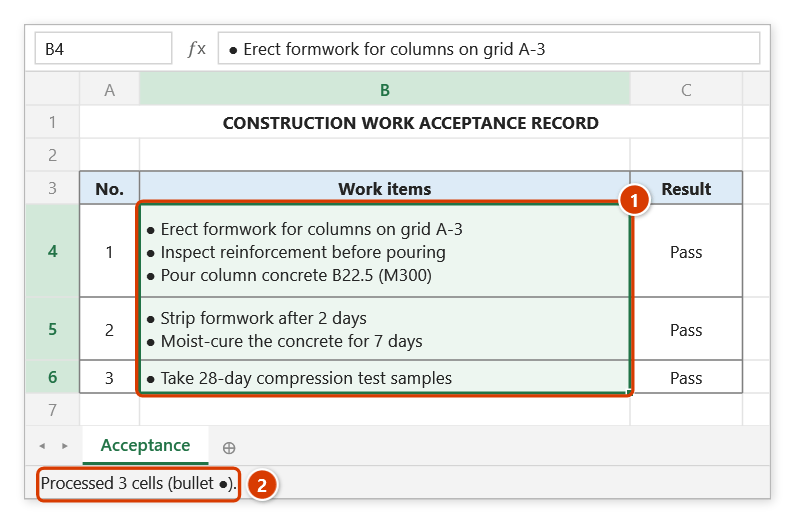
Processed N cells (bullet ●).
Video tutorial
Narrated in Vietnamese, with Vietnamese subtitles. Dấu đầu dòng · 5 min 03 s · 9 cases · Download the video · Practice workbook for the video
Commands in this video: Filled circle · Asterisk · Filled diamond · Filled star · Checkbox · Minus · Remove bullets · Plus · Checked · Rejected
Chapters (14)
- Giới thiệu
- Mở lệnh
- Chín ký hiệu
- 1 · Ô nhiều dòng
- 2 · Đổi ký hiệu, chọn rời
- 3 · Danh mục kiểm tra đang lọc
- 4 · Ô trống – mẫu in sẵn
- 5 · Ô số, ngày tháng
- 6 · Ô công thức
- 7 · Ô gộp
- 8 · Bỏ ký hiệu đầu dòng
- 9 · Ghi đè và hoàn tác
- Mẹo
- Kết thúc
Illustrated walkthrough
Practice
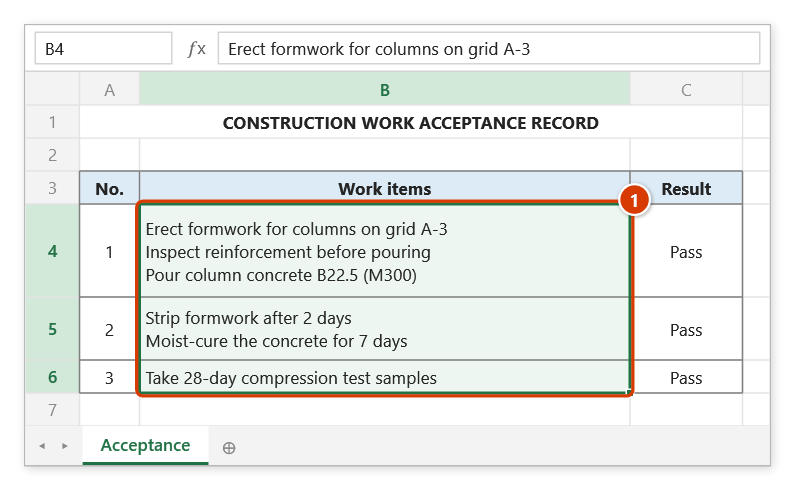
Download this command's sample workbook — the data matches the pictures below (sheet Acceptance), so you can follow each step right away.
Step 1. Select the cells that need the bullet (1). In a multi-line cell (line breaks typed with Alt+Enter) every line gets the bullet.
Step 2. On the ribbon, open the DVD Addin tab → Text and Number group → open Numbering → choose Filled circle.
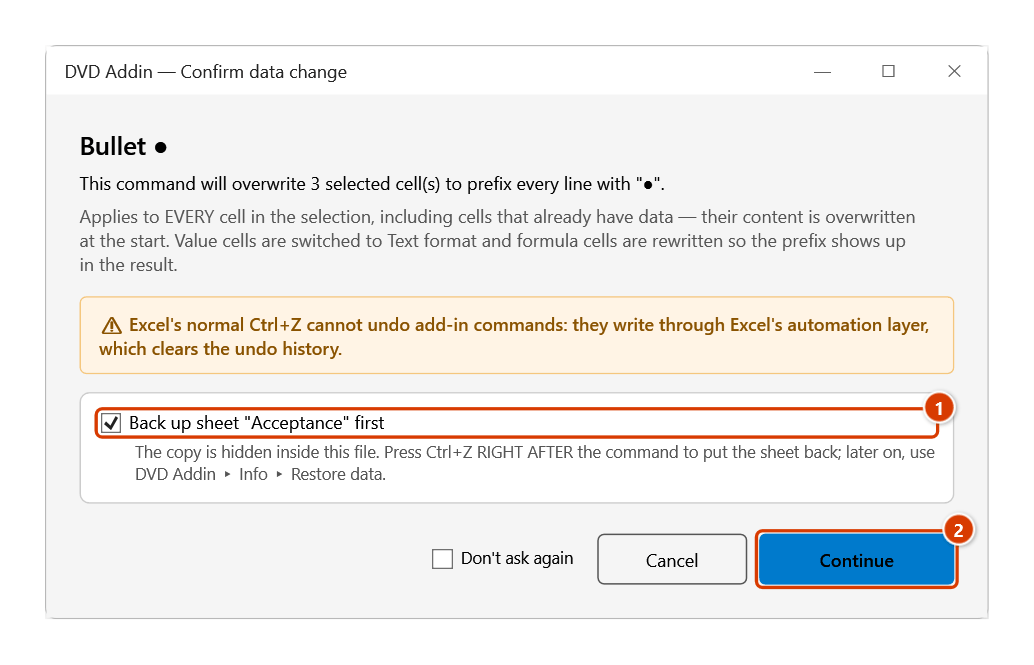
Step 3. The Confirm data change box tells you how many cells will be overwritten. Keep Back up sheet ticked (1) so that Ctrl+Z right after the command restores the sheet, then click Continue (2).
Step 4. Every line in the cells now starts with ● (1). The status bar reports how many cells were processed (2).
Example
The "Scope of work" column of a construction work acceptance record:
| Before | After |
|---|---|
| Erect column formwork, grid A‑3 Inspect rebar before pouring Pour grade 300 column concrete | ● Erect column formwork, grid A‑3 ● Inspect rebar before pouring ● Pour grade 300 column concrete |
A formula cell holding =B5&" m³" becomes =""&"● "&(B5&" m³") — still live, so the displayed quantity keeps tracking the source cell.
Notes
- Cells holding numbers, dates, or TRUE/FALSE are skipped, so a date is never flattened into a serial number.
- Text cells are switched to Text format (
@) before writing, so a string like● 1.is not reinterpreted as a date. Formula cells keep their existing format. - Applied by mistake?
Ctrl+Zright after the command puts the cells back (it backs the sheet up first); later on, use Remove bullets to remove the bullets if you applied them by mistake. - Hidden rows and columns are skipped, and each merged area is processed once, at its top-left cell.
- With nothing selected, the status bar shows
Please select a data range.
Related
- Remove bullets — remove the bullets and return to plain text.
- Filled star — a stronger marker for items that need emphasis.
- Minus — a lighter symbol for a second list level.
- Numbered list — when the items need an order rather than a symbol.