
Remove bullets
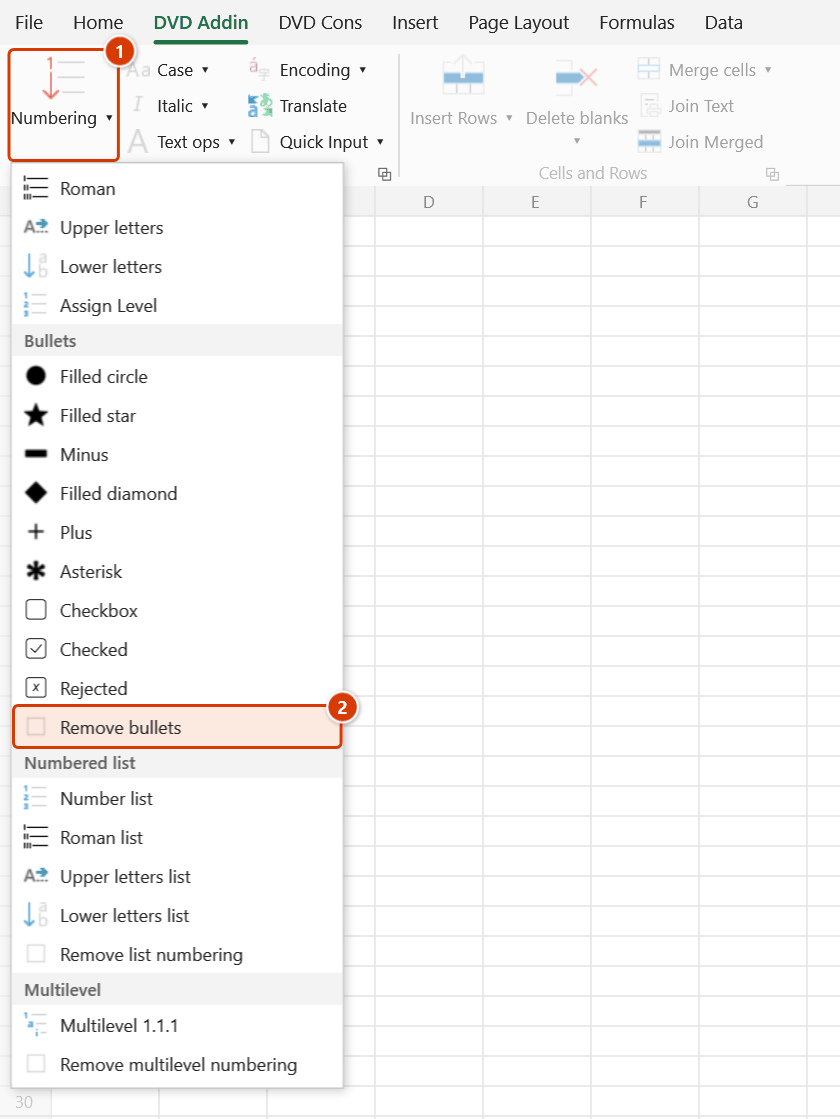
Location on ribbon: Tab DVD Addin → Group Text and Number → arrow on Numbering → section Bullets
Command ID: btnNone_1
What it does
Strips bullet symbols from the selected cells and returns the content to plain text. The command recognises exactly the symbol set that the Bullets section inserts — − • + * ○ ● □ ■ ◇ ◆ ☆ ★ ☐ ☑ ☒ — and removes one symbol from the start of each line together with the space that follows it.
Use it when a bulleted method statement has to become running prose for a Word submission, or to clean cells before switching to a different symbol. The apply commands in this menu already run the strip step themselves, so Remove bullets is only needed when you want the bullets gone for good.
How to use
- Select the cells that currently carry bullets.
- Go to the DVD Addin tab → Text and Number group → arrow on Numbering → Bullets section → choose Remove bullets.
- For text cells: each line inside the cell is trimmed of surrounding whitespace, then its leading bullet is removed if one is present.
- For formula cells: the add-in unwraps only the wrapper it added itself (the
=""&"● "&(...)form) and restores the original formula, still live. - The status bar reports
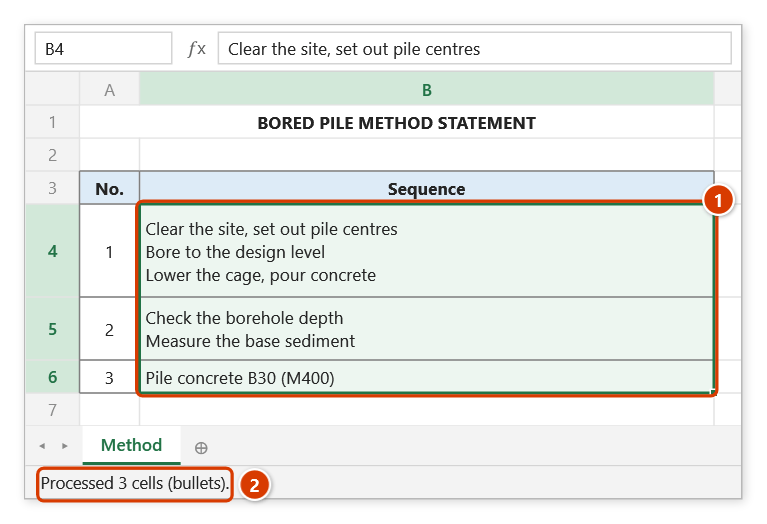
Processed N cells (bullets).
Video tutorial
Narrated in Vietnamese, with Vietnamese subtitles. Dấu đầu dòng · 5 min 03 s · 9 cases · Download the video · Practice workbook for the video
Commands in this video: Filled circle · Asterisk · Filled diamond · Filled star · Checkbox · Minus · Remove bullets · Plus · Checked · Rejected
Chapters (14)
- Giới thiệu
- Mở lệnh
- Chín ký hiệu
- 1 · Ô nhiều dòng
- 2 · Đổi ký hiệu, chọn rời
- 3 · Danh mục kiểm tra đang lọc
- 4 · Ô trống – mẫu in sẵn
- 5 · Ô số, ngày tháng
- 6 · Ô công thức
- 7 · Ô gộp
- 8 · Bỏ ký hiệu đầu dòng
- 9 · Ghi đè và hoàn tác
- Mẹo
- Kết thúc
Illustrated walkthrough
Practice
Download this command's sample workbook — the data matches the pictures below (sheet Method), so you can follow each step right away.
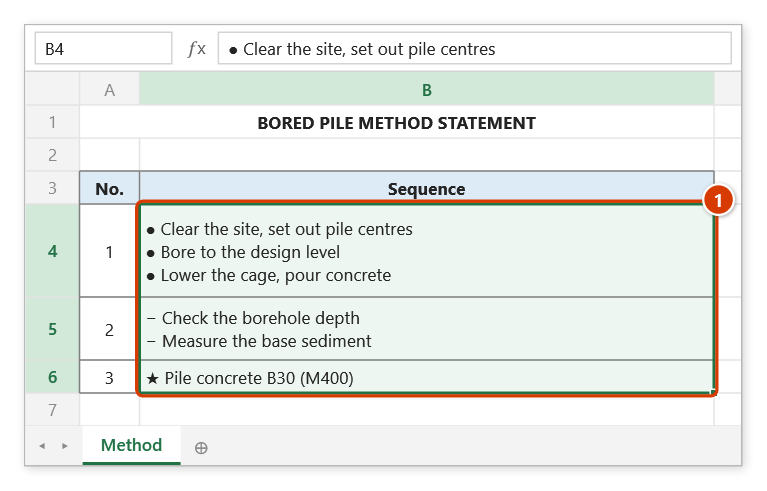
Step 1. Select the cells whose bullets (●, −, ★, ☐…) you want to remove (1).
Step 2. On the ribbon, open the DVD Addin tab → Text and Number group → open Numbering → choose Remove bullets.
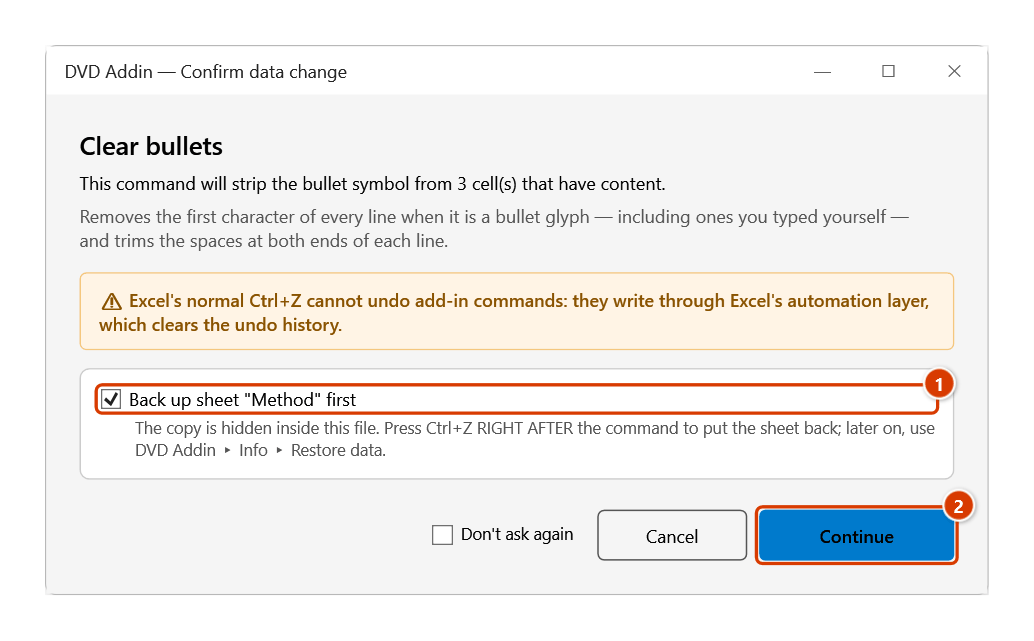
Step 3. The Confirm data change box tells you how many non-empty cells will be stripped. Keep Back up sheet ticked (1) and click Continue (2).
Step 4. The bullet at the start of every line, and the space after it, is removed; the text is plain again (1). The status bar reports how many cells were processed (2).
Example
A multi-line method-statement cell in a submittal:
| Before | After |
|---|---|
| ● Clear the area and set out pile centres ● Bore to design level ● Lower the cage and pour concrete | Clear the area and set out pile centres Bore to design level Lower the cage and pour concrete |
The text is now symbol-free, ready to paste into a Word method statement or to renumber with Numbered list.
Notes
- Each run removes one symbol per line; if a cell somehow carries two stacked bullets, run the command twice.
- The keyboard hyphen
-is not in the recognised set — only the mathematical minus−inserted by the Minus command is stripped. - Cells holding numbers, dates, or TRUE/FALSE are left completely untouched, so a date is never flattened into a serial number.
- A formula you wrote yourself, such as
="A. "&(B1), is not disturbed; the add-in only unwraps its own wrapper. Ctrl+Zright after the command puts the cells back (it backs the sheet up first); hidden rows and columns are skipped.
Related
- Filled circle — the bullet style used most often in method statements.
- Checkbox — empty-box symbol, also removed by this command.
- Remove list numbering — the matching command for the Numbered list section, stripping
1.,I.,A.prefixes. - Numbered list — renumber with
1.,2.,3.after clearing the symbols.