
Baseline
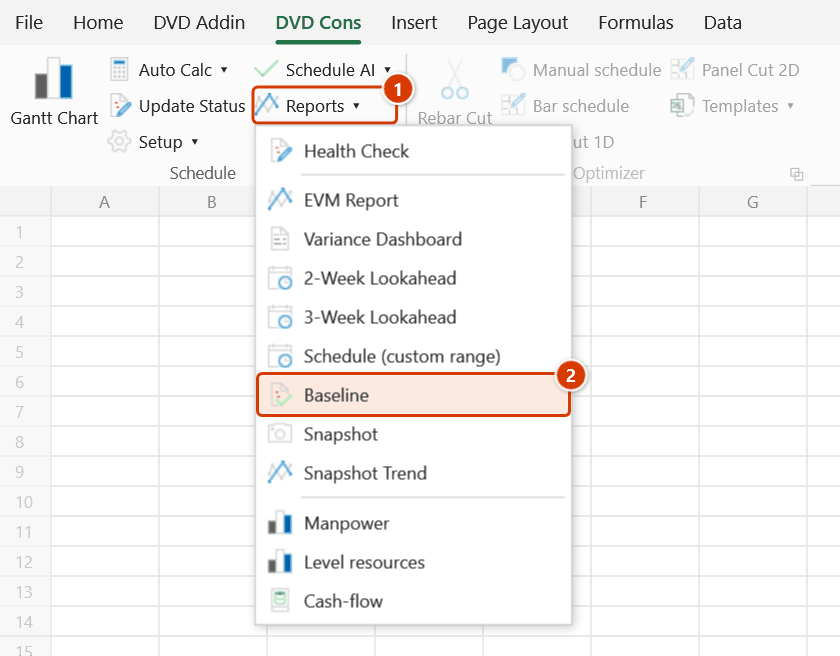
Location on ribbon: Tab DVD Cons → Group Schedule → Menu Reports
Command ID: btnBaseline
PRO feature
This command is part of the PRO plan. STANDARD accounts activated before 01/07/2026 keep access until their licence expires; other Standard accounts get an upgrade prompt when they click it.
What it does
Opens the Schedule Baseline manager. A baseline is a frozen copy of the schedule at one point in time — usually when the plan is approved — stored in a hidden _BL_* sheet inside the same workbook. That turns every "but what was the original date" argument into a matter of evidence, and lets the compare function measure exactly how many days each activity has slipped. A project can hold several baselines: BL1 at contract signature, BL2 after a major re-plan.
How to use
- Open a workbook whose schedule sheet is visible (the source sheet must not be hidden, otherwise the dialog reports that it cannot find it).
- Go to Tab DVD Cons → group Schedule → menu Reports → click Baseline.
- Save a new baseline: type a Name (e.g.
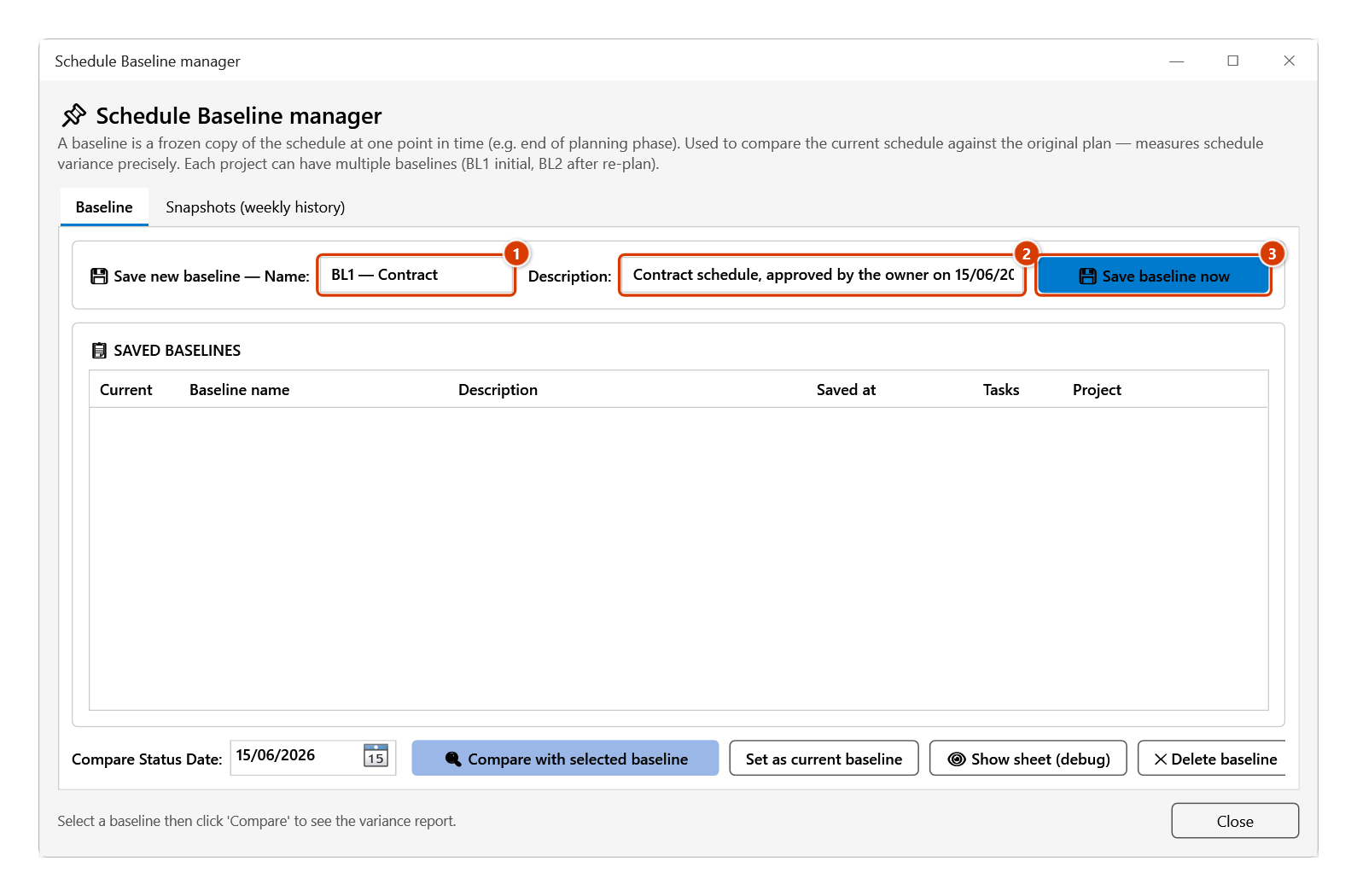
BL1 — Phase 1 kickoff) and a Description (e.g.After management approval on 15/04/2026), then click Save baseline now. If the name already exists the dialog asks whether to overwrite. - The saved baseline appears in the Saved baselines grid with Baseline name, Description, Saved at, Tasks and Project columns.
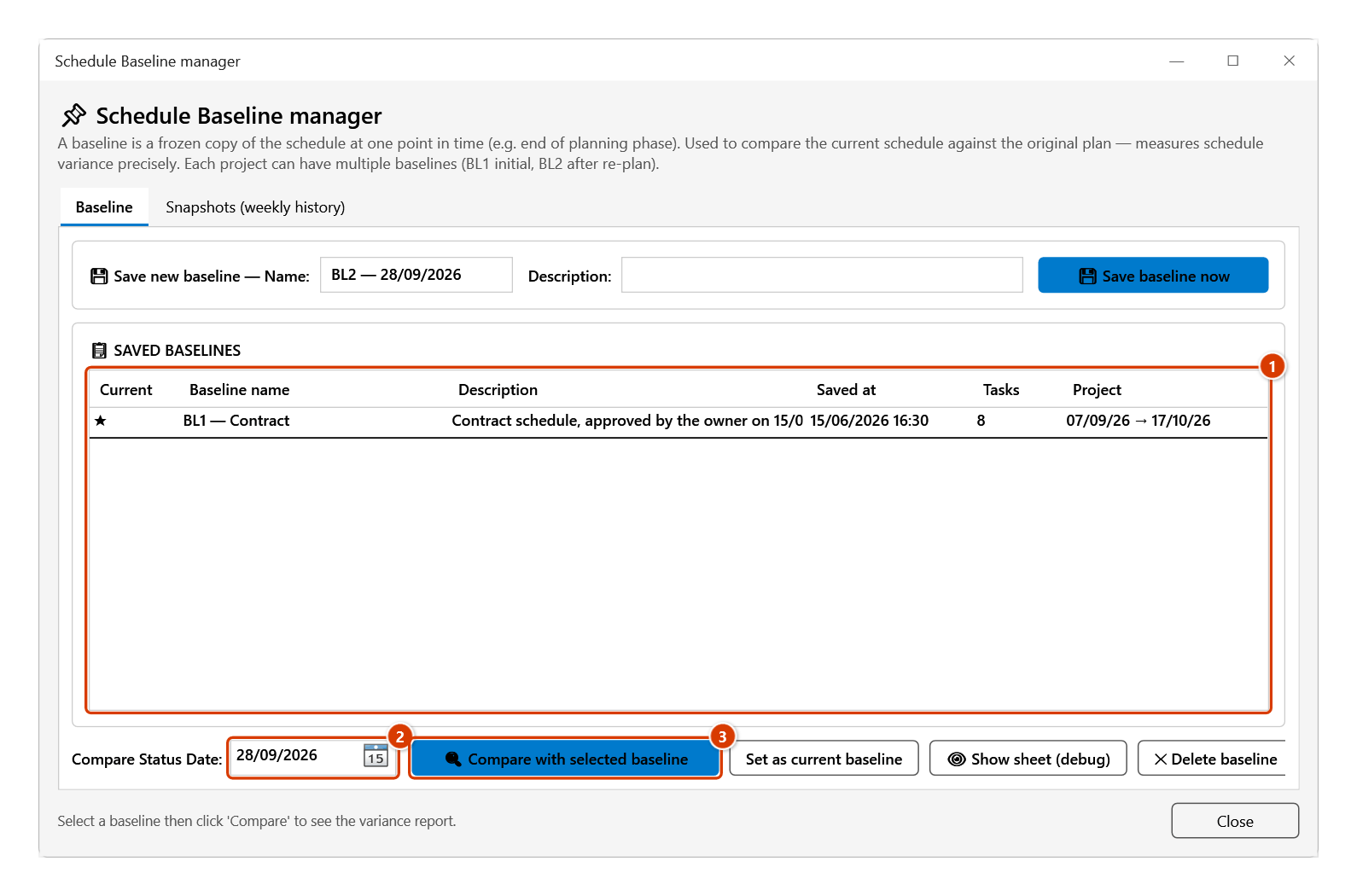
- Compare: select a row in the grid, pick a Compare Status Date in the date box below it, then click Compare with selected baseline.
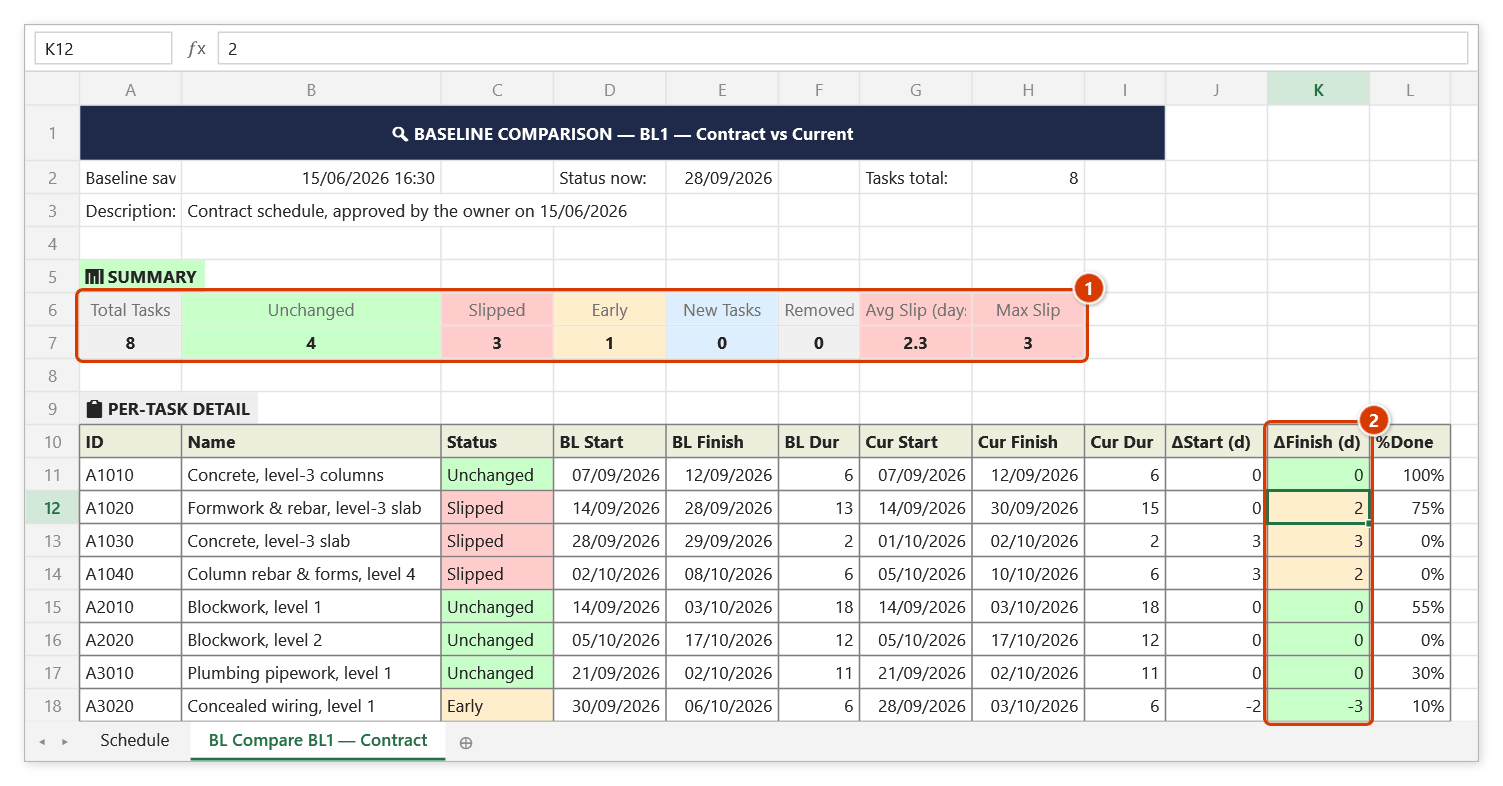
- The dialog generates a BL Compare sheet and reports the summary: total tasks, slipped, early, new, removed, average slip and maximum slip. The sheet holds 8 KPIs plus a 12-column detail table (BL Start/Finish/Dur against current, with ΔSlip).
- The two buttons on the right handle housekeeping: Show sheet (debug) unhides the selected
_BL_*sheet, Delete baseline removes it entirely. Click Close when finished.
Video tutorial
Narrated in Vietnamese, with Vietnamese subtitles. Baseline, Snapshot và Xu hướng · 4 min 56 s · 12 cases · Download the video · Practice workbook for the video
Commands in this video: Baseline · Snapshot · Snapshot Trend
Chapters (16)
- Giới thiệu
- Mở lệnh
- 1 · Lưu baseline đầu tiên
- 2 · Snapshot tuần
- 3 · Chụp lại trong ngày
- 4 · Xu hướng snapshot
- 5 · So sánh với baseline
- 6 · Thêm, xoá công tác
- 7 · Thanh baseline trên Gantt
- 8 · Lưu baseline thứ hai
- 9 · Đặt baseline hiện hành
- 10 · Trùng tên, xoá baseline
- 11 · Gửi file, sheet ẩn
- 12 · Khoá sổ và Ctrl+Z
- Mẹo
- Kết thúc
Illustrated walkthrough
Step 1. Open the schedule sheet to freeze as a baseline (e.g. Schedule, just approved by the owner on 15/06/2026). The sheet must be visible, not hidden.
Step 2. On the ribbon, open the DVD Cons tab → Schedule group → open Reports → choose Baseline.
Step 3. On the Baseline tab, type the Name (1) and Description (2), then click 💾 Save baseline now (3). A copy of the schedule goes into the hidden sheet _BL_BL1 — Contract and becomes the current baseline (★).
Step 4. When you need a comparison (e.g. on 28/09/2026), reopen the window, pick BL1 in the list (1), set the Compare Status Date (2) and click 🔍 Compare with selected baseline (3).
Step 5. The add-in creates the BL Compare BL1 — Contract sheet: 8 KPI tiles (1) (4 unchanged, 3 slipped, 1 early, average slip 2.3 days, maximum 3 days) and a 12-column detail table comparing baseline and current dates, with ΔFinish coloured by slip (2). The Comparison done message box repeats these figures.
Example
A school project signs its contract in April and the planner saves BL1 — Contract plan. At the end of August, preparing the management report, he reopens the dialog, selects BL1, sets the Status Date to 31/08/2026 and compares. The BL Compare sheet reports 240 tasks: 37 slipped, 12 early, 8 new, 3 removed, average slip 6 days, maximum slip 21 days on the HVAC package. The detail table goes straight into the monthly report appendix as the basis for an extension of time request.
Notes
- Snapshots tab (same dialog): the sheet's (or the whole workbook's) snapshots — capture for a date, draw the trend, move a mis-dated snapshot, delete. One snapshot per sheet per date.
- Current baseline (★ Current column): the one Update Status, EVM, Recovery, Variance and the Gantt baseline bars compare against. Saving a new baseline makes it current; to compare with an older one, select its row → Set as current baseline.
- Reports match the baseline by Activity ID; columns are found by their headers, so a sheet with title rows above the table or reordered columns still reads correctly.
- Turn on Draw baseline bars in Gantt settings to see a thin grey bar under each current bar (Tracking Gantt style).
- The compare date defaults to the workbook's shared data date (name
dvdDataDate). - Deleting a baseline cannot be undone — the hidden sheet is removed permanently and Ctrl+Z will not recover it.
- The source sheet must be visible when saving; a hidden Gantt sheet makes the command report that no source sheet was found.
- Baselines live inside the workbook, so sending the file sends the whole baseline history with it; conversely, a "Save As" copy with the hidden sheets stripped loses them.
- Show sheet (debug) is for inspecting the raw data only — never hand-edit a
_BL_*sheet, or the baseline stops being a faithful record. - Each comparison creates a new BL Compare + baseline name + date sheet (name cut to 25 characters,
(2),(3)… on a clash); earlier ones are kept.
Related
- Health Check — the BEI metric only scores when a baseline exists.
- Snapshot — periodic weekly snapshots, as opposed to a fixed plan-of-record baseline.
- Variance Dashboard — the management summary to produce after comparing against the baseline.
- Update Status — bring current progress up to date before comparing.