
Snapshot Trend
Location on ribbon: Tab DVD Cons → Group Schedule → Menu Reports
Command ID: btnSnapshotTrend
PRO feature
This command is part of the PRO plan. STANDARD accounts activated before 01/07/2026 keep access until their licence expires; other Standard accounts get an upgrade prompt when they click it.
What it does
Reads every _Snap_* capture stored in the workbook and builds two time-series charts: a line chart of SPI and CPI, and a bar chart of critical-path slip days. A single SPI value only tells you the project is behind; the series across several weeks tells you whether it is deteriorating, stabilising or recovering — which is what management actually needs in order to intervene early.
How to use
- Make sure the workbook holds at least two captures created by the Snapshot command (
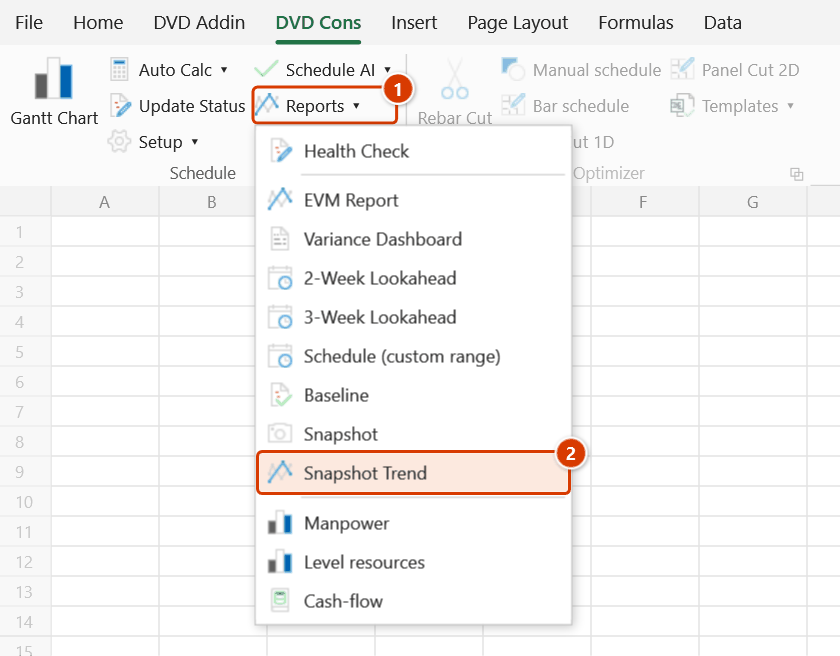
_Snap_*sheets). - Go to Tab DVD Cons → group Schedule → menu Reports → click Snapshot Trend.
- The command scans the whole workbook by itself — no sheet or range selection, no dialog.
- The result sheet appears with two charts: SPI + CPI over time as lines, and critical-path slip over time as bars.
- Read the direction of travel, not just the last value: a steady decline is an alarm, a flat line means it is under control, a rise means recovery.
- Copy the charts into the monthly report or the owner's meeting deck.
Video tutorial
Narrated in Vietnamese, with Vietnamese subtitles. Baseline, Snapshot và Xu hướng · 4 min 56 s · 12 cases · Download the video · Practice workbook for the video
Commands in this video: Baseline · Snapshot · Snapshot Trend
Chapters (16)
- Giới thiệu
- Mở lệnh
- 1 · Lưu baseline đầu tiên
- 2 · Snapshot tuần
- 3 · Chụp lại trong ngày
- 4 · Xu hướng snapshot
- 5 · So sánh với baseline
- 6 · Thêm, xoá công tác
- 7 · Thanh baseline trên Gantt
- 8 · Lưu baseline thứ hai
- 9 · Đặt baseline hiện hành
- 10 · Trùng tên, xoá baseline
- 11 · Gửi file, sheet ẩn
- 12 · Khoá sổ và Ctrl+Z
- Mẹo
- Kết thúc
Illustrated walkthrough
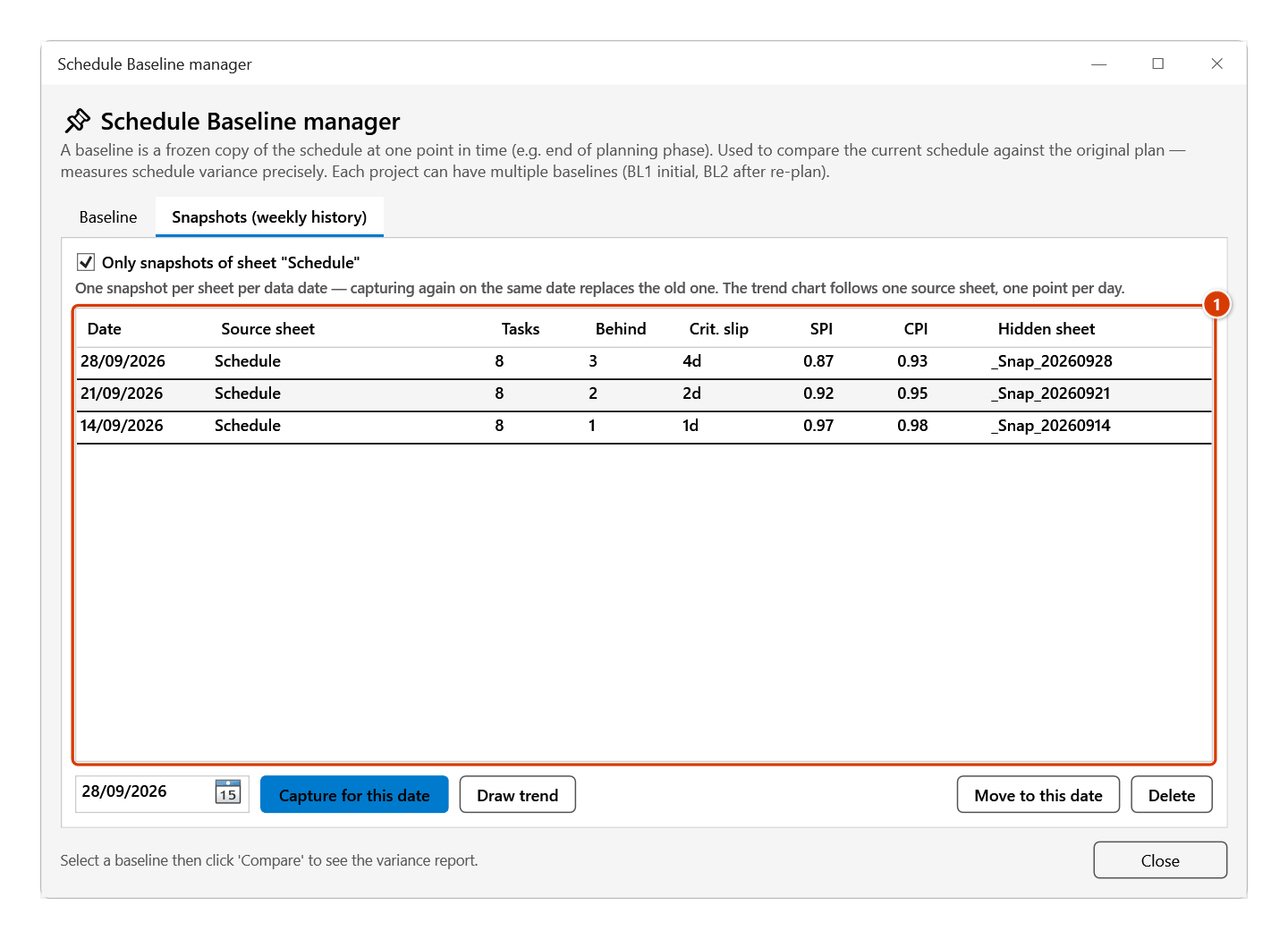
Step 1. You need at least 2 snapshots of the schedule sheet, taken with Snapshot on different dates — check them under Baseline ▸ Snapshots (weekly history) (1). Open that schedule sheet, then run the command.
Step 2. On the ribbon, open the DVD Cons tab → Schedule group → open Reports → choose Snapshot Trend.
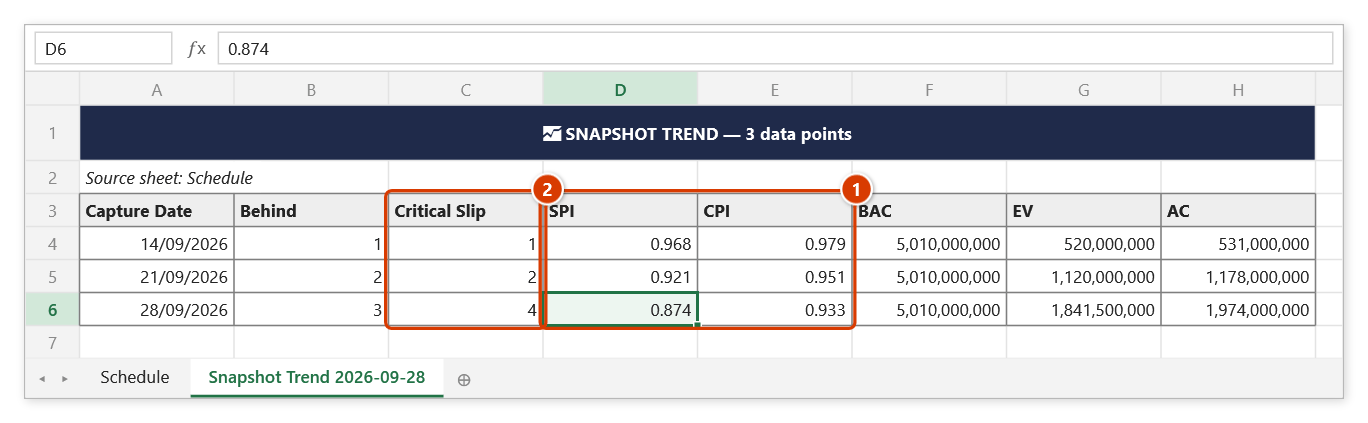
Step 3. The Snapshot Trend 2026-09-28 sheet holds one row per date with SPI / CPI (1) and the critical-path slip (2); to the right (from column J) are the line chart SPI / CPI over time and the column chart Critical-path Slip (days) over time. Here SPI drops from 0.968 to 0.874 in 3 weeks — the schedule is getting worse.
Example
A factory refurbishment has 11 weekly captures. The trend chart shows SPI sliding from 0.98 to 0.86 over the first six weeks, then recovering to 0.91 across the last three after a second crew was mobilised. The companion slip bar chart shows critical-path slip parking at 14 days and going no further. Those two pictures replace a full page of narrative in the owner's report.
Notes
- The trend covers one source sheet — the active sheet if it has snapshots, otherwise the sheet of the latest snapshot — with one point per day. It used to mix the snapshots of every schedule sheet in the workbook.
- At least two captures are required; a single snapshot cannot produce a trend line.
- The command only reads captured data — updating today's schedule does not move older points, so new points need new captures.
- Sparse or irregularly-dated snapshots distort the time axis and make the chart hard to interpret.
- Each run creates a new Snapshot Trend + date sheet (
(2),(3)… on a name clash) and leaves the old one alone; Ctrl+Z will not undo it. - The CPI line is only meaningful if BAC and actual cost were present on the sheet at capture time.
Related
- Snapshot — creates the data points this command reads.
- EVM Report — the detail behind how SPI and CPI are computed.
- Variance Dashboard — this week's picture, complementing the trend view.
- Baseline — comparison against the original plan rather than against your own history.