
Transcribe Audio
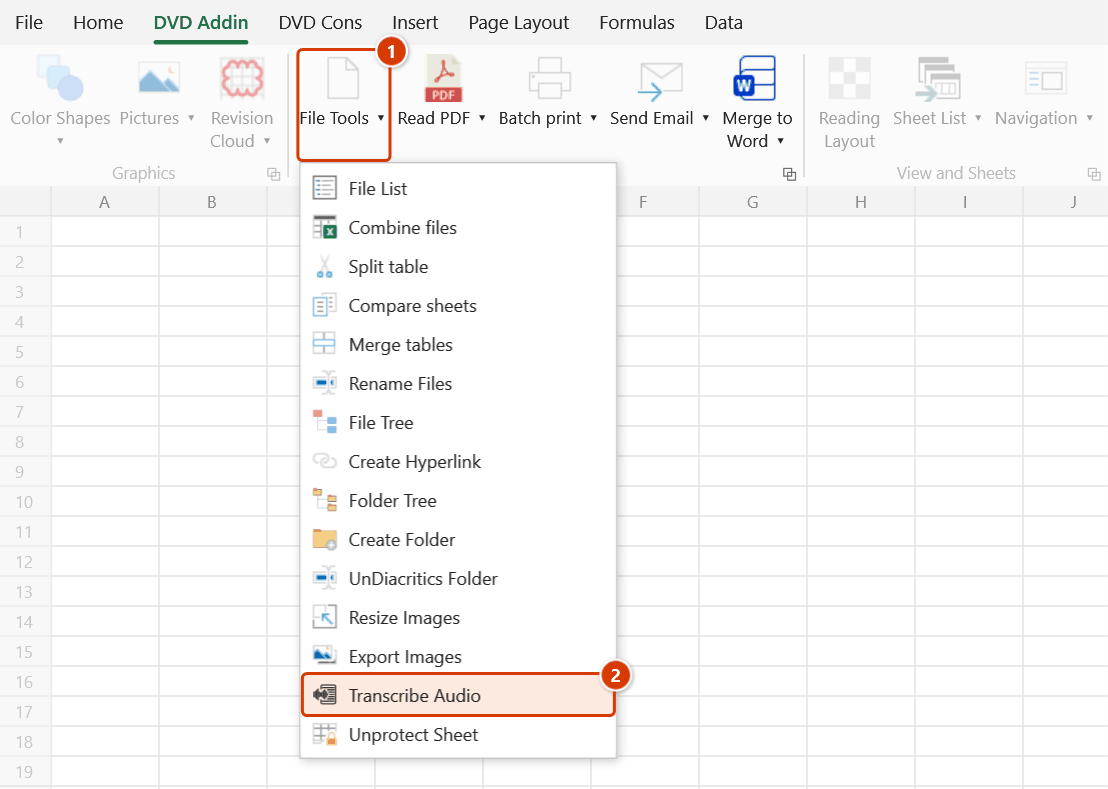
Location on ribbon: Tab DVD Addin → Group File and Print → Menu File Tools
Command ID: btnTranscribeAudio
License required
This command needs an active DVDAddin account (Standard or PRO). It is fully available during the Trial period.
What it does
Sends an audio recording to the AI service chosen under Preferences ▸ AI Assistant ▸ Audio transcribe (Gemini by default, or OpenAI / Groq) for transcription, and writes the text starting at the active cell, one line per cell.
It is the fast way to get minutes out of a recording: a Monday site coordination meeting, a discussion with the supervision consultant on site, or a voice memo taken while inspecting an activity. Instead of replaying and typing, you start from a text draft.
How to use
- Click the cell that should receive the text — the result lands in whatever cell is active.
- Go to tab DVD Addin → group File and Print → menu File Tools → click Transcribe Audio.
- The "Choose an audio file to transcribe" dialog opens, filtered to
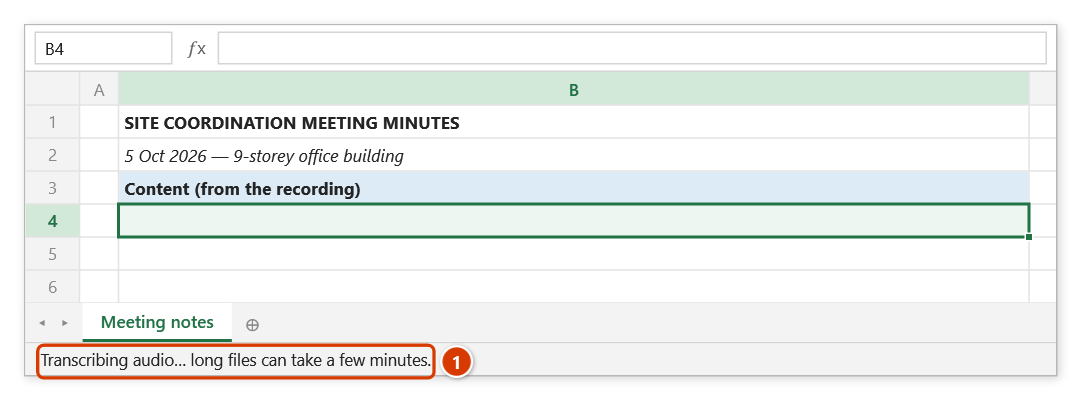
*.wav; *.mp3; *.flac; *.ogg; *.aac→ pick the recording → Open. - The add-in checks the file size (over the service limit it tells you at once and sends nothing), then uploads and waits — the status bar reads Transcribing audio…. Excel is unresponsive while a long file is processed — that is expected.
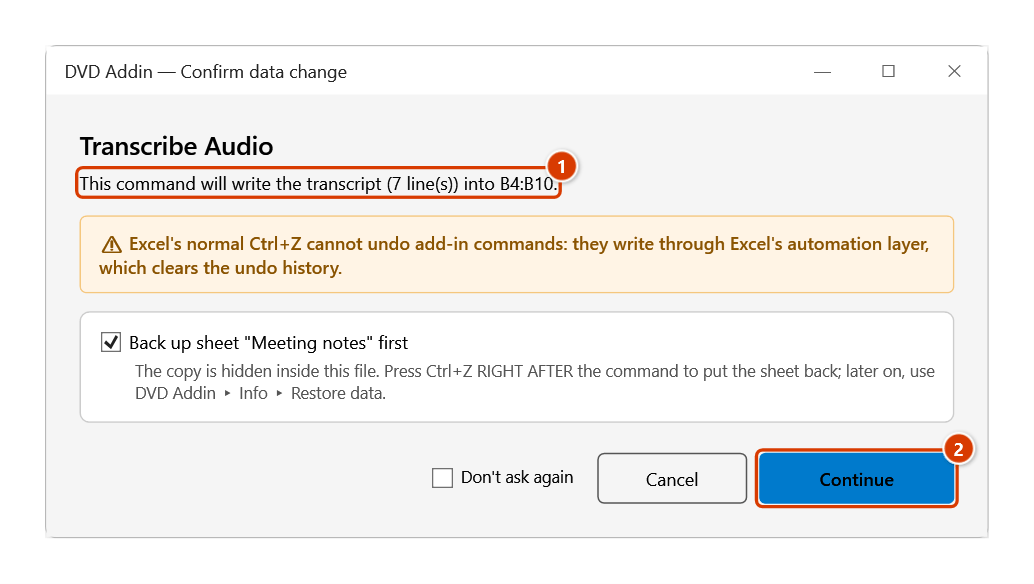
- When it returns, the add-in asks for confirmation (stating the number of lines and the target range), then writes the transcript down from the active cell, one line per cell.
Video tutorial
Narrated in Vietnamese, with Vietnamese subtitles. Chuyển âm thanh sang chữ · 5 min 47 s · 9 cases · Download the video · Practice workbook for the video
Chapters (13)
- Giới thiệu
- Mở lệnh
- 1 · Gỡ băng họp giao ban
- 2 · Chọn dịch vụ AI
- 3 · Loại tệp, giới hạn cỡ
- 4 · Chờ kết quả và nút Hủy
- 5 · Bản gõ chia đoạn
- 6 · Đoạn liền rất dài
- 7 · Ghi lấn xuống dưới
- 8 · Sheet đang bảo vệ
- 9 · Khi có lỗi
- Lưu ý
- Kết thúc
Illustrated walkthrough
Practice
Download this command's sample workbook — the data matches the pictures below (sheet Meeting notes), so you can follow each step right away.
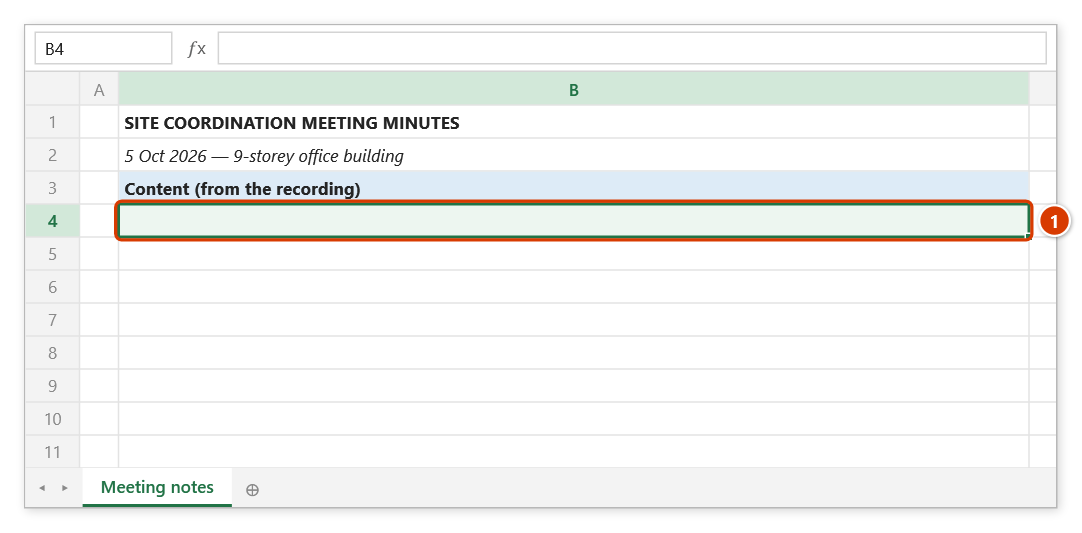
Step 1. Select the cell that will receive the transcript (1) — ideally the top of an empty column, since each line goes into its own cell below.
Step 2. On the ribbon, open the DVD Addin tab → File and Print group → open File Tools → choose Transcribe Audio.
Step 3. In the Choose an audio file to transcribe box (*.wav; *.mp3; *.flac; *.ogg; *.aac) pick the recording, for example GiaoBan_2026-10-05.mp3, and click Open. The add-in checks the file size, sends it to the AI service chosen in Preferences and waits; the status bar shows the work in progress (1) — long files can take a few minutes.
Step 4. When the transcript is back, the add-in states how many lines it will write and where (1). Keep Back up sheet so Ctrl+Z right after the command can restore the sheet, then click Continue (2).
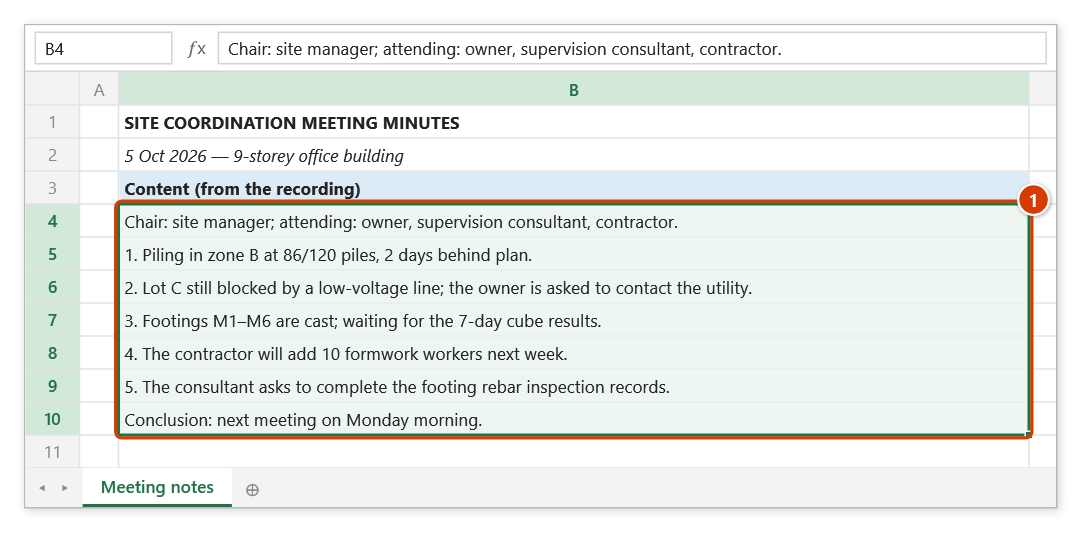
Step 5. The transcript is written from the selected cell down, one line per cell (1) — ready to be edited into the formal minutes.
Example
After Monday's site coordination meeting you have Coordination_2026-05-11.mp3, twelve minutes long.
Select cell B2 on the Meeting Minutes sheet, run the command, pick the file → the discussion (piling progress, access blocked on plot C, extra manpower request) appears as lines from B2 downwards, one per cell. From there you group it into points and edit it into the formal minutes.
Notes
- Requires an internet connection and the API key of the chosen service in Preferences. With no key, no network or a service error, the add-in shows the error in a dialog and writes nothing — the error text used to land in the cell as if it were the transcript.
- The recording is uploaded to an external AI service — do not use it for confidential meetings or sensitive project information.
- The result overwrites the cells from the active cell downwards (the confirmation says how many already hold data); a backup is taken, so Ctrl+Z right after puts the sheet back. Start at the top of an empty column.
- Each transcript line goes into its own cell; a very long paragraph (an Excel cell holds at most 32,767 characters) is cut at a space and continues in the next cell. Lines starting with
-,+,=or@stay text instead of being read as formulas. - File size limits: Gemini about 14 MB, OpenAI / Groq 25 MB. Larger files: split them or compress to MP3 (64 kbps is plenty for speech).
- Only
.wav,.mp3,.flac,.oggand.aacare accepted;.m4arecordings from phones must be converted first. - Longer files take longer and consume more API quota; split long recordings into segments.
Related
- OCR — same AI family, but reads text from images and PDFs instead of audio.
- Screen Clip OCR — grab text quickly from a region of the screen.
- AI Assistant — clean up and summarise the transcript you just produced.
- Translate — translate the minutes for a foreign consultant.