
OCR Screen Clip
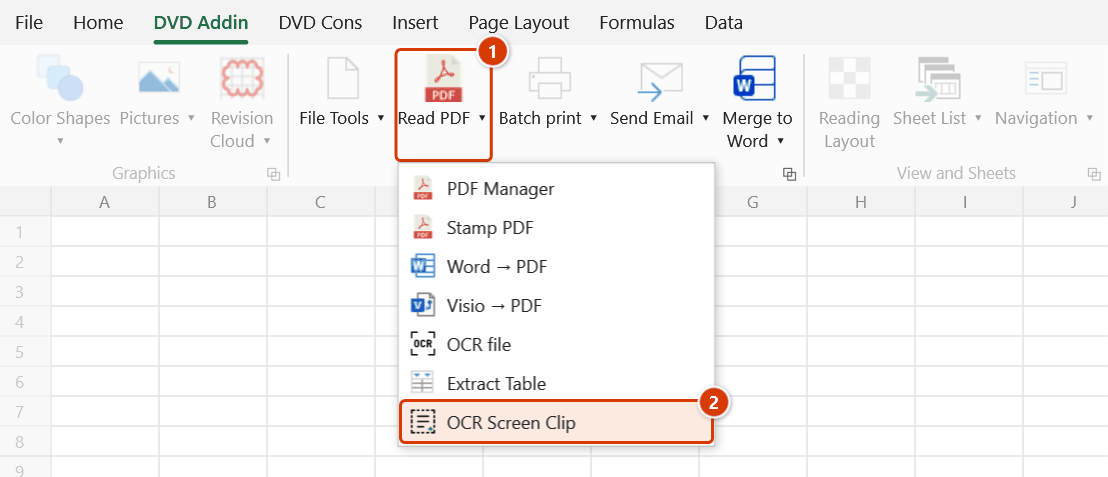
Location on ribbon: Tab DVD Addin → Group File and Print → the arrow next to Read PDF
Command ID: btnScreenClipOCR
License required
This command needs an active DVDAddin account (Standard or PRO). During the trial period it is fully available.
What it does
The command uses Excel's built-in Screen Clipping tool so you can drag a box around anything visible on screen, then sends that snippet to the AI to be read as text and writes the result into the active cell. No file to save, no screenshot to take first — ideal when the numbers you need live in another application (a CAD viewer, an estimating package, a web page, a PDF window) that will not let you copy text.
Once OCR finishes, the recognised text is also placed on the clipboard, so a following paste gives you words rather than a picture.
How to use
- Open the window holding the content you need, then switch back to Excel.
- Select the cell that will receive the text.
- Go to tab DVD Addin → group File and Print → the arrow next to Read PDF → click OCR Screen Clip.
- If no API key is configured, the add-in prompts you and stops.
- Excel minimises and the screen dims; drag a box around the region you want. Press ESC to abandon the capture.
- The clip is compressed (max 1600 px wide, JPEG quality 75) and sent for OCR; the temporary picture Excel pasted into the sheet is deleted straight afterwards.
- The recognised text appears in the active cell and is also waiting on the clipboard.
Video tutorial
Narrated in Vietnamese, with Vietnamese subtitles. OCR và Trích bảng bằng AI · 7 min 48 s · 14 cases · Download the video · Practice workbook for the video
Commands in this video: OCR file · Extract Table · OCR Screen Clip
Chapters (20)
- Giới thiệu
- Mở lệnh
- 1 · OCR chứng chỉ PDF
- 2 · Ảnh chụp, vùng đã có dữ liệu
- 3 · PDF nhiều trang, tệp lớn
- 4 · Chọn dịch vụ AI
- Lệnh Trích bảng
- 5 · Trích bảng có ô gộp
- 6 · Chọn trang trong PDF
- 7 · Tiêu đề hai tầng
- 8 · Nhiều bảng trên một trang
- 9 · Số và mã kiểu Việt
- Lệnh OCR Screen Clip
- 10 · Screen Clip vào ô trống
- 11 · Ô đã có chữ – hỏi trước
- 12 · Phím tắt, ESC, giới hạn
- 13 · Khi không chạy được
- 14 · Quyền riêng tư
- Mẹo
- Kết thúc
Illustrated walkthrough
Practice
Download this command's sample workbook — the data matches the pictures below (sheet Mix design), so you can follow each step right away.
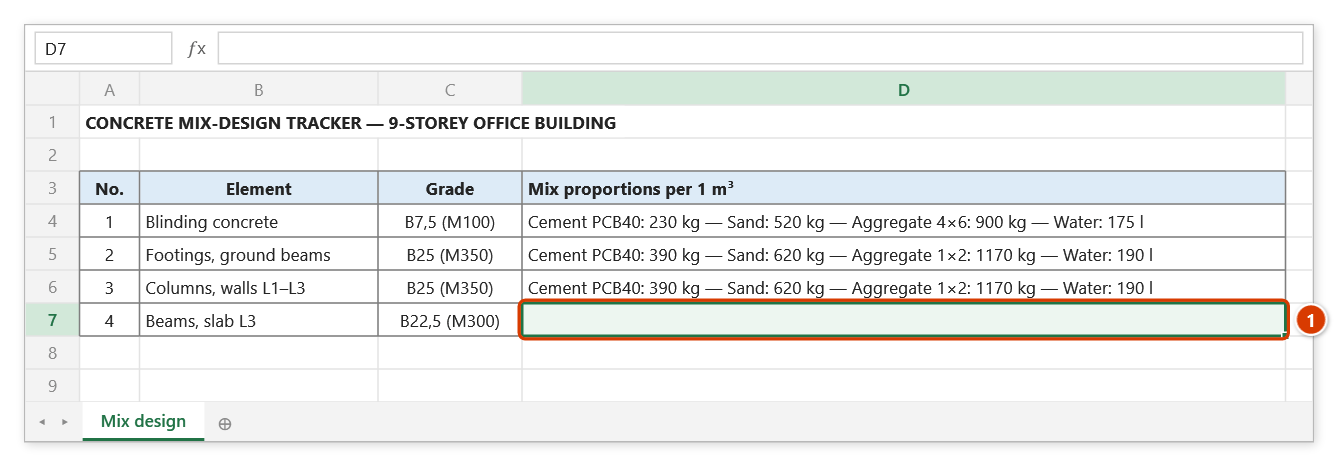
Step 1. Open the window holding the content you need (PDF, estimating software, drawing, web page…), switch back to Excel and select the cell that will receive the text (1).
Step 2. On the ribbon, open the DVD Addin tab → File and Print group → open Read PDF → choose OCR Screen Clip.
Step 3. Excel minimises and the screen dims (Excel's Screen Clipping tool): drag a box around the text you need. You have about 15 seconds; press ESC to abandon. The clip is compressed (max 1600 px wide) and sent to the AI, and the temporary picture on the sheet is deleted straight away. An AI API key must be configured.
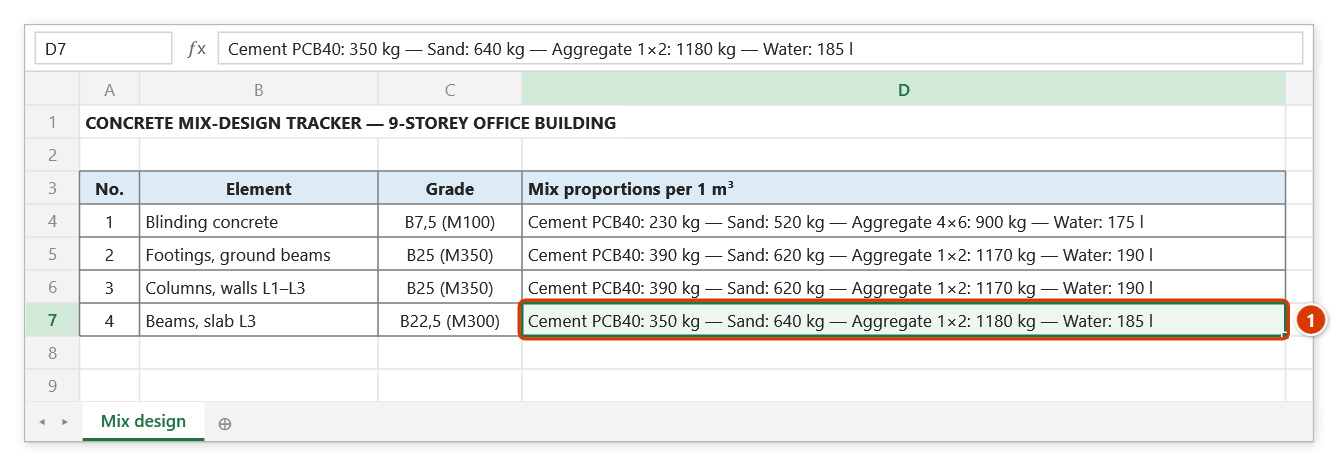
Step 4. A few seconds later all the recognised text sits in one cell — the active cell (1) — and is also on the clipboard to paste elsewhere. For one line per cell, use OCR file instead.
Example
You are building a concrete mix-design tracker, but the mix figures are in a PDF opened in another application that blocks text selection.
Open the PDF at the mix-design page, switch to Excel, select D8 on the MixDesign sheet, click OCR Screen Clip, and drag a box around the block "Cement PCB40: 350 kg — Sand: 640 kg — Aggregate 1×2: 1180 kg — Water: 185 l". A few seconds later D8 holds that whole block of text, ready to be split into columns.
Notes
- All recognised text goes into one single cell. If you want one line per cell, use OCR file instead, or split afterwards with Text to Columns.
- After clicking, you have roughly 15 seconds to make the capture; beyond that the add-in cancels and reports a timeout.
- Excel's Screen Clipping tool captures the window you had open immediately before switching to Excel, not the Excel window itself.
- A valid API key and an internet connection are required; blurry clips or very small type produce errors — zoom the source in before you clip.
- The target cell is overwritten, and the write typically cannot be undone with Ctrl+Z.
Related
- OCR file — OCR a whole image/PDF and pour one line per cell.
- Extract Table — use this when the clip is a table and rows/columns must survive.
- Insert Pictures — insert the image itself when you want a picture, not text.
- Read PDF — work with the PDF directly instead of clipping the screen.