
Extract Table
Location on ribbon: Tab DVD Addin → Group File and Print → the arrow next to Read PDF
Command ID: btnExtractTable
License required
This command needs an active DVDAddin account (Standard or PRO). During the trial period it is fully available.
What it does
This command recognises a table inside a PDF or image and rebuilds its row/column structure in Excel. Unlike plain OCR, which pours text down one column, the model is asked to return a single HTML table in which every row has the same column count and merged cells are reproduced with rowspan/colspan — so a bill of quantities or a multi-level lab-result header comes back in the right shape.
Before anything is pasted, a preview window lets you check and correct each cell. Clean numbers are converted to real numbers so Excel can total them immediately instead of treating them as text.
How to use
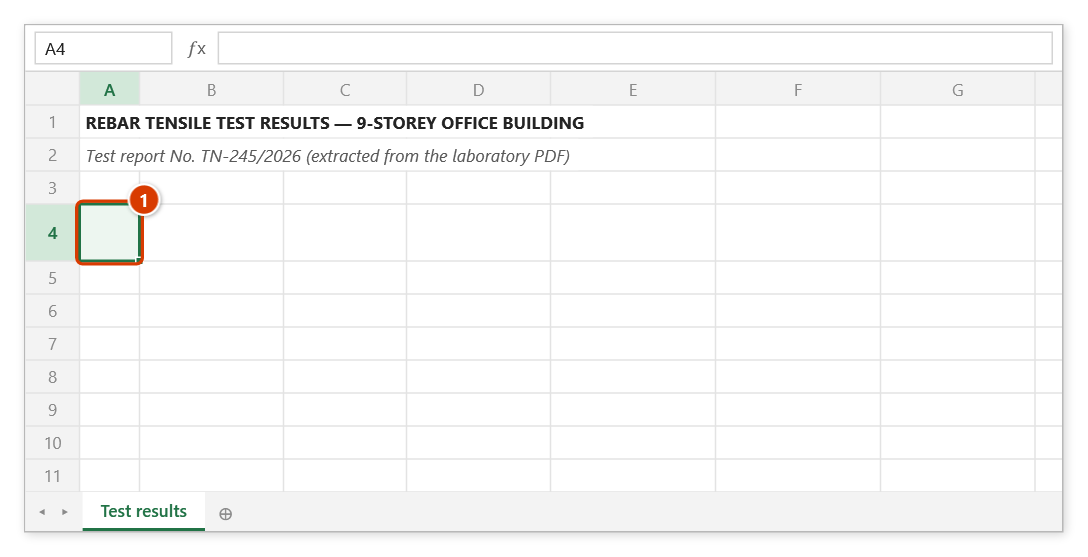
- Select the target cell — it becomes the top-left corner of the pasted table.
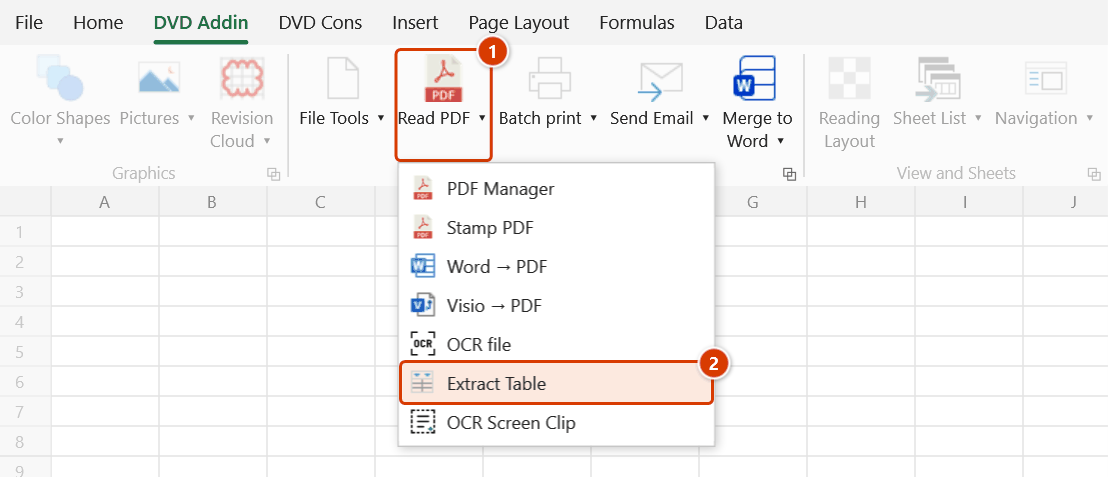
- Go to tab DVD Addin → group File and Print → the arrow next to Read PDF → click Extract Table.
- A file picker opens, filtered to
.png,.jpg,.jpeg,.webpand.pdf. Choose the file and click Open. - If the PDF has more than one page, the add-in asks which pages hold the table. Pick only the pages you need — it is faster and cheaper than sending the whole document.
- The status bar shows that extraction is running.
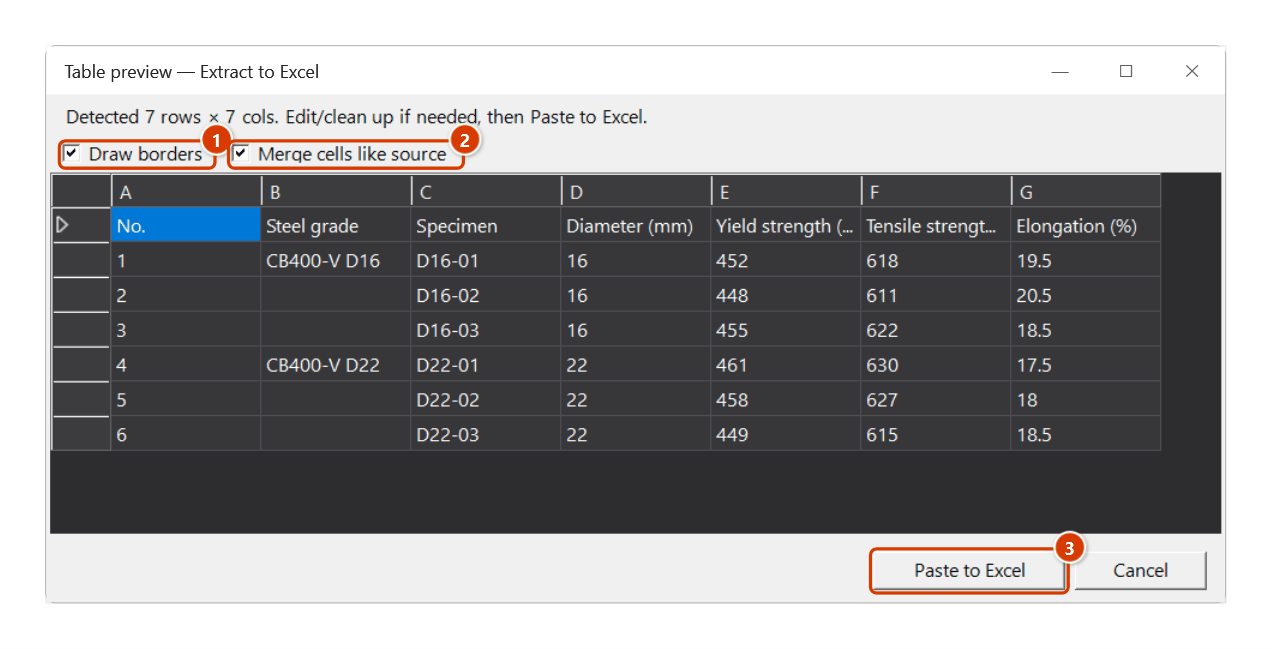
- The preview window opens with the recognised grid. Fix any misread cell in place. When the source had merged cells you also get the Merge cells like source option, plus Draw borders for the pasted range.
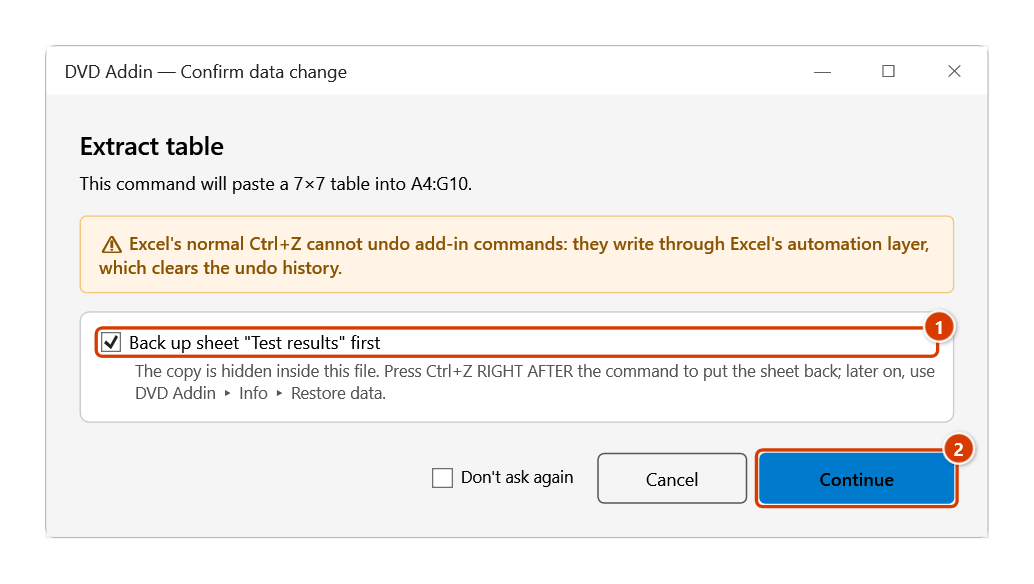
- Click Paste to Excel. The Confirm data change window tells you where the table will go — keep Back up sheet ticked and click Continue.
- The whole grid is written into the sheet in one pass, starting at the cell you selected.
Video tutorial
Narrated in Vietnamese, with Vietnamese subtitles. OCR và Trích bảng bằng AI · 7 min 48 s · 14 cases · Download the video · Practice workbook for the video
Commands in this video: OCR file · Extract Table · OCR Screen Clip
Chapters (20)
- Giới thiệu
- Mở lệnh
- 1 · OCR chứng chỉ PDF
- 2 · Ảnh chụp, vùng đã có dữ liệu
- 3 · PDF nhiều trang, tệp lớn
- 4 · Chọn dịch vụ AI
- Lệnh Trích bảng
- 5 · Trích bảng có ô gộp
- 6 · Chọn trang trong PDF
- 7 · Tiêu đề hai tầng
- 8 · Nhiều bảng trên một trang
- 9 · Số và mã kiểu Việt
- Lệnh OCR Screen Clip
- 10 · Screen Clip vào ô trống
- 11 · Ô đã có chữ – hỏi trước
- 12 · Phím tắt, ESC, giới hạn
- 13 · Khi không chạy được
- 14 · Quyền riêng tư
- Mẹo
- Kết thúc
Illustrated walkthrough
Practice
Download this command's sample workbook — the data matches the pictures below (sheet Test results), so you can follow each step right away.
Step 1. Select the cell that will be the top-left corner of the pasted table (1).
Step 2. On the ribbon, open the DVD Addin tab → File and Print group → open Read PDF → choose Extract Table.
Step 3. Pick the image or PDF holding the table (.png, .jpg, .jpeg, .webp, .pdf) and click Open. For a multi-page PDF the Select pages box asks which page has the table — type 2 (or 1-3, 5); leave it empty for all pages. The status bar shows Extracting table — please wait... while the AI reads it.
Step 4. The preview window shows the grid: fix mis-read cells in place and delete junk rows. Keep Draw borders (1); when the source has merged cells, Merge cells like source (2) is available. Click Paste to Excel (3).
Step 5. The confirmation box tells you where the table will go. Keep Back up sheet "Test results" first (1) so Ctrl+Z right after the command restores the sheet, then click Continue (2).
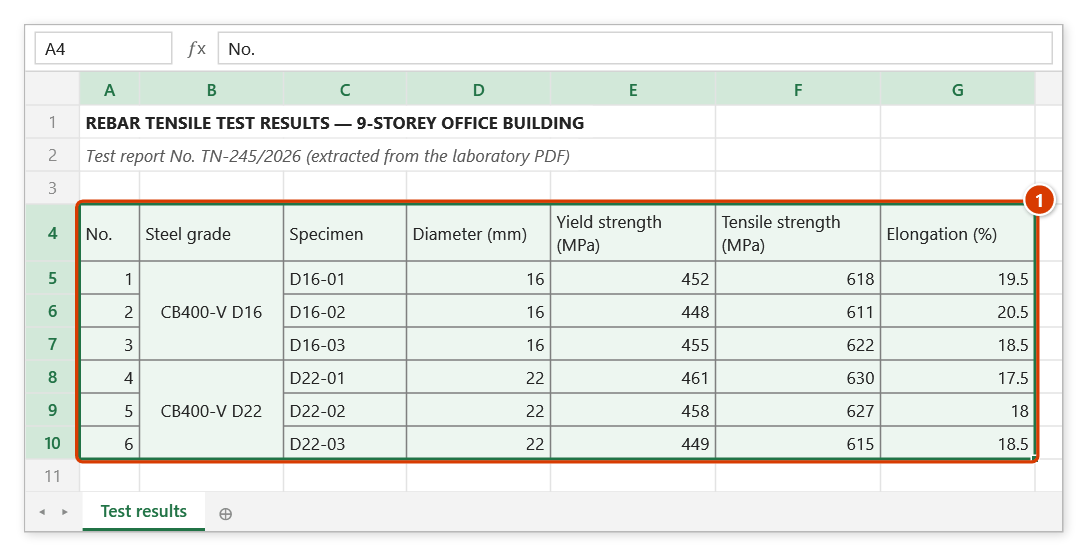
Step 6. The table is written in one go from the selected cell (1): recognised numbers become real numbers so SUM/AVERAGE work at once, the Steel grade column is merged like the source, and the whole range gets borders.
Example
The consultant sends rebar tensile test results as a PDF. The table has two header tiers (Vietnamese above, English below) and a "Sample" column merged across three rows per sample set.
You select A6 on the TestResults sheet, run Extract Table, pick the PDF and choose page 2. The preview shows a 14 × 8 grid: header cells such as "STT / No", "Đường kính / Diameter" and "Giới hạn chảy / Yield" each sit in a single cell, and "Φ 12 – welded mesh" spans three rows as in the original. You correct one misread 0,58 to 0.58, tick merge and borders, and click Paste to Excel, then Continue — the table lands in A6:H19, with the strength columns as real numbers so SUM/AVERAGE work right away.
Notes
- A valid API key and an internet connection are required; without a key the command stops before doing anything.
- The paste overwrites existing data from the active cell onward. Ctrl+Z right after the command puts the sheet back as it was (thanks to the backup); see Restore data.
- Merged cells are only reproduced when you do not add or remove rows/columns in the preview; changing the structure shifts the stored merge coordinates, so the add-in skips merging in that case.
- If the model does not return valid HTML, the add-in falls back to reading the result as tab-separated text; if there is still no table it reports that none was found.
- Slanted printouts, broken rule lines, or phone photos with curved pages cause column drift — always reconcile totals against the source before using the data in a payment application.
Related
- OCR file — same AI engine, but returns running text rather than a grid.
- OCR Screen Clip — grab content from a region of the screen instead of a file.
- Read PDF — view, mark up and work with PDF files inside Excel.
- PDF Manager — split, merge or rotate pages before extracting a table.