
PDF Manager
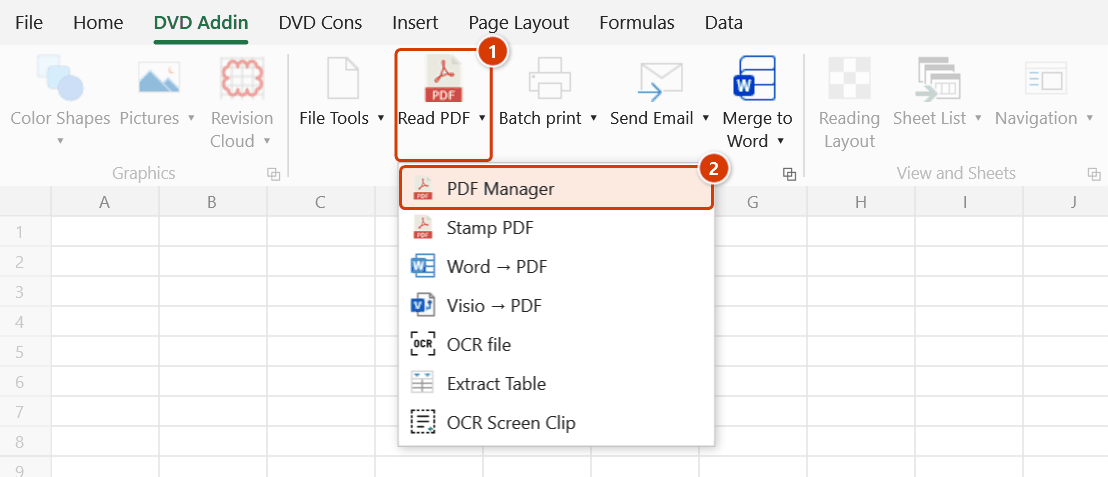
Location on ribbon: Tab DVD Addin → Group File and Print → the arrow next to Read PDF
Command ID: btnPdfManager
License required
This command needs an active DVDAddin account (Standard or PRO). It is fully available during the Trial period.
What it does
Opens the PDF Manager Pro window, where you load several PDFs and images, see every page as a thumbnail, and then reorder, rotate, delete, extract, insert blank pages and save the result as one finished PDF.
This is the tool for assembling an inspection dossier: signed scanned records, as-built drawings, test certificates and site photos merged into a single file in the order of the index, with upside-down scans rotated back.
How to use
- Go to tab DVD Addin → group File and Print → the arrow next to Read PDF → click PDF Manager.
- The DVD Addin — PDF Manager Pro window opens (if it is already open it is simply brought to the front, never duplicated).
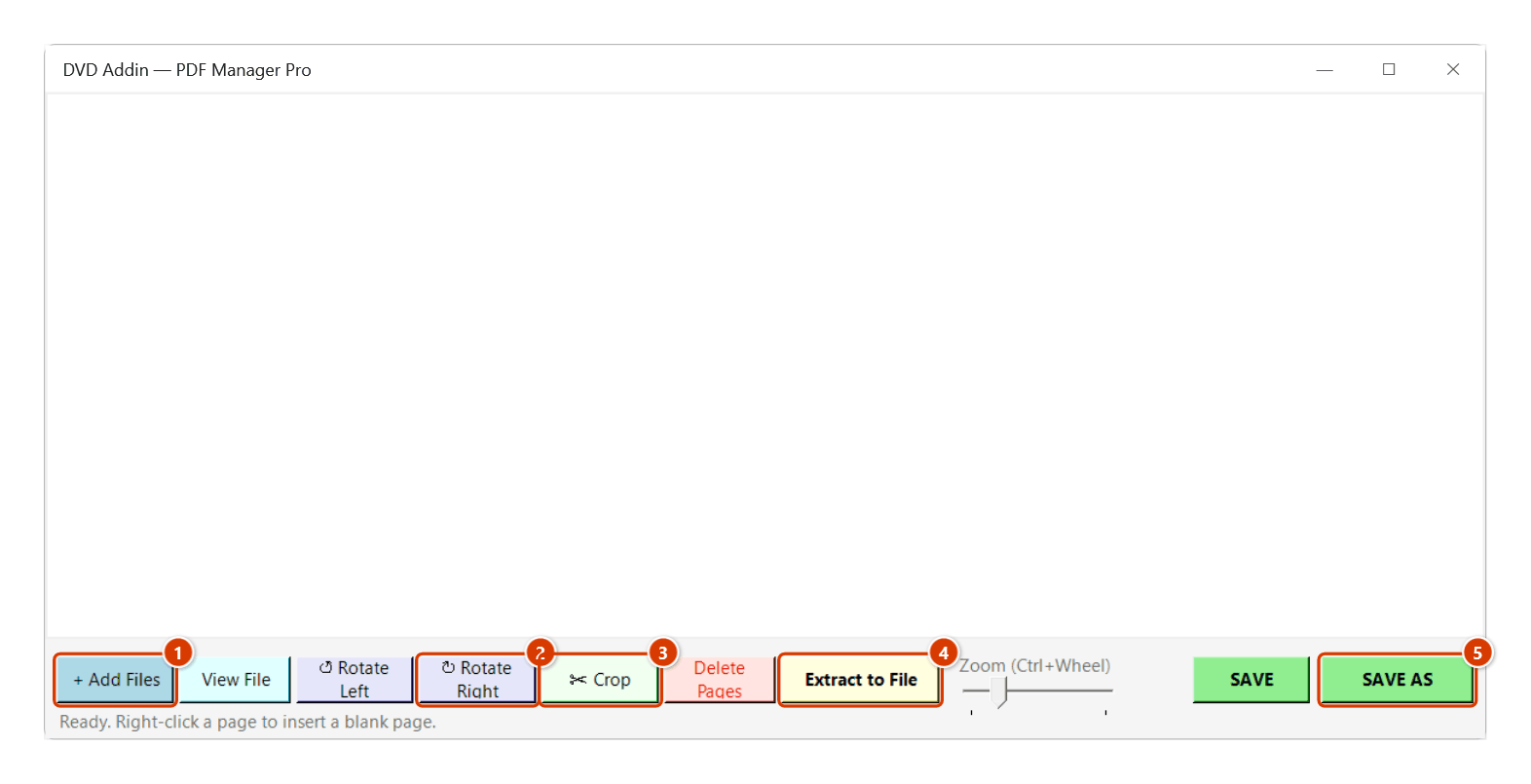
- Click + Add Files to load PDFs and images (
.pdf, .png, .jpg, .bmp, .gif, .tif) — load as many as you like; their pages are appended in order. - Act on the selected pages:
- ↺ Rotate Left / ↻ Rotate Right — fix pages scanned upside down.
- ✂ Crop — cut away empty parts of pages (e.g. an A4 sheet scanned as A3) — see Crop pages.
- Delete Pages — drop unwanted pages (with a confirmation).
- Extract to File — write the selected pages out as a new PDF.
- View File — preview the selected page.
- Drag thumbnails to change page order.
- Right-click a page for: crop pages, copy / paste pages (Ctrl+C, Ctrl+V), export selected pages as images (.png/.jpg/.tiff), and insert a blank page before / after.
- Use the slider or Ctrl + mouse wheel to change thumbnail size.
- Click SAVE to overwrite, or SAVE AS to produce a new PDF. Both keep bookmarks (see Notes). A message shows where the result was written.
Crop pages
Use it when a page carries empty space — typically an A4 sheet scanned as A3: the content sits on the left half and the right half is blank (like Acrobat's Set Page Boxes).
- Select the pages to crop (Ctrl / Shift + click, or Ctrl+A), then click ✂ Crop (or right-click → ✂ Crop Pages…).
- Pick a way to crop — the preview on the right dims the part that goes, and the line below shows the size before and after:
- Margins (mm) — type what to cut off at the top / bottom / left / right (the same on every page); Constrain proportions to type once; Set to zero, Revert.
- Drag on the preview — drag a box around the part to keep and the four margins are filled in.
- Keep left / right / top / bottom half — worked out page by page (A4 scanned on A3 → Keep left half).
- Remove white margins — each page is cropped to its content, keeping extra millimetres (2 mm by default); scanner dust is ignored and a fully blank page is left as is.
- To size A4 / A5 / A3 / Letter (portrait or landscape) with an anchor (e.g. Top left): keeps exactly that size and drops the rest.
- Page range: the selected pages, all, or from page … to …; Apply to even and odd / odd only / even only. Use ◀ ▶ to preview each page before clicking OK — the quick crops are worked out page by page. Trap: Keep left half is proportional, so on a page scanned as portrait A3 it splits the A4 sheet in two; for a mix of landscape and portrait A3 scans use To size A4 portrait, anchor Top left.
- Click OK — the thumbnails switch to the cropped area at once and the page label gets a ✂. Click SAVE / SAVE AS to write the file. To undo a crop: select the pages → ✂ Crop → Remove crop.
Video tutorial
Narrated in Vietnamese, with Vietnamese subtitles. Đọc PDF, PDF Manager, Đóng dấu PDF · 9 min 09 s · 28 cases · Download the video
Commands in this video: Read PDF · PDF Manager · Stamp PDF
Chapters (35)
- Giới thiệu
- Mở lệnh
- Phần 1 · Đọc PDF
- 1 · Mở bản vẽ để xem
- 2 · Lật trang, thu phóng
- 3 · Thanh công cụ ghi chú
- 4 · Đa đoạn, mây đa giác
- 5 · Văn bản, ghi chú, chú dẫn
- 6 · Sửa, xoá, hoàn tác
- 7 · Lưu ghi chú vào file
- 8 · In PDF
- 9 · Đóng cửa sổ, Quản lý trang
- Phần 2 · PDF Manager
- 10 · Nạp PDF và ảnh
- 11 · Sắp xếp, xoay, xoá trang
- 12 · Chép, trang trắng, xuất ảnh
- 13 · Tách ra file riêng
- 14 · Cắt khổ: giữ nửa trang
- 15 · Khổ lẫn lộn: về khổ A4
- 16 · Cắt lề trắng, chọn trang
- 17 · LƯU, LƯU THÀNH, bookmark
- 18 · File hỏng, có mật khẩu
- Phần 3 · Đóng dấu PDF
- 19 · Thêm file, thêm thư mục
- 20 · Đánh số nối tiếp cả tập
- 21 · Mỗi file đánh lại từ 1
- 22 · Mẫu chữ, đệm số 0
- 23 · Bỏ trang bìa – bẫy tổng
- 24 · Đóng dấu chữ
- 25 · Đóng dấu ảnh con dấu
- 26 · Bản vẽ xoay ngang
- 27 · Nơi ghi file kết quả
- 28 · Nhập sai, file lỗi, dừng
- Mẹo
- Kết thúc
Illustrated walkthrough
Step 1. On the ribbon, open the DVD Addin tab → File and Print group → open Read PDF → choose PDF Manager.
Step 2. The PDF Manager Pro window opens (if it is already open it is brought to the front). Click + Add Files (1) to load PDFs and images (.pdf, .png, .jpg, .bmp, .gif, .tif) — the pages appear as thumbnails one after another; drag them to reorder. Select pages and turn them with ↺ Rotate Left / ↻ Rotate Right (2), cut away empty space (an A4 sheet scanned as A3) with ✂ Crop (3) — see Crop pages, drop unwanted pages with Delete Pages, or export the selected pages to a new file with Extract to File (4). Right-click a page to copy/paste pages, export them as images or insert a blank page before/after. When done, click SAVE AS (5).
Step 3. SAVE AS writes a new PDF, for example HoSo_NghiemThu_M1.pdf (the SAVE button overwrites the original). Bookmarks are kept; when several files are merged, each source file gets a bookmark named after it. The final message shows the path of the result file.
Example
Assembling the inspection dossier for foundation F1 concrete:
Load Inspection_F1.pdf (2 pages, scanned upside down), ConcreteTestCert.pdf (3 pages) and 4 site photos in JPG → rotate the two record pages right → drag the test certificate after the record → insert a blank divider page before the photos → SAVE AS Dossier_F1.pdf, 10 pages in index order.
Notes
- Requires the pdfium.dll library shipped with the installer; without it the add-in reports an error as the window opens.
- SAVE overwrites the source file — for important dossiers use SAVE AS so the original survives.
- The label under each thumbnail is the page's position in the current arrangement and is renumbered after every delete, drag, paste or insert; hover a thumbnail to see its file name and page number in the source file. After SAVE / SAVE AS the window keeps working on the file just saved — deleting, rotating or cropping more and saving again still keeps the right pages.
- Only one PDF Manager window exists at a time; clicking the command again just brings the existing one forward.
- Bookmarks are kept on save:
- All pages from one file → that file's bookmark tree is kept; bookmarks pointing to deleted pages are dropped and their sub-bookmarks move up one level.
- Several files merged → each source file gets one bookmark carrying its file name, placed at its first page, with that file's own bookmarks underneath.
- Bookmarks that use named destinations cannot be kept.
- Deleting and reordering only affect the working list until you save; once you overwrite the file there is no undo.
- Closing the window with unsaved changes (reorder, rotate, crop, delete, add pages) asks whether to save first: choose save, don't save to close anyway, or cancel to return to the window.
- The window runs independently of Excel (its own taskbar button), so minimising Excel does not hide it.
- Exporting pages as images requires at least one selected page, otherwise the add-in prompts you. A cropped page exports only the area that is kept.
- Crop resets the page box (MediaBox = CropBox) like Acrobat: the cut-off part is neither shown nor printed but stays inside the file — the file does not get smaller, and cropping must not be used to hide sensitive content. Inserted blank pages cannot be cropped. The crop follows the page when it is rotated or copied / pasted.
Related
- Read PDF — view and annotate a PDF; it has a button that hands the file to this window.
- Word → PDF — convert Word documents to PDF before merging the dossier.
- Visio → PDF — convert Visio diagrams so they can be bound into the same file.
- Selected Sheets to PDF — export Excel sheets to PDF and load them here.