
Schedule Recovery
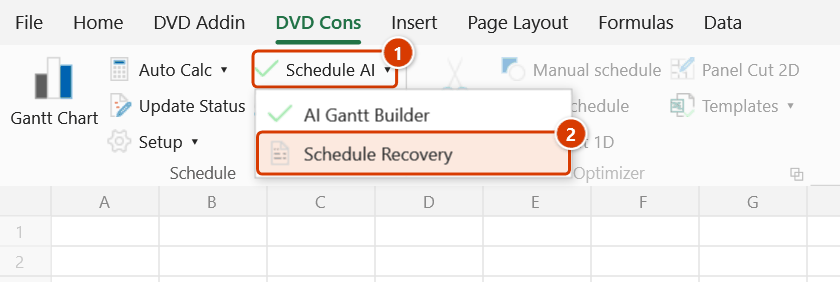
Location on ribbon: Tab DVD Cons → Group Schedule → Menu Schedule AI
Command ID: btnScheduleRecovery
PRO feature
This command is part of the PRO package. STANDARD accounts activated before 1 July 2026 keep access until their licence expires; other Standard accounts will see an upgrade dialog.
What it does
Opens the schedule variance dialog: it cuts the data off at a Status Date, classifies every activity (Behind / Ahead / On track / Complete / Not started), computes the critical-path slip and projects the finish date.
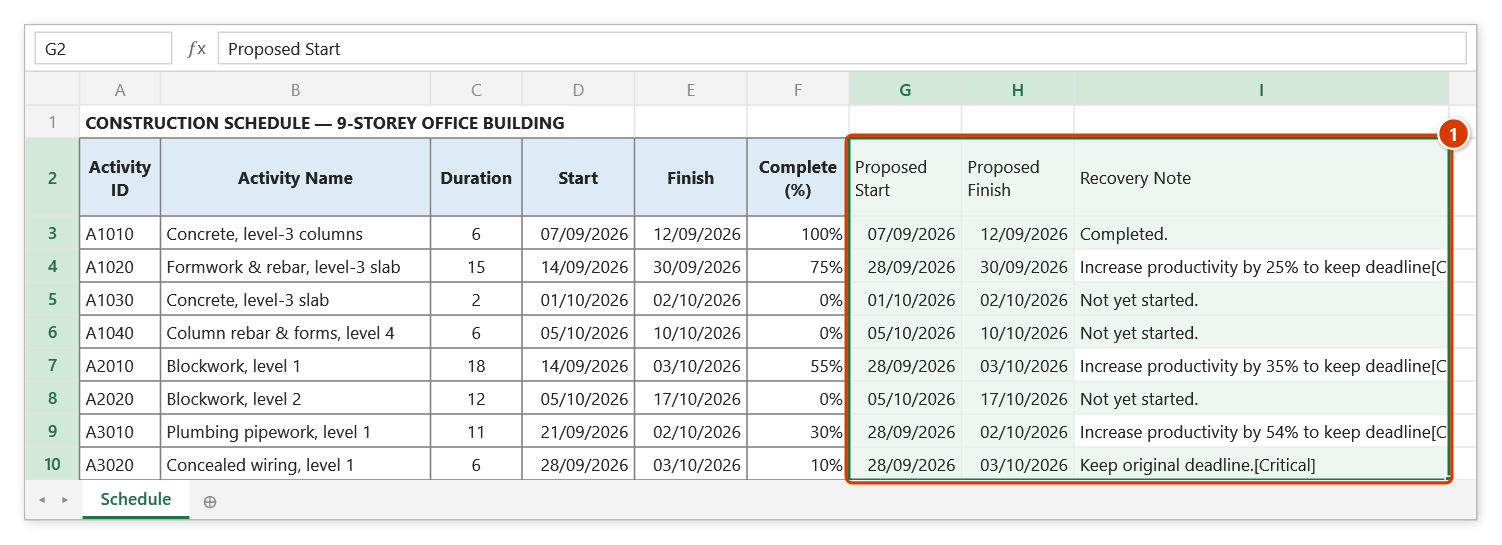
Once you can see the picture, you choose a recovery strategy and the add-in writes the proposal into three new columns at the end of the sheet — the baseline is never overwritten, so you keep the original for comparison and for justifying the plan to the client.
How to use
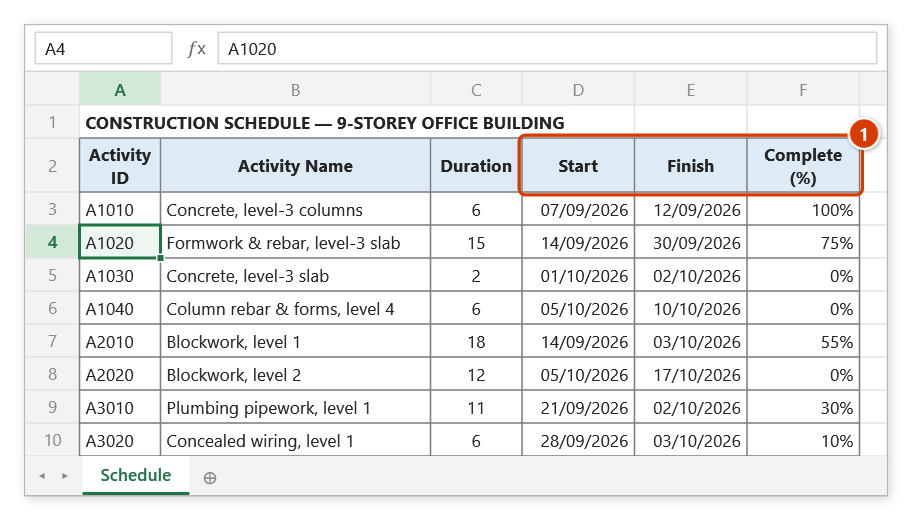
- Open a schedule sheet that has Start / Finish / % complete columns.
- Go to the DVD Cons tab → Schedule group → Schedule AI menu → click Schedule Recovery.
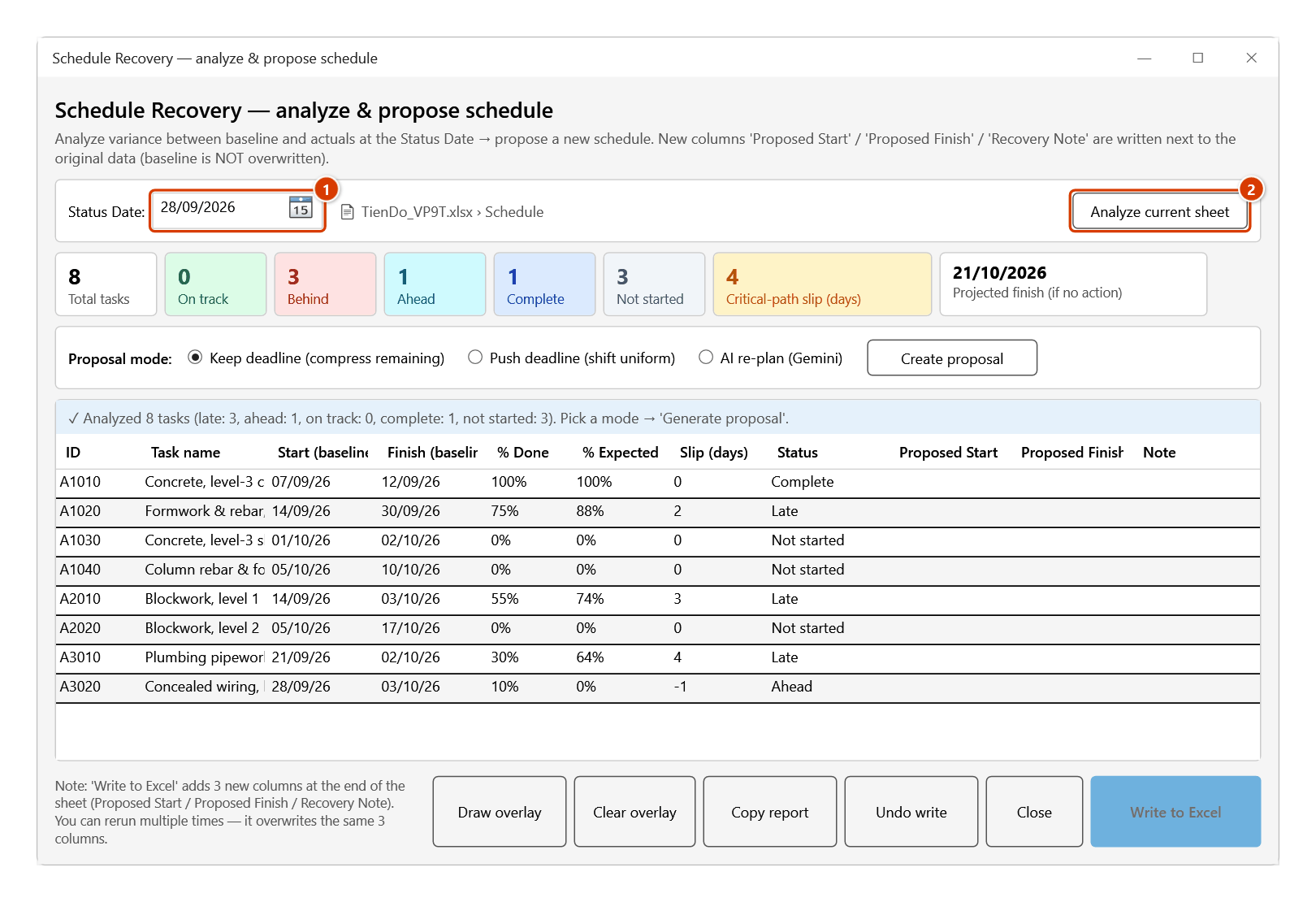
- Pick a Status Date (the cut-off for comparison), then click Analyze current sheet.
- Read the KPI strip: Total tasks, On track, Behind, Ahead, Complete, Not started, Slip days and Projected finish. The grid below lists every activity with actual %, expected %, slip days and status.
- Choose a Proposal mode:
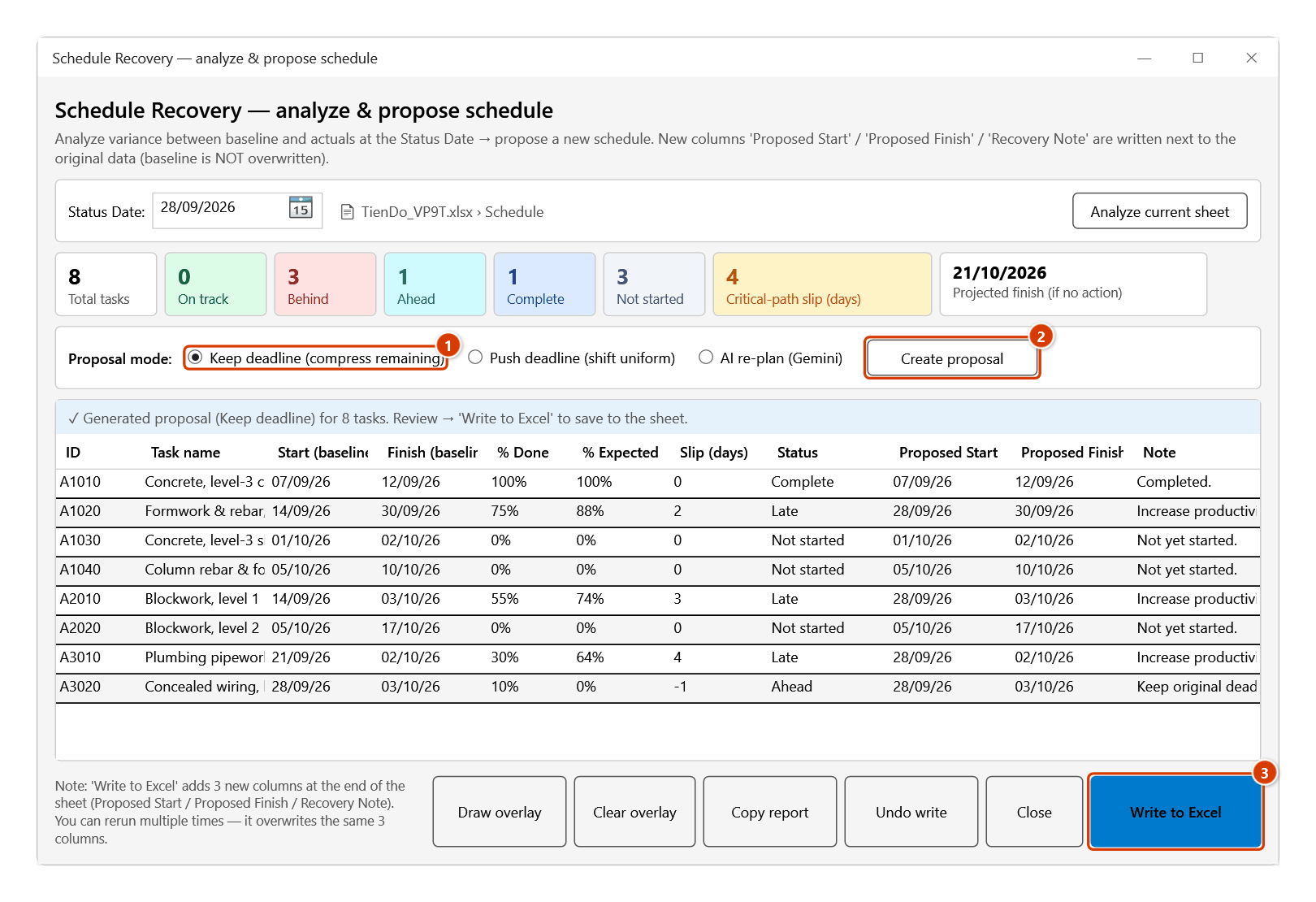
- Keep deadline (compress remaining) — compress the remaining work on late tasks so they still hit the original date; the output includes the % productivity uplift required, computed on working days.
- Push deadline (shift uniform) — shift every unfinished task, in-progress ones included, by the critical-path slip (a task with Free Float is shifted less, by what its float absorbs) and get a new deadline. Each proposed start falls on a working day and every task keeps its own number of working days.
- AI re-plan — the AI service selected in Preferences ▸ AI Assistant proposes a creative re-plan per late task (fast-track / parallelise / extend). Requires that provider's API key.
- Click Create proposal and review the Proposed Start / Proposed Finish / Note columns in the grid.
- Click Write to Excel and confirm the prompt to append those three columns to the sheet. You also get Draw overlay (orange proposed bars plus a dashed purple Status Date line over the existing Gantt), Copy report (summary table and late-task list to the clipboard) and Undo write (restore the three columns to their state before the last write).
Video tutorial
Narrated in Vietnamese, with Vietnamese subtitles. AI Lập tiến độ và Đề xuất tiến độ · 5 min 44 s · 16 cases · Download the video · Practice workbook for the video
Commands in this video: AI Gantt Builder · Schedule Recovery
Chapters (21)
- Giới thiệu
- Mở lệnh
- 1 · Đọc vùng BoQ
- 2 · AI nhóm, ước thời lượng
- 3 · Tạo sheet, vẽ tiến độ
- 4 · Cột STT, tiêu đề, dòng nhóm
- 5 · Khối lượng lưu dạng chữ
- 6 · Tab Từ mô tả
- 7 · BoQ lớn – chia lô
- 8 · Khi AI không trả lời
- Đề xuất tiến độ
- 9 · Phân tích tại Status Date
- 10 · Giữ deadline
- 11 · Ghi vào Excel, hoàn tác
- 12 · Đẩy deadline
- 13 · Ngày thực tế và dự trữ
- 14 · AI re-plan
- 15 · Overlay và báo cáo
- 16 · Khi không phân tích được
- Mẹo
- Kết thúc
Illustrated walkthrough
Practice
Download this command's sample workbook — the data matches the pictures below (sheet Schedule), so you can follow each step right away.
Step 1. Open the schedule sheet that has Start / Finish / Complete (%) columns (1), with % complete updated to the cut-off date.
Step 2. On the ribbon, open the DVD Cons tab → Schedule group → open Schedule AI → choose Schedule Recovery.
Step 3. Pick the Status Date (1) (pre-filled with the data date stored in the file) and click Analyze current sheet (2). The KPI strip shows how many tasks are behind, the critical-path slip and the projected finish; the grid compares each task's actual % with the % it should have reached.
Step 4. Choose a mode, e.g. Keep deadline (compress remaining) (1), and click Create proposal (2): the Proposed Start / Proposed Finish / Note columns fill in, and each late task states the productivity uplift it needs. When it looks right, click Write to Excel (3) and confirm.
Step 5. The add-in appends three columns, Proposed Start / Proposed Finish / Recovery Note, at the end of the sheet (1); the original Start / Finish columns are untouched. To roll back, click Undo write in the window (one-shot).
Example
The Two-storey primary school project has a contractual handover on 30 December. At the 22 August progress meeting the superstructure is clearly behind.
Open Schedule Recovery, set the Status Date to 22 August and click Analyze current sheet: the KPIs show 12 tasks Behind, 14 slip days and a projected finish of 13 January — past the contract date. Choose Keep deadline (compress remaining) → Create proposal: the grid compresses Blockwork and Internal plaster, noting that roughly 28% more productivity is needed. Click Draw overlay to present it visually in the meeting, Copy report to paste into the minutes, then Write to Excel to save the plan.
Notes
- Measured against the baseline: when this sheet has a baseline, the plan comes from the current baseline (matched by Activity ID) instead of the current Start/Finish — CPM moves Start/Finish with the actuals, so measured against them delays "vanish" (a task started 10 days late still looks on time). Rows without an ID or missing from the baseline keep using the current Start/Finish.
- Shared data date: the date prompt is pre-filled with the data date stored in the workbook (name
dvdDataDate, today if none) and saves the date you pick — the other schedule reports (EVM, Variance, Health Check, Lookahead, Snapshot, Update Status, Recovery) share it, so weekly reports no longer drift apart. - The add-in never overwrites the baseline: the plan goes into three new columns, Proposed Start / Proposed Finish / Recovery Note, at the end of the sheet.
- Workbook work calendar: in Push-deadline mode a proposed date never lands on a rest day (Sunday, holiday) — a shifted task moves to the next working day and keeps its number of working days. In Keep-deadline mode the required productivity uplift is likewise computed on working days, not counting rest days.
- Undo write is a one-shot restore back to the state before the last write — it is not Ctrl+Z and it will not step back through several writes.
- Draw overlay requires an existing Gantt chart on the sheet; with no chart there is nothing to overlay.
- AI re-plan needs the API key of the provider chosen in Preferences ▸ AI Assistant; the Keep-deadline and Push-deadline modes run entirely locally, with no network access.
- Results are only as good as the % complete data — wrong progress figures produce a wrong recovery plan.
- You must click Analyze current sheet first; no proposal can be created before the analysis runs.
Related
- Update Status — a quick SPI / Δ Finish check to see whether you need this command at all.
- AI Gantt Builder — the other AI tool in the Schedule AI menu, used at the planning stage.
- Gantt Chart — the chart must exist before Draw overlay can work.
- Constraints — pin the contractual milestones so you can see which proposals still breach the deadline.