
Roman
Location on ribbon: Tab DVD Addin → Group Text and Number → arrow on Numbering
Command ID: btnRomanSerial
What it does
Fills the selected cells with a Roman-numeral sequence (I, II, III, IV, …) in order. Handy for numbering major sections in a bill of quantities, chapters in a method statement, or inspection phases — instead of typing each numeral by hand and risking a wrong order.
How to use
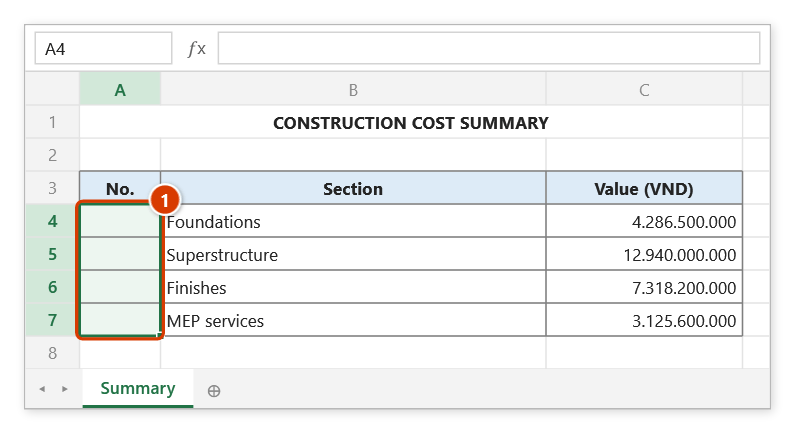
- Select the range to fill (a column, a row, or a block of cells).
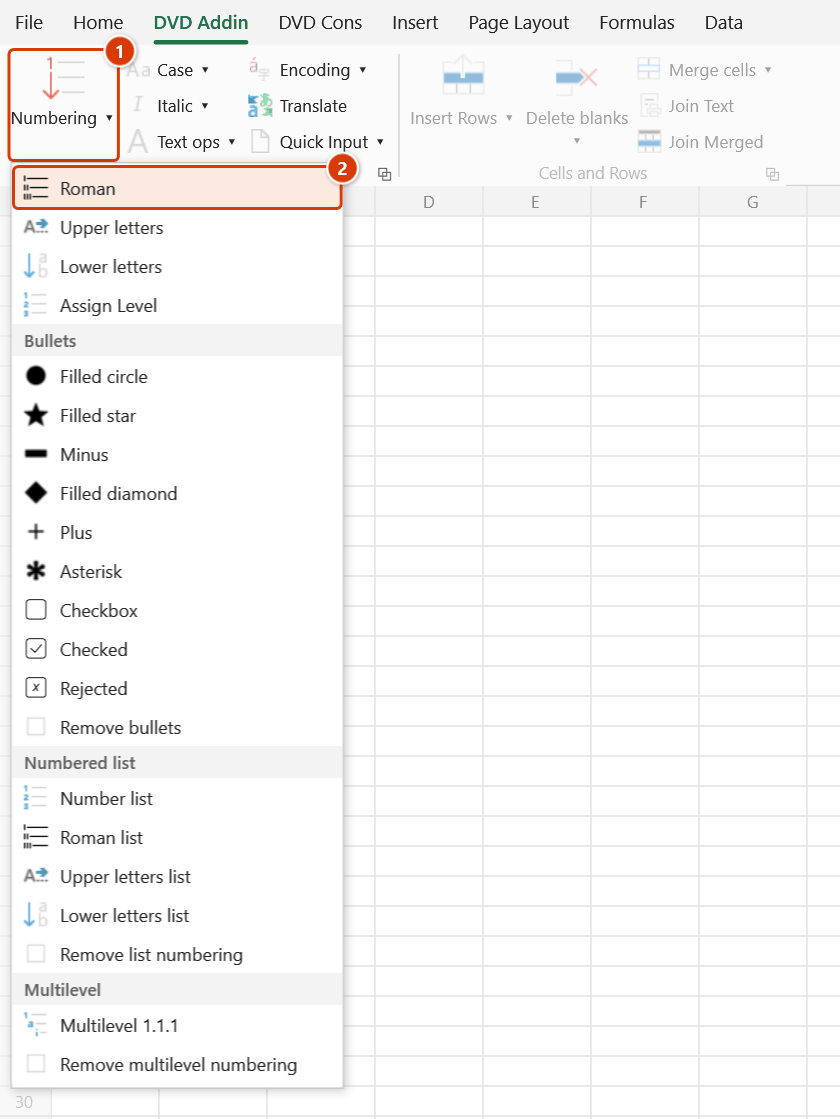
- Go to the DVD Addin tab → Text and Number group → arrow on Numbering → choose Roman.
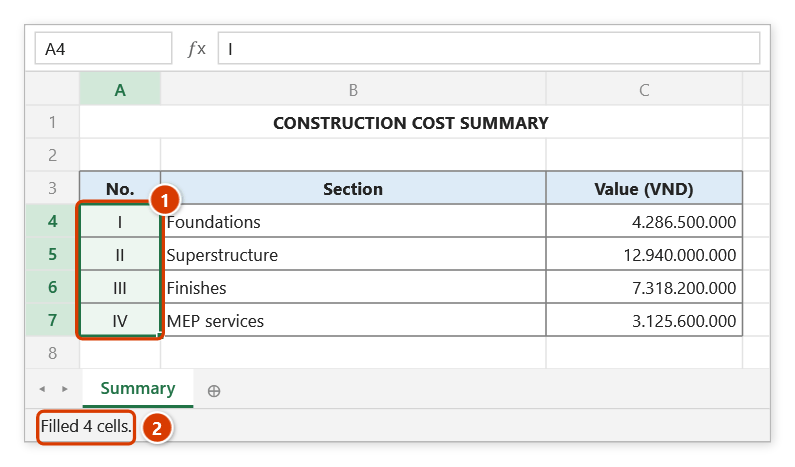
- The sequence I, II, III, … is written straight into the cells, left to right, then top to bottom.
- The Excel status bar (bottom left) briefly shows "Filled N cells."
Video tutorial
Narrated in Vietnamese, with Vietnamese subtitles. Số La Mã, Chữ HOA, Chữ thường · 4 min 41 s · 9 cases · Download the video · Practice workbook for the video
Commands in this video: Roman · Lower letters · Upper letters
Chapters (13)
- Giới thiệu
- Mở lệnh
- 1 · Số La Mã cho hạng mục lớn
- 2 · Chữ HOA và ô gộp
- 3 · Chữ thường cho mục chi tiết
- 4 · Nhiều vùng rời (Ctrl)
- 5 · Dòng đang ẩn
- 6 · Mỗi nhóm một dãy mới
- 7 · Nhiều cột, quá chữ Z
- 8 · Ghi đè và hoàn tác
- 9 · Khi lệnh không điền
- Mẹo
- Kết thúc
Illustrated walkthrough
Practice
Download this command's sample workbook — the data matches the pictures below (sheet Summary), so you can follow each step right away.
Step 1. Select the cells to fill with Roman numerals — here the No. column of the main sections (1).
Step 2. On the ribbon, open the DVD Addin tab → Text and Number group → open Numbering → choose Roman.
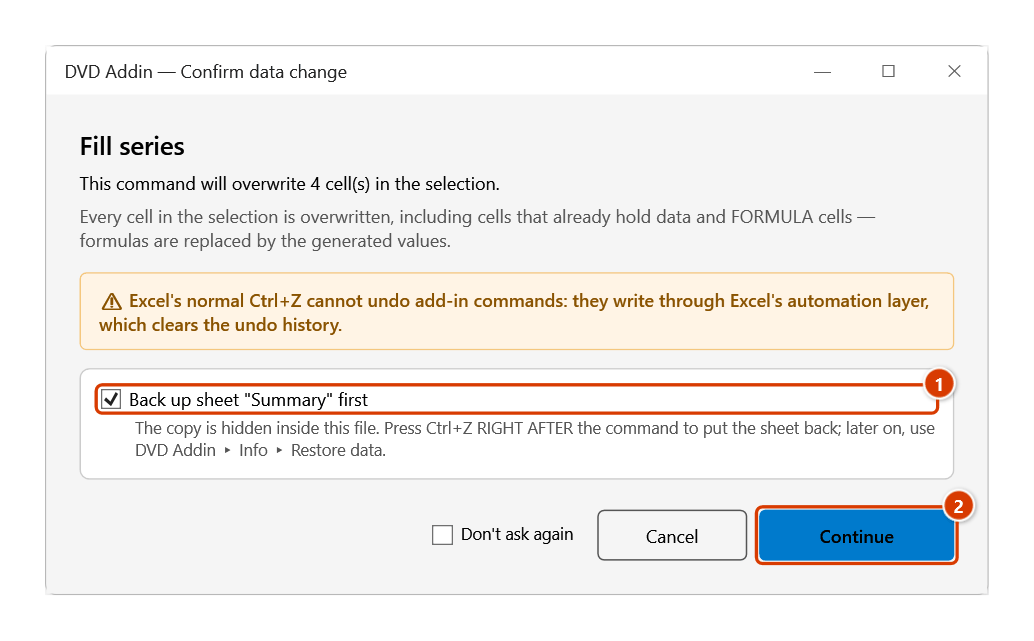
Step 3. The Confirm data change box warns that every selected cell is overwritten, formula cells included. Keep Back up sheet ticked (1) and click Continue (2).
Step 4. The series I, II, III, IV is written left→right, top→bottom (1). The status bar reports how many cells were filled (2).
Example
Numbering the major work packages in the No. column of a quantity summary sheet:
| Before (No. column) | After |
|---|---|
| (empty) | I |
| (empty) | II |
| (empty) | III |
| (empty) | IV |
The result labels section rows such as I — Foundations, II — Superstructure, III — Finishes, IV — MEP.
Notes
- The command overwrites whatever is in the cells, including formulas. Ctrl+Z right after the command puts the sheet back as it was (thanks to the backup); see Restore data.
- Cells in hidden rows or columns are skipped entirely (they are not filled and do not consume a number).
- A merged area counts as one cell — the value is written to its top-left cell.
- From ordinal 4000 onward, cells show plain digits (4000, 4001, …) because Roman numerals only go up to 3999.
- If the whole selection is hidden or consists of duplicate merge areas, the command reports "No usable cells" and does nothing.
Related
- Numbering — fill a 1, 2, 3… sequence with a custom start and step via a dialog.
- Upper letters — fill an uppercase A, B, C… sequence with the same mechanics.
- Lower letters — fill a lowercase a, b, c… sequence with the same mechanics.
- Roman list — prefix "I., II., …" to the existing content instead of overwriting the cell.