
Numbering
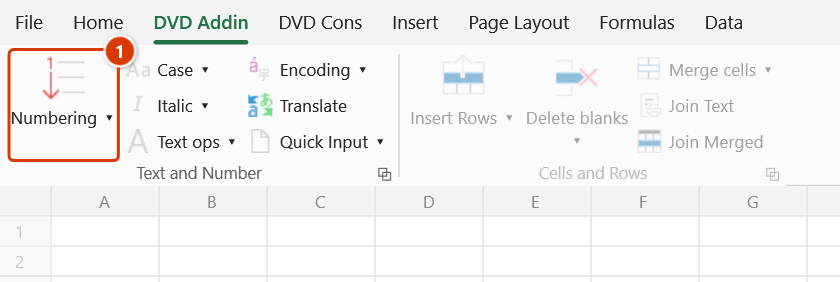
Location on ribbon: Tab DVD Addin → Group Text and Number
Command ID: btnNumbering
What it does
The command opens the Numbering tab of the Text & Number tool window: it fills the selected range with a series built from a start value and a step of your choosing. The start value can be numeric (1, 2, 3…), a code ending in digits (C1 → C1, C2, C3…; HM-01 → HM-01, HM-02…) or a text prefix (A → A1, A2, A3…).
Unlike dragging Excel's fill handle, this filler skips hidden rows and columns and counts a merged cell once, which is exactly what bills of quantities, document registers and rebar schedules need — their No. column runs through multi-row merged cells and past rows hidden by a filter.
How to use
- Select the range to number (usually the No. column).
- Click DVD Addin → Text and Number → Numbering. The Text & Number window opens on the Numbering tab.
- Enter the Start value — a number such as
1, a code ending in digits such asC1orHM-01, or a text prefix such asAorHM. - Enter the Step — default
1; decimals (0.5) and negative values are accepted. - Click Apply, then Continue in the Confirm data change box. The series is written into the selection left→right, top→bottom.
- The window is modeless, so you can select another range and click Apply again without reopening the command. Click Close when finished.
Video tutorial
Narrated in Vietnamese, with Vietnamese subtitles. Đánh số · 4 min 27 s · 12 cases · Download the video · Practice workbook for the video
Chapters (17)
- Giới thiệu
- Mở lệnh
- Cửa sổ Đánh số
- 1 · Ô gộp và dòng ẩn
- 2 · Danh sách đang lọc
- 3 · Bước nhảy tuỳ ý
- 4 · Bước thập phân
- 5 · Bước âm – đếm ngược
- 6 · Mã có số ở cuối
- 7 · Giữ số 0 đệm
- 8 · Tiền tố chữ
- 9 · Vùng nhiều cột
- 10 · Nhiều vùng rời
- 11 · Ghi đè và hoàn tác
- 12 · Khi nhập sai
- Mẹo
- Kết thúc
Illustrated walkthrough
Practice
Download this command's sample workbook — the data matches the pictures below (sheet Quantities), so you can follow each step right away.
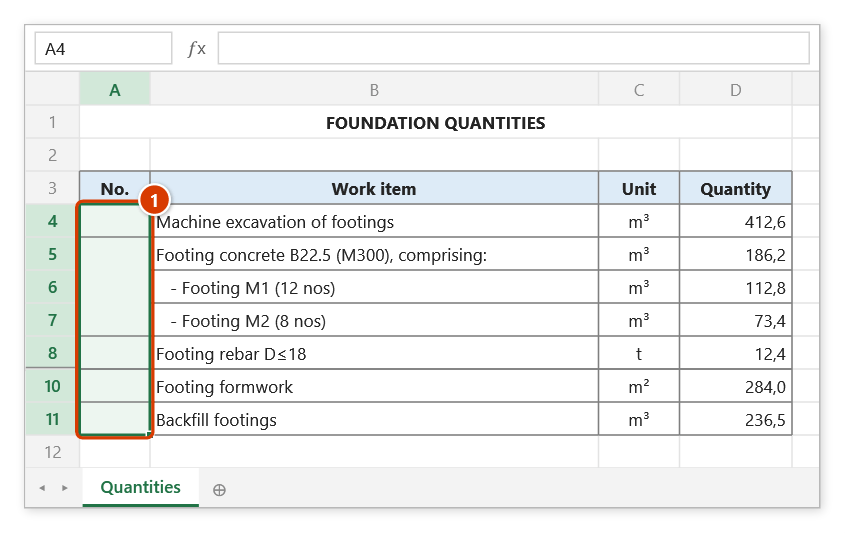
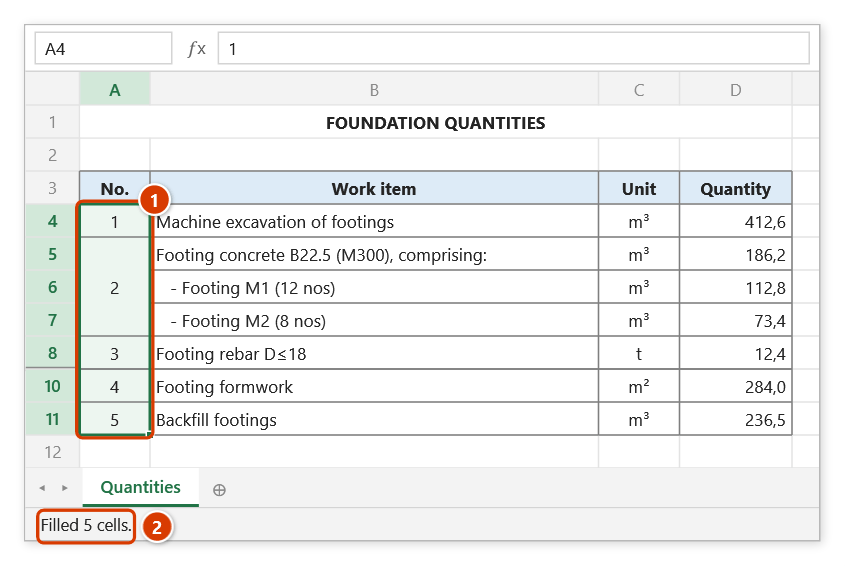
Step 1. Select the No. column to number (1). The merged cell A5:A7 counts as one cell; the hidden row (row 9, e.g. filtered out) is skipped.
Step 2. On the ribbon, open the DVD Addin tab → Text and Number group → click Numbering.
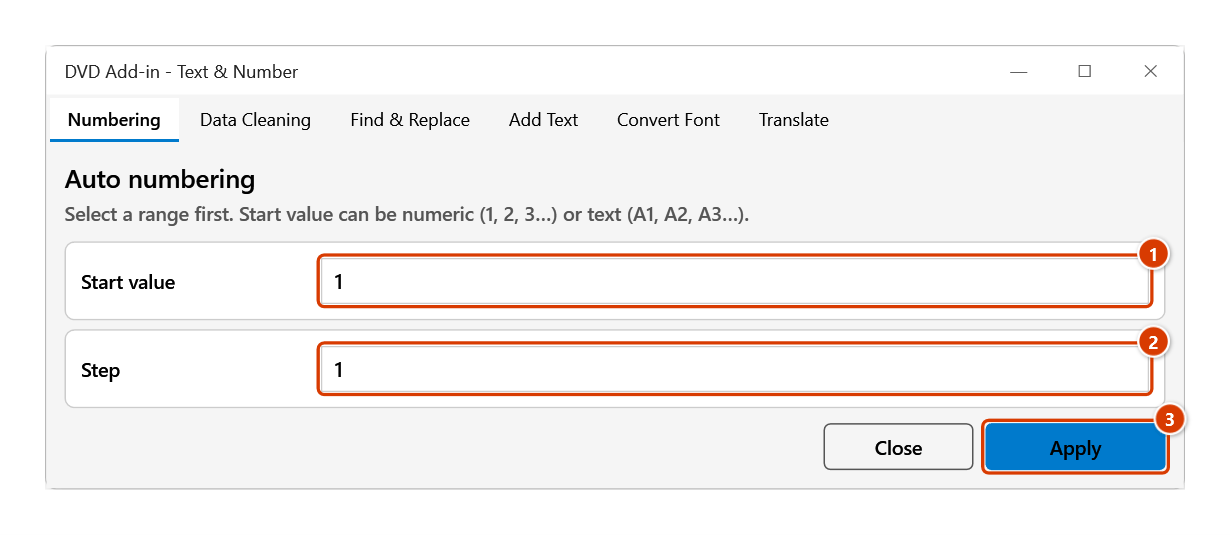
Step 3. The Text & Number window opens on the Numbering tab. Enter the Start value (1) — a number such as 1, a code ending in digits such as C1 or HM-01 (the digits count up, zero padding kept) or text such as HM (giving HM1, HM2…); enter the Step (2) (default 1, decimals and negatives allowed); click Apply (3).
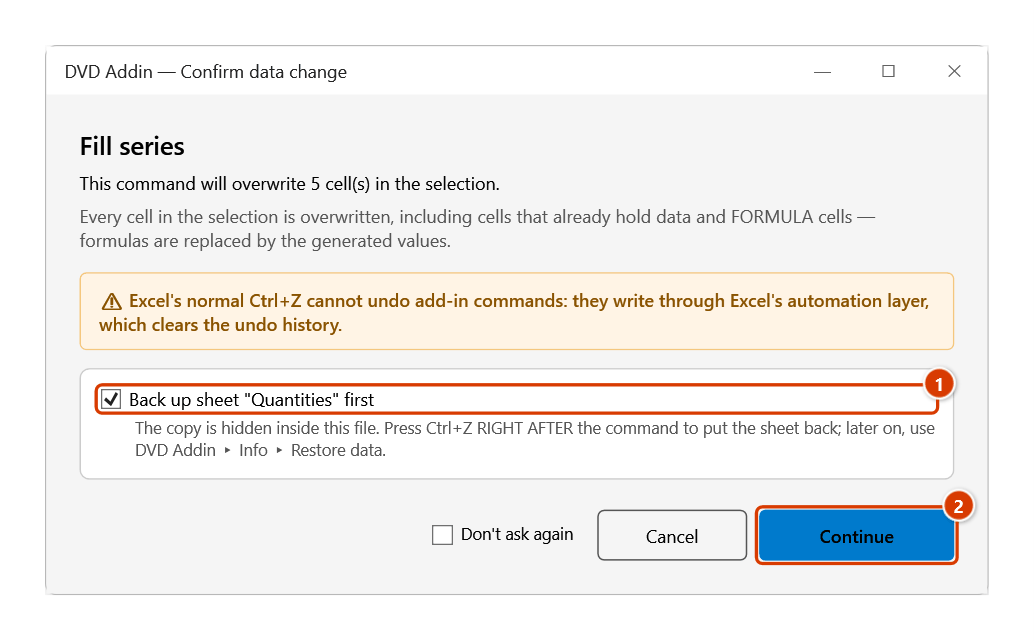
Step 4. The Confirm data change box warns that every selected cell is overwritten, formula cells included. Keep Back up sheet ticked (1) and click Continue (2).
Step 5. The series 1…5 is written to the No. column: the merged cell takes one number and the hidden row uses none (1). The status bar reports how many cells were filled (2). The window stays open — select another range and click Apply again, then Close when done.
Example
A foundation BoQ has a No. column where "Foundation concrete" spans 3 merged rows, "Rebar" spans 2, and two suspended items are hidden by a filter.
Select A6:A20, enter Start value = 1, Step = 1, and click Apply.
| Before | After |
|---|---|
| A6:A8 (merged) empty | 1 |
| A9:A10 (merged) empty | 2 |
| A11 empty | 3 |
| A12 (hidden row) empty | skipped, left empty |
| A13 empty | 4 |
With Start value = HM and Step = 1, the result is HM1, HM2, HM3…
With Start value = HM-01, the result is HM-01, HM-02, … HM-09, HM-10 — the trailing number is incremented and keeps its leading-zero padding. Likewise C1 gives C1, C2, C3… rather than C11, C12.
Notes
- You must select a range first; with no selection the add-in prompts "Please select a data range".
- Hidden rows and columns (including those hidden by AutoFilter) are skipped and each merged cell takes a single number — the key difference from the fill handle.
- The step must be numeric; text produces the error "Bước nhảy phải là số (vd: 1, 2, 0.5)" (currently shown in Vietnamese only). Use a dot as the decimal separator (
0.5). - A start value ending in digits (
C1,HM-01): that number is incremented by the step and its zero padding is kept, soC1with step 2 yieldsC1, C3, C5…. - A start value with no trailing digits (
A,HM): the number appended is prefix + (index × step), soAwith step 2 yieldsA2, A4, A6…. - Decimal steps are printed as proper decimals using your system's decimal separator, e.g.
Awith step0.5givesA0.5,A1,A1.5… on a machine that uses a decimal point. - The command overwrites existing cell content. Ctrl+Z right after the command puts the sheet back as it was (thanks to the backup); see Restore data.
Related
- Number list — fill a plain 1, 2, 3 series with no parameters to set.
- Upper letters — fill the same selection with A, B, C instead.
- Multilevel 1.1.1 — hierarchical numbering that follows item levels.
- Sheet Numbering — prefix sheet names with sequence numbers.