
Multilevel 1.1.1
Location on ribbon: Tab DVD Addin → Group Text and Number → arrow on Numbering → section Multilevel
Command ID: btnMultilevelNumbering
What it does
Writes hierarchical numbers 1., 1.1., 1.1.1. … into the selected cells, where each row's level comes from the cell's indent level, not from dots you typed yourself. The command ranks the distinct indent levels present in the selection: the smallest indent is level 1, the next one level 2, then level 3, and so on. So a table indented 0 / 2 / 4 steps still gets levels 1 / 2 / 3, with no gaps.
It is the fastest way to renumber the whole item-code column of a multi-tier bill of quantities or cost estimate. Build the tree with Excel's Increase Indent button, then click once and every code is regenerated in the right order.
How to use
- Set the indent level of each cell with Increase/Decrease Indent on Excel's Home tab.
- Select the whole item column (run Remove multilevel numbering from the same menu first if the table already carries old numbers).
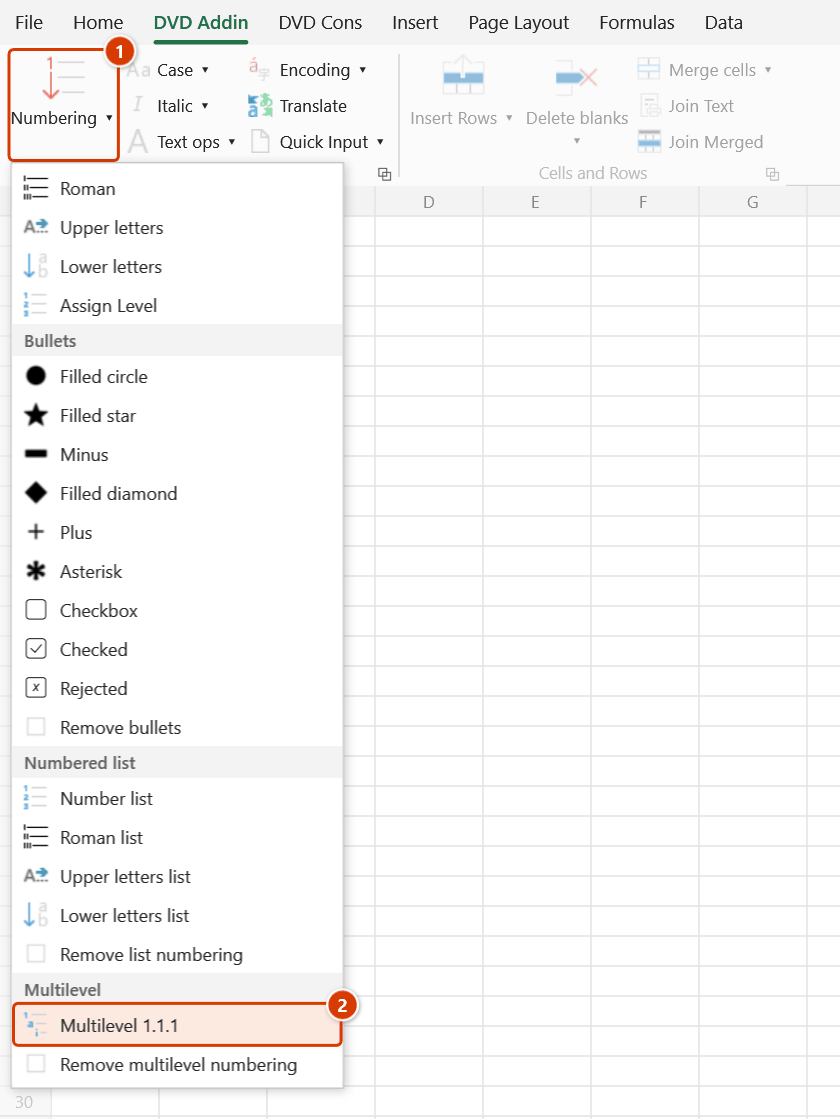
- Go to tab DVD Addin → group Text and Number → arrow on Numbering → Multilevel section → click Multilevel 1.1.1.
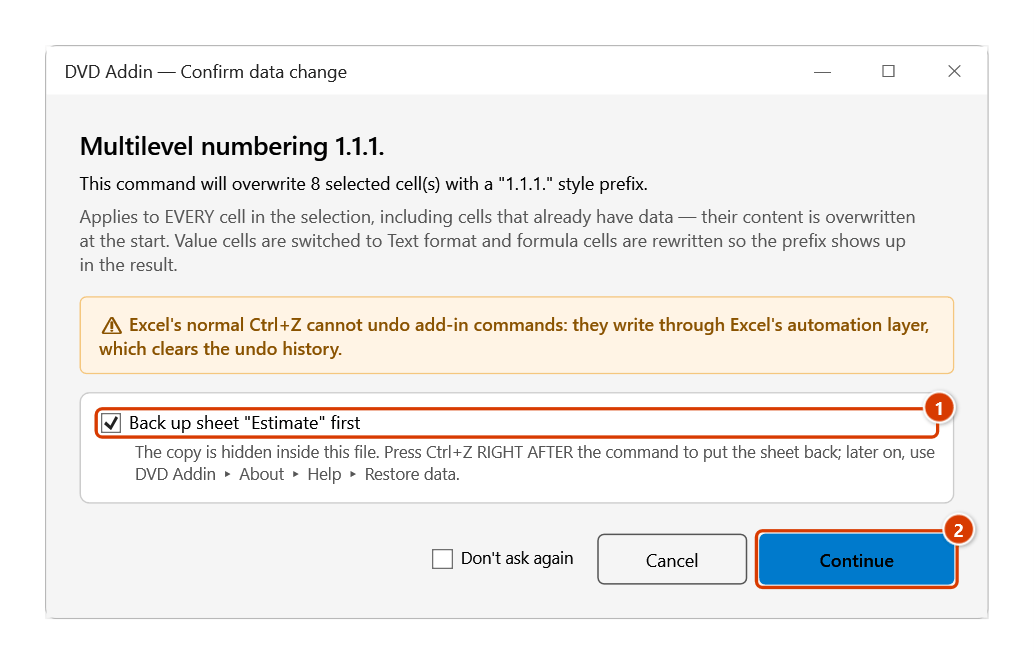
- The Confirm data change box tells you how many cells will be overwritten; keep Back up sheet ticked and click Continue.
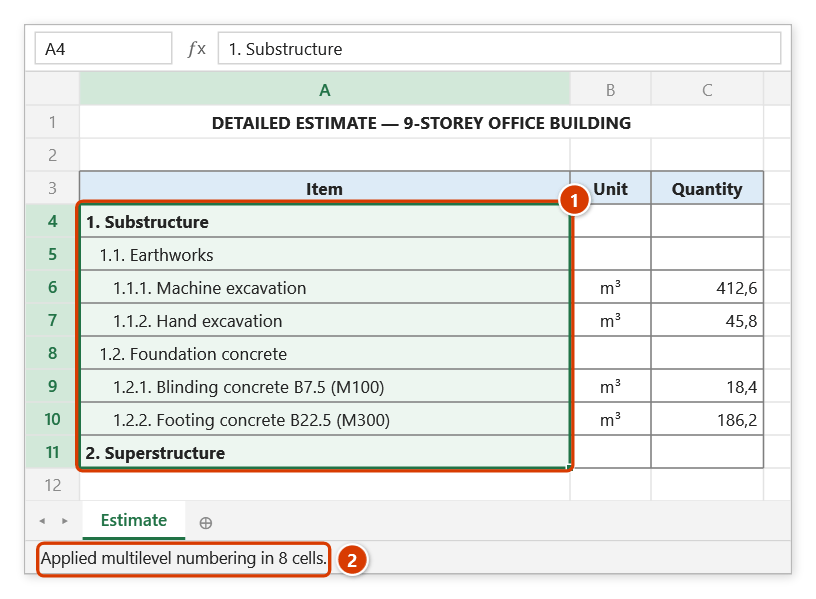
- The Excel status bar reports something like "Applied multilevel numbering in N cells".
How each cell is handled:
- Text cell: the prefix is written in front of the content, e.g.
1.2. Concrete works. - Empty cell: only the prefix is written, ready for you to type.
- Formula cell: wrapped as
=""&"1.2. "&(original formula), keeping the formula live. - Numeric, date and TRUE/FALSE cells are skipped.
Video tutorial
Narrated in Vietnamese, with Vietnamese subtitles. Đánh số đa cấp · 5 min 24 s · 12 cases · Download the video · Practice workbook for the video
Commands in this video: Multilevel 1.1.1 · Remove multilevel numbering
Chapters (16)
- Giới thiệu
- Mở lệnh
- 1 · Cây hạng mục theo thụt lề
- 2 · Thụt bằng dấu cách
- 3 · Cấp tính theo vùng chọn
- 4 · Thiếu cấp ở giữa
- 5 · Dòng trống xen giữa
- 6 · Dòng đang ẩn
- 7 · Ô công thức
- 8 · Chạy lại lần hai
- 9 · Gỡ số rồi đánh lại
- 10 · Số gõ tay
- 11 · Ghi đè và hoàn tác
- 12 · Khi không có gì để đánh
- Mẹo
- Kết thúc
Illustrated walkthrough
Practice
Download this command's sample workbook — the data matches the pictures below (sheet Estimate), so you can follow each step right away.
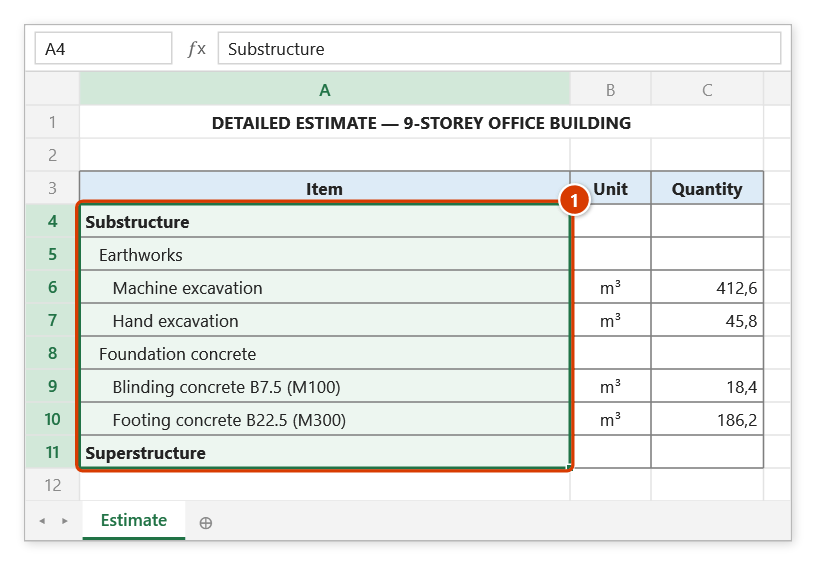
Step 1. Build the outline with Increase Indent on the Home tab: the smallest indent is level 1, the next one level 2… Then select the whole item column, starting from the top level (1).
Step 2. On the ribbon, open the DVD Addin tab → Text and Number group → open Numbering → choose Multilevel 1.1.1.
Step 3. The Confirm data change box tells you how many cells will be overwritten. Keep Back up sheet ticked (1) so that Ctrl+Z right after the command restores the sheet, then click Continue (2).
Step 4. Each cell is numbered by its indent level: 1., 1.1., 1.1.1.… (1); the indents stay. The status bar reports how many cells were numbered (2). The command does not remove old numbers — run Remove multilevel numbering first when renumbering.
Example
The item column of a cost estimate, with indent levels of 0 / 1 / 2 already set:
| Before (indent) | After |
|---|---|
| Substructure (0) | 1. Substructure |
| Earthworks (1) | 1.1. Earthworks |
| Machine excavation (2) | 1.1.1. Machine excavation |
| Hand excavation (2) | 1.1.2. Hand excavation |
| Superstructure (0) | 2. Superstructure |
Notes
- The command does not clear existing multilevel numbers — running it twice stacks prefixes, so use Remove multilevel numbering first.
- A maximum of 10 levels is supported; if the selection holds more than 10 distinct indent levels, the deeper ones are clamped to level 10.
- The level comes from the cell's Indent property, not from spaces typed at the start of the text.
- Levels are worked out from the indents within the current selection, not from the absolute number of steps: if you select only rows indented 2 and 4 steps, the 2-step rows become level 1. To number the whole tree correctly, include the top level in the selection.
- Hidden rows and columns are skipped and do not consume a number; a merged area counts once, via its top-left cell.
- Per-level counters only advance after a successful write, so a locked cell does not shift the numbering of later rows.
Related
- Remove multilevel numbering — clears multilevel numbers before renumbering.
- Number list — flat 1., 2., 3. numbering for non-hierarchical tables.
- Roman list — I., II., III. codes for the top level.
- Auto group — builds Excel outline groups from the same indent structure.