
Remove multilevel numbering
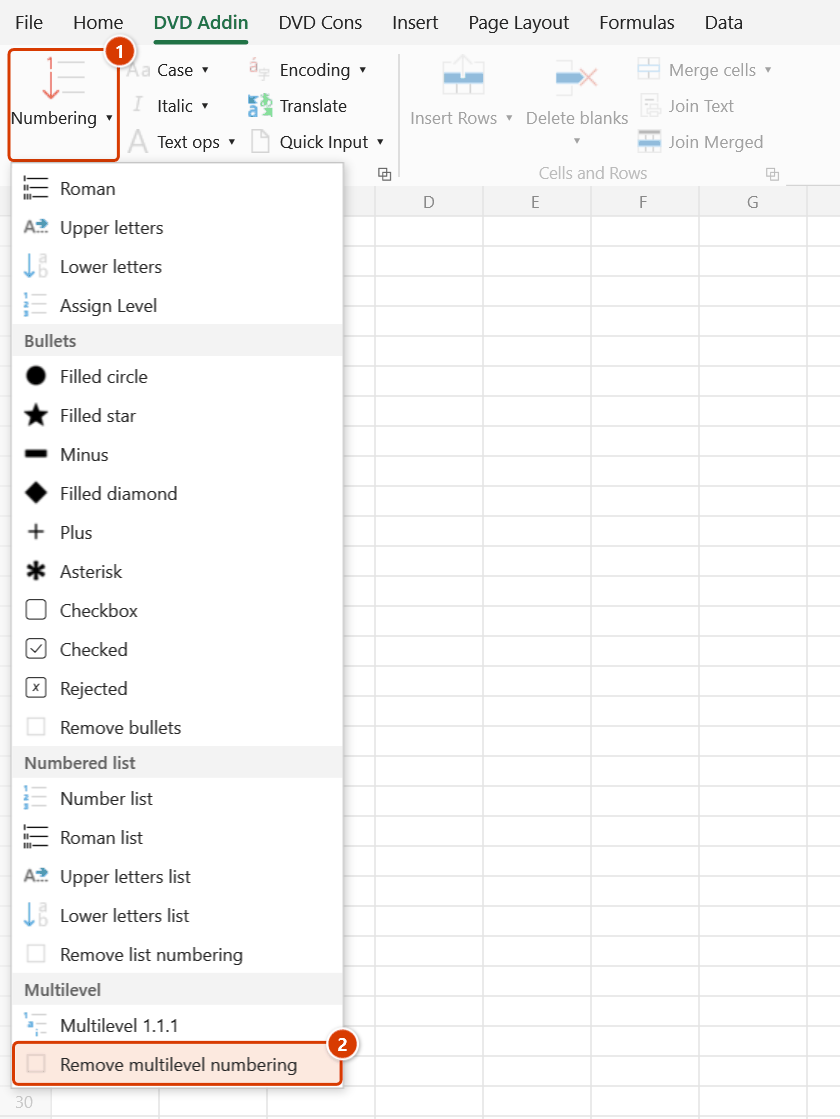
Location on ribbon: Tab DVD Addin → Group Text and Number → arrow on Numbering → section Multilevel
Command ID: btnNone_3
What it does
Strips the multilevel numbering prefix (1., 1.1., 1.1.1. …) previously applied to the selected cells and returns the content to its original text. Only the leading number group is cut; the wording after it is untouched.
Use it whenever the structure of the table changes — a new item is inserted, an indent level is adjusted, two sections are merged — and you want to renumber from scratch. It is also worth running before clicking Multilevel 1.1.1 a second time, because the multilevel command does not clear old prefixes by itself.
How to use
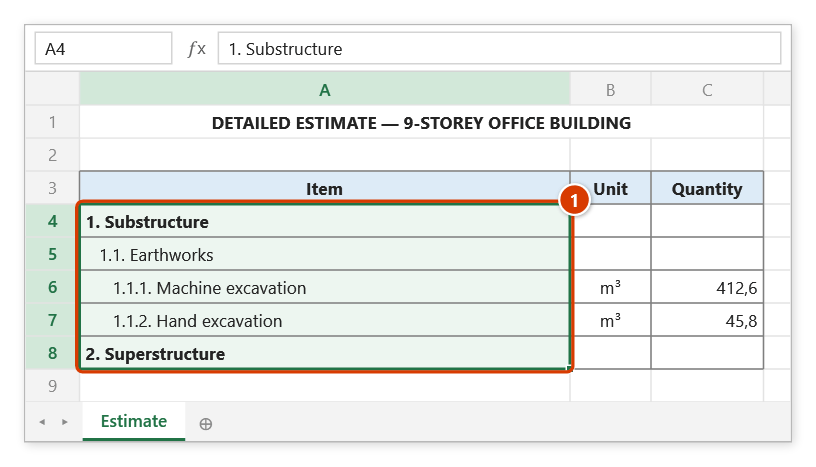
- Select the cells that currently carry multilevel numbers.
- Go to tab DVD Addin → group Text and Number → arrow on Numbering → Multilevel section → click Remove multilevel numbering.
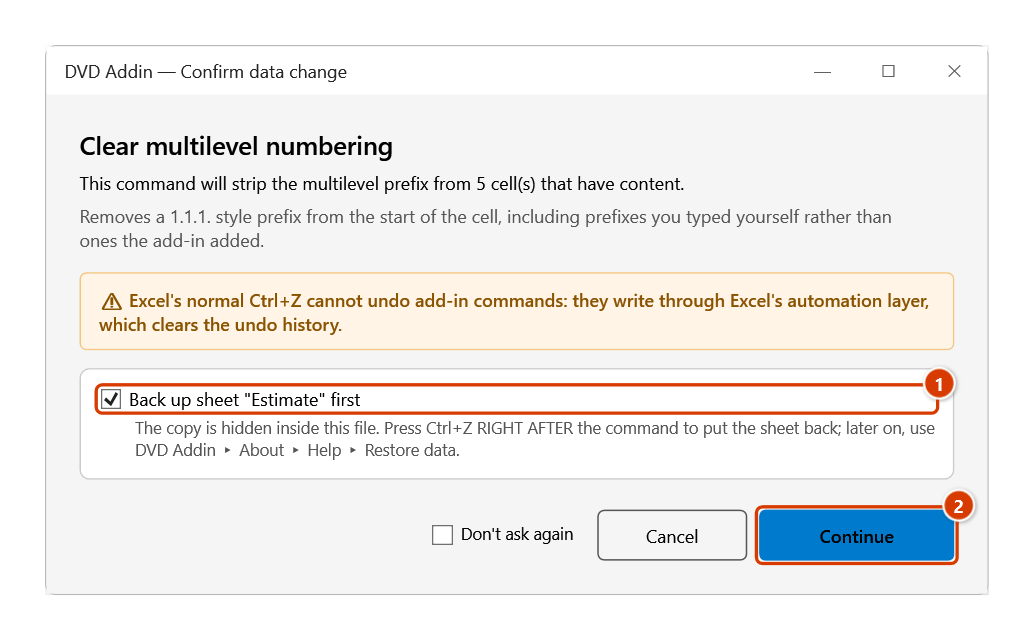
- The Confirm data change box tells you how many cells with content will be stripped; keep Back up sheet ticked and click Continue.
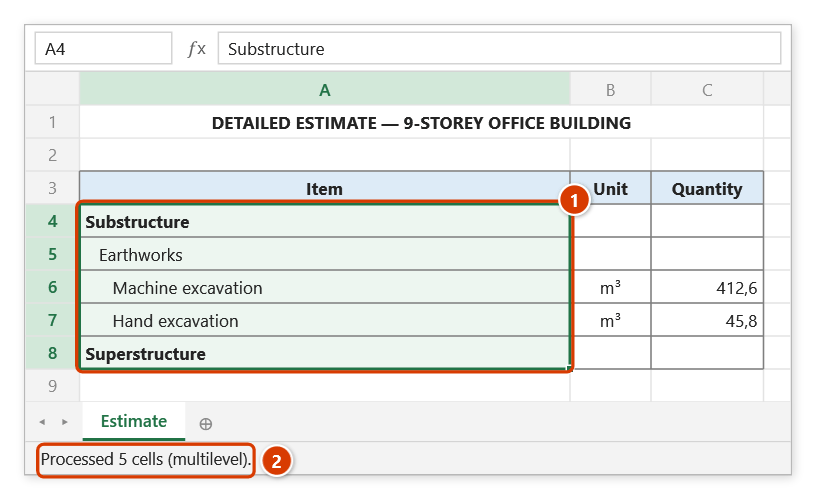
- The Excel status bar reports something like "Processed N cells (multilevel)".
How each cell is handled:
- Text cell: the leading pattern "one or more number groups ending with a dot, plus a space" is removed, e.g.
1.2.3.. - Formula cell: only the wrapper DVDAddin itself created (
=""&"1.1. "&(…)) is unwrapped, restoring the original formula. - Empty, numeric, date and TRUE/FALSE cells are left alone.
Video tutorial
Narrated in Vietnamese, with Vietnamese subtitles. Đánh số đa cấp · 5 min 24 s · 12 cases · Download the video · Practice workbook for the video
Commands in this video: Multilevel 1.1.1 · Remove multilevel numbering
Chapters (16)
- Giới thiệu
- Mở lệnh
- 1 · Cây hạng mục theo thụt lề
- 2 · Thụt bằng dấu cách
- 3 · Cấp tính theo vùng chọn
- 4 · Thiếu cấp ở giữa
- 5 · Dòng trống xen giữa
- 6 · Dòng đang ẩn
- 7 · Ô công thức
- 8 · Chạy lại lần hai
- 9 · Gỡ số rồi đánh lại
- 10 · Số gõ tay
- 11 · Ghi đè và hoàn tác
- 12 · Khi không có gì để đánh
- Mẹo
- Kết thúc
Illustrated walkthrough
Practice
Download this command's sample workbook — the data matches the pictures below (sheet Estimate), so you can follow each step right away.
Step 1. Select the cells carrying multilevel numbers — usually before renumbering after items were inserted (1).
Step 2. On the ribbon, open the DVD Addin tab → Text and Number group → open Numbering → choose Remove multilevel numbering.
Step 3. The Confirm data change box tells you how many non-empty cells will be stripped. Keep Back up sheet ticked (1) and click Continue (2).
Step 4. The leading 1., 1.1., 1.1.1. numbers are cut; the text after them and the indents stay (1). The status bar reports how many cells were processed (2).
Example
A bill of quantities that has to be renumbered after a new section was inserted:
| Before | After |
|---|---|
| 1. Substructure | Substructure |
| 1.1. Earthworks | Earthworks |
| 1.1.1. Machine excavation | Machine excavation |
| 2. Superstructure | Superstructure |
Notes
- The prefix is only cut from the start of the cell; lines inside a multi-line cell are not processed individually.
- A formula you wrote yourself, such as
="1.1. "&B2, is left untouched because it lacks the marker DVDAddin adds when wrapping. - The command does not change number formats — a cell forced to Text during numbering stays Text.
- Hidden rows and columns are skipped; a merged area counts once, via its top-left cell.
- Content is overwritten in place, so verify the result before saving; right after the command
Ctrl+Zputs the range back.
Related
- Multilevel 1.1.1 — the numbering this command removes.
- Number list — the single-level 1., 2., 3. numbering.
- Remove list numbering — removes single-level list prefixes in the Numbered list section.
- Remove bullets — removes bullet symbols.