
Roman list
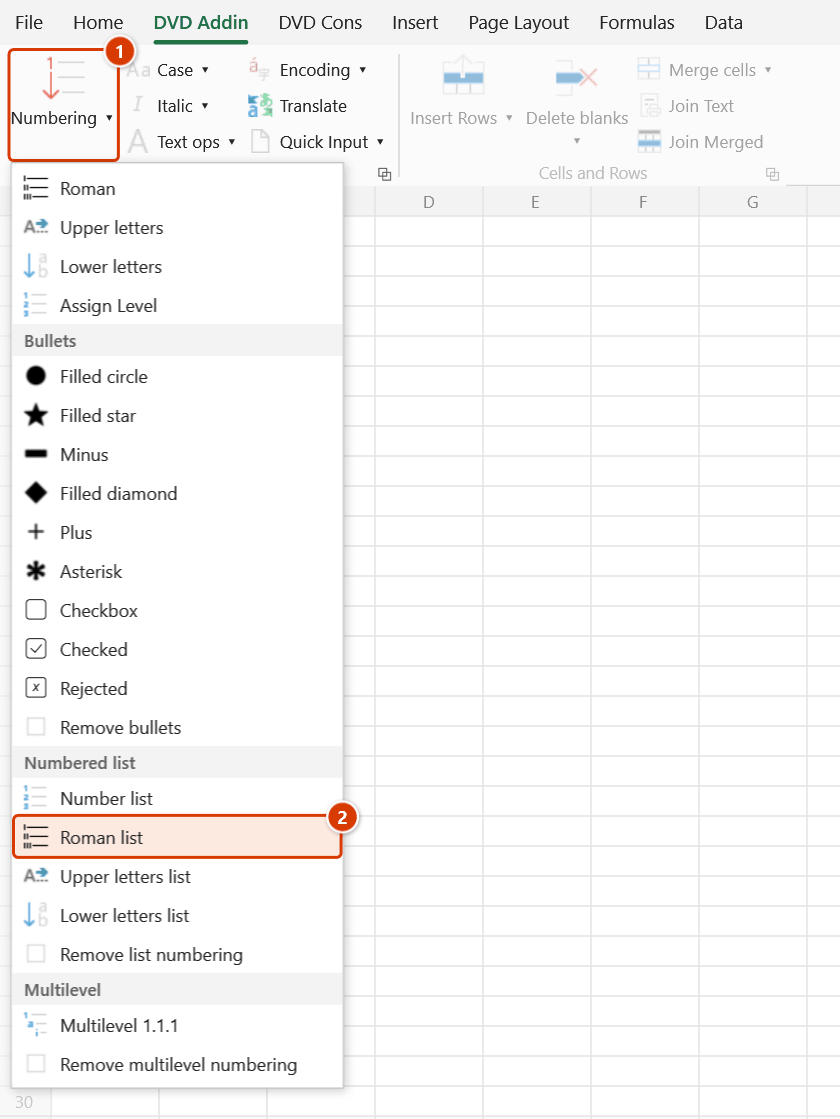
Location on ribbon: Tab DVD Addin → Group Text and Number → arrow on Numbering → section Numbered list
Command ID: btnRomanList
What it does
Prefixes the selected cells with Roman numerals (I., II., III., …). A single counter runs across the whole selection in row-major order, so a long column of headings is numbered continuously instead of restarting in each block.
In construction paperwork, Roman numerals are the usual marker for the top level: parts I, II, III of a bill of quantities, a cost estimate or an acceptance record. Before writing, the command strips any previous list prefix (1., I., A., a.), so you can click it repeatedly without stacking numbers.
How to use
- Select the cells you want numbered (one column or several).
- Go to tab DVD Addin → group Text and Number → arrow on Numbering → Numbered list section → click Roman list.
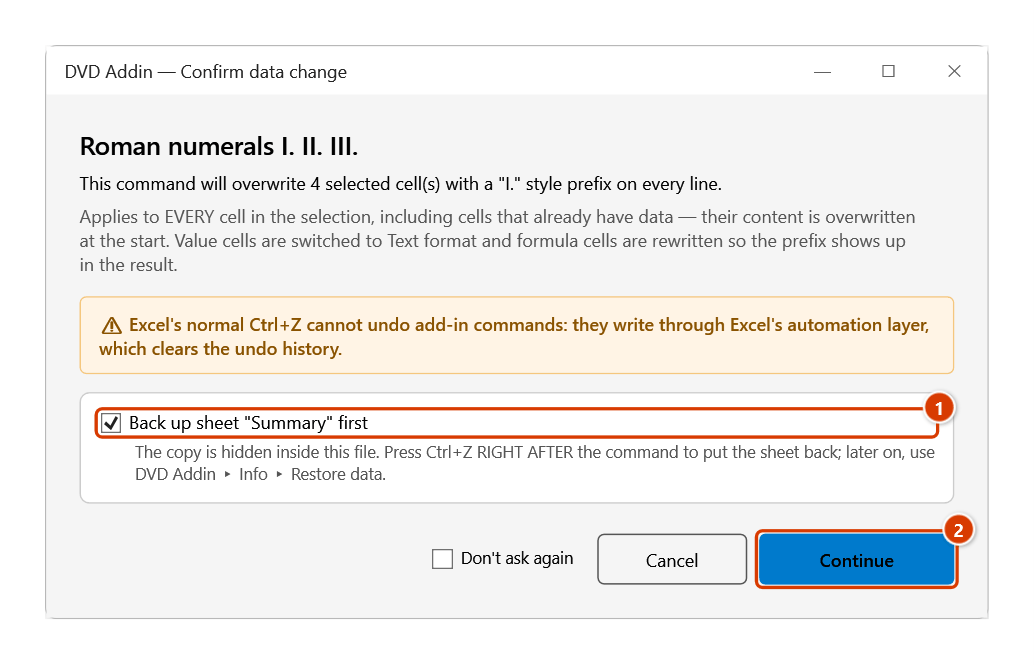
- The Confirm data change box tells you how many cells will be overwritten; keep Back up sheet ticked and click Continue.
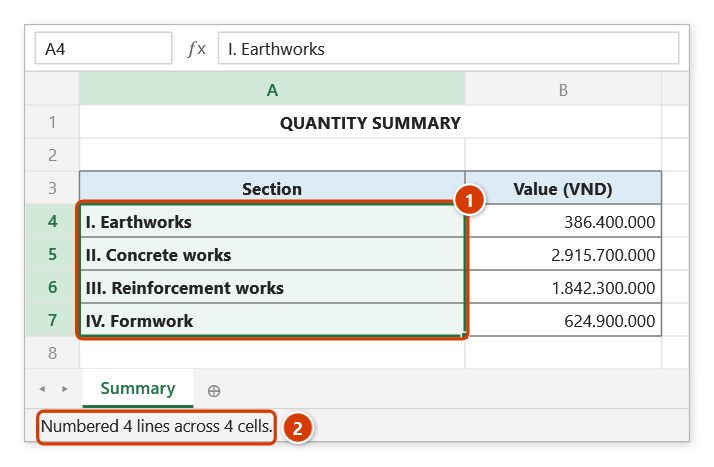
- Check the Excel status bar for a message such as "Numbered N lines across M cells".
How each cell is handled:
- Text cell: every line inside the cell (Alt+Enter breaks) gets its own number.
- Empty cell: only the prefix is written, e.g.
I., ready for you to type. - Formula cell: the formula is wrapped as
=""&"I. "&(original formula)— the number shows in the result while the formula stays live. - Numeric, date and TRUE/FALSE cells are skipped entirely.
Video tutorial
Narrated in Vietnamese, with Vietnamese subtitles. Danh sách số và chữ · 4 min 50 s · 10 cases · Download the video · Practice workbook for the video
Commands in this video: Number list · Lower letters list · Remove list numbering · Roman list · Upper letters list
Chapters (14)
- Giới thiệu
- Mở lệnh
- 1 · Ô nhiều dòng
- 2 · Đánh số lại
- 3 · Hai cấp: La Mã và số
- 4 · Ô trống – chữ thường
- 5 · Ô công thức
- 6 · Ô gộp và dòng ẩn
- 7 · Lỡ chọn cả bảng
- 8 · Bỏ đánh số danh sách
- 9 · Ghi đè và hoàn tác
- 10 · Khi không có gì để làm
- Mẹo
- Kết thúc
Illustrated walkthrough
Practice
Download this command's sample workbook — the data matches the pictures below (sheet Summary), so you can follow each step right away.
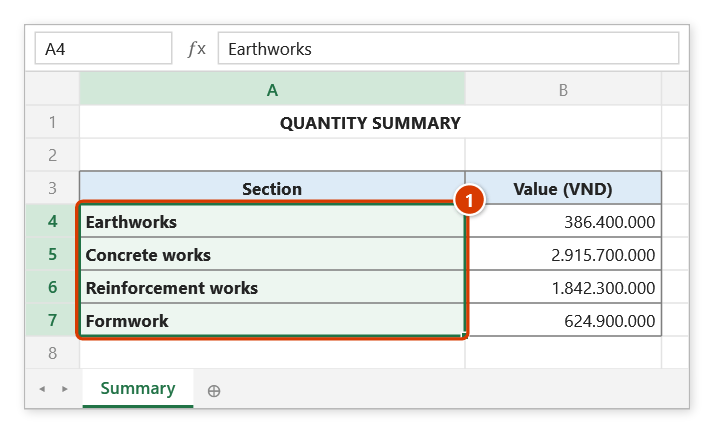
Step 1. Select the main section cells to number in Roman numerals (1).
Step 2. On the ribbon, open the DVD Addin tab → Text and Number group → open Numbering → choose Roman list.
Step 3. The Confirm data change box tells you how many cells will be overwritten. Keep Back up sheet ticked (1) so that Ctrl+Z right after the command restores the sheet, then click Continue (2).
Step 4. Each cell gets an I., II., III., IV. prefix (1); any old 1. / I. / A. / a. prefix is stripped first, so running it again never stacks numbers. The status bar reports the lines and cells numbered (2).
Example
The work-item column of a summary bill of quantities:
| Before | After |
|---|---|
| Earthworks | I. Earthworks |
| Concrete works | II. Concrete works |
| Reinforcement works | III. Reinforcement works |
| Formwork | IV. Formwork |
Notes
- Value cells are forced to Text format (
@) before writing so that "I." is not reinterpreted as a date. - Hidden rows and columns inside the selection are skipped; a merged area counts once and the number lands in its top-left cell.
- The counter only advances after a successful write, so a locked or failed cell never leaves a gap in the sequence.
- Numbers above 3999 fall back to plain digits instead of Roman characters.
- Results are written straight into the cells — use Remove list numbering in the same menu to remove them once you have done other work; right after the command
Ctrl+Zis enough.
Related
- Number list — same engine, writing 1., 2., 3. for lower-level items.
- Upper letters list — the A., B., C. level that usually sits under Roman parts.
- Multilevel 1.1.1 — hierarchical numbering driven by each cell's indent level.
- Roman — fills a standalone Roman-numeral sequence.