
Insert Columns
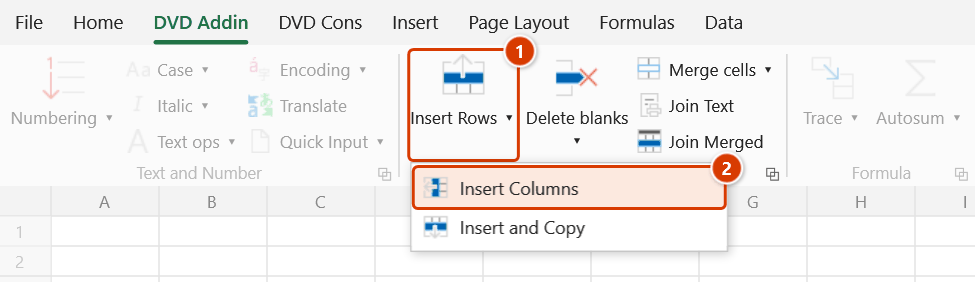
Location on ribbon: Tab DVD Addin → Group Cells and Rows → the ▾ arrow of Insert Rows
Command ID: btnInsertMultipleColumns
What it does
Inserts several blank columns at once to the left of the active cell's column, replacing Excel's repeated Insert–Insert–Insert. It is handy whenever a tracking table has to grow: six columns for six months of progress, four payment-instalment columns in a bill of quantities, or a "Quantity – Unit price – Amount – Remark" block dropped into the middle of an existing form.
How to use
- Click a cell in the column that the new columns should appear before (that column shifts to the right).
- Go to tab DVD Addin → group Cells and Rows → the ▾ arrow of Insert Rows → click Insert Columns.
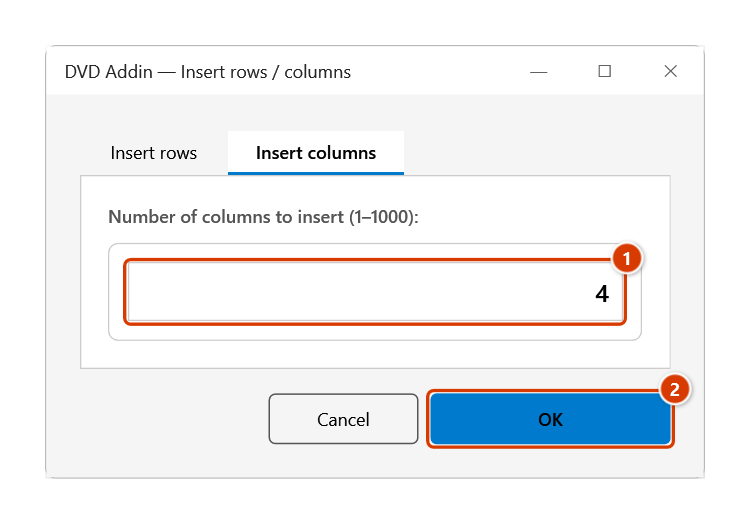
- A window opens with two tabs — Insert rows and Insert columns — already on the Insert columns tab. The input box accepts digits only.
- The default count comes from Preferences ▸ Cells and Rows ▸ "Default rows / columns to insert"; change it if needed (valid range 1 to 1000; an invalid entry shows a red error line under the box).
- Click OK (or press Enter). The command acts on whichever tab is showing, so switching to the Insert rows tab and pressing OK inserts rows instead.
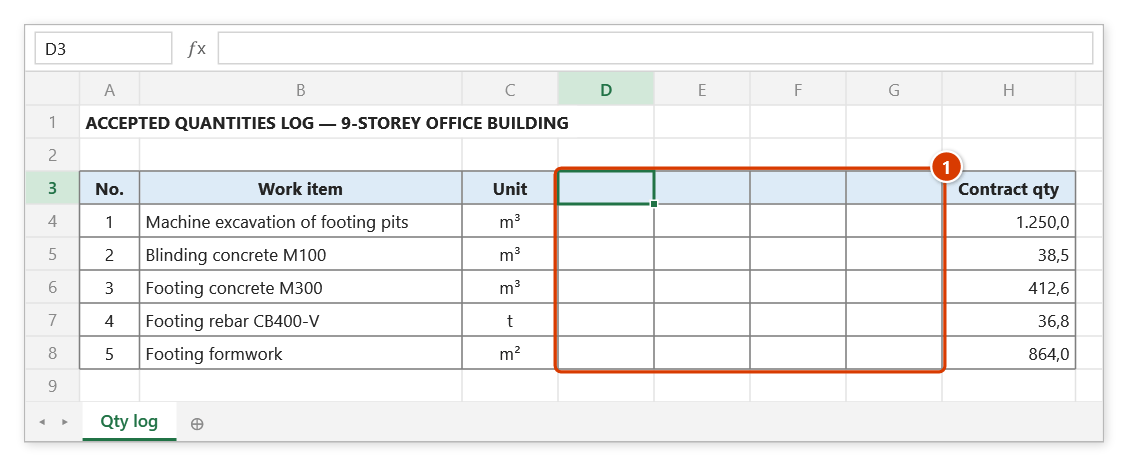
- The blank columns appear immediately left of the original position and the existing data shifts right.
Video tutorial
Narrated in Vietnamese, with Vietnamese subtitles. Chèn dòng, Chèn cột, Chèn và Sao chép · 6 min 12 s · 10 cases · Download the video · Practice workbook for the video
Commands in this video: Insert Rows · Insert and Copy · Insert Columns
Chapters (15)
- Giới thiệu
- Mở lệnh
- Cửa sổ Chèn dòng / cột
- 1 · Chèn nhiều dòng
- 2 · Chèn nhiều cột
- 3 · Chọn nhiều dòng, nhiều vùng
- 4 · Dòng tổng cộng
- 5 · Bảng có ô gộp
- 6 · Chèn và Sao chép
- 7 · Chọn lệch cột – hoàn tác
- 8 · Mẫu ở sheet riêng
- 9 · Danh sách đang lọc
- 10 · Khi lệnh không chạy
- Mẹo
- Kết thúc
Illustrated walkthrough
Practice
Download this command's sample workbook — the data matches the pictures below (sheet Qty log), so you can follow each step right away.
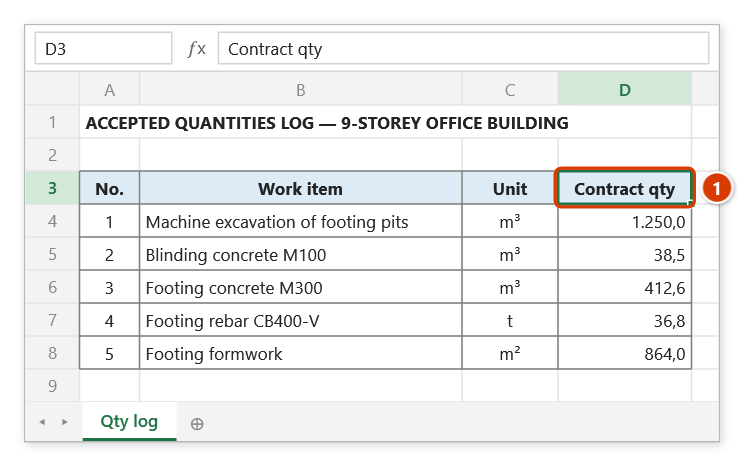
Step 1. Click a cell in the column that the new columns should go before. For example, to add 4 columns for 4 payment rounds before Contract qty, select cell D3 (1).
Step 2. On the ribbon, open the DVD Addin tab → Cells and Rows group → open Insert Rows → choose Insert Columns.
Step 3. The window opens on the Insert columns tab. Type how many columns to insert (1–1000) (1) and click OK (2). The button follows the active tab — switch to Insert rows and it inserts rows instead.
Step 4. Four blank columns D–G are inserted (1) and Contract qty moves to column H; the new columns take the formatting of the column on their left. Type the Round 1…Round 4 headings into them.
Example
An acceptance-quantity tracking sheet has columns A No., B Work description, C Unit, D Contract quantity. The client asks for four payment instalments to be tracked, inserted before column D.
Click cell D1 → Insert Columns → type 4 → OK. The table becomes A No., B Work description, C Unit, D–G blank (add the Instalment 1…4 headers), H Contract quantity. Formulas that referenced the old columns are re-pointed by Excel automatically.
Notes
- New columns always go left of the active cell — to extend the right edge of a table, select the first empty column past the last one.
- The valid count is 1–1000; a stored default outside that range falls back to 1.
- OK acts on the visible tab, which is easy to miss if you switched tabs before clicking.
- Inserting columns shifts print areas, named ranges and any Quick Input source rules that were stored as addresses — check them afterwards.
- The add-in inserts the columns itself, so Ctrl+Z does not undo it (Excel clears its undo history when an add-in writes to the sheet) — if you inserted too many, select the extra columns and delete them by hand. Formulas whose references were rewritten deserve a quick review.
Related
- Insert Rows — the other tab of the same window, for inserting multiple rows.
- Insert and Copy — insert rows and copy a template block into them in one pass.
- Delete blanks — tidy the table up after restructuring it.
- Preferences — where the default insert count is set.